Does your Windows stuck in the Audit Mode loop? There is a special Audit Mode placed in every edition of Windows installations. But, if you get into the Audit Mode, it is tough to get out of that particular mode. You can’t even find any such switch or dedicated settings on your computer to use it to get out of the Audit Mode. But, there is a definite neat trick that you can apply to opt out of the Audit Mode permanently.
Why the Windows is stuck into the Audit Mode?
Audit Mode is often used at the enterprise end to toggle the end users experience of organization users. You can make changes in the Windows installation process, bypassing the OOBE (Out-of-the-Box experience) program. It is an excellent way of skipping the account creation, region selection or any other intermediatory steps in the process.
The main problem with the Audit Mode is that it limits several functionalities of the Windows OS. You can’t install any updates or use administrative powers to execute scripts or run programs with elevated privileges. There will be problems installing device drivers as well.
Fix – Change the Audit Mode value
There is no switch that you can disable to turn off the Audit Mode on Windows. But, there is a registry trick that you can apply to exit the Audit Mode.
NOTE – The method mentioned here involves modifying a value in the system registry. It is a very delicate part of the OS. Create a registry backup before you proceed.
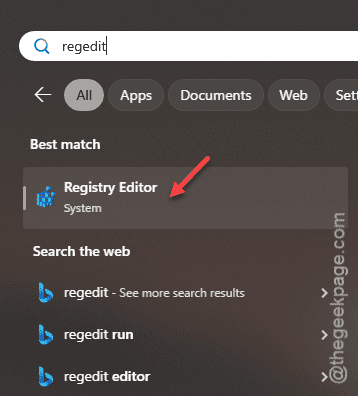
Step 1 – Press the Windows button once and write “regedit” in the search box.
Step 2 – Next, tap to open up the “Registry Editor“.
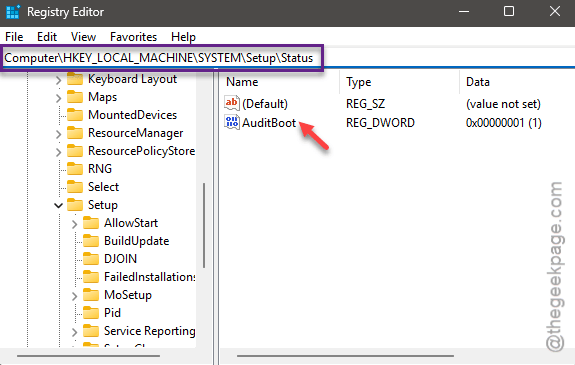
Step 3 – Go to this position –
Computer\HKEY_LOCAL_MACHINE\SYSTEM\Setup\Status
Step 4 – If you are indeed in the Audit boot mode, you will find the “AuditBoot” registry dword value there.
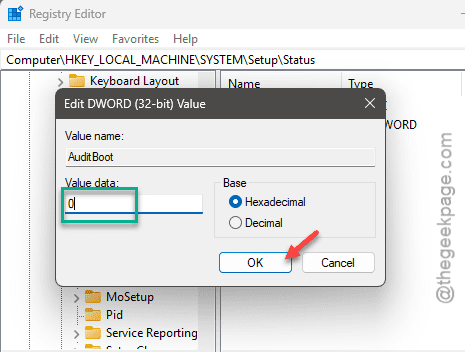
Step 5 – Double-tap to edit that value.
Step 6 – You must set this value to “0” condition.
Step 7 – Tap the “OK” to change the value.
After changing the subsequent value, close the Registry Editor page.
Later, close every other window and restart your computer.
As soon as the device restartes, you will be back in the Windows Out of the Box experience page. You have to start from the ‘Region selection’ page of the Windows Setup page. Continue through the setup process, like selecting keyboard, language, Microsoft account signing in process and ultimately complete the Windows 11/10 setup process.
Once you are through with this, and the desktop or lock screen finally loads up, that means that you have succesfully exited the Windows Audit Mode.
Hope this works!