You’re in a game. Fullscreen. And the taskbar pops up. Covers the bottom of your screen. You click it away. Two minutes later? Back again. One of the most frustrating Windows 11 bugs for gamers. Usually Explorer glitching or background apps stealing focus.
Why This Happens
Here’s the deal. Windows 11’s taskbar should stay hidden during fullscreen apps. But what happens when a background app sends a notification or requests focus? The taskbar pops up. Copilot, Edge, and Teams are the biggest offenders. There’s also an edge swipe gesture that triggers it. Even mouse movement near the bottom of the screen can do it. And if your game runs in a borderless window instead of true full screen? The taskbar isn’t even supposed to hide. There are multiple possible causes behind this issue.
Fix 1 – Switch to True Fullscreen
If your game is set to “Borderless Windowed” or “Windowed” — the taskbar is supposed to show. That’s by design.
1 – Open your game’s Settings or Graphics menu.
2 – Find Display Mode or Window Mode.
3 – Change it to Fullscreen. Not Borderless. Not Windowed. Actual Fullscreen.
True fullscreen gives the game exclusive display control. The taskbar physically cannot show. Some games have slight input lag in full screen, though. If that bugs you, try the other fixes instead.
Fix 2 – Disable Edge Swipe via Registry
Windows has a gesture where swiping from the screen edge opens the taskbar. Mouse movement near the bottom triggers it too.
1 – Press Win + R.
2 – Type regedit
3 – Press Enter.
4 – Go to:
HKEY_LOCAL_MACHINE\SOFTWARE\Policies\Microsoft\Windows
5 – Right-click Windows.
6 – Select New.
7 – Select Key.
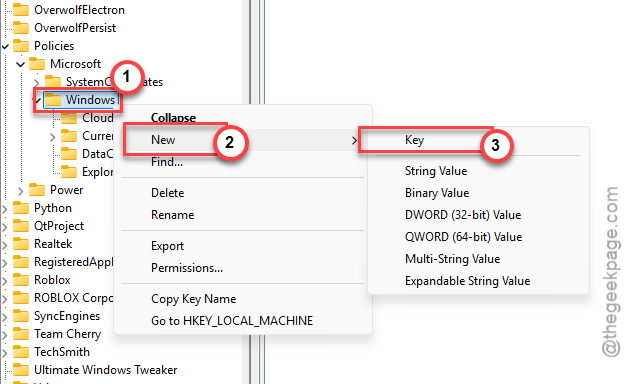
8 – Name it EdgeUI
9 – Click the new EdgeUI key.
10 – Right-click empty space in the right pane.
11 – Select New.
12 – Select DWORD (32-bit) Value.
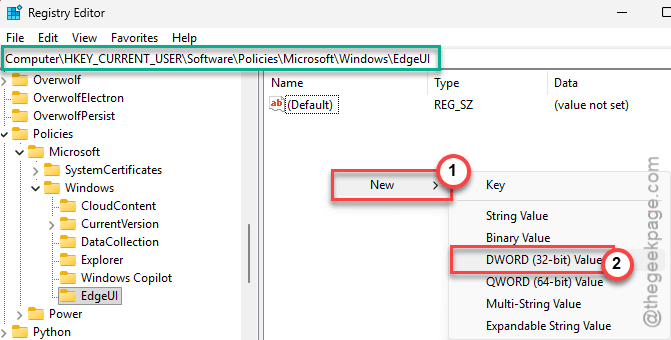
13 – Name it AllowEdgeSwipe
14 – Don’t change the value. It is set by default to 0.
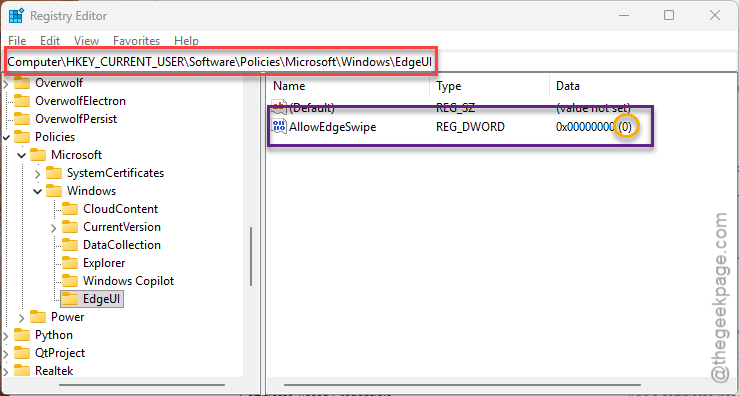
15 – Restart your PC.
Kills the edge swipe gesture. Stops accidental triggers from mouse movement at the bottom of the screen.
Fix 3 – Disable Copilot
Copilot steals focus. Even during fullscreen games. For some reason.
1 – Press Win + R.
2 – Type:
regedit
3 – Press Enter.
4 – Go to:
HKEY_CURRENT_USER\Software\Policies\Microsoft\Windows
5 – Right-click Windows.
6 – Create a new Key named Windows Copilot
7 – Inside that key, create a new DWORD (32-bit) Value named TurnOffWindowsCopilot
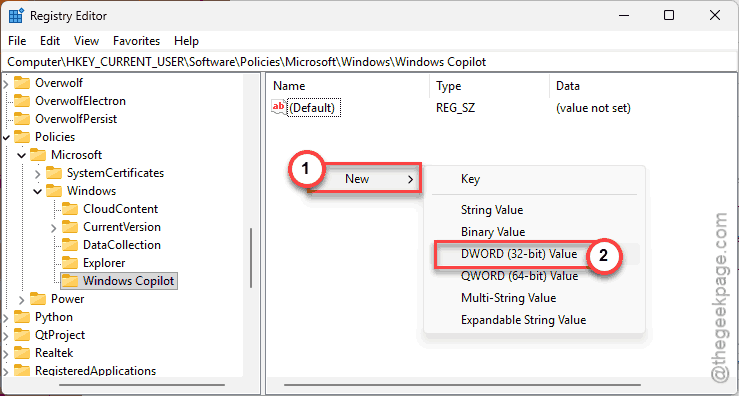
8 – Set the value to 1.
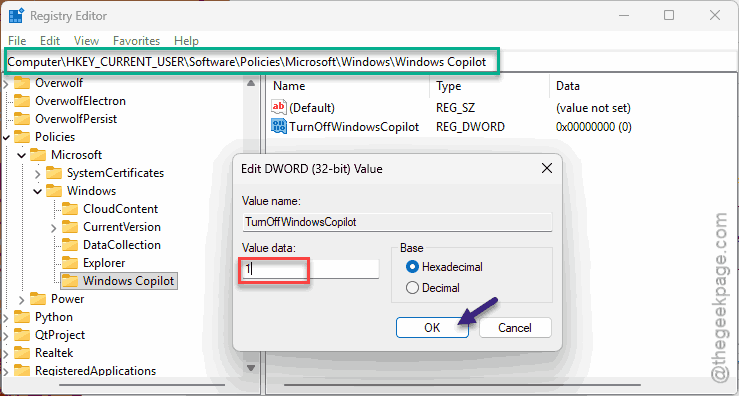
9 – Restart.
Copilot gone. No more focus stealing. Want it back? Set value to 0.
Fix 4 – Enable Auto-Hide Taskbar
Extra protection layer.
1 – Right-click the taskbar.
2 – Click Taskbar settings.
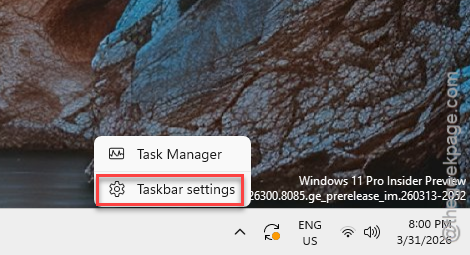
3 – Toggle the Taskbar behavior section. Turn on the Automatically hide the taskbar.
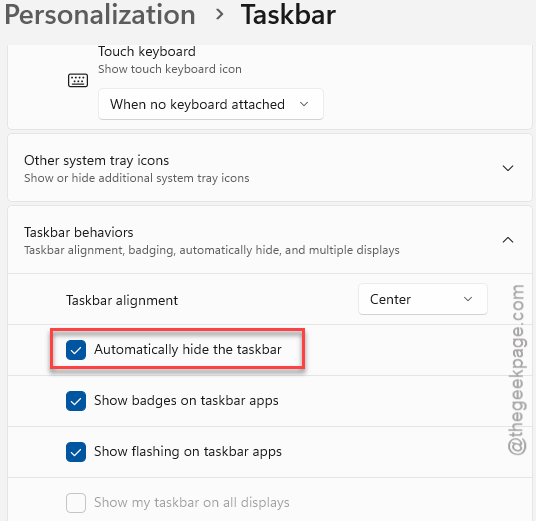
Not perfect. Can still flash up briefly. But way less disruptive during games.
Fix 5 – Close Background Apps Before Gaming
Any app that sends notifications can pop the taskbar. Before launching a game, close or minimize Discord, Outlook, Teams, Edge, and anything in the system tray you don’t need. If you figure out which specific app does it, you only need to close that one.
Fix 6 – Restart Windows Explorer
Quick fix. Sometimes Explorer gets stuck surfacing the taskbar.
1 – Press Ctrl + Shift + Esc to open Task Manager.
2 – Click the Details tab.
3 – Find explorer.exe in the list.
4 – Right-click it.
5 – Click End task/Restart.
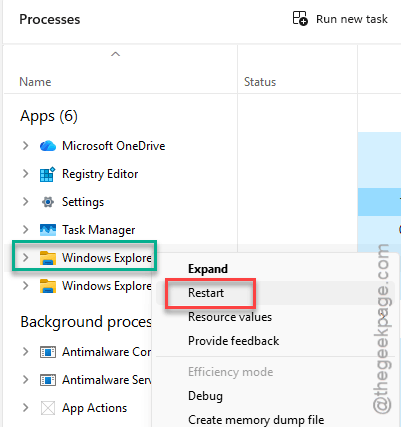
6 – Click File at the top of Task Manager.
7 – Click Run new task.
8 – Type explorer
9 – Press Enter.
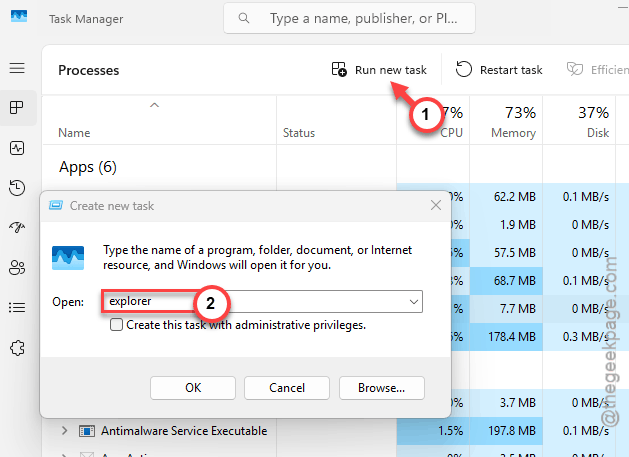
Full restart. Not just a refresh. For a lot of people, the taskbar stays hidden after this. Worth trying first.
How to Prevent This
- Use true Fullscreen mode in games. Always.
- Disable edge swipe via registry. No reason to have it on if you game.
- Mute or close notification-heavy apps before playing.
- Kill Copilot if you don’t use it. Biggest focus-stealer on Windows 11.
People Also Ask
How to stop taskbar from popping up while playing games?
True Fullscreen mode. Auto-hide taskbar. Disable edge swipe in registry. Close background apps. That combo fixes it.
How to fix taskbar popping up?
Restart Explorer. Enable auto-hide. Disable edge swipe and Copilot through registry. Those two are the biggest causes.
How to stop game bar from popping up?
Settings > Gaming > Game Bar > toggle off. Done.