The backup runs for an hour, crawls to 99%, and then… nothing. The bar just sits there. No error, no progress, no clue what it’s waiting on.
Here’s what’s usually jamming it: the “App preferences” category. That’s the part of the backup that saves your app settings and Store licenses. And one corrupted entry — or a stale Microsoft Store token — hangs the count forever. Right at the finish line.
A stalled helper service causes the rest (Volume Shadow Copy, the thing that lets Windows photograph files while they’re open). So the plan is easy: skip the broken category, clear the caches, and kick the services. Ready?
Fix 1 – Uncheck “App Preferences” and Back Up Again
Wondering if you can just skip the broken part? You can. Everything else backs up safely while you sort out the stuck category.
1 – Click Start, type “Windows Backup”, and open the app.
2 – Click the Apps dropdown to expand it.
3 – Uncheck App preferences.
4 – Click Back up.
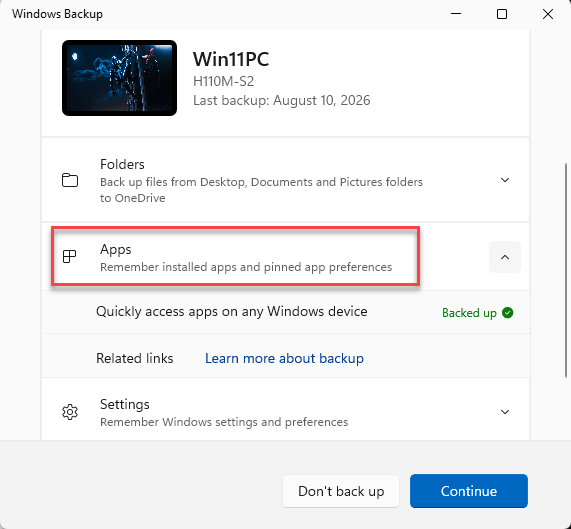
The bar should sail past 99% this time. Your files, folders, and settings are all covered — and you can switch the category back on after Fix 3 or Fix 4.
Fix 2 – End the Hung Backup Task
Before anything else can work, the frozen process has to actually die. Closing the window is not enough (it keeps running in the background).
1 – Press Ctrl + Shift + Esc to open Task Manager.
2 – Look for Windows Backup in the process list.
3 – Right-click it and select End task.
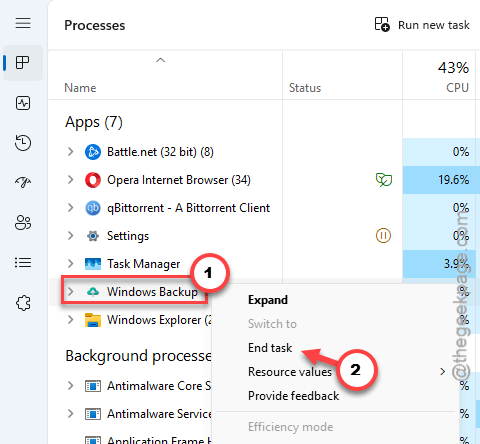
Now the app is fully stopped. And the next two fixes can safely touch its files.
Fix 3 – Clear the Backup Cache Folder
The app stages your backup in a temporary folder before uploading. When a file in there corrupts, every backup afterward hits the same wall. Wiping the folder forces a fresh count from scratch.
1 – End the backup task first, like in Fix 2.
2 – Press Windows + R.
3 – Type %localappdata%\Microsoft\Windows\Backup and press Enter. A File Explorer window opens.
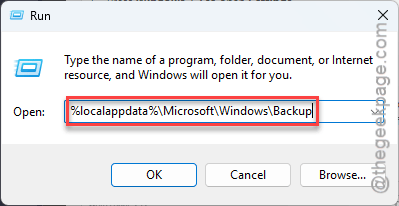
4 – Select everything inside the folder (press Ctrl + A).
5 – Press Delete.
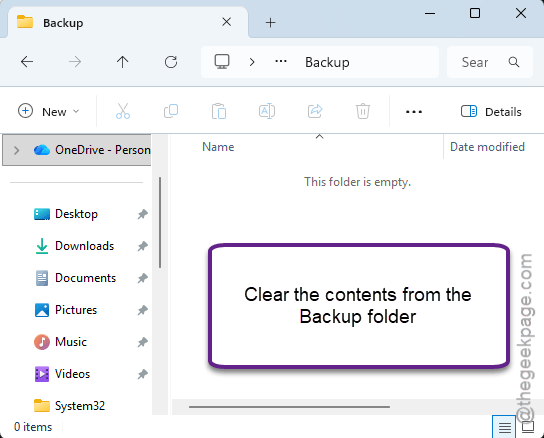
Don’t worry — this is staging data, not your actual backed-up files. The app rebuilds it on the next run.
Fix 4 – Repair or Reset the Backup App
Windows has a built-in repair tool for its own apps. And it’s genuinely good at this.
1 – Press Windows + I to open Settings.
2 – Go to Apps, then Installed apps.
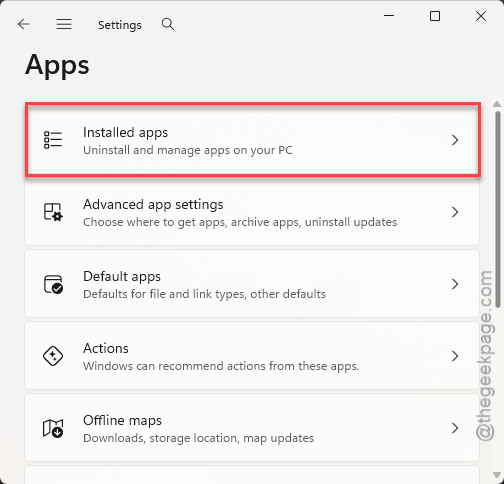
3 – Type “backup” in the search box at the top.
4 – Click the three dots (⋯) next to Windows Backup and choose Advanced options. (Don’t see it listed? Some builds tuck it inside the Windows Feature Experience Pack — search for that instead.)
5 – Scroll down and click Repair. Wait for the checkmark.
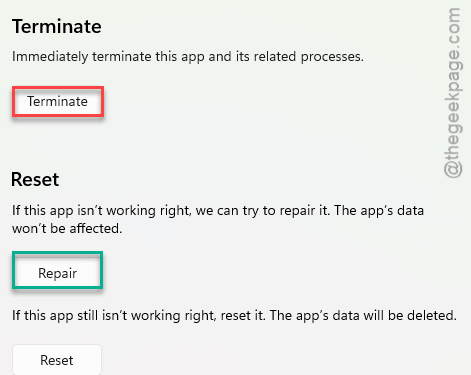
6 – Run a backup. Still hanging? Come back here and click Reset — it sits right below Repair.
Fix 5 – Restart the Volume Shadow Copy Service
When VSS stalls, backups freeze at whatever percent they happened to reach. Frozen service, frozen bar.
1 – Press Windows + R, type services.msc, and press Enter.
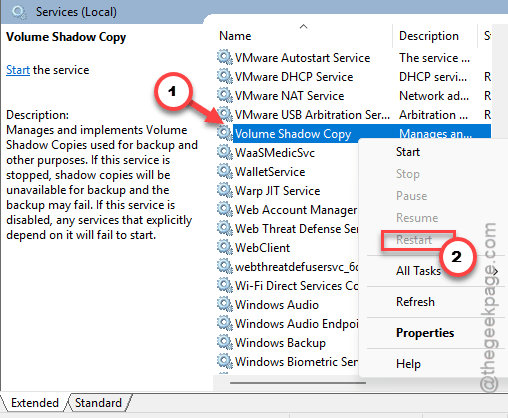
2 – Scroll down to Volume Shadow Copy (the list is alphabetical).
3 – Right-click it and choose Restart — or Start if it is stopped.
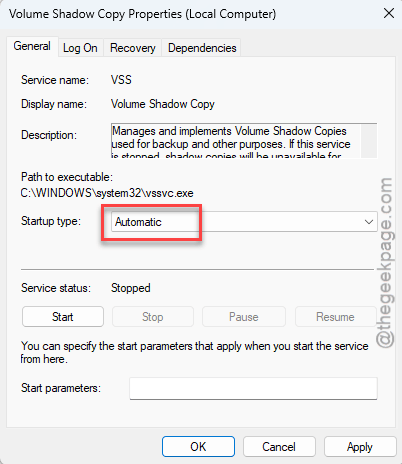
4 – Right-click it again and open Properties.
5 – Set Startup type to Automatic, then click OK.
Check if this works.
Fix 6 – Clear the Microsoft Store Cache
Odd one, right? But the backup app checks your Store licenses while saving app preferences, and a corrupted Store token stalls that check forever.
1 – Press Windows + R.
2 – Type wsreset.exe and press Enter.
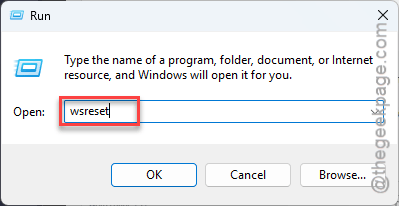
3 – A blank black window appears. That’s normal — leave it alone.
4 – Wait for it to close on its own (takes half a minute or so), then try backing up.
Keep It From Coming Back
- Let one backup finish before starting another. Overlapping runs are exactly how the cache corrupts.
- Once a clean backup completes, re-tick App preferences and run one more. Full coverage restored.
- If backups start crawling again, check the Volume Shadow Copy service first — and keep its startup type on Automatic.
People Also Ask
Why is my Windows backup stuck at 97% or 99%?
The final few percent handle app preferences and Microsoft Store license checks. A corrupted cache entry or stale Store token makes that step hang forever while everything else sits finished. Uncheck App preferences in the Windows Backup app and the backup completes normally.
What should I do if a Windows backup is stuck?
Kill the frozen process first — open Task Manager with Ctrl + Shift + Esc and end the Windows Backup task. Then clear the cache folder at %localappdata%\Microsoft\Windows\Backup, repair the app from Settings > Apps, and restart the Volume Shadow Copy service before retrying.