You close Task Manager. But it doesn’t actually close. Check background processes? Still there. Close it again? Another ghost. Every time you open and close it, another hidden copy stays behind.
Confirmed bug from KB5067036. Each ghost eats 15–20 MB of RAM. Adds up fast.
Why This Happens
Basically? KB5067036 broke how Task Manager shuts itself down. You click the X. Window disappears. But the process doesn’t terminate. Just sits in the background.
Every time you reopen and close it, another ghost stacks up. Five. Ten. Twenty instances. All invisible. All wasting memory.
Affects 24H2 and 25H2. Microsoft knows. No permanent fix yet. Just workarounds. So yeah.
Fix 1 – Kill Ghost Processes Manually
Quick cleanup.
1 – Press Ctrl + Shift + Esc to open Task Manager.
2 – Scroll down to Background processes.
3 – Look for multiple Task Manager entries.
4 – Right-click each duplicate.
5 – Click End task. Keep one — the one you’re using.
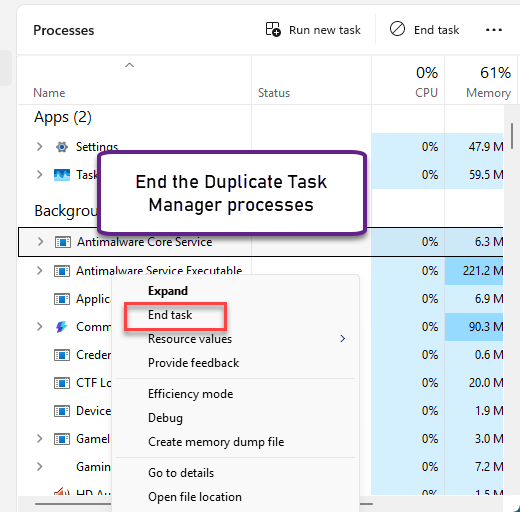
Done. But they come back next time you close Task Manager. Annoying, I know.
Fix 2 – Force Kill via Command Line
Faster than clicking each one.
1 – Press Win + R.
2 – Type cmd
3 – Press Enter.
4 – Type this command and press Enter:
taskkill /im taskmgr.exe /f
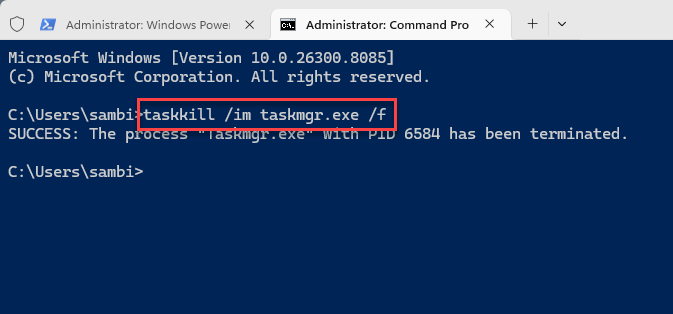
That’s it. All instances gone. Need Task Manager again? Ctrl + Shift + Esc.
Fix 3 – Uninstall the Update
If ghosts are seriously hurting performance, roll back the update.
1 – Open Settings.
2 – Click Windows Update.
3 – Click Update history.
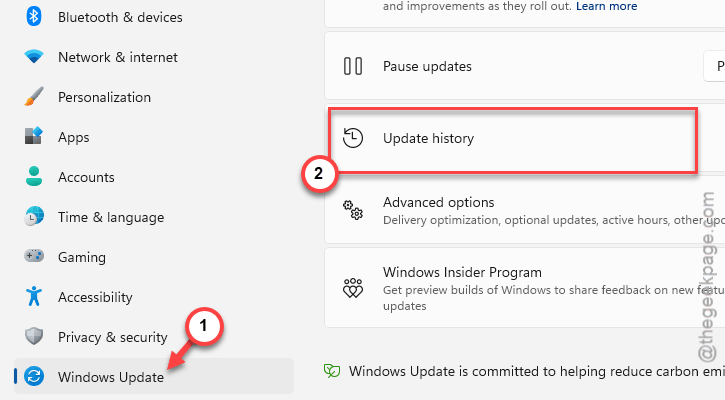
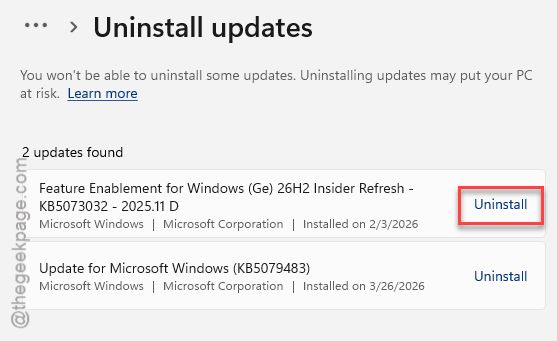
4 – Click Uninstall updates.
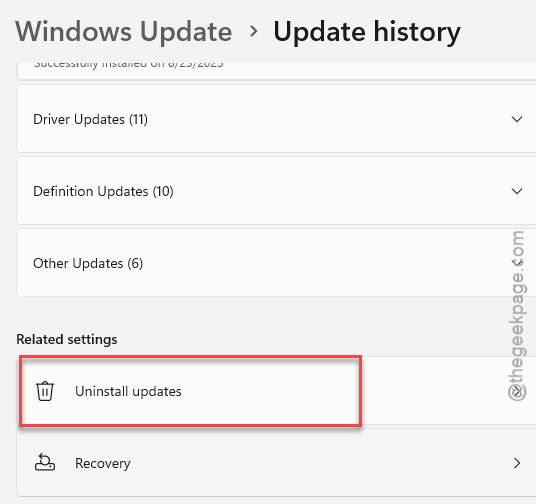
5 – Find KB5067036.
6 – Click Uninstall.
7 – Restart.
Removes the bug. But also removes security fixes. And Windows might reinstall it. Pause updates temporarily if needed.
Fix 4 – Check for a Newer Update
Microsoft may have patched it by now.
1 – Open Settings.
2 – Click Windows Update.
3 – Click Check for updates.
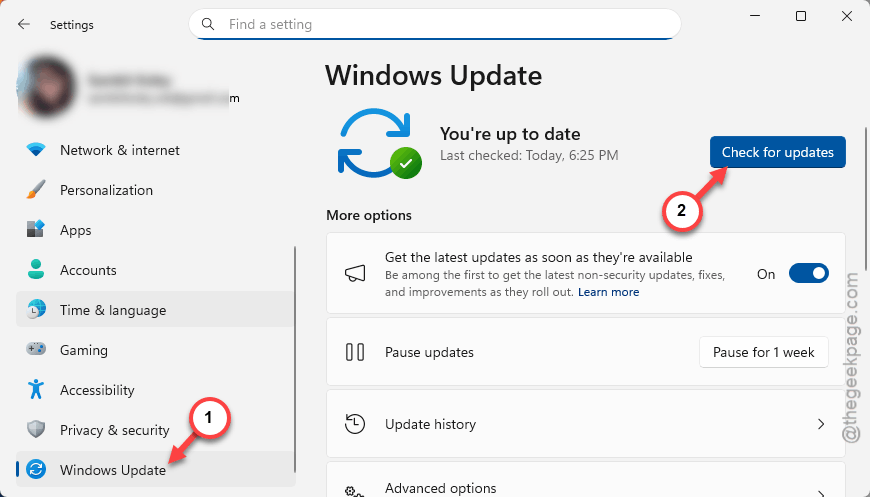
4 – Install anything available.
If a newer update fixes the ghost issue, problem goes away on its own.
Fix 5 – Auto-Kill Script on Startup
Workaround for people who restart often and don’t want ghosts building up.
1 – Open Notepad.
2 – Paste this text:
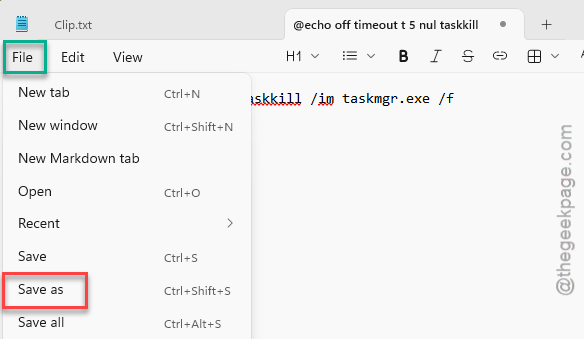
@echo off timeout /t 5 >nul taskkill /im taskmgr.exe /f
3 – Click File.
4 – Click Save as.
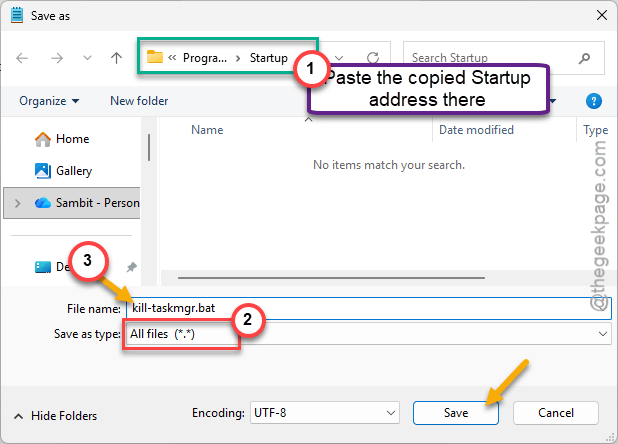
5 – Now, press Win + R, type shell:startup, press Enter. Copy the folder path.
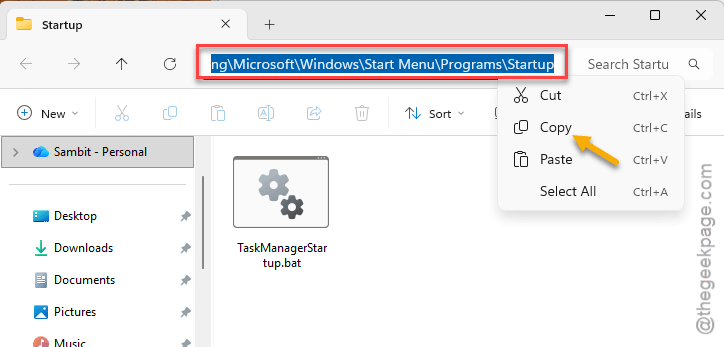
6 – Paste that path into the Save As dialog.
7 – Name the file kill-taskmgr.bat
8 – In the “Save as type” dropdown, select All files. This is important — otherwise it saves as .bat.txt which will not work.
9 – Click Save.
Now this runs on every boot. Kills leftover ghosts automatically. Not ideal. But prevents RAM buildup.
How to Prevent This
- Until Microsoft fixes this, don’t repeatedly open and close Task Manager.
- Run taskkill /im taskmgr.exe /f periodically.
- Check for updates frequently.
- If RAM keeps climbing for no reason, check background processes for duplicates.
People Also Ask
What is the problem with Windows 11 KB5067036?
Closing Task Manager doesn’t terminate it. Leaves ghost processes. Each one eats 15–20 MB RAM. Stacks up over time.
Is Microsoft working to fix Windows 11 bugs?
Yeah. Updates ship regularly. Check Windows Update. The ghost process thing is a known issue.
What is the Windows 11 Task Manager bug?
Click X on Task Manager — window closes but process stays. Multiple hidden instances pile up. Use taskkill /im taskmgr.exe /f to clean up.