You open Task Manager. And it’s just a tiny box showing a few app names. No tabs. No CPU usage. No memory details. Nothing useful. This is actually a built-in view mode. But sometimes it gets stuck. Or system file corruption causes it.
Why This Happens
Basically? Task Manager has two modes. “Fewer details” shows just a basic app list. “More details” shows the full interface with all tabs — Processes, Performance, Startup, everything.
If someone clicked “Fewer details” at some point, Task Manager remembers that. And opens in compact mode every time. It’s not broken. It’s just hiding the full view.
But if toggling doesn’t work or the option isn’t there? That’s corrupted system files. Different problem. Same annoyance.
Fix 1 – Click “More Details”
Seriously. That’s it for most people.
1 – Press Ctrl + Shift + Esc to open Task Manager.
2 – Look at the bottom left of the window.
3 – Click More details.
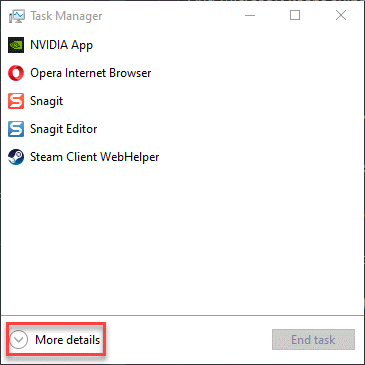
The full interface shows up with all tabs. Task Manager remembers this choice going forward. Done.
Fix 2 – Restart Your PC
If “More details” doesn’t appear or doesn’t work, a clean restart can fix it.
1 – Click Start.
2 – Click the power icon.
3 – Click Restart. Not shut down — restart.
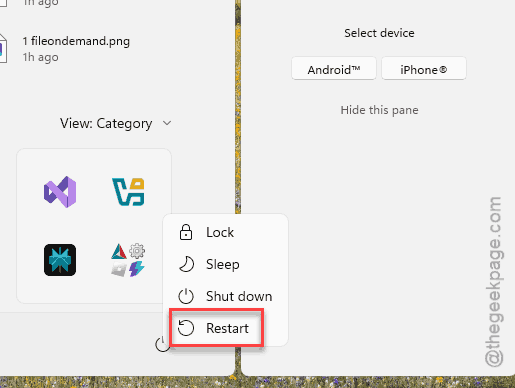
Windows 11’s “shut down” doesn’t fully reset everything (thanks to Fast Startup). An actual restart does. Try Task Manager after it comes back.
Fix 3 – Run SFC and DISM
If the full view still won’t show, corrupted system files might be the cause.
1 – Click Start.
2 – Type Terminal.
3 – Right-click Terminal.
4 – Click Run as administrator.
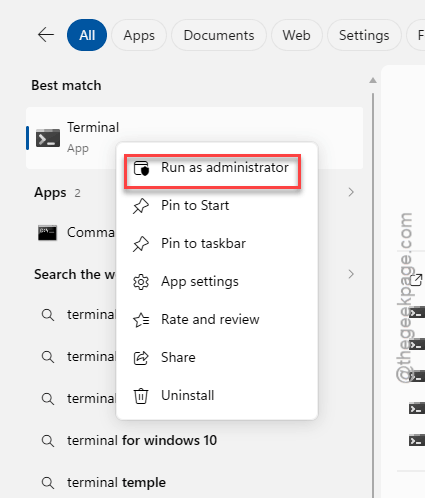
5 – Type this command and press Enter:
sfc /scannow
6 – Wait for it to finish. Takes a few minutes.
7 – Now type this and press Enter:
DISM /Online /Cleanup-Image /RestoreHealth
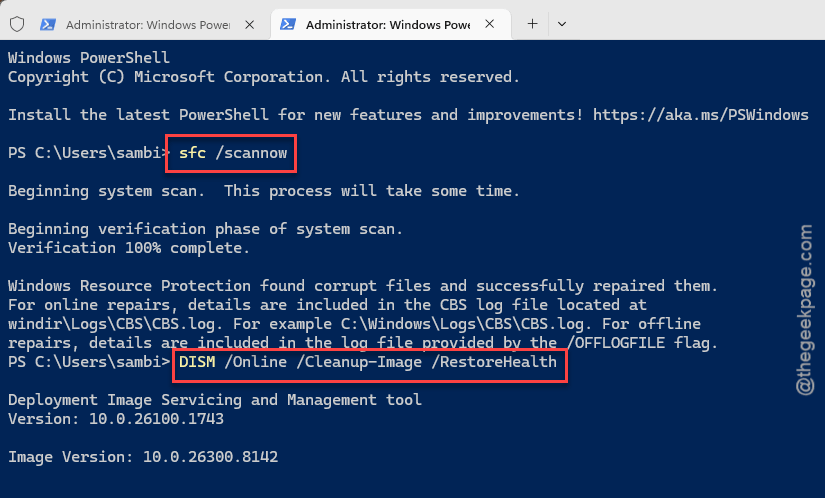
8 – Wait again. This one takes longer.
9 – Restart your PC.
These commands repair damaged system files that Task Manager depends on. If something was corrupted, this fixes it.
Fix 4 – Restart Windows Explorer
Quick fix. Sometimes Explorer interferes with Task Manager’s display.
1 – In Task Manager (even the compact view), look for Windows Explorer in the app list.
2 – Right-click it.
3 – Click Restart.
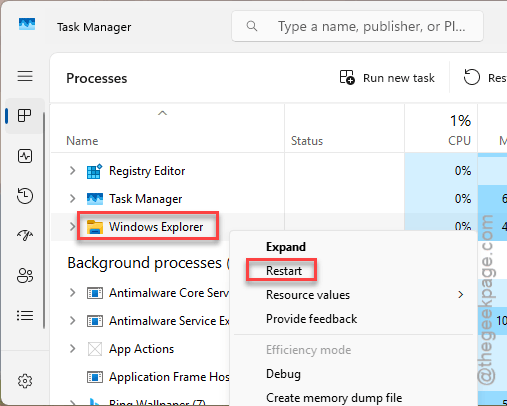
4 – Close and reopen Task Manager.
Check if the full view is available now.
Fix 5 – Create a New User Profile
If the full view works on a new account but not yours, your profile has bad settings.
1 – Open Settings.
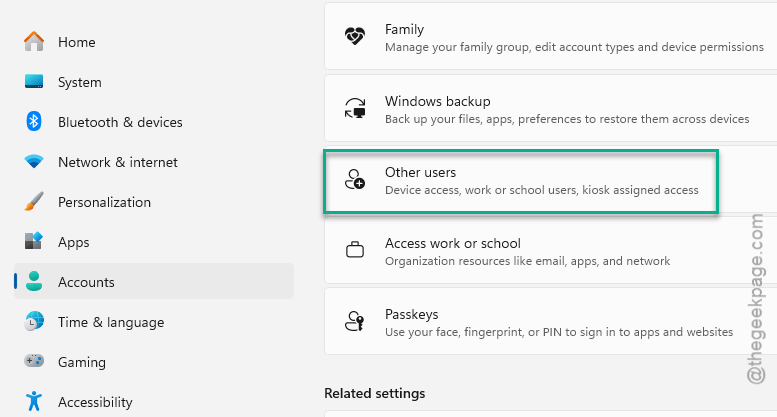
2 – Go to Accounts.
3 – Click Other users.
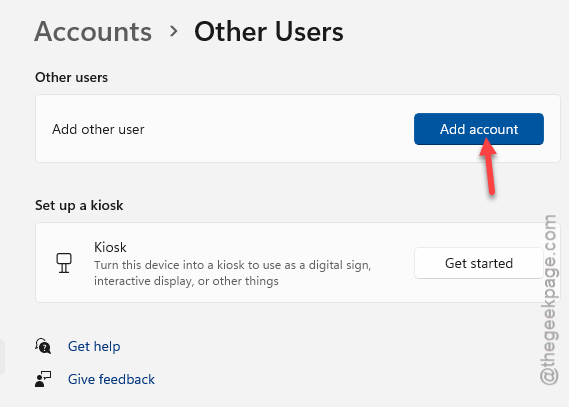
4 – Click Add account.
5 – Create a local account.
6 – Sign in.
7 – Open Task Manager.
Full details showing? Profile-level issue. Not ideal. But now you know.
How to Prevent This
- Don’t click “Fewer details” unless you actually want the compact view.
- Run SFC scans periodically to catch file corruption early.
- Use Restart instead of Shut Down for a proper system reset.
- Keep Windows updated.
People Also Ask
Why is my Task Manager not showing full details?
Probably in compact mode. Click “More details” at the bottom. If that’s not there, restart your PC or run SFC scan.
How do I expand Task Manager in Windows 11?
Click “More details” at the bottom of the compact view. That’s it. Task Manager remembers the setting.
Why is Task Manager not showing processes?
Either compact mode or corrupted system files. Toggle More details. If still broken, SFC and DISM scans. Then restart.