You get a notification. Crash. The banner breaks. The notification system dies. Sometimes the taskbar goes with it.Happening a lot after recent Windows 11 updates. Fix depends on how corrupted your system files are.
Why This Happens
Short version: the Windows Push Notification System Service (WpnService) is broken. It handles all notifications in Windows 11. When it crashes or conflicts with an update? The entire pipeline breaks.
Apps try to notify you. Service fails. Explorer crashes. Corrupted system files and broken Store app registrations make it worse. And sometimes — this is the weird part — Do Not Disturb causes conflicts that crash the service. Makes no sense. But it does.
Fix 1 – Restart the Notification Service
Quick fix. Kicks the service back to life.
1 – Press Win + R.
2 – Type:
services.msc
3 – Press Enter.
4 – Scroll down and find Windows Push Notifications System Service.
5 – Right-click it.
6 – Click Restart.
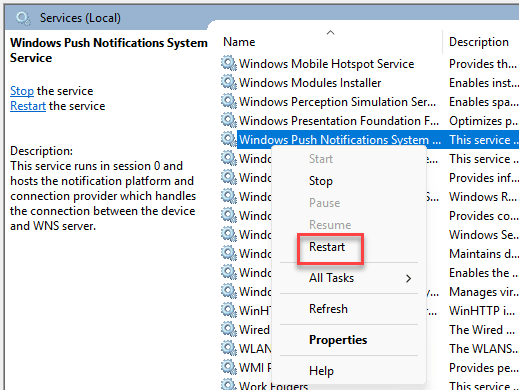
Done. If notifications start working, the service just needed a kick. But if it keeps crashing — deeper issue.
Fix 2 – Turn Off Do Not Disturb
Sounds dumb. But it causes notification weirdness on some systems.
1 – Open Settings.
2 – Click System.
3 – Click Notifications.
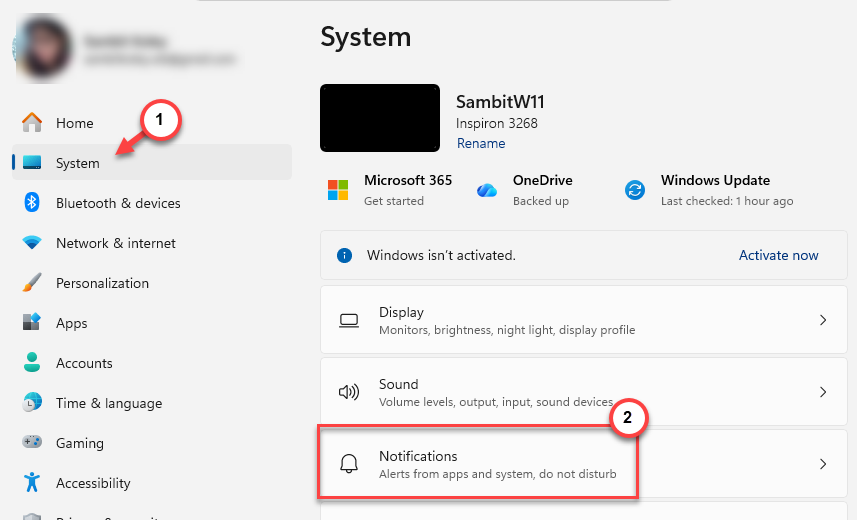
4 – Make sure Do not disturb is turned off.
5 – Also check Turn on do not disturb automatically and disable any schedules.
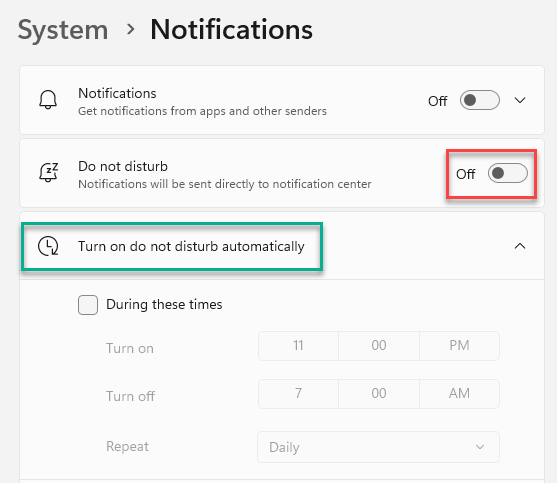
Go to the next one if it still bothers you.
Fix 3 – Run SFC and DISM
Corrupted system files. Common cause.
1 – Click Start and type Terminal.
2 – Right-click Terminal and select Run as administrator.
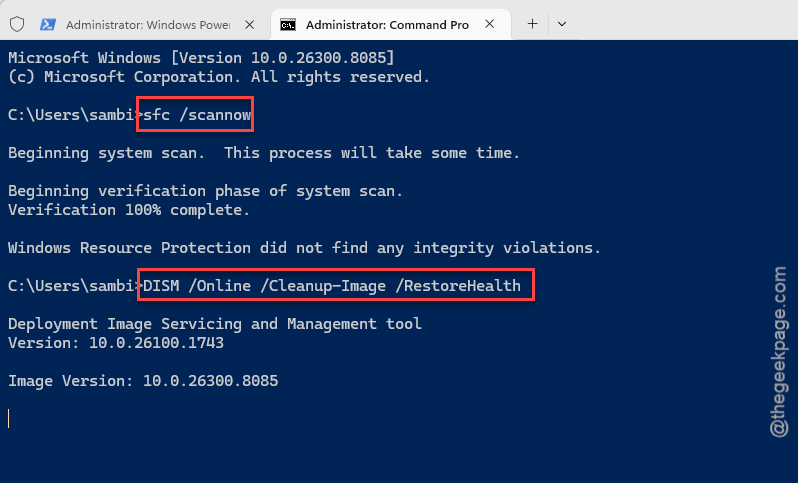
3 – Type this and press Enter:
sfc /scannow
4 – Wait for it to finish.
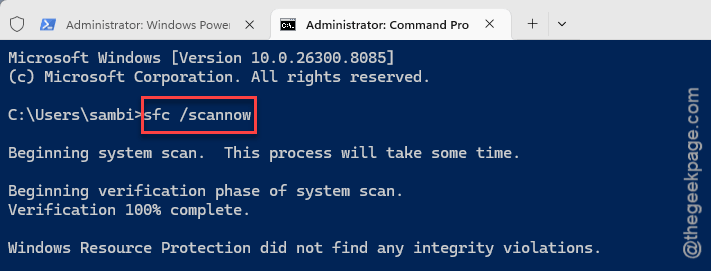
5 – Now type this and press Enter:
DISM /Online /Cleanup-Image /RestoreHealth
6 – Wait again.
7 – Restart.
Fix 4 – Check for Windows Updates
Microsoft has patched notification crashes multiple times. Stay current.
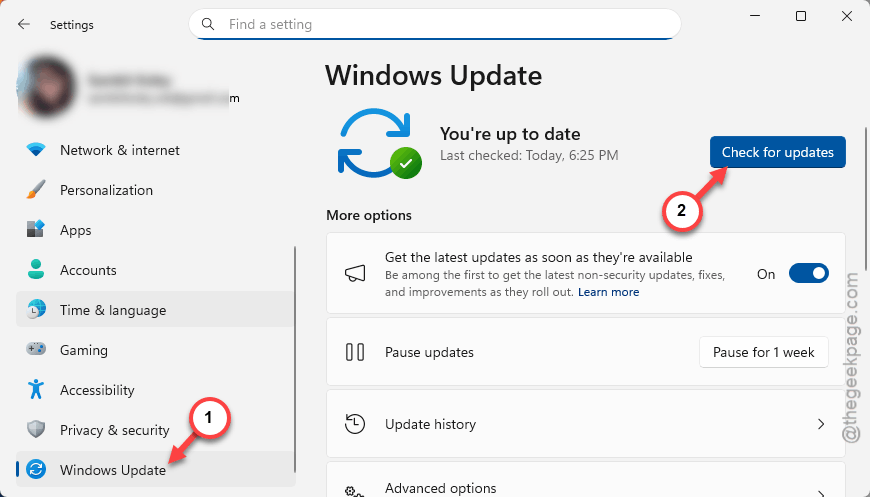
1 – Open Settings.
2 – Click Windows Update.
3 – Click Check for updates.
4 – Install everything.
5 – Restart.
Fix 5 – Re-register Windows Apps via PowerShell
Notification components corrupted? Re-registering fixes it.
1 – Click Start and type Terminal.
2 – Right-click and select Run as administrator.
3 – Paste this command and press Enter:
Get-AppXPackage | Foreach {Add-AppxPackage -DisableDevelopmentMode -Register "$($_.InstallLocation)\AppXManifest.xml"}
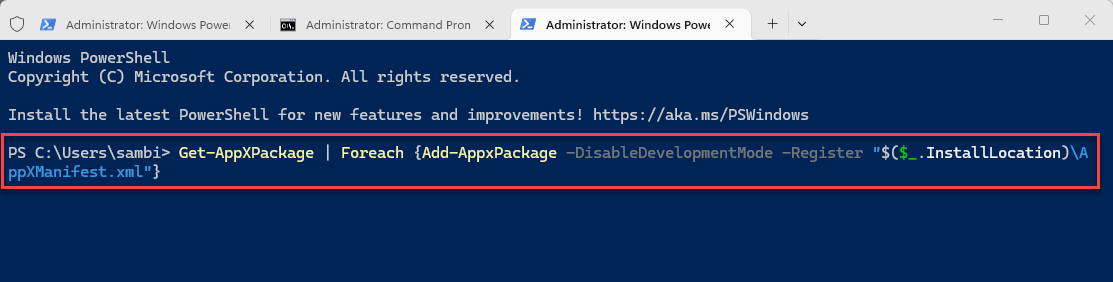
4 – Wall of red text. Normal. Let it finish.
5 – Restart.
Fix 6 – Run an In-Place Upgrade
Last resort. Reinstalls Windows while keeping everything.
1 – Download the Windows 11 ISO from Microsoft’s website.
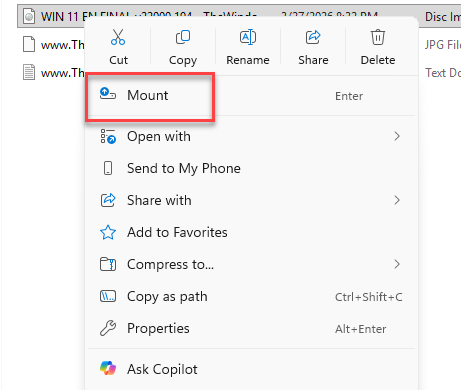
2 – Right-click the downloaded ISO file.
3 – Click Mount.
4 – Open the mounted drive.
5 – Run Setup.exe.
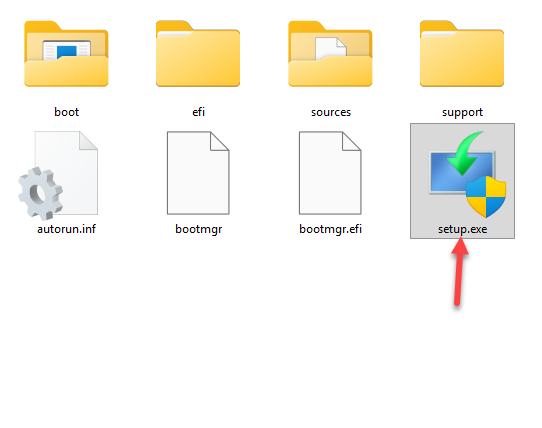
6 – Follow the prompts. Make sure Keep personal files and apps is checked.
7 – Click Install.
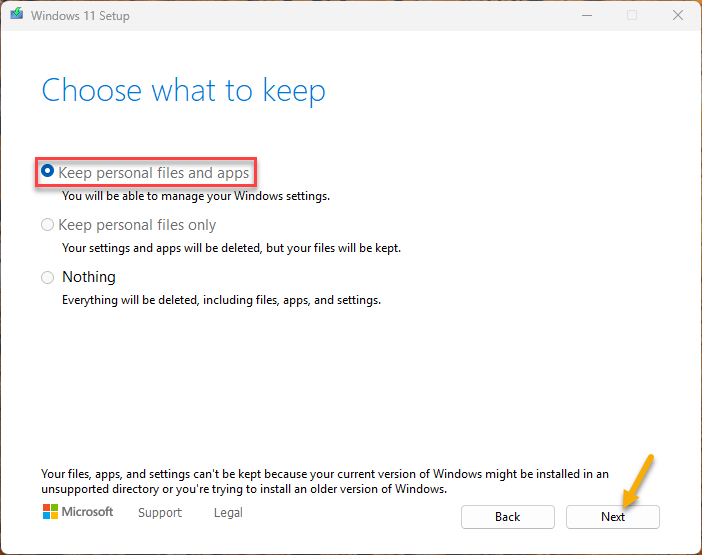
8 – Wait. PC restarts several times.
Takes a while. But replaces all system files with fresh copies. If nothing else fixes the crashes, this will.
How to Prevent This
- Keep Windows updated.
- Run SFC monthly.
- Don’t manually disable system services unless you have to.
- If notifications start acting up, restart WpnService immediately through services.msc.
People Also Ask
How to fix notifications not working on Windows 11?
Check Settings > System > Notifications. Make sure they’re on. Do Not Disturb off. Restart the notification service through services.msc.
Why does Copilot always crash?
Same shell components as notifications. Re-register apps via PowerShell. Update Windows. SFC and DISM.
Is Windows 11 bad for gaming PCs?
Not inherently. More background overhead though. Disable Copilot. Kill unnecessary services. Use Fullscreen in games.