You press Ctrl + Shift + Esc. Nothing. Right-click the taskbar and click Task Manager. Nothing. But if you right-click and run it as an administrator? Opens fine. Something is blocking Task Manager for regular users. Usually a policy or registry setting.
Why This Happens
Basically? There’s a registry key called DisableTaskMgr. When it’s set to 1, Task Manager is blocked for non-admin users. Some Windows updates set this. Group Policy can do it too. And some malware does it to prevent you from killing its processes.
There’s also an Image File Execution Options trick where something registers a debugger on taskmgr.exe that silently blocks it from launching. Sneaky. But fixable. So yeah.
Fix 1 – Check the Registry for DisableTaskMgr
Most common cause. A registry value is silently blocking Task Manager.
1 – Press Windows + R to open the Run dialog.
2 – Type regedit and press Enter.
3 – In the left panel, go to:
HKEY_CURRENT_USER\Software\Microsoft\Windows\CurrentVersion\Policies\System
4 – If the System folder doesn’t exist, this isn’t the issue. Skip to Fix 2.
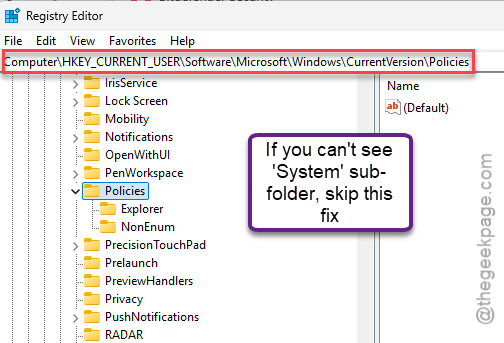
5 – If it exists, look for DisableTaskMgr on the right side.
6 – Double-click it.
7 – Change the value to 0.
8 – Click OK.
9 – Restart your computer.
If this was set to 1? That’s why Task Manager was blocked. Setting it to 0 brings it back for all users.
Fix 2 – Check Image File Execution Options
Something might have registered a debugger on taskmgr.exe. This silently prevents it from launching.
1 – Open Registry Editor (Windows + R > regedit > Enter).
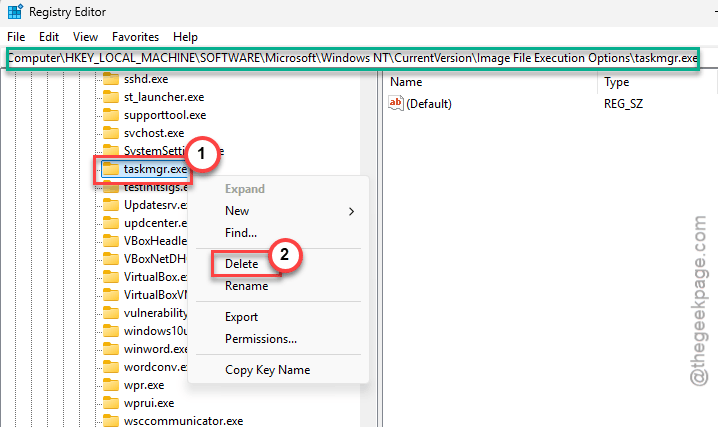
2 – In the left panel, go to:
HKEY_LOCAL_MACHINE\SOFTWARE\Microsoft\Windows NT\CurrentVersion\Image File Execution Options
3 – Look for a folder called taskmgr.exe in the list.
4 – If it exists, right-click it.
5 – Click Delete.
6 – Restart.
If this folder existed, something was hijacking Task Manager’s launch. Could be old software. Could be malware. Either way, deleting it fixes the block.
Fix 3 – Check Group Policy
A Group Policy setting might be disabling Task Manager. This only applies to Pro and Enterprise editions.
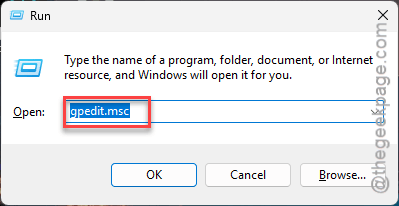
1 – Press Windows + R to open Run.
2 – Type gpedit.msc and press Enter.
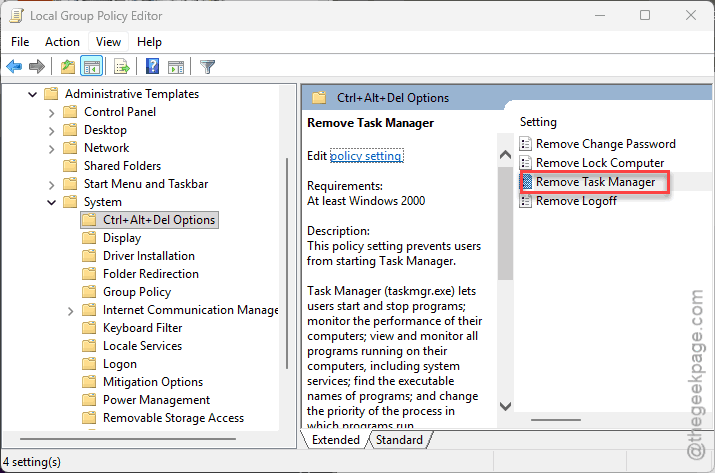
3 – In the left panel, go to User Configuration.
4 – Expand Administrative Templates.
5 – Expand System.
6 – Click Ctrl+Alt+Del Options.
7 – On the right side, double-click Remove Task Manager.
8 – Set it to Not Configured or Disabled.
9 – Click Apply.
10 – Click OK.
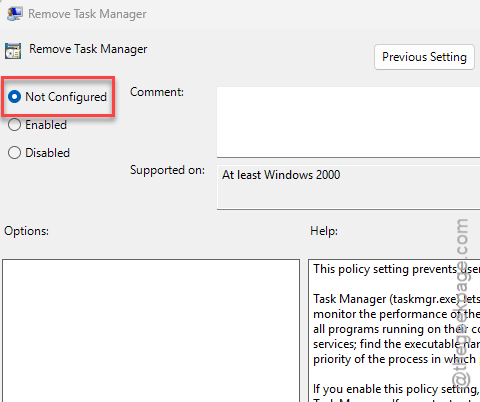
If this was set to Enabled? That’s your problem. Done.
Fix 4 – Run a Malware Scan
Malware often disables Task Manager to prevent you from killing its processes. Worth checking.
1 – Click Start and type Windows Security.
2 – Open it.
3 – Click Virus & threat protection from the left sidebar. Go to the Scan options.
4 – Choose the Full Scan mode and click Full scan.
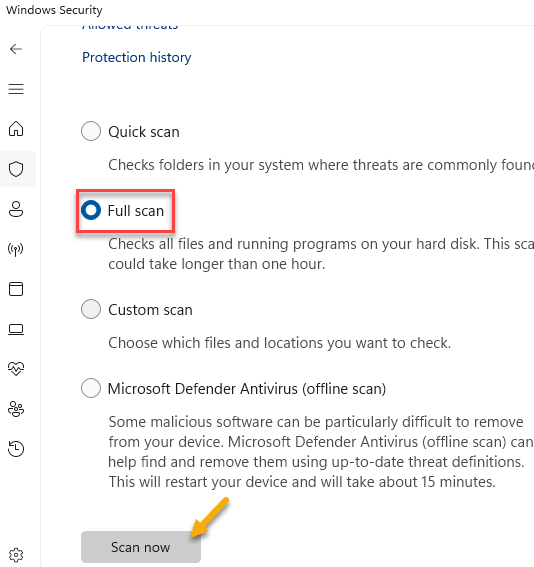
5 – Let it run completely.
If it finds something, follow the prompts to remove it. Then check if Task Manager works normally again.
Fix 5 – Run SFC and DISM
Corrupted system files can break Task Manager’s permissions.
1 – Click Start and type Terminal.
2 – Right-click Terminal in the results.
3 – Click Run as administrator.
4 – Type this command and press Enter:
sfc /scannow
5 – Wait for it to finish. Takes a few minutes.
6 – Now type this command and press Enter:
DISM /Online /Cleanup-Image /RestoreHealth
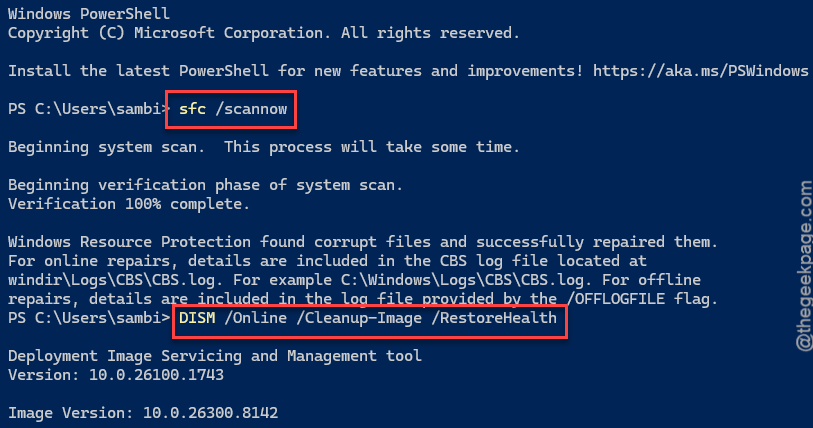
7 – Wait again. This one takes longer.
8 – Restart.
How to Prevent This
- Run malware scans regularly. Malware loves disabling Task Manager.
- Don’t install software that requests admin rights unless you trust it.
- If you’re on a work PC, ask IT if they’ve restricted Task Manager via policy.
- Check the registry periodically for DisableTaskMgr.
People Also Ask
How to open Task Manager without admin?
Press Ctrl + Shift + Esc. If it doesn’t open, a registry key called DisableTaskMgr is probably blocking it. Open regedit, go to HKCU > Policies > System, and set DisableTaskMgr to 0. Also check Group Policy if you’re on Pro/Enterprise.
How to open Task Manager when disabled by admin?
You need admin access to fix it. Check regedit for DisableTaskMgr and set it to 0. Or open gpedit.msc and set “Remove Task Manager” to Disabled under Ctrl+Alt+Del Options. Both require admin rights.
How to fix Task Manager not opening in Windows 11?
Most likely a registry issue. Check DisableTaskMgr — set it to 0. Then check Image File Execution Options for a taskmgr.exe key and delete it if it exists. Run a malware scan too, since malware commonly disables Task Manager.