You open Task Manager. Processes tab is there. But running apps don’t show up. Or the list is empty. Or apps only appear under background processes.
Usually a corrupted Explorer process or a registry problem. Fixable.
Why This Happens
Basically? Task Manager relies on explorer.exe to report running apps. If Explorer isn’t running properly — or if a registry key is wrong — Task Manager can’t see what’s open.
There’s a registry entry called Winlogon\Shell that tells Windows what shell to load at startup. If it’s been modified, has a trailing comma, or points to the wrong path? Explorer doesn’t load right. And Task Manager shows an incomplete list.
Some updates corrupt this too. For some reason. And nobody notices until they actually need Task Manager. So yeah.
Fix 1 – Restart Windows Explorer
Quick fix. If Explorer is running but glitchy, restarting it refreshes everything.
1 – Press Ctrl + Shift + Esc to open Task Manager.
2 – Find Windows Explorer in the Processes tab.
3 – Right-click it.
4 – Click Restart.
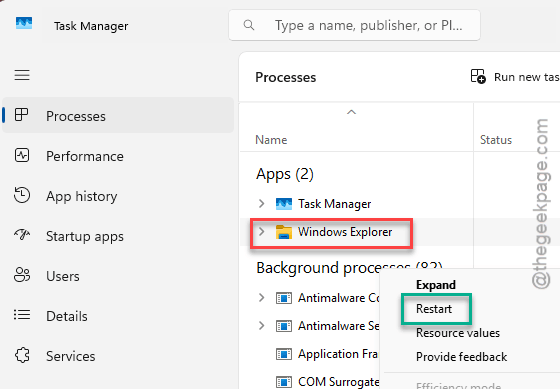
If apps start showing after this, Explorer was in a bad state. Temporary fix though — if it keeps happening, check the registry.
Fix 2 – Manually Start Explorer
If Explorer isn’t running at all, start it yourself.
1 – In Task Manager, click File.
2 – Click Run new task.
3 – Type explorer.exe
4 – Press Enter.
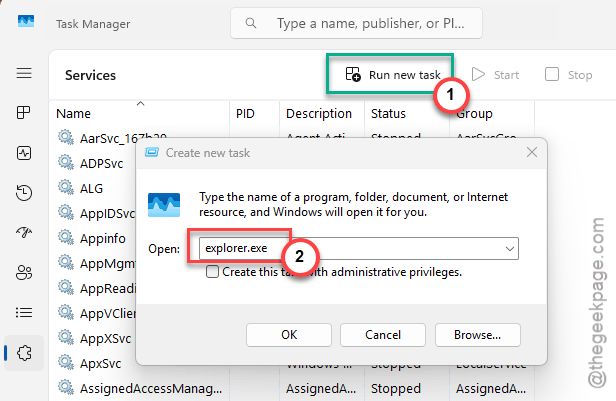
Taskbar appears. Apps should show up now. But if Explorer wasn’t running, something prevented it from starting with Windows. Check the registry.
Fix 3 – Check the Winlogon Shell Registry Key
Most common root cause. A registry value tells Windows which shell to load. If it’s wrong, Explorer doesn’t run properly.
1 – Press Win + R.
2 – Type regedit
3 – Press Enter.
4 – Go to:
HKEY_LOCAL_MACHINE\Software\Microsoft\Windows NT\CurrentVersion\Winlogon
5 – Find Shell in the right pane.
6 – Double-click it.
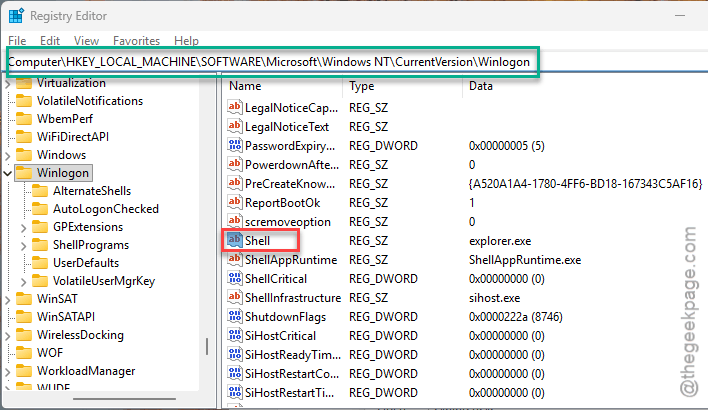
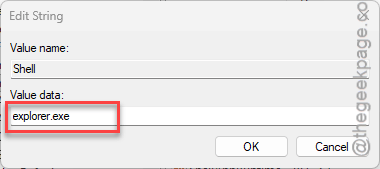
7 – Make sure the value is exactly:
explorer.exe
8 – No trailing commas. No extra paths. Just explorer.exe. Fix it if it’s different.
9 – Click OK.
10 – Restart your PC.
And that’s usually it. If this value had anything extra — even just a trailing comma — Explorer doesn’t load right. And apps won’t appear in Task Manager.
Fix 4 – Run SFC and DISM
System file corruption can mess with how Task Manager reads processes.
1 – Click Start and type Terminal.
2 – Right-click Terminal and select Run as administrator.
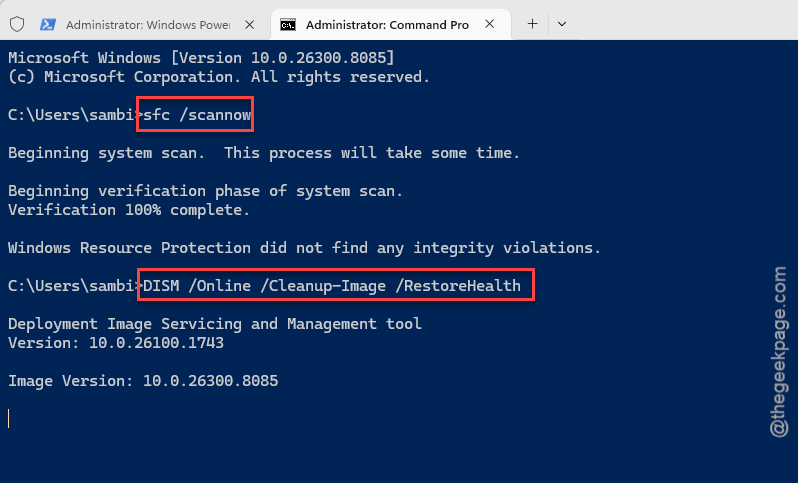
3 – Type this and press Enter:
sfc /scannow
4 – Wait for it to finish.
5 – Now type this and press Enter:
DISM /Online /Cleanup-Image /RestoreHealth
6 – Wait again.
7 – Restart.
Fix 5 – Check for Windows Updates
If an update broke Explorer’s integration, another might fix it.
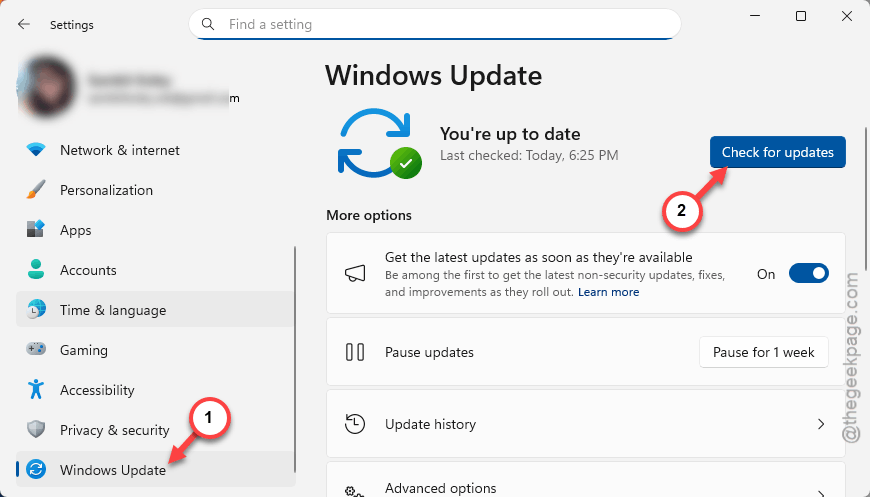
1 – Open Settings.
2 – Click Windows Update.
3 – Click Check for updates.
4 – Install everything.
5 – Restart.
How to Prevent This
- Don’t edit the Winlogon\Shell registry key unless you know exactly what you’re doing.
- Run SFC scans periodically.
- After updates, open Task Manager and verify apps show correctly.
- If Explorer crashes frequently, check the Shell key first.
People Also Ask
Why are apps not showing in Task Manager?
Probably Explorer not running right. Restart it. If that doesn’t help, check the Winlogon\Shell registry key. Should be exactly “explorer.exe.”
How do I fix Task Manager not showing processes?
Restart Explorer. Check the registry. Run SFC and DISM. Usually one of those.
Why is my Task Manager empty on Windows 11?
Explorer.exe isn’t running or the shell registry key is wrong. Start Explorer manually. Then fix the registry.