You draw something in Paint. Hit save. Nothing happens. Or you get some vague error. “Can’t save.” Thanks, Windows. Real helpful.
Usually permissions. Sometimes corrupted app data. More common on Windows 11 than it should be.
Why This Happens
Here’s the deal. The new Paint runs as a Store app with limited permissions. If you’re trying to save to a protected folder — Program Files, System32, sometimes even Desktop — Paint doesn’t have write access.
And instead of asking for permission? It just fails. Silently. Or with a useless error message.
Corrupted app data causes this too. And sometimes the default save format is broken. So yeah. Multiple things.
Fix 1 – Use Save As Instead of Save
Quick workaround. Regular Save failing? Save As usually works.
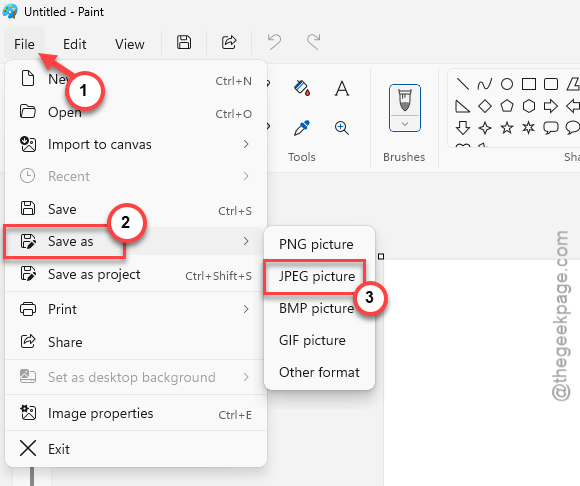
1 – Click File in the top left corner.
2 – Click Save as.
3 – Choose a format — PNG, JPEG, or BMP.
4 – Pick a location you have access to. Documents or Desktop.
5 – Give it a name.
6 – Click Save.
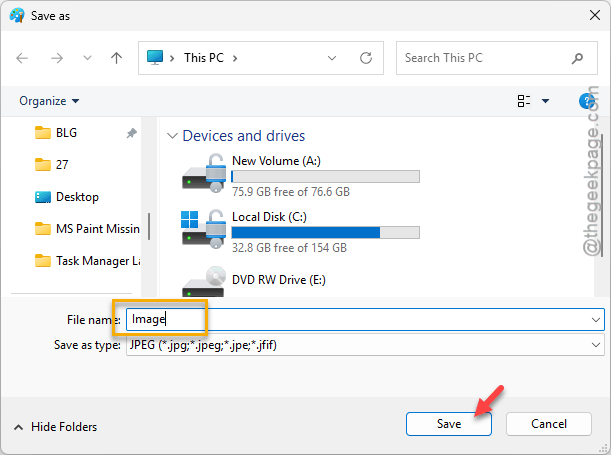
If Save As works but regular Save doesn’t? The original location or format was the problem. Not Paint itself.
Fix 2 – Run Paint as Administrator
Permissions issue? Admin rights fix it.
1 – Close Paint.
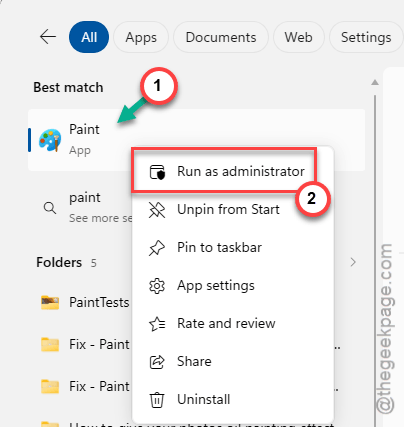
2 – Right-click the Paint icon.
3 – Click Run as administrator.
4 – Click Yes on the UAC prompt.
5 – Open your file.
6 – Try saving again.
Works now? Permissions all along. For some reason the Store version doesn’t ask for elevated access when it needs it. Just fails quietly. Classic.
Fix 3 – Reset MS Paint
Corrupted data? Reset clears everything.
1 – Open Settings.
2 – Click Apps.
3 – Click Installed apps.
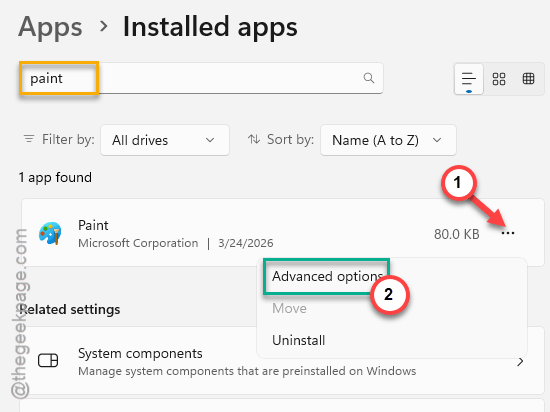
4 – Find Paint.
5 – Click the three dots.
6 – Click Advanced options.
7 – Scroll down.
8 – Click Reset.
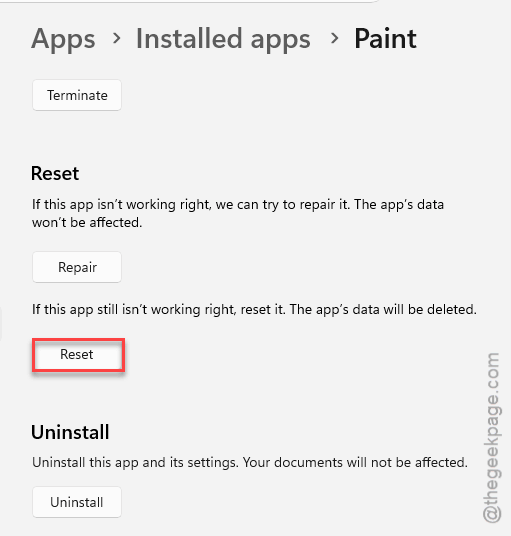
Clears cache and settings (this won’t delete your saved image files). Reopen Paint and try saving.
Fix 4 – Save to a Different Location
Make sure you’re not saving somewhere protected. Avoid system folders, network drives, and unsynced OneDrive folders. Save to C:\Users\YourName\Documents instead.
If it works there but not elsewhere — location was the problem. Not Paint.
Fix 5 – Reinstall Paint
Nothing else works? Clean reinstall.
1 – Open Settings.
2 – Go to Apps.
3 – Click Installed apps.
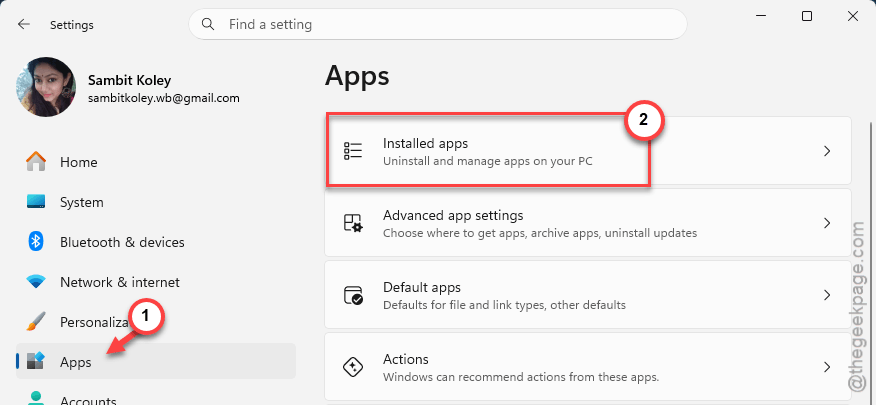
4 – Find Paint.
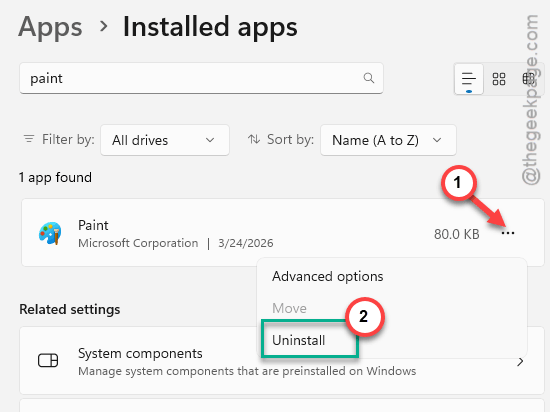
5 – Click the three dots.
6 – Click Uninstall.
7 – Restart your PC.
8 – Open the Microsoft Store.
9 – Search for Paint.
10 – Click Install or Get.
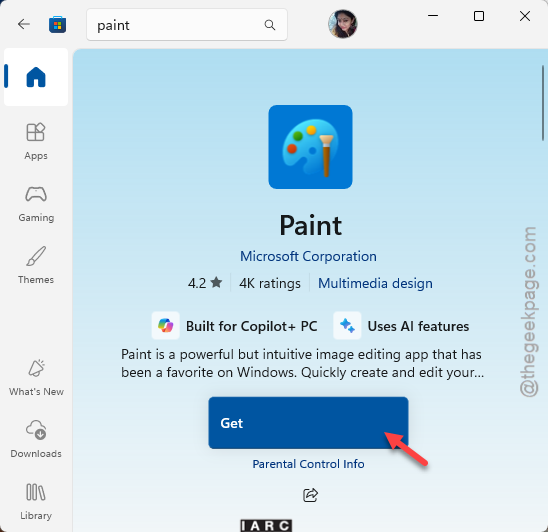
Fresh install fixes persistent save issues. Not ideal that it comes to this. But it works.
How to Prevent This
- Save to locations you have full access to. Documents. Desktop. Downloads.
- Use Save As with explicit format (PNG or JPEG) instead of default save.
- Keep Paint updated from the Store.
- Need to save to protected folders? Run as admin.
People Also Ask
Why can’t I save an image in Paint?
Probably permissions. Paint can’t write to the folder. Try Save As to Documents. Or run Paint as administrator.
Which file formats can MS Paint save?
PNG, JPEG, BMP, GIF, TIFF. New version also does .paint for layers. PNG and JPEG are safest.
Why is Save As not working in Paint?
Corrupted app data or protected location. Reset Paint through Settings > Apps > Paint > Advanced options > Reset.