You open OneNote. And it just hangs. The window flashes white. “Not Responding” pops up. Painfully slow — or completely frozen.
Happens to a lot of people after a Windows update. Annoying. Here’s what actually fixes it.
Why This Happens
Short version? Windows updates sometimes break the cache files OneNote depends on. The app tries to load corrupted data. It freezes trying to recover.
And add-ins make it worse. Especially the ones that worked fine before the update. They suddenly stop talking to OneNote properly.
Sometimes it’s the core Office files themselves. An update overwrites something. Or skips a file. Either way — OneNote pays the price.
Fix 1 – Clear the OneNote Cache
This fixes it for most people. Corrupted cache is the #1 reason OneNote freezes after an update.
1 – Open OneNote.
2 – Click File in the top-left corner.
3 – Click Options at the bottom-left of the menu.
4 – Click the Save & Backup tab on the left side.
5 – Scroll down to find the Cache file location field.
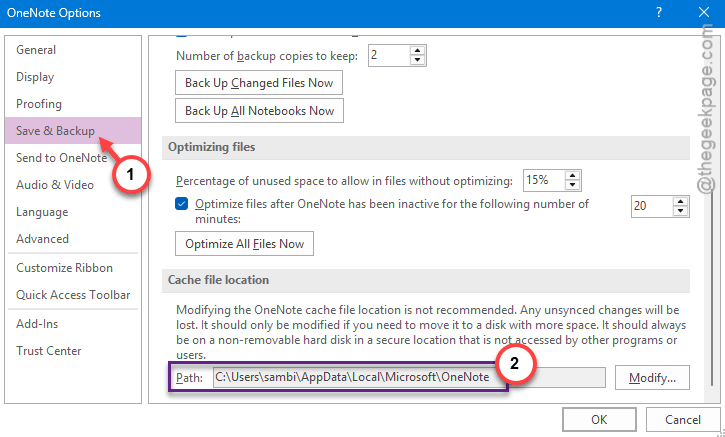
6 – Highlight the entire file path. Right-click and select Copy.
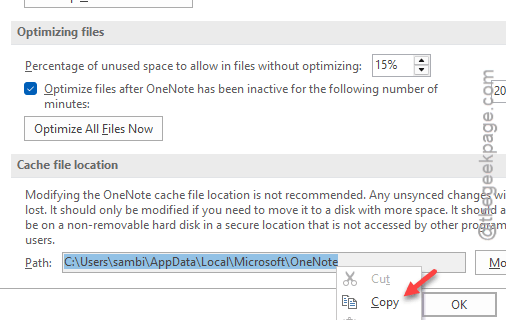
7 – Close OneNote completely. It has to be fully shut — files won’t delete while the app is running.
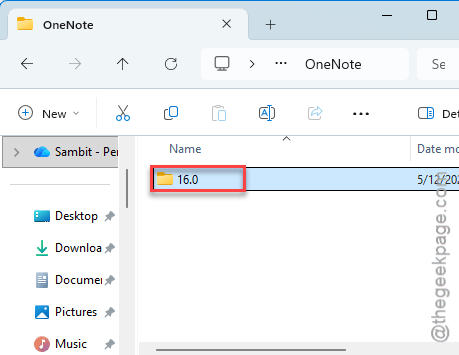
8 – Open File Explorer. Clear the address bar at the top. Paste the path you copied. Press Enter.
9 – Double-click the folder that matches your OneNote version number.
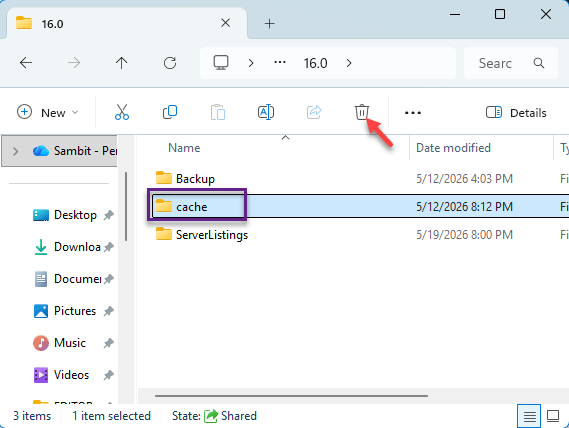
10 – Find the cache folder inside. Delete it.
11 – Reopen OneNote. It’ll rebuild a fresh cache automatically.
And that should fix the freezing. If not, move on.
Fix 2 – Disable COM Add-ins
Third-party add-ins are a huge culprit. They worked yesterday. After the update? Total chaos.
1 – Open OneNote and click File.
2 – Click Options.
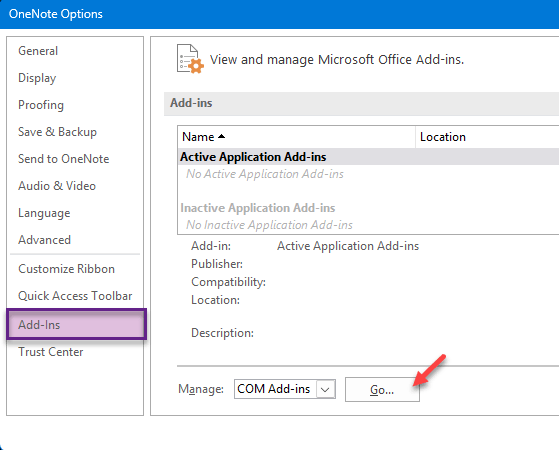
3 – Go to the Add-ins tab on the left.
4 – Look at the bottom of the window. Find the Manage drop-down.
5 – Select COM Add-ins from the drop-down. Click Go.
6 – Uncheck every active add-in in the list.
7 – Click OK. Restart OneNote.
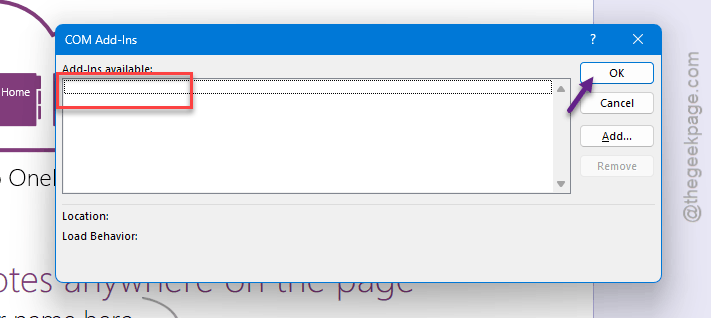
If the freezing incident stops, you can understand that one of the COM Add-ins is responsible for this problem. Disabling it should resolve the issue.
Fix 3 – Create a Fresh Notebook
Quick one. Sounds weird — but it works for some people.
Open OneNote. Create a brand new notebook. Use it for a few minutes. Close OneNote. Reopen it. The freezing often disappears.
Why? No idea. Something about creating a new notebook resets OneNote’s internal state. Worth trying before you do anything drastic.
Fix 4 – Run Quick Repair on Office
If the Office files are corrupted, OneNote can’t run properly. A repair fixes the broken pieces without touching your data.
1 – Press Windows + I to open Settings.
2 – Click Apps on the left sidebar.
3 – Click Installed apps (or Apps & features on older builds).
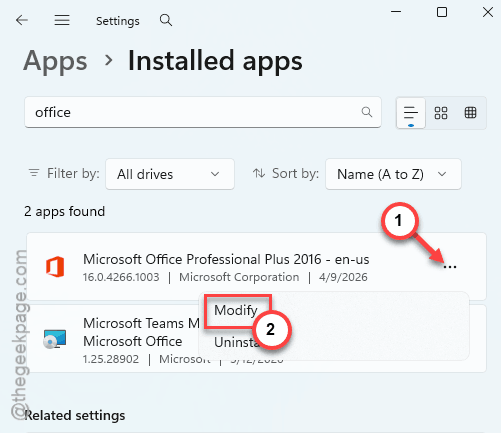
4 – Type “office” in the search box at the top. Way faster than scrolling.
5 – Find Microsoft Office or Microsoft 365 in the list.
6 – Click the three dots (⋯) next to it. Select Modify.
7 – Click Yes when Windows asks for permission.
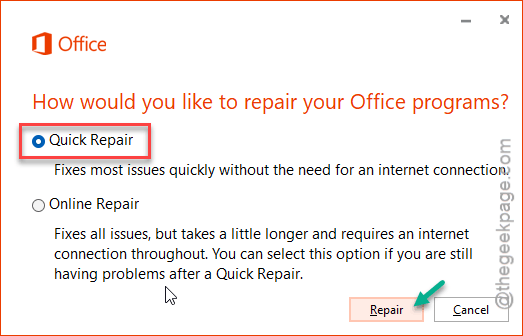
8 – Select Quick Repair. Click Repair.
Takes a few minutes. Try OneNote after.
Fix 5 – Run Online Repair (Bigger Hammer)
Quick Repair didn’t help? Online Repair is the next step. It downloads fresh copies of the Office files. Takes longer. But it fixes things Quick Repair can’t.
1 – Go back to Settings > Apps > Installed apps.
2 – Find Microsoft Office again. Click the three dots (⋯).
3 – Select Modify.
4 – This time pick Online Repair. Click Repair.
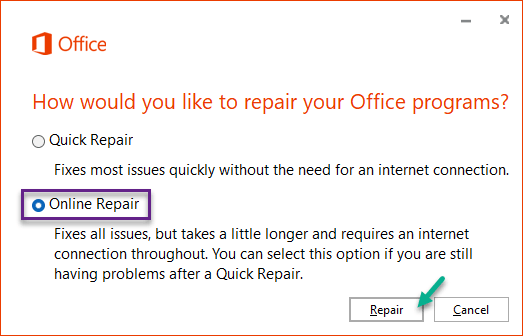
5 – Wait. Could take 20 minutes or more depending on your internet.
Note — this repairs ALL Office apps, not just OneNote. Word, Excel, PowerPoint will be touched too. Not ideal if those are working fine. But sometimes you have no choice.
Fix 6 – Uninstall and Reinstall Office
Nuclear option. If nothing else works, fresh install is the way.
1 – Open Settings > Apps > Installed apps.
2 – Find Microsoft Office. Click the three dots (⋯).
3 – Select Uninstall. Confirm.
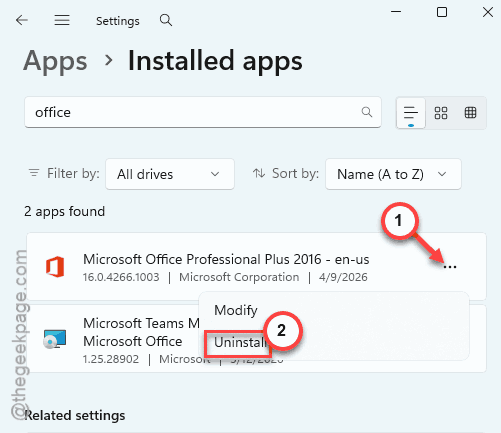
4 – Restart your PC after it’s done.
5 – Go to office.com. Sign in with your account.
6 – Click Install Office. Run the installer.
Your notebooks won’t be lost — they’re in OneDrive. But back them up first if you’ve got local notebooks. Just to be safe.
How to Prevent This
– Clear the OneNote cache every few months. Stops corruption from piling up.
– Be picky about add-ins. The fewer you run, the fewer things can break.
– Wait a week before installing big Windows updates. Let other people find the bugs first.
– Keep your notebooks on OneDrive. Then a reinstall isn’t a disaster.
People Also Ask
How do I get OneNote to stop freezing?
Clear the cache first — that fixes most freezing issues. Then disable any COM add-ins. If neither works, run a Quick Repair on Office through Settings > Apps > Installed apps. Online Repair is the next step if Quick doesn’t help. Reinstall is the last resort.
Why is OneNote always not responding?
Usually it’s corrupted cache files. Sometimes a bad add-in. After a Windows update? Both get worse. The app tries to load broken data and just hangs. Clearing the cache and disabling add-ins fixes it 9 times out of 10.
Why does my computer keep freezing after updating to Windows 11?
Could be the update itself. Could be incompatible drivers — especially graphics or chipset. Run Windows Update again to grab any fixes. Then update your GPU drivers from the manufacturer’s site. Not Windows Update. The official drivers are usually newer.