You log in. The wallpaper loads. But the bottom of the screen? Empty. No taskbar, no Start button, nothing.
Or it’s there but completely blank. No icons, no clock. Just a black strip. Feels broken. And you can’t even click anything. Let’s get it back.
Why This Happens
The taskbar is part of Windows Explorer — the shell, basically. And if the shell hiccups while loading at sign-in, the taskbar doesn’t draw. Simple as that.
But what makes it hiccup? A few things. A bad Windows update is a big one. Microsoft pushes something, it conflicts with your setup, and the taskbar vanishes.
And corrupted system files do it too. So does a glitchy registry key called IrisService — it handles taskbar icons and notifications, and it breaks more often than it should.
Then there’s the weird one. Certain keyboards (looking at you, Razer) with outdated firmware can actually crash the taskbar at login. No idea why. But it’s a documented thing.
Fix 1 – Restart Windows Explorer
First thing, always. This reloads the shell and the taskbar usually snaps right back.
Press Ctrl + Shift + Esc to open Task Manager (it works even with no taskbar). Next, proceed to the Processes tab. Scroll to Windows Explorer. Right-click it. Click Restart.
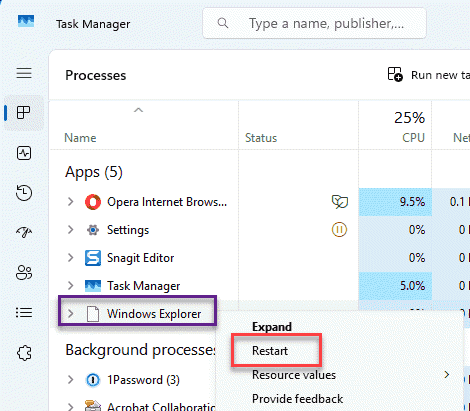
The screen flashes. And your taskbar should reappear.
Fix 2 – Check the Auto-Hide Setting
Before anything drastic — make sure the taskbar isn’t just hiding. If it appears only when you shove your mouse to the very bottom, auto-hide is on.
1 – Press Windows + I to open Settings.
2 – Click Personalization on the left.
3 – Click Taskbar on the right.
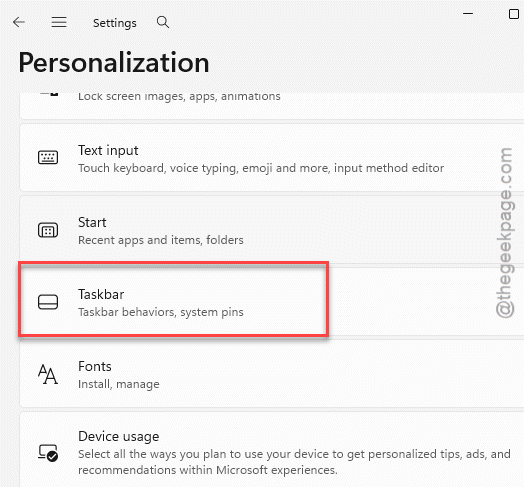
4 – Scroll down and click Taskbar behaviors to expand it.
5 – Uncheck Automatically hide the taskbar.
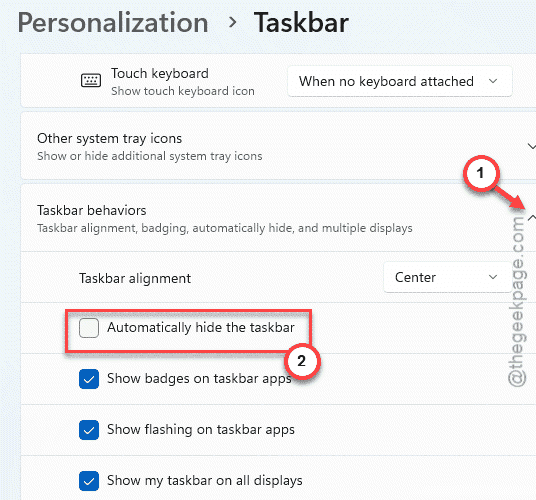
Done. If that was the whole problem, the bar stays put now.
Fix 3 – Delete the Corrupted IrisService Registry Key
This is the fix for a blank taskbar with missing icons. The IrisService key gets corrupted and Windows can’t draw the taskbar properly. Deleting it forces a clean rebuild. We’ll back up the registry first — safety net.
1 – Press the Start button once. Search for regedit and open the Registry Editor in the search results panel.
2 – First, back up. Click File at the top, then Export. Set the range to All, name it with today’s date, and save it somewhere safe.
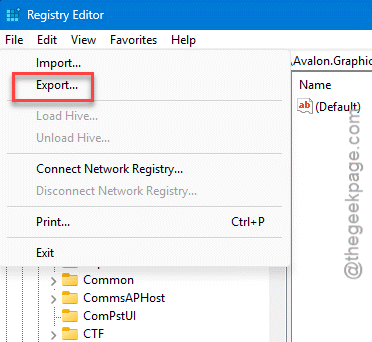
3 – Now navigate using the left sidebar. Reach this point –
HKEY_CURRENT_USER\Software\Microsoft\Windows\CurrentVersion
4 – Look for a key named IrisService.
5 – Right-click it. Click Delete. Confirm with Yes.
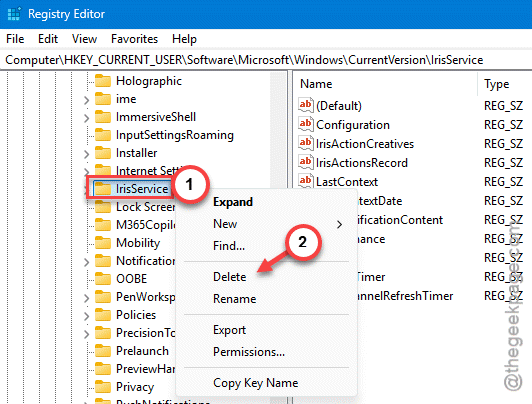
6 – Close the Registry Editor and restart your PC.
Windows rebuilds the key clean on the next boot. Don’t see IrisService at all? No problem — skip to the next fix.
Fix 4 – Turn Off the Touch Keyboard
On some builds the touch keyboard’s background thread fights with the taskbar’s rendering. Switching it off can stop the conflict.
1 – Press Windows + I to open Settings.
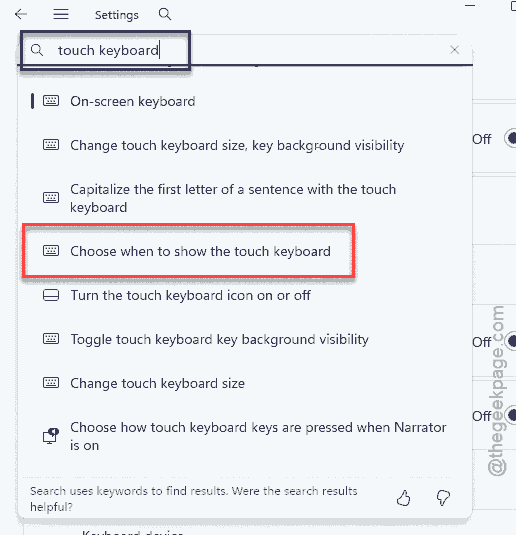
2 – In the search box at the top, type touch keyboard.
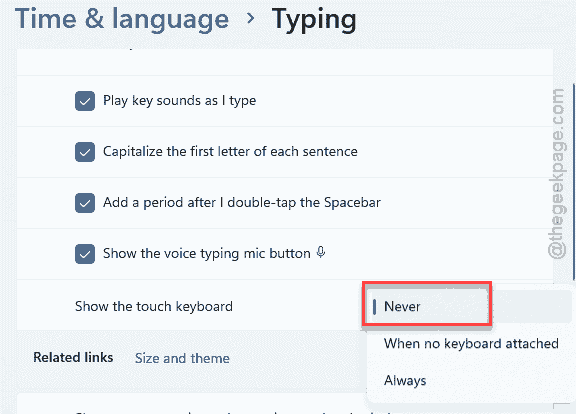
3 – Open Show the touch keyboard.
4 – Set the drop-down to Never.
Worth a shot, especially on a laptop or tablet. Costs nothing.
Fix 5 – Run an SFC Scan
If corrupted system files are crashing the shell, SFC repairs them.
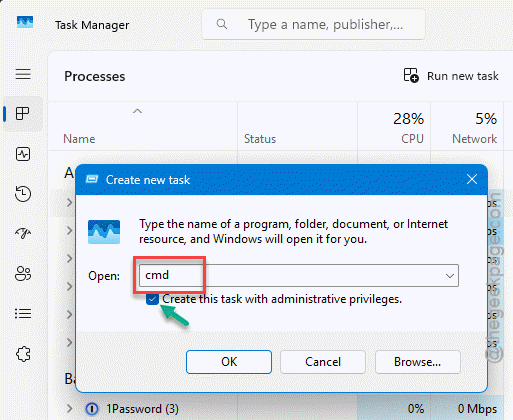
1 – Press Ctrl + Shift + Esc to open Task Manager.
2 – Click Run new task at the top.
3 – Type cmd, check Create this task with administrative privileges, and click OK.
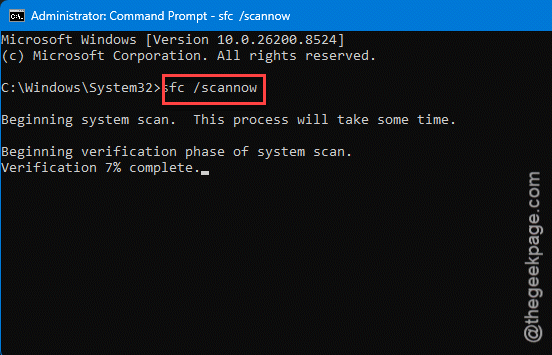
4 – Type sfc /scannow and press Enter.
5 – Let it run to 100%. Can take 10-15 minutes. Don’t close the window.
6 – Restart your PC when it finishes.
Fix 6 – Roll Back the Last Windows Update
Did this start right after an update? Then the update probably broke it. Several people fixed it just by rolling back. And updating peripheral firmware.
1 – Press Windows + I, go to Windows Update.
2 – Click Update history.
3 – Scroll down and click Uninstall updates.
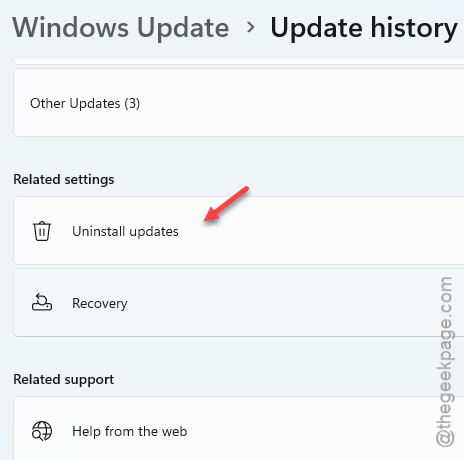
4 – Find the most recent one. Click Uninstall. Restart.
NOTE – If you ownRazer keyboard (precisly the Huntsman Mini), you should update its firmware through Razer Synapse. Strange, but real.
How to Prevent This
– Hold off a few days on big Windows feature updates. Let other people hit the taskbar-breaking bugs first.
– Keep peripheral firmware current — especially gaming keyboards. They mess with the shell more than you’d expect.
– Run an SFC scan once in a while. Catches file corruption before it takes the taskbar down.
– Make a quick registry backup before you tinker. Two minutes now saves a lot of pain later.
People Also Ask
Why has my taskbar gone blank?
Usually a corrupted IrisService registry key or damaged system files. Delete the IrisService key under HKEY_CURRENT_USER and restart to rebuild it clean.
Why did my taskbar disappear after a Windows update?
The update likely conflicts with your setup. Go to Windows Update, open Update history, and uninstall the most recent update, then restart. Also update any gaming-keyboard firmware — outdated firmware on some Razer models has crashed the taskbar right at sign-in.