You add a new notebook. It sits there. Nothing syncs. Or you get the dreaded sync error icon on the side panel.
Why This Happens
And after a Windows 11 upgrade, your default app for the “onenote:” link can switch on its own. So when you click a notebook link, it opens in the wrong OneNote app. Which doesn’t sync. Annoying.
Sometimes it’s even simpler — your system clock is off by a few minutes. Microsoft’s servers refuse to talk to a client that’s out of sync time-wise. The whole thing fails silently.
Fix 1 – Restart OneNote First
Quick fix. Try this before anything else.
Save your work. Close OneNote completely — including any tray icons. Wait two minutes. Reopen it. Sometimes the sync engine just needed a kick.
Done. If syncing resumes, you’re good. If not, keep going.
Fix 2 – Fix Your System Time
Sounds dumb. Works surprisingly often. If your time is off, Microsoft’s servers reject the sync request.
1 – Right-click the clock in the bottom-right corner of your taskbar.
2 – Click Adjust date and time.
3 – Turn off Set time automatically.
4 – Turn off Adjust for daylight saving time automatically (if shown).
5 – Wait a couple seconds. Then turn both back on.
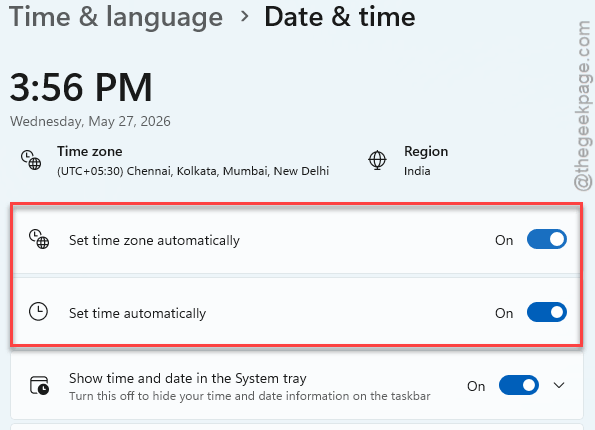
6 – Check your Time zone dropdown. Make sure it actually matches your location.
7 – Close Settings. Open OneNote. Try syncing.
That’s it. Five-second fix. No restart needed.
Fix 3 – Force a Manual Sync
OneNote has a built-in force-sync button. Most people don’t know it exists.
1 – Open OneNote.
2 – Find the notebook with the sync error symbol. Right-click its name in the left sidebar.
3 – Click Notebook Sync Status.
4 – Click Sync All at the top of the dialog.
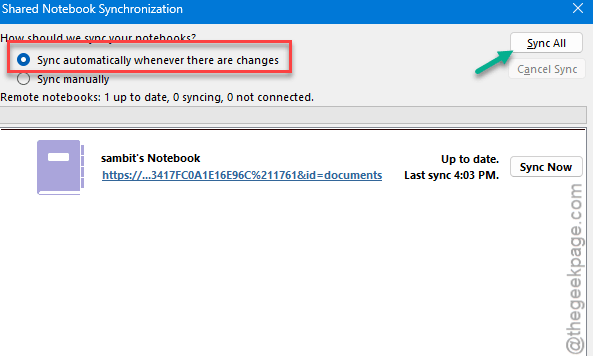
5 – Wait a minute. Watch the status.
Worked? Great. If a specific notebook is stuck, you can also click Sync Now next to just that one notebook.
Fix 4 – Fix the OneNote URL Default in Windows 11
This is the Windows 11-specific gotcha. Re-configure the OneNote URL default setting.
1 – Press Windows + I to open Settings.
2 – Click Apps on the left sidebar.
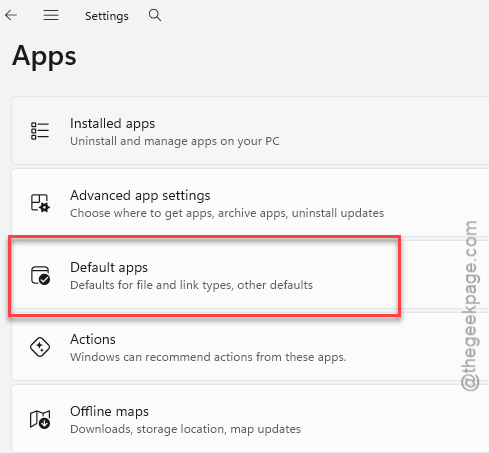
3 – Click Default apps.
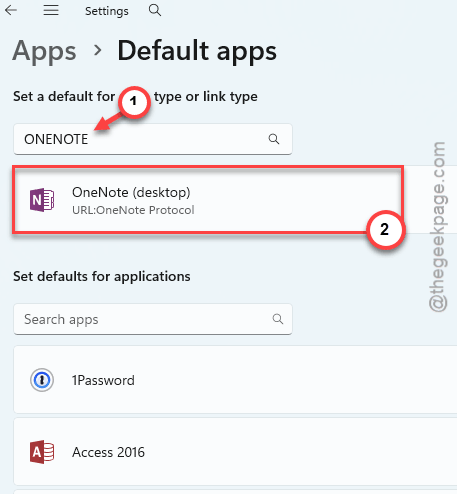
4 – Type “onenote” in the search box at the top.
5 – Click OneNote in the list.
6 – Scroll down to find URL:OneNote Protocol.
7 – Click it. Pick OneNote.
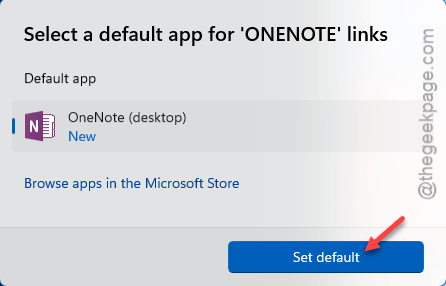
8 – Close Settings. Restart OneNote.
Big fix for anyone who recently upgraded from Windows 10. Notebooks open in the right app now. Syncing follows.
Fix 5 – Sign Out and Sign Back In
Login tokens expire. Sometimes silently. When that happens, OneNote loses permission to sync — but the app doesn’t tell you. Just stops working.
1 – Open OneNote (or Word, Excel — any Office app works).
2 – Click your profile avatar in the top-right corner.
3 – Click Sign out.
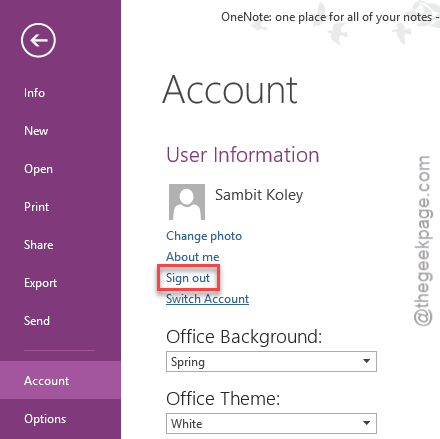
4 – Windows might warn you this signs you out of all Office apps. Click Yes.
5 – Close OneNote completely.
6 – Reopen it. Sign back in with your Microsoft account.
7 – Give it a minute to authenticate. Try syncing.
Refreshes the credentials. Often fixes silent permission issues.
Fix 6 – Open the Notebook in OneNote Web First
Bit of a weird trick. But it works. You’re forcing a fresh handshake between the cloud and your local app.
1 – Close OneNote on every device you use. Phone too.
2 – Open a browser. Go to onenote.com.
3 – Sign in with your Microsoft account.
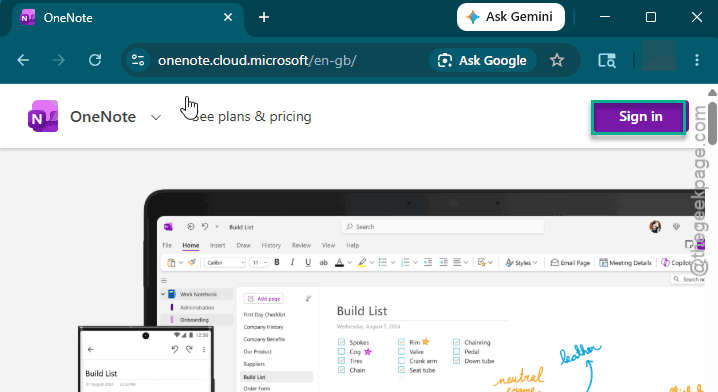
4 – Open the notebook that’s stuck syncing. Confirm the data is intact there.
5 – Close the browser tab.
6 – Reopen the desktop OneNote app.
7 – Wait a minute. The app should automatically reconnect and sync against the web version.
Worth doing if you suspect the local app is out of sync with the cloud version of your notebook.
Fix 7 – Set Notebooks to Auto-Sync
You should manually configure the notes to synchronize automatically.
1 – Open OneNote. Click File in the top-left.
2 – Click Options at the bottom.
3 – Click the Sync tab on the left.
4 – Check the box next to Sync notebooks automatically.
5 – Click OK.
And from now on changes sync as soon as you make them. No more manual triggers.
How to Prevent This
– Keep Set Time Automatically turned on in Windows. Saves a lot of headaches.
– OneDrive syncs all your notes using your OneDrive account. Make sure you are using the correct account.
– Check the Microsoft Service Health page if syncing breaks suddenly. Could be a server-side outage. Not your problem.
People Also Ask
How to fix OneNote notebook not syncing?
Try a force sync first — right-click the notebook, click Notebook Sync Status, click Sync All. If that fails, check your system time and re-authenticate your Microsoft account. Sign out, restart OneNote, sign back in. Fixes it most of the time.
Is OneNote for Windows 10 compatible with Windows 11?
Though the OneNote for Windows 10 is a quite an old application and have met its end of lifecycle, you can use all your old notes in the new OneNote app. Fixes most sync issues.