Getting Getsockopt error message while trying to play Minecraft? A set of users have complained of this sort of problem while logging into their Minecraft account. This is a network related problem, so the resolutions should follow the same path. Normally, disabling and enabling the network adapter should let you connect to the Minecraft server without any getsockopt error.
Fix 1 – Disable and Re-enable the Network Adapter
Refreshing the network adapter by disabling and enabling it on the machine.
Step 1 – Press the Win+R buttons together. Write ncpa.cpl there in the Run box and hit Enter.
Step 2 – Once the Network & Sharing Centre loads up, locate the network adapter that you are using.
Step 3 – Right-click that and tap Disable to turn it off.
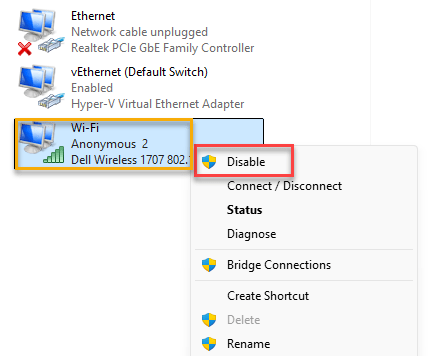
Step 4 – Once it is disabled, right-click the disabled adapter, and this time tap the Enable option to re-enable it.
After refreshing the network adapter, try to join the same Minecraft server. You won’t face the getsockopt error again.
Fix 2 – Allow the Java.exe through the Windows Firewall
The system firewall is blocking the outgoing communication to Minecraft server.
Step 1 – Right-tap the Windows button, and tap the Run button.
Step 2 – Next, input this code there, and click OK to reach the Firewall settings page directly.
firewall.cpl
Step 3 – Tap the Allow an app or feature through Windows Defender Firewall option on the left panel.
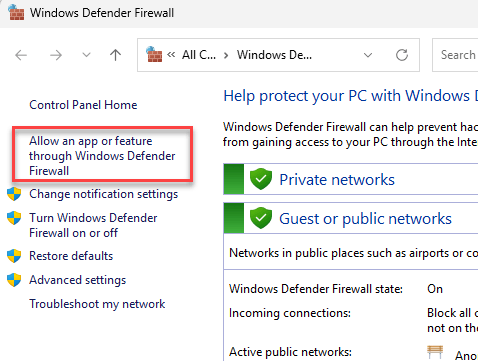
Step 4 – Tap the Change Settings option.
Step 5 – Next, look for the java.exe in the list and check the Public and Private boxes. Tap Save changes to apply the change.
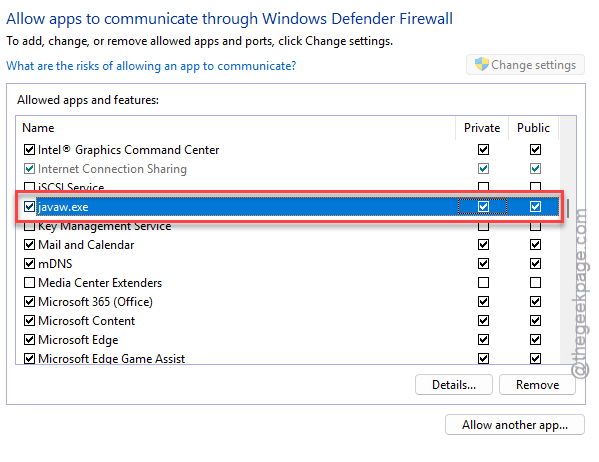
This way, you won’t get any getsockopt error message again.
Fix 3 – Use the Server’s Local IP to Join
If you are trying to join your friend’s local Minecraft server, and facing this problem, you should use their local public IP to join. A common mistake gamers often do is to input the local network IP address. It may or may not be the same with their public IP address. Then, input the port number (default for Minecraft is 25565) to join the server.
Example of such IP – 123.456.7.89:25565
Fix 4 – Refresh the Network components
You should run these few commands to refresh the network settings on your system.
Step 1 – At first, search for cmd. Next, right-tap the Command Prompt and use the Run as administrator option.
Step 2 – Then, execute these three-commands one-by-one in the CMD terminal.
ipconfig /flushdns
netsh winsock reset
netsh int ip reset
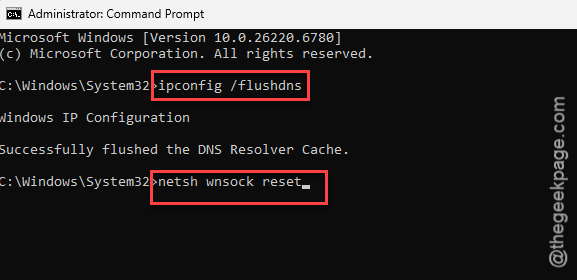
After running these three commands, you can close the CMD terminal. Reboot your computer for the network refresh to take effect.
Fix 5 – Change the DNS server address
Make sure your network adapter is configured to use the correct DNS server address.
Step 1 – To do this, open up a Run box.
Step 2 – Input the code there and hit Enter.
ncpa.cpl
Step 3 – Finally, right-click the network adapter there, and tap Properties.
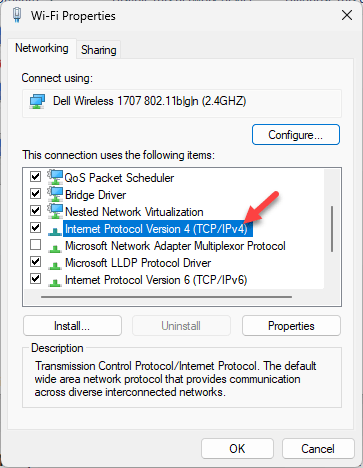
Step 4 – Now, double-tap the Internet Protocol Version 4 TCP/IpV4 settings.
Step 5 – Switch it to the Use the following DNS server addresses: option, and set it to this configuration~
Preferred DNS server: 8.8.8.8
Alternate DNS server: 8.8.4.4
Step 6 – Finally, click OK to save the change.
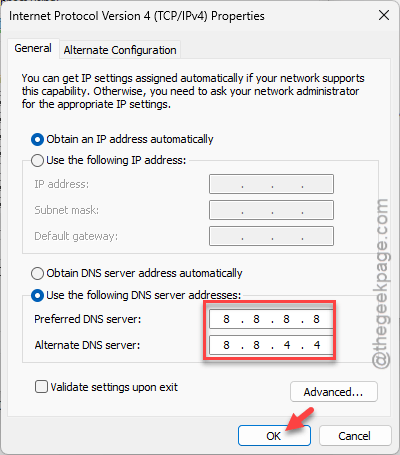
After changing the DNS settings for the network adapter, you won’t face the same error message again.
What is Getsockopt error in Minecraft?
The ‘Connection refused: getsockopt’ error message appears due to a communication problem between the Minecraft server and the user’s device. However, users may also face this issue while trying to connect to an incorrect server IP address. Simple workarounds like flushing the network configuration, rectifying the server IP address should help you resolve the issue.
Is Minecraft available for free?
No. The full version of Minecraft (Minecraft Java, Bedrock or any other version) is not available for free, but, one can experience the Minecraft in the free trial of the subscription plan in the Xbox Game Pass for PC and console. The browser version of the Minecraft classic is available for free for the users, but it restricts the experience severely.