If the Photos app got stuck on calculating storage on your Mac device, you will be slightly relieved to know that you are not the only one with this issue. The Photos app getting stuck calculating storage data means that your Mac is still indexing the photo or syncing them to iCloud. We have got these solutions sourced from various support forums that have proven to be useful for many users affected by this issue.
Here is the Quick Fix table for a better preview to the main solutions for more advanced users ~
| Issue Cause | What to Do | Time |
|---|---|---|
| Third-party photo processor | Photos > Settings > General > Use as System Photo Library | 2 min |
| Indexing in progress | Wait it out till you see ‘Syncing in progress’ or ‘Updating’ message | ~ |
But, if you are out for a more detailed step-by-step guide, these fixes should do the trick~
Fix 1 – Set the Photo app as the System Photo Library
You must set the Photos app to set as the default system library. This way, it can synchronize the photos directly to the iCloud library.
Step 1 – Open the Photos app on your Mac. Then, tap the Photos in the menu-bar and tap Preferences.
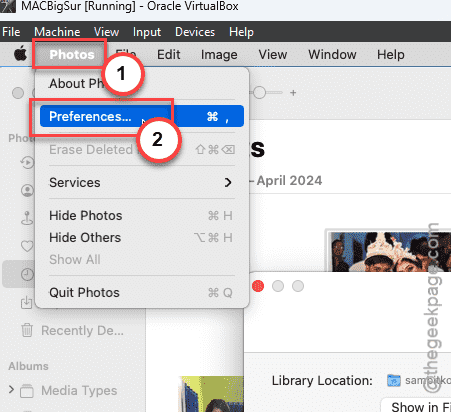
Step 2 – Next, go to the General tab there.
Step 3 – Then, tap the Use as System Photo Library option there.
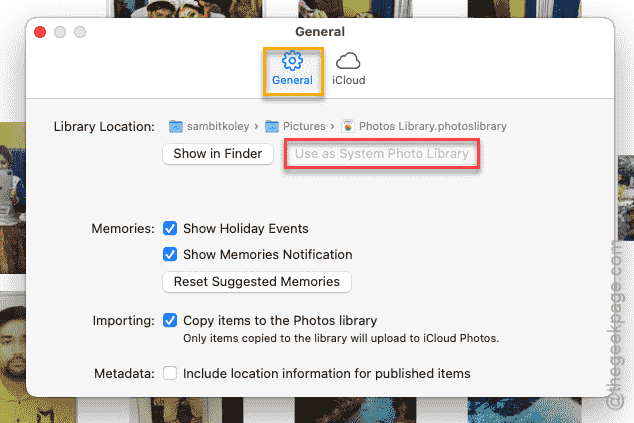
Now, once you have set it as the default system photo library, Mac will continue and finish the calculating process for the Photos app. It will be done in a few seconds.
This should have fixed your issue.
Fix 2 – Let the Indexing process complete
If you have to check the storage on the Photos while it is still indexing the items, it may take a while for it to complete the process.
Step 1 – To check that, load up the Photos app.
Step 2 – Check whether you can see any messages such as ‘Updating…’ or ‘Syncing…’ in the Photos app. That means the application is still syncing your images from iCloud.
All you have to do is to wait for a while for all the images, videos to get synced. Then, it will show up the correct size, instead of just getting stuck at the ‘Calculating’ stage any more.
Fix 3 – Rebuild the index
If the Photos app is still stuck at the ‘Calculating’ phase, you should consider rebuilding the index.
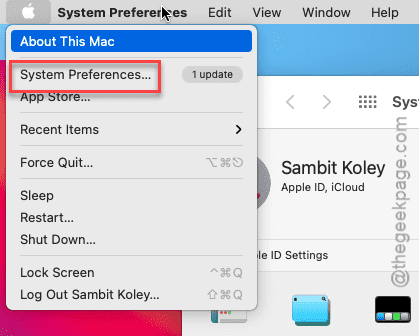
Step 1 – To do this, tap the Apple logo at the top and open up the System Preferences (System Settings on newer macOS) menu.
Step 2 – Next, load up the Spotlight from there.
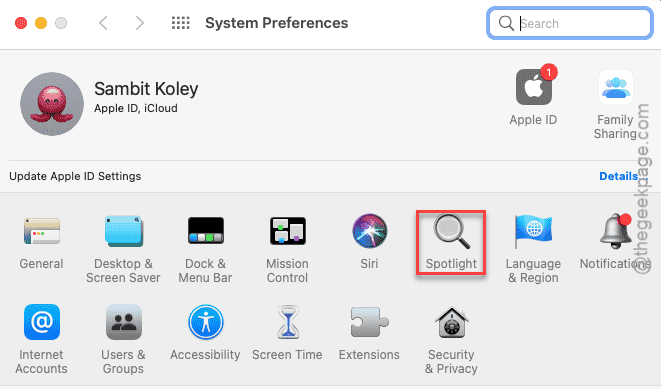
Step 3 – Go to the Privacy tab.
Step 4 – Tap the + button there to include a new drive there.
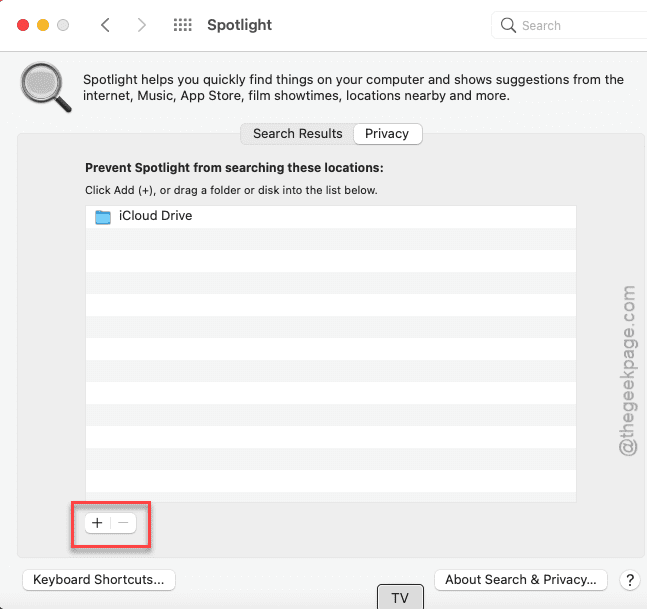
Step 5 – Next, choose the iCloud drive from there. Tap the Choose button there to select the drive. If you have photos on other drives, include them as well.
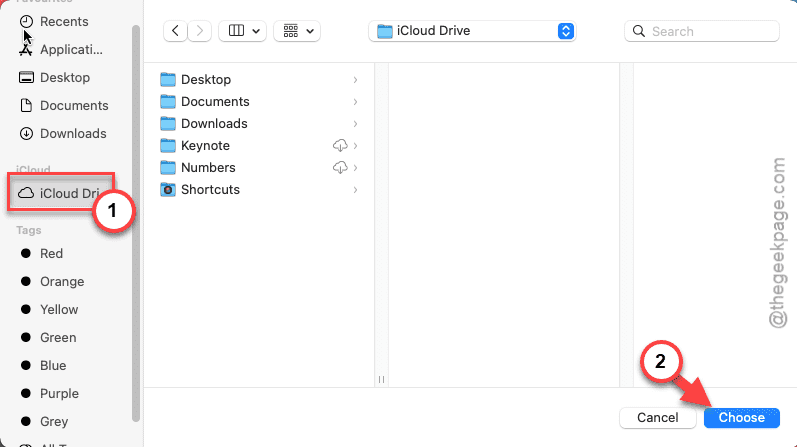
Step 6 – Once you have included the drives, close Spotlight.
Spotlight on your Mac will start rebuilding the index and complete it in the due process.
The storage status won’t get stuck again for the Photos app.
FAQs–
Here are some frequently asked questions for you~
1. How long should ‘Calculating’ take on macOS?
The reason you are getting ‘Calculating’ status is due to the time it takes to synchronize large amount of files from the iCloud account. The more files you have on your iCloud, the more time it takes for the System Photo Library to synchronize it on your Mac.
2. I have freed up space, but Storage is still showing ‘Calculating’
The storage still may show the ‘Calculating’ even when you have freed up space. The issue of storage getting stuck at ‘Calculating’ stems from various other factors other than the low storage space issue. If the iCloud synchronization process is still running for the Photos app, it can get stuck in ‘Calculating’ phase for some time.