You go to grab a screenshot. And the Snipping Tool throws a File System Error (-2147219196). Won’t open.
No screenshot. Just an error code that means nothing to a normal person. Annoying when you just want to snip something quick. Here’s the fix.
Why This Happens
Basically? The app’s files got scrambled.
The update touches the built-in apps, and something doesn’t line up afterward. The Snipping Tool isn’t the only victim — the Photos app and others throw this same error too.
Why the built-in apps specifically? They’re tied to the Microsoft Store framework. So when the Store’s cache or a system file goes bad, these apps break first. The connection’s invisible, but it’s there.
Good news though. It’s almost always software, not hardware. So a repair, a cache reset, or a reinstall sorts it out. We’ll go from gentle to firm.
Fix 1 – Run DISM and SFC
Run the Deployment image system scan codes to repair the damage to the system files and fix the issue.
1 – Press the Windows key and write CMD.
Next, right-tap Command Prompt, and tap Run as administrator.
2 – Type this and press Enter:
dism /online /cleanup-image /restorehealth
3 – Don’t close the terminal or do any thing till it completes. It can hang at one number for a while — that’s normal, leave it.
4 – Now type this and press Enter:
sfc /scannow
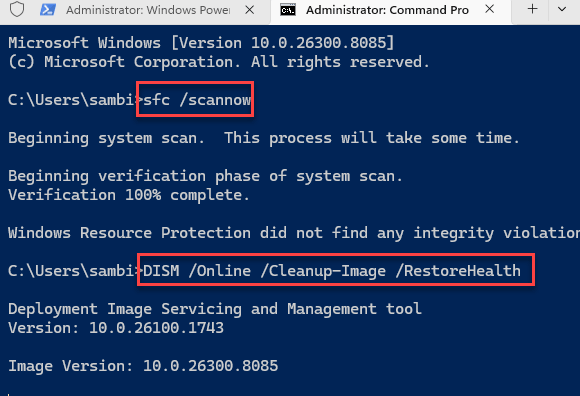
Wait till this action completes.
DISM fixes the underlying Windows image. SFC then repairs individual files using that clean image.
Fix 2 – Reinstall the Snipping Tool via PowerShell
If repair and reset didn’t take, rip the app out completely and reinstall a clean copy.
1 – Hit the Windows key. Then, start to write powerShell,
Then, right-click the terminal, and choose Run as administrator.
2 – Type this command and press Enter to remove the app:
Get-AppxPackage *Microsoft.ScreenSketch* | Remove-AppxPackage
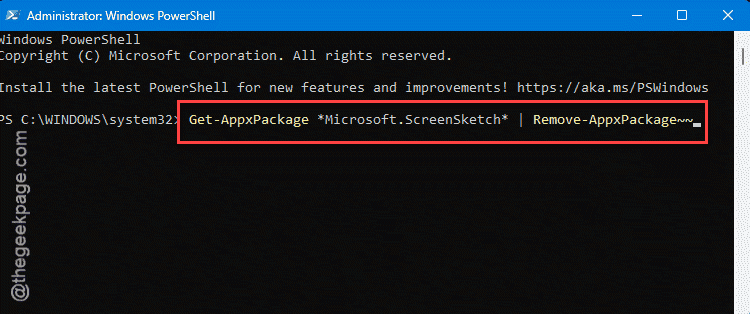
3 – Open the Microsoft Store.
4 – Search for Snipping Tool and click Get or Install.
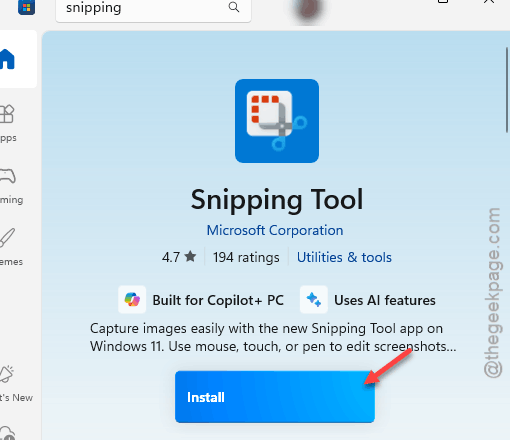
Done. A fresh download replaces the corrupted files entirely, which clears the error when nothing else does.
Fix 3 – Repair or Reset the Snipping Tool
Start here. Windows can fix the app’s files for you. Repair keeps your settings — reset wipes them clean. Try repair first.
1 – Press Windows + I to open Settings.
2 – Open the Apps tab. Then, open up the Installed apps section.
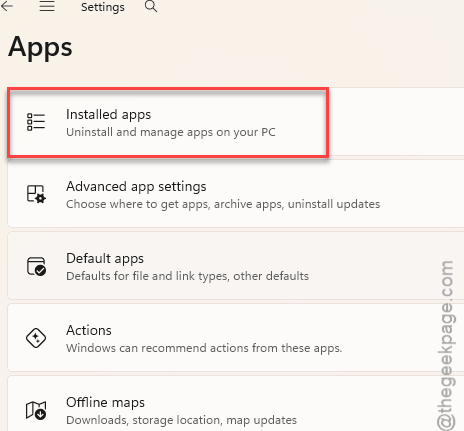
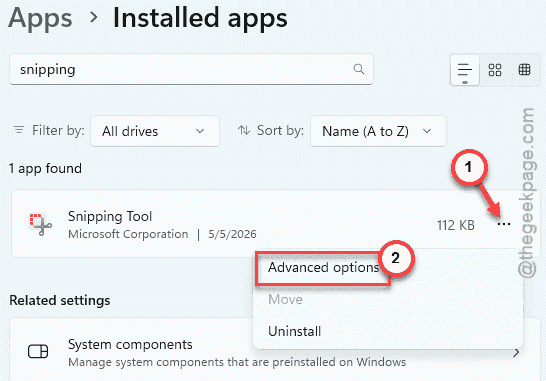
3 – Search for Snipping Tool (older Windows may call it Snip & Sketch).
4 – Tap the three dots next to it and choose Advanced options.
5 – Scroll down and click Repair. Give it a moment.
6 – Test the tool. Still broken? Come back and click Reset.
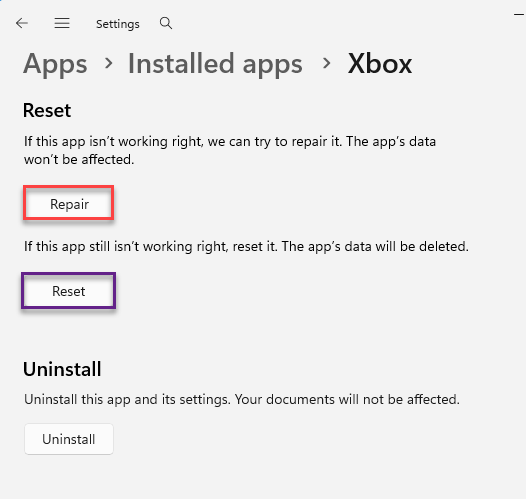
Repair is the no-risk option — nothing gets lost. Reset is the firmer one that clears the app’s data. Most people are fixed by the time they hit reset.
Fix 4 – Reset the Microsoft Store Cache
Since this error ties back to the Store framework, clearing the Store cache often clears the error with it.
Quick one. Press Windows + R, type wsreset, and press Enter.
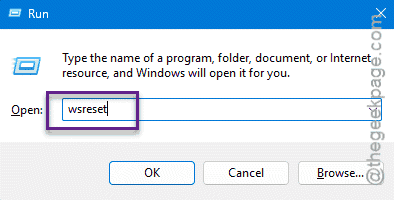
A blank command window pops up — don’t close it. Just let it sit. After a few seconds it closes on its own and the Microsoft Store opens fresh. That blank window means it’s working.
Fix 5 – Update Windows and the Store Apps
Since a bad update often causes this, the next update usually fixes it. Get current on both.
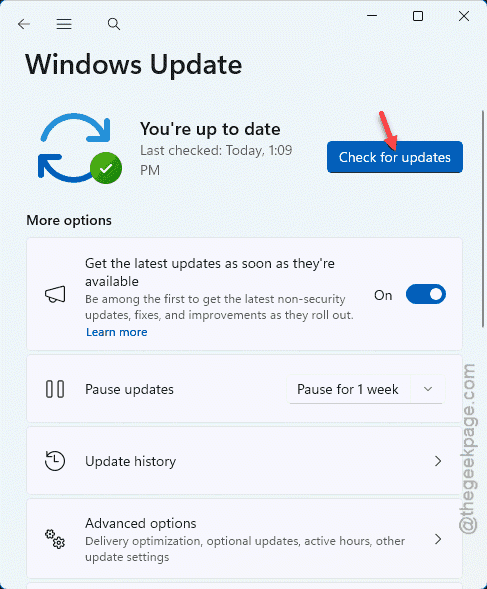
1 – Open the Windows + I buttons to load up Settings page.
Then, go to Windows Update, and click Check for updates. Install anything pending.
2 – Open the Microsoft Store.
3 – Click Downloads (bottom-left), then Check for updates.
4 – Let the Snipping Tool update if it’s listed.
5 – Restart and test.
If a faulty update broke it, Microsoft’s follow-up patch is often the real cure.
How to Prevent This
– Keep your built-in apps updated through the Store. The patches that fix these errors come through there.
– Don’t interrupt Windows updates halfway. A cut-off update is what corrupts these apps to begin with.
– Run a quick DISM and SFC every few months. It catches small file corruption before it breaks something you need.
– If one built-in app throws this error, check the others (like Photos). Fixing the Store cache once often heals them all.
People Also Ask
How to fix file system error (-2147219194)?
This is a close cousin of -2147219196 and points to the same kind of corrupted app or system file. The fixes overlap: repair or reset the affected app, reset the Store cache, and run DISM followed by SFC. Reinstalling the specific app through PowerShell handles the stubborn cases.