Unable to update an app on your iPhone? Sometimes, due to network conditions or storage situations, some of the app updates can get stuck. But, it doesn’t take much longer time to get the update installed on the device. But, if in your case, if the updates are stuck and taking too long to complete, here are some fixes.
Fix 1 – Prioritize Download
Whenever you start downloading or updating multiple apps, iPhone does that in an order. While the one apps is downloading, the other apps are put on a hold.
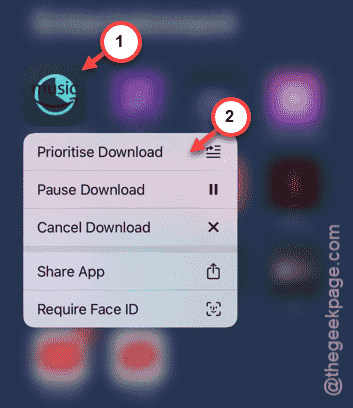
Step 1 – On the Home Screen, look for the app icon in there. It should appear a greyed out icon with the update status.
Step 2 – Hold down that stuck app and tap the “Prioritize Download” option.
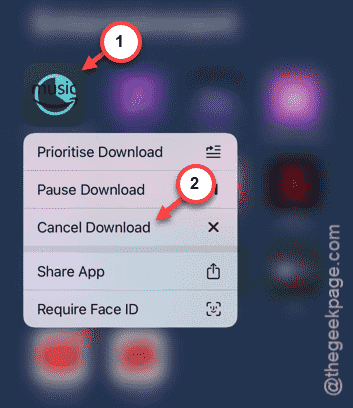
Step 3 – Next, hold the same app icon and tap “Cancel Download” option.
Step 4 – After this, go to the App Store.
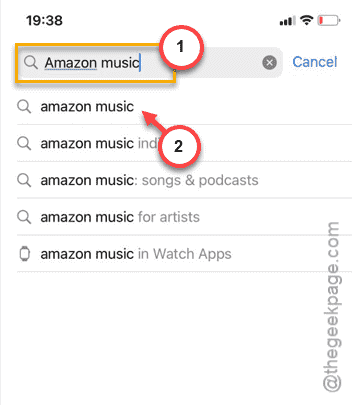
Step 5 – There, search for the app and open that up in there.
Step 6 – Now, tap the same “Update” option to update the app.
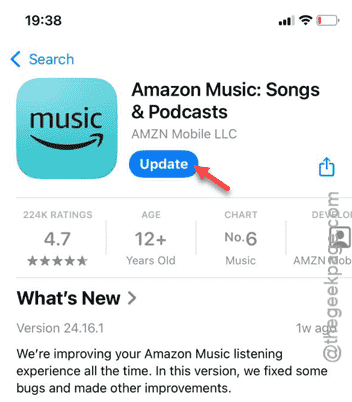
This time, the app will be updated normally. See if this works.
Fix 2 – Reset only the network components
One of the possible reasons is the network issue. So, you should reset all the network components and check if this works out or not.
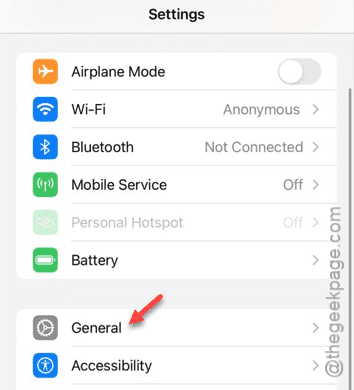
Step 1 – Start from the Settings tab.
Step 2 – We need to open up the “General” settings.
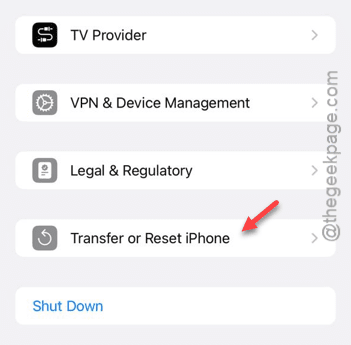
Step 3 – Tap the “Transfer or reset iPhone” option.
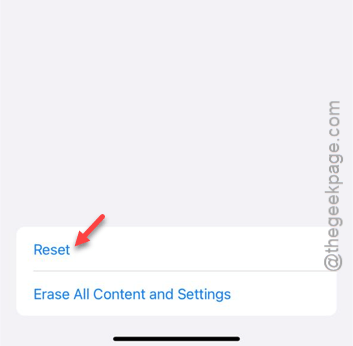
Step 4 – In that specific settings page, tap the “Reset” button.
Step 5 – Use the “Reset Network Settings” option.
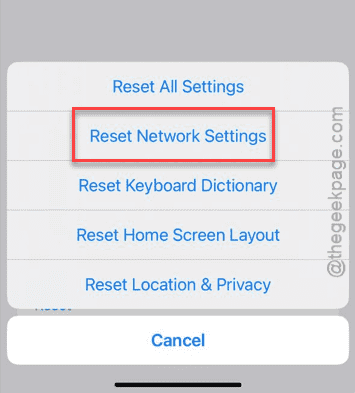
Follow up the on-screen steps to reset the network settings on your iPhone. Your iPhone may restart in this method.
When the iPhone restarts, you have to reconnect to the Wi-Fi or update the app on mobile data. Do see whether the update does get stuck or not.
Fix 3 – Change the iPhone language
You should change the iPhone language on your iPhone.
Step 1 – The starting point for this solution in the Settings page.
Step 2 – So, open that up and go to the “General” menu.
Step 3 – In that General tab, scroll down and open up the “Language & Region” settings.
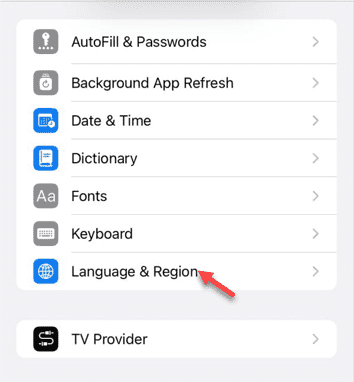
Step 4 – Now, take a look at the ‘Preferred Languages’ section.
Step 5 – If you see another language other than the current language in that list, tap that to set it as the default language of the iPhone.
Step 6 – But, if you can’t see any new language, tap the “Add language…” option.
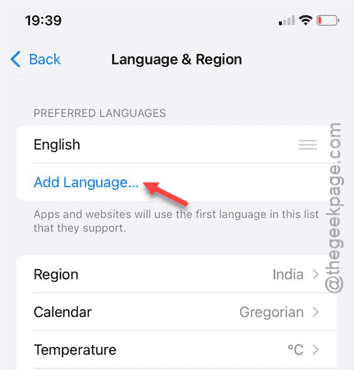
Step 7 – In the language selection tab, choose a new language from the list. Select a language that you know, or select a particular dialect that you are familiar with.
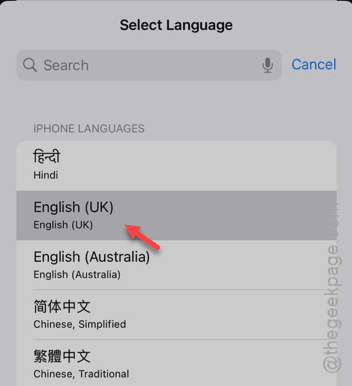
Step 8 – Select the new language from the prompt.
The iPhone screen will turn off once and light up once again.
Step 9 – Try to update the pending application from App Store.
Step 10 – Once you have updated the app, come back to the Language & Region page.
Step 11 – Select the previous language from the list and set it to the top.
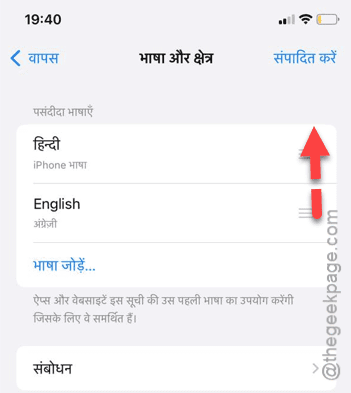
This way, you can reset the language to the original version.