You open File Explorer and there’s your document. Twice. Same name, same icon, sitting right next to itself under Favorites. And removing one doesn’t stick. It reappears an hour later. Or both vanish at once and you panic for a second. Not great.
Why This Happens
File Explorer keeps a small private database of the files you pin and the ones you’ve opened lately. OneDrive keeps a list of its own. Most days the two agree.
But a OneDrive file isn’t always one single thing. It can exist as a placeholder — a tiny stand-in that only downloads the real file when you open it — and as a full local copy. So when the sync client rebuilds its index, it sometimes logs both of those as separate files. Explorer just believes it and shows you two.
The shortcuts behind Favorites go stale, too. You rename a folder or move a file, and the old pointer hangs around aiming at nothing while a fresh one appears beside it. Nothing cleans up the leftover.
So is this you or is it the software? Mostly the software. Microsoft flagged this as a real bug and shipped a backend fix in a recent cumulative update, which is honestly a relief.
Fix 1 – Unpin the Duplicate by Hand
Try the dumbest thing first.
1 – Right-click the duplicate under Favorites and choose Remove from Favorites.
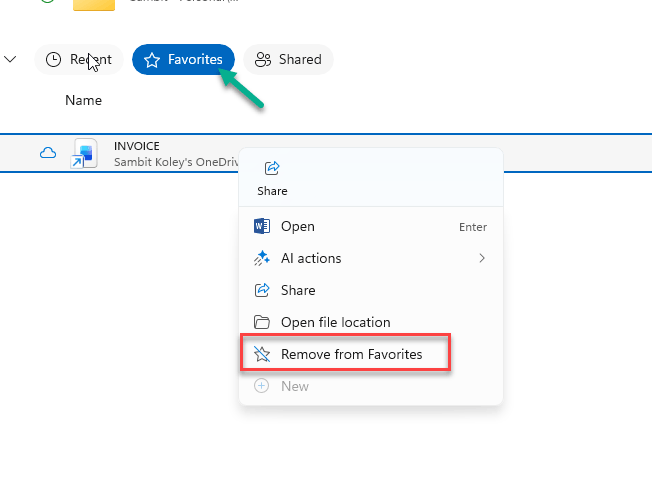
That’s it. It often nudges Explorer into dropping the ghost copy on the spot. If the duplicate stays gone after a restart, you’re done and the rest of this article is optional.
Fix 2 – Clear File Explorer’s History
1 – Open File Explorer with Windows + E.
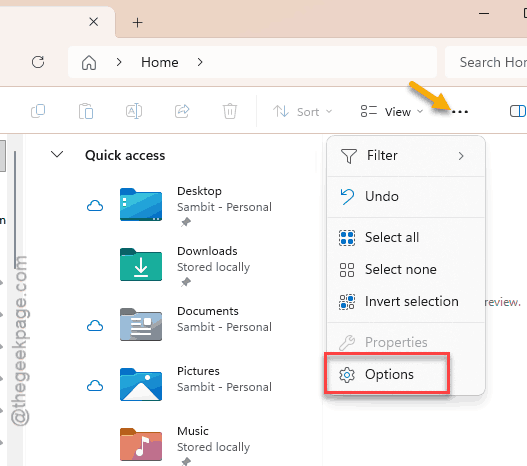
2 – Click the three dots (⋯) in the toolbar at the top.
3 – Click Options.
4 – Stay on the General tab, which opens first.
5 – Down in the Privacy section, click the Clear button next to Clear File Explorer history.
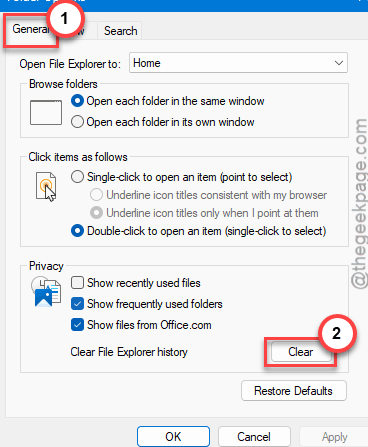
6 – Click OK and close File Explorer completely, then reopen it.
This wipes the recent-files cache, which is where those corrupted shortcut pointers live. Your actual files are untouched. (Recently used list goes empty for a bit — that’s normal.)
Fix 3 – Reset the OneDrive Sync Client
Duplicates back already? Then OneDrive’s own index is the problem, not Explorer’s. Resetting forces it to rebuild that index from scratch so it stops pushing double entries to Windows.
Sounds drastic. It isn’t — nothing gets deleted from the cloud or your PC.
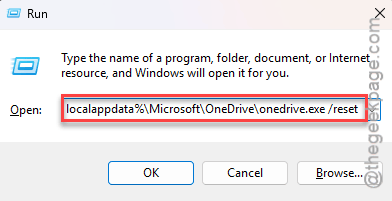
1 – Press Windows + R to open the Run box.
2 – Paste this in exactly and press Enter:
%localappdata%\Microsoft\OneDrive\onedrive.exe /reset
3 – The OneDrive cloud icon disappears from your taskbar. Give it a minute or two to come back on its own.
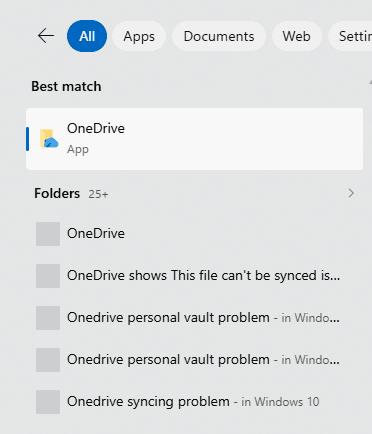
4 – If it hasn’t returned after five minutes, click Start, type OneDrive, and open it manually.
On a big folder that can take a while, and the duplicate list won’t settle until it’s done.
Fix 4 – Wipe the Quick Access Database
If the duplicates survived a OneDrive reset, the backend file that stores your Favorites list is corrupted. Deleting it makes Windows build a clean one.
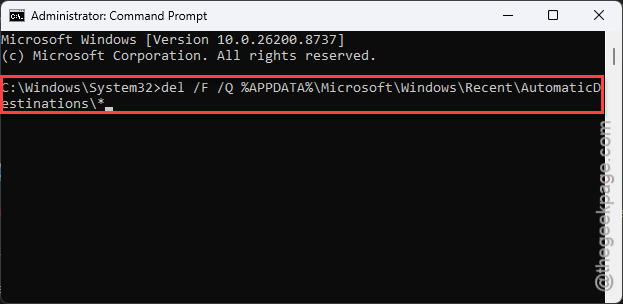
1 – Click Start, type cmd, then right-click Command Prompt and pick Run as administrator.
2 – Paste this line and press Enter:
del /F /Q %APPDATA%\Microsoft\Windows\Recent\AutomaticDestinations\*
3 – Nothing visible happens. No confirmation, no output. That means it worked.
4 – Restart your PC so Explorer regenerates the list.
5 – Open File Explorer and re-pin the folders you actually use.
Fix 5 – Install the Latest Cumulative Update
Microsoft patched the code behind this duplication bug directly, so if you’re running an older build you’ll keep fighting symptoms forever.
1 – Press Windows + I to open Settings.
2 – Click Windows Update at the bottom of the left sidebar.
3 – Click Check for updates.
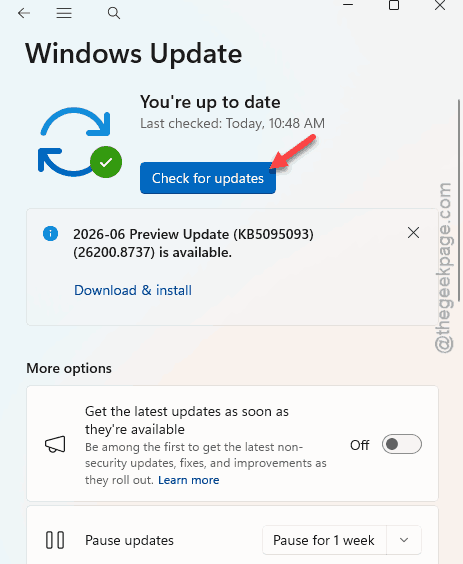
4 – Install anything it offers.
5 – Restart when it asks. The fix doesn’t apply until you do.
How to Prevent This
– Don’t pin the same folder from two different paths — once from OneDrive, once from a mapped drive. Windows treats those as unrelated, and you get doubles honestly earned.
– Let OneDrive finish syncing before you shut down. Half-finished indexing is where most of this mess starts.
– Stay current on cumulative updates. This particular bug got fixed in one.
– Clear your File Explorer history every few months. Takes ten seconds and it keeps the pointer cache from rotting.
– If you move a synced folder somewhere else, unpin it first and re-pin it after. Saves you a stale shortcut.
People Also Ask
Why are my OneDrive files showing up twice?
Usually because OneDrive registered both the placeholder and the local copy of a file as separate entries while rebuilding its index. Stale Favorites shortcuts add to it. Resetting the sync client fixes most cases, and Microsoft patched the underlying bug in a recent cumulative update.
Does resetting OneDrive delete my files?
No. A reset only rebuilds the local sync index and re-links your account. It does not affect neither your local files, nor the synced ones in the cloud.