Your Dell was fine last week. Now it runs hot, the fan screams, and it shuts off with no warning. Mid-task, sometimes. And it started right after a Windows 11 update. Not a coincidence. Annoying, but fixable.
Why This Happens
Microsoft pushed a cumulative update that broke how some Dell machines handle heat and power. So the laptop stops throttling itself the way it should, and the temperature just climbs.
Two things go wrong. The update ships a bad version of a driver that controls thermal limits. And on some Dells, a USB-C power driver panics the kernel — the core part of Windows that everything else runs on top of — which forces a hard shutdown on the spot.
Why did it slip through? No idea. But it was bad enough that Microsoft paused the update for Dell PCs entirely.
There’s a second trap too. The fresh build likes to run heavy background tasks while the laptop is asleep. Zip it into a bag like that and it cooks itself with the lid shut. Not ideal.
Fix 1 – Uninstall the Buggy Update
Start here. If the update already installed, pulling it back is the fastest way to get normal temperatures again.
1 – Press Windows + I to open Settings.
2 – Click Windows Update at the bottom of the left sidebar.
3 – Click Update history.
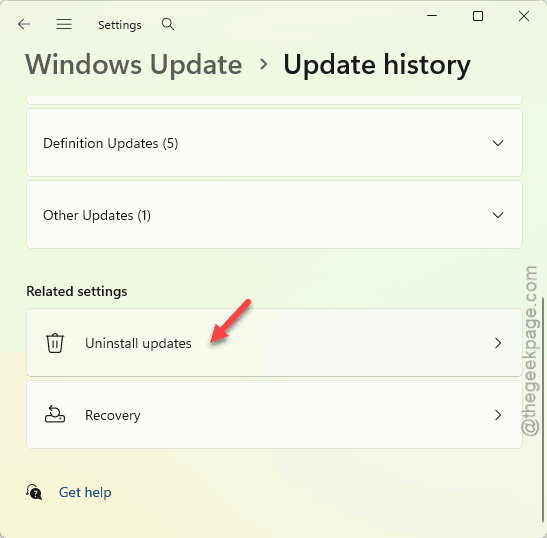
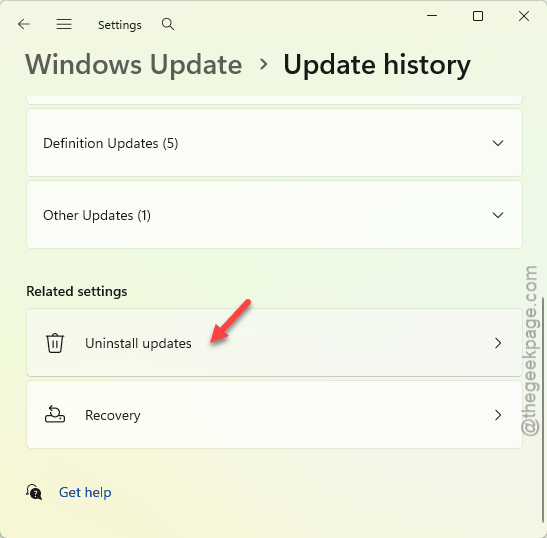
4 – Scroll to the bottom and click Uninstall updates.
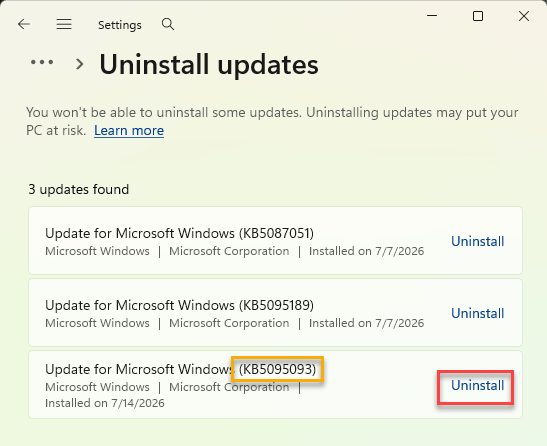
5 – Look for KB5101650 or KB5095093 in the list. That’s the culprit.
6 – Click Uninstall next to it and let your PC restart.
Your temperatures should settle right after the reboot. If they don’t, keep reading — a driver is probably the real problem.
Fix 2 – Pause Updates So It Doesn’t Come Back
Quick one, and do it now. Windows will happily reinstall that same update within a day if you let it.
1 – Press Windows + I to load up the Settings console.
2 – Then, go to the Windows Update, and set it to Pause updates for 1 week.
And it does it quietly, so pausing buys you time without the update sneaking back in while you’re not looking.
Fix 3 – Roll Back the Intel Power Driver
Shutting off with no warning at all? Then this driver is usually the trigger.
1 – Right-click the Start button and choose Device Manager.
2 – Double-click System devices to expand it.
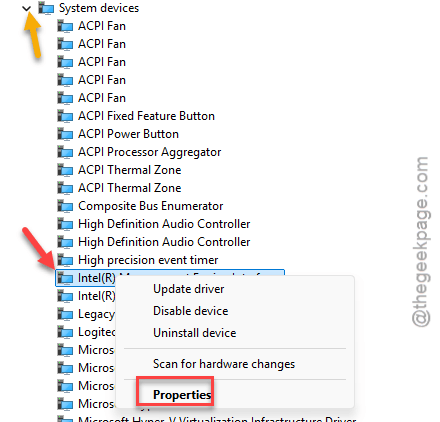
3 – Scroll down and right-click Intel Innovation Platform Framework Processor Participant. Long name, easy to miss.
4 – Choose Properties.
5 – Go to the Driver tab at the top.
6 – Click Roll Back Driver, pick any reason, and confirm.
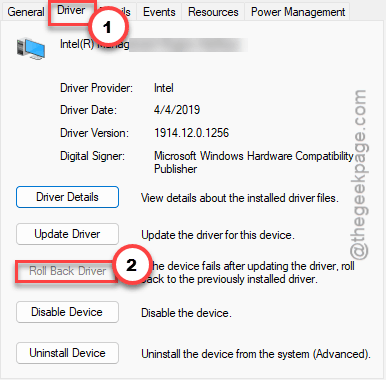
Restart after.
If the Roll Back button is greyed out, there’s no older version to fall back on — skip to Fix 4.
Fix 4 – Clean-Reinstall Your Graphics Driver
Still overheating? The graphics driver might be corrupted from the update. A normal reinstall won’t cut it.
First, stop Windows from re-downloading drivers on its own.
1 – Press Windows + R, type sysdm.cpl, and press Enter.
2 – Go to the Hardware tab, then click Device Installation Settings.
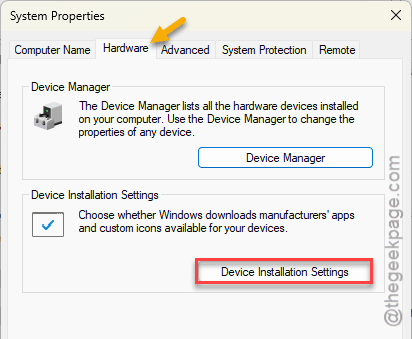
3 – Choose No and click Save Changes. This stops Windows from grabbing the bad driver again.
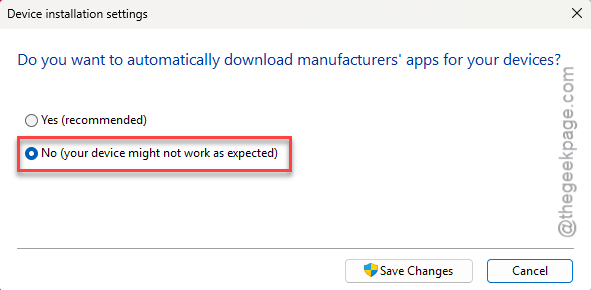
Now the cleanup.
4 – Download DDU from the official Wagnardsoft site.
5 – Restart into Safe Mode. (Hold Shift while you click Restart, then go to Troubleshoot > Advanced options > Startup Settings > Restart, and press 4.)
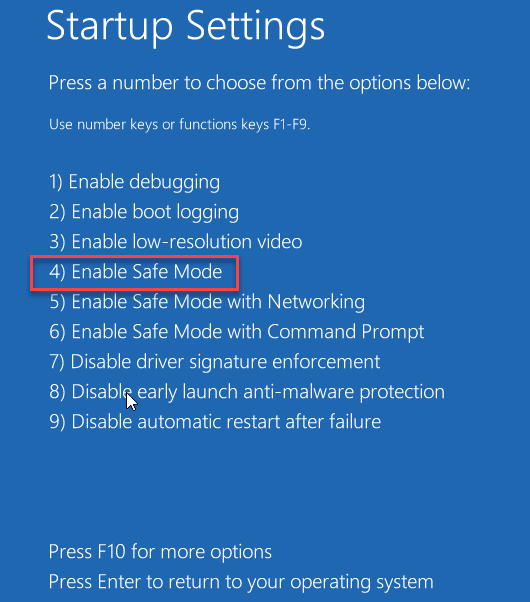
6 – Open DDU, pick GPU and your Intel graphics from the dropdowns, then click Clean and restart.
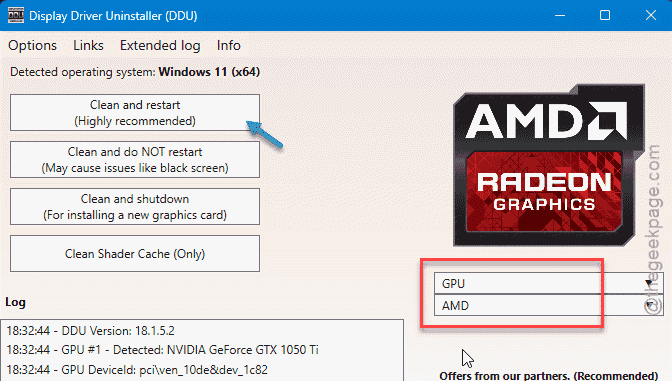
7 – Once you’re back in Windows, go to Dell’s support site, enter your service tag, and download the graphics driver Dell recommends. Not Windows Update’s version — Dell’s.
This one takes a while, maybe half an hour start to finish. But it fixes the stubborn cases nothing else touches.
Fix 5 – Stop It Cooking in Your Bag
This one isn’t about the update itself. It’s about what the update made worse. The new build runs heavy tasks during Modern Standby (the light-sleep mode that keeps your laptop half-awake). Toss it in a bag like that and it overheats with the lid closed.
So put it into real sleep before it goes anywhere.
1 – Unplug the charger first. Wait a few seconds so Windows knows it’s running on battery.
2 – Click Start, click the power icon, then click Sleep. Don’t just close the lid and hope.
3 – Wait for the screen to go fully dark and the keyboard lights to die before you pack it away.
How to Prevent This
– Don’t rush big updates. Wait a week and see if others are reporting fires before you install. Boring advice. Works.
– Keep your Dell drivers coming from Dell, not Windows Update. Dell tests them against your exact model.
– Leave updates paused until Microsoft ships the real fix. Then update on your own terms.
– Give the laptop a second to actually fall asleep before it goes in a bag. A closed lid isn’t always real sleep.
People Also Ask
Why does my computer keep overheating on Windows 11?
Often it’s a bad update. Microsoft shipped a cumulative update that broke thermal management on some PCs, Dells especially. Uninstalling it usually cools things down fast.
Is the latest Windows 11 update causing problems?
For a lot of Dell owners, yes. It’s been tied to overheating, random shutdowns, and USB-C kernel panics. Microsoft even paused the rollout for Dell machines over it.
Why does my Windows 11 PC keep shutting down?
A hard shutdown with no warning usually points to a driver fault, not heat alone. On Dells after the recent update, the Intel Innovation Platform Framework driver is the common trigger. Roll it back in Device Manager. If the machine’s also burning hot, clear the update and check your fan vents.