Does your Apple Watch got stuck at preparing update step? Apple Watches get the OTA updates on a regular basis. Apart from the one major yearly update, there are multiple updates that make their way into your device. But, if your Apple Watch is stuck at the preparation phase of the update, these solutions should be helpful for you.
Fix 1 – Charge your Apple Watch up to 50%
Your Apple Watch needs to be charged more than 50% for the update to get into the device. Usually, the update process is a bit lengthy and consumes quite a lot of power. So, you can’t expect the watchOS to get updated if the battery is below 50%.
Put the device on charge and wait until it hits the 75% mark. After this, you can initiate and complete the whole update process.
Fix 2 – Restart the Apple Watch
Just a normal restart of the Apple Watch may take care of this problem.
Step 1 – Simply tap and hold the side button on the watch.
Step 2 – Later, touch the “Power” button on the console.
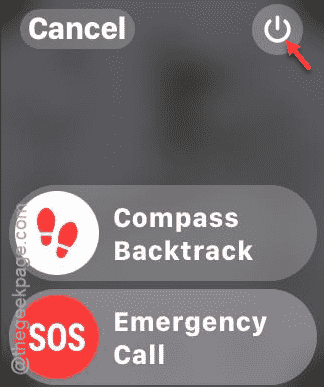
Step 3 – Drag the ‘Power Off‘ slider to power off the watch.
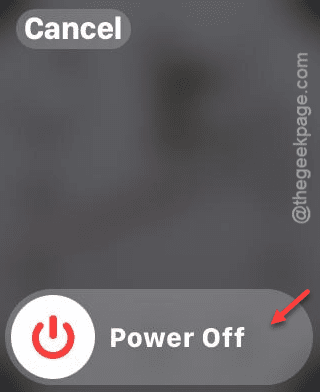
Step 4 – After switching off the watch, you have to press and hold the same side button to restart the watch.
Try updating the watch once again.
Fix 3 – Use the latest iOS
You must use the latest version of the iOS.
Step 1 – Load up the Settings page on the iPhone.
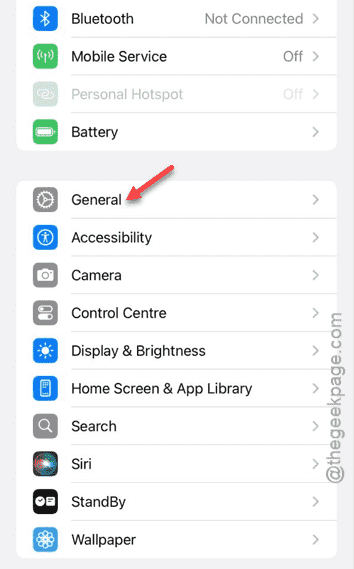
Step 2 – Go to the “General” panel.
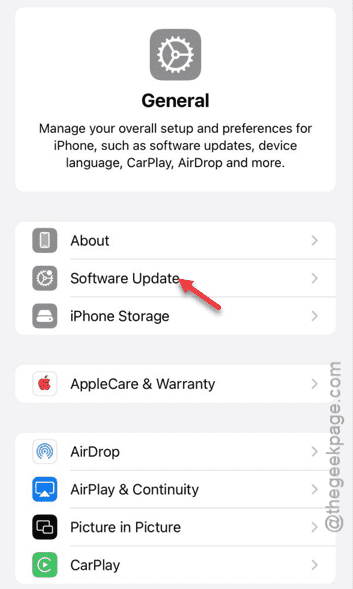
Step 3 – Then, tap the “Software Update” section on the device.
Step 4 – If you can find a new update, install it.
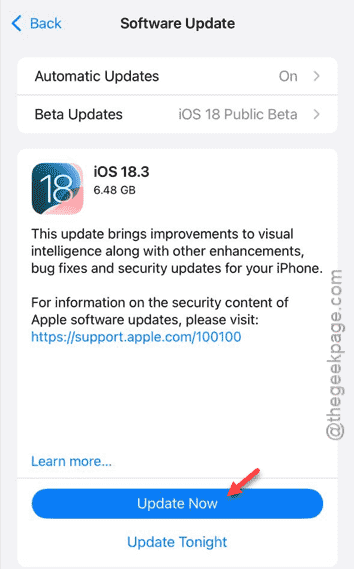
After installing the latest update, try updating the watch now.
Fix 4 – Check the storage on Apple Watch
There must be a good amount of free space available on the Apple Watch for the device to get the desired update.
Step 1 – Simply, press the crown button on the watch.
Step 2 – Tap the “Settings” to load up the menu.
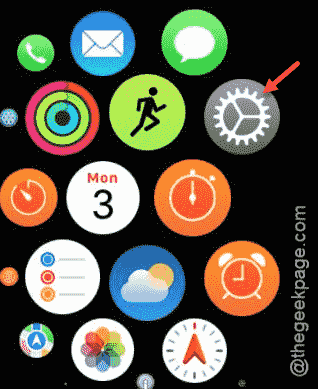
Step 3 – Go to the “General” menu.
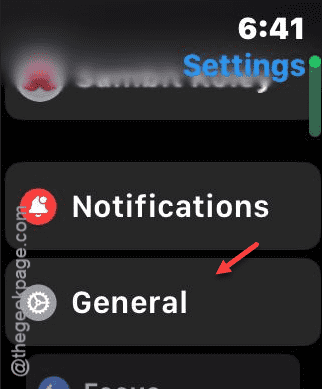
Step 4 – Thereafter, tap the “Storage“.
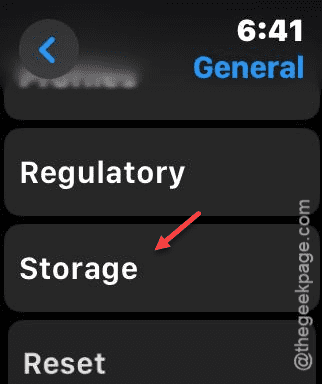
Step 5 – You will get a comprehensive update on the storage situation on your watch.
Step 6 – If the storage is too low, you can delete some of the items from there.
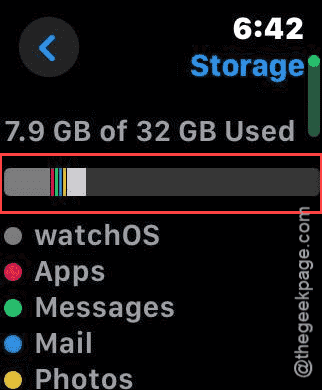
After clearing the space on the watch enough, you can install the update in there.
Fix 5 – Delete the watchOS update and retry
If the watchOS update is still pending, remove the watchOS update and retry the process.
Step 1 – To do this, you have to go to the Watch app.
Step 2 – Go to the “General” tab.
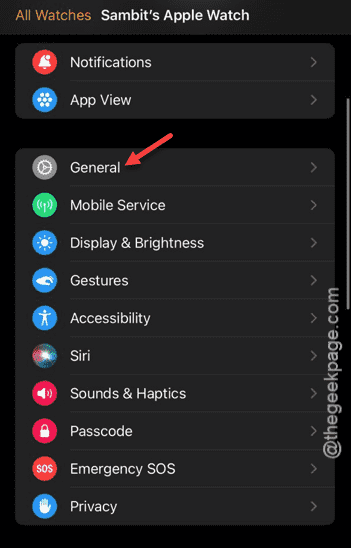
Step 3 – Open up the “Software Update” section there and open it up.
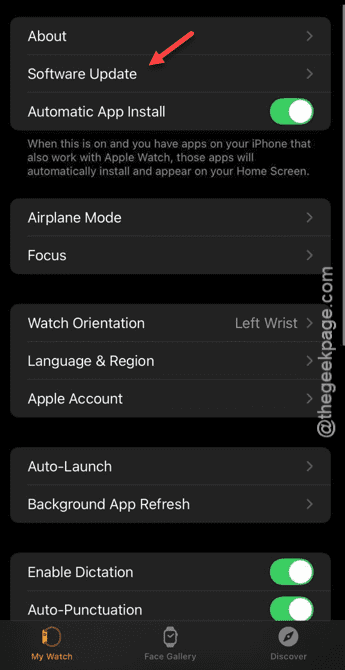
Step 4 – If the update package is already downloaded, delete it.
After deleting the watchOS update package, you can reinstall the watchOS update once again.
Fix 6 – Restart both the devices
The last resolution in our list is to reboot your iPhone and Apple Watch.
Step 1 – You can press-hold the Volume Up and the Power button together.
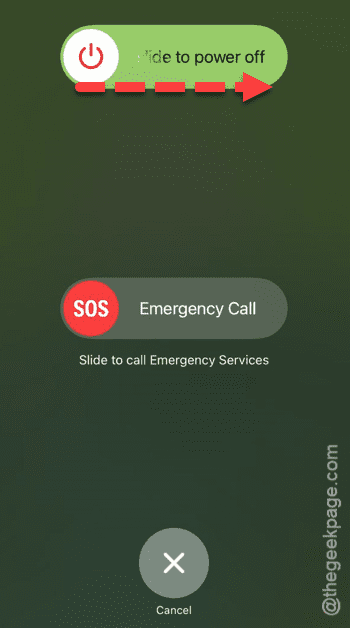
Step 2 – Once you have held that enough, ‘Slide to power off’ option should show up.
Step 3 – Drag the slider right away to power off the iPhone.
Step 4 – On your Apple Watch, hold down the side button.
Step 5 – Touch the ‘Power off‘ switch once on the watch.
Step 6 – Use the ‘Power off‘ slider to power off the Apple Watch.
After switching the off in the Apple Watch and the iPhone, you have to press down the power button on both the devices to start them up.
Check whether you can now update the watch or not.