Does your iPhone got stuck with the ‘Update Requested’ message during the iOS 26 update process? Some users have noticed this issue where they are getting the same ‘Update Requested’ error message again and again while trying to install the iOS 26 update on their device. Though the majority of the complaints have originated from the iPhone users, some iPad users have also found themselves in a similar situation. Here are some fixes that will be of help.
Fix 1 – Force Restart the device and retry
Close the ‘Update Requested’ message on the iPhone, and force-restart the device once. This way, you can update the device without any further error prompt.
Step 1 – Close the current instance of Software Update console on the iPhone.
Step 2 – Then, press-release the Volume Up button once on the device.
Step 3 – Next, press and release the Volume Down button on your iPhone.
Step 4 – Finally, press the Power button on the iPhone. You must press this power button until the iPhone shuts down and the Apple Logo shows up on the screen, meaning the device has restarted successfully.
After this, try to update the iPhone.
Fix 2 – Clear the iOS download and try to update
Delete the current instance of corrupted iOS update package from your iPhone and retry updating the iPhone.
Step 1 – Open the iPhone Settings. Next, tap to open up the General part of the settings.
Step 2 – Next, load up the iPhone Storage.
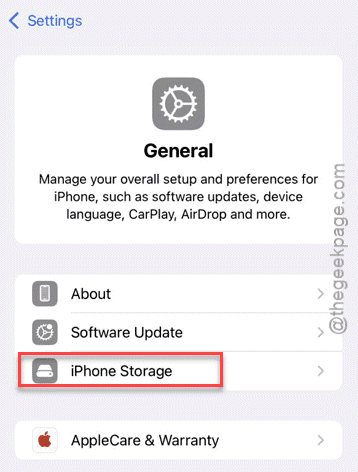
Step 3 – Find the iOS 26.0.1 or the iteration of the iOS 26 that you are trying to install on the device.
Step 4 – Delete that update package from your iPhone.
Step 5 – Now, you can re-download the latest version of iOS 26 from this location –
General ⇾ Software Update
This time, there won’t be any further issues while updating the iPhone.
NOTE – If you are experiencing the same problem on your iPad, you have to clear out the iPadOS update package from your device and retry downloading it. You can do that from here –
Settings ⇾ General ⇾ iPad Storage ⇾ (Delete) iPadOS 26 Update package
Fix 3 – Update the device via iTunes or Finder
You can easily update your iPhone by connecting the device to a PC/ MacBook.
Step 1 – Connect the iPhone to your MacBook or Windows PC/laptop.
Step 2 – If you are using a MacBook, open Finder.
If you have connected the iPhone to a Windows machine, make sure to install iTunes from the Microsoft Store.
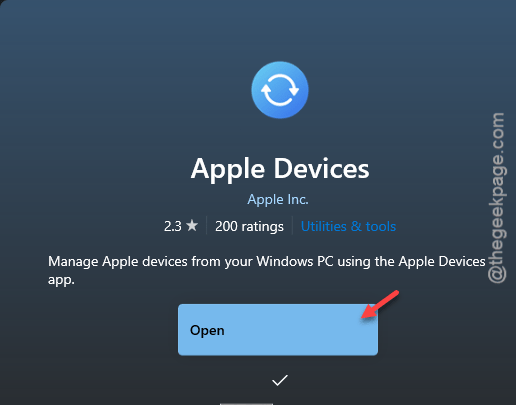
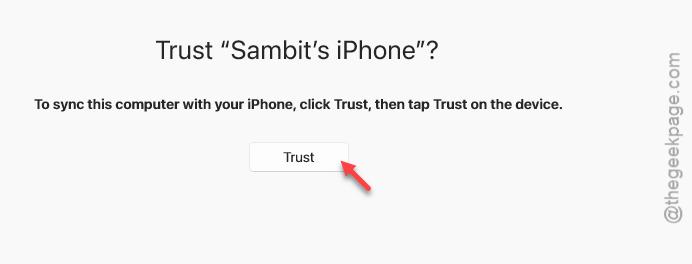
Step 3 – You may get a Trust prompt on your devices to authenticate your access.
Step 4 – Do tap the Trust button there.
Step 5 – Now, once you are on the iTunes app, tap to select the iPhone from the left-hand tab.
Step 6 – Next, go to the General tab from there.
Step 7 – Tap the Check for Update to update the software of the iPhone.
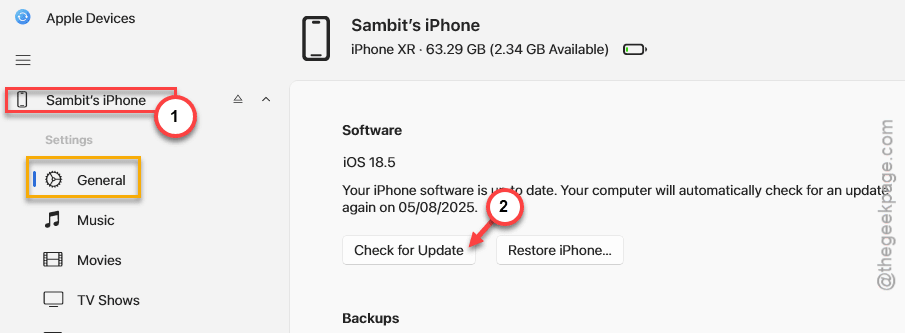
Now, you can install the iOS 26 or any latest iteration of the update available for the device. Check whether this works out or not.
Fix 4 – Stick to the stable builds of iOS 26
If you have the iOS 26 Developer Beta builds installed on your iPhone, it may get stuck with the ‘Update requested’ message. Turn off the Developer Builds from the iPhone settings console.
Step 1 – Open the Settings on the iPhone and reach this point –
General ⇾ Software Update
Step 2 – Open the Beta Updates settings in there.
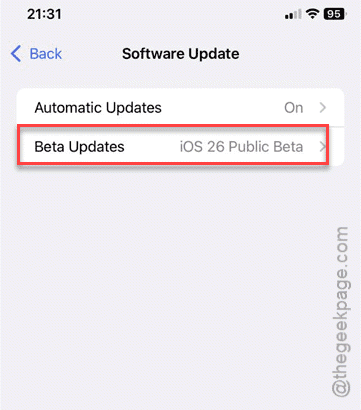
Step 3 – Set it to Off to turn off the Beta Updates.
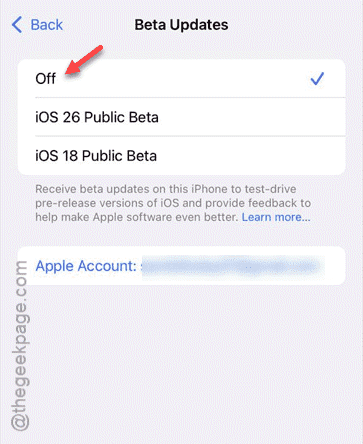
After turning off the Beta updates, the issue will be resolved.