The 24H2 version is one of two major yearly updates for the Windows devices. But, this crucial update seems not be appearing on the Windows Update page on some of the user’s devices. If the 24H2 version update is not even appearing in the proper place, they can’t download and install the update on the machines. We have presented the alternative approaches to fix this problem.
Fix 1 – Use Windows 11 ISO to update
Another way to update the Windows machine is to use the Windows 11 ISO to do that. It can easily scout for the recent update and install it on your system.
Step 1 – At first, go to the Windows 11 Downloads page.
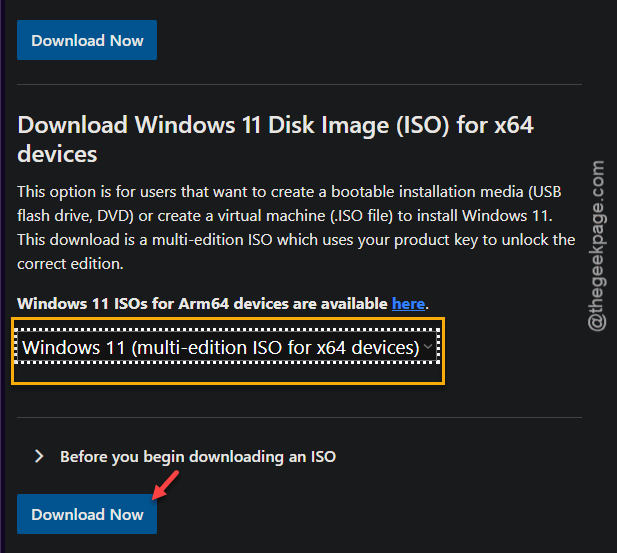
Step 2 – Find out the Download Windows 11 Disk Image (ISO) for x64 devices section.
Step 3 – Then, set the “Windows 11 (multi-edition ISO for x64 devices)” from the drop-down list. Tap the “Download Now” option.
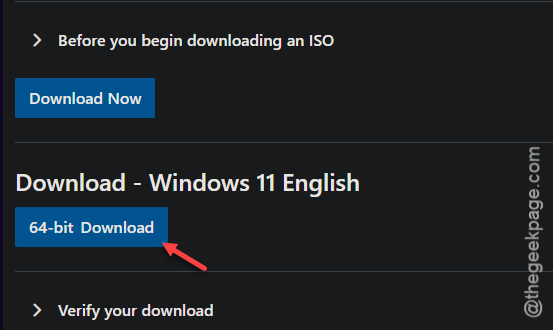
Step 5 – Select the language of Windows 11 that you want.
Step 6 – Then, tap the “64-bit Download” option to download Windows 11 ISO image on your computer.
Let it download the complete Windows 11 image file on your system.
It will download the latest 24H2 version of the Windows 11.
Step 7 – Double-tap the W11 ISO file on the machine.
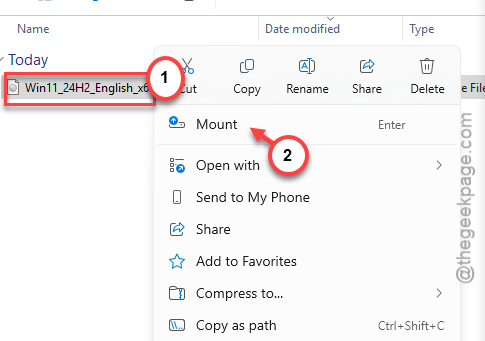
Step 8 – Select the ISO from the left-panel.
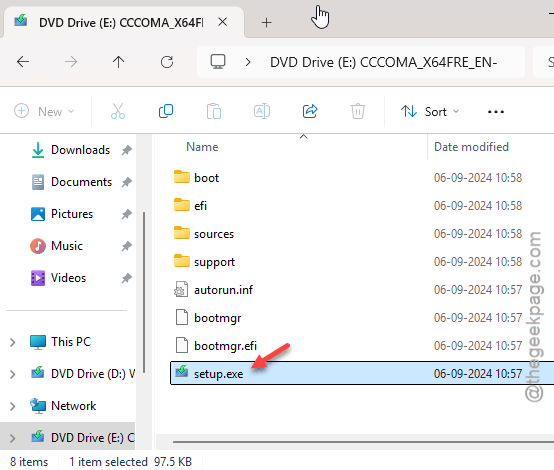
Step 9 – Tap to run the “Setup” set up file from there.
Step 10 – Next, tap the”Change how Setup downloads updates” option.
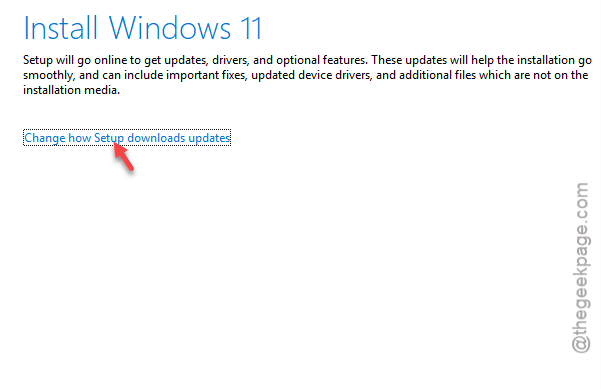
Step 11 – Toggle the “Download updates, drivers and optional features (recommended)” option.
Step 12 – Tap “Next” option to proceed to the next phase.
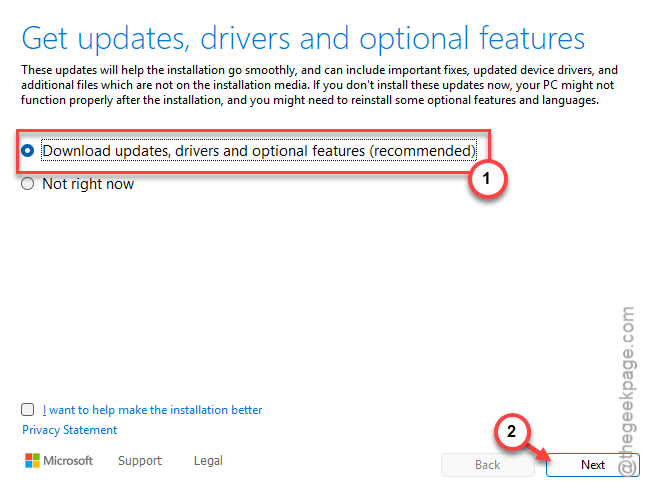
Step 13 – Now, the Setup will download the latest update for you.
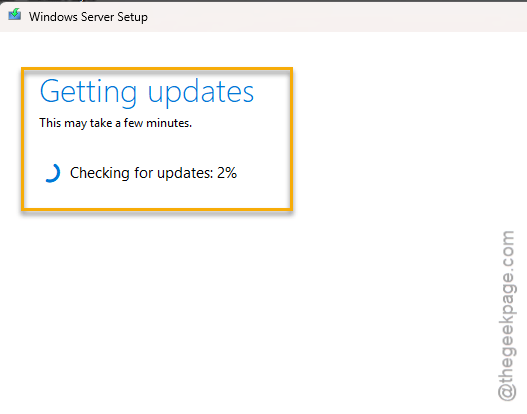
Running this setup means that it will download and install the 24H2 update automatically on the device.
Your device may restart for several times during the process.
Fix 2 – Edit the registry
Windows has a waiting list for the update rollout process, that sends out the update sequentially for all the devices. But, you can skip this queue using a simple registry hack.
NOTE – The method mentioned here involves modifying a value in the system registry. It is a very delicate part of the OS. Create a registry backup before you proceed.
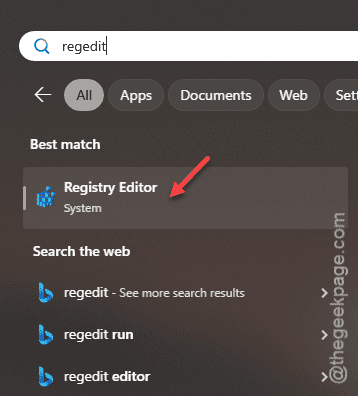
Step 1 – Search for “regedit“.
Step 2 – Next, tap to open up the “Registry Editor” terminal.
Step 3 – Then, go this way ~
Computer\HKEY_LOCAL_MACHINE\SOFTWARE\Policies\Microsoft\Windows\WindowsUpdate
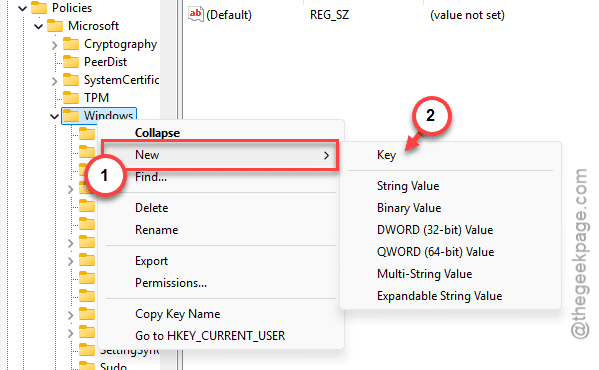
Step 4 – If you can’t find the ‘WindowsUpdate’ key in there, you must create it. Simply, right-click the “Windows” and choose “New>” and create “Key“.
Step 5 – Name, it as “WindowsUpdate“.
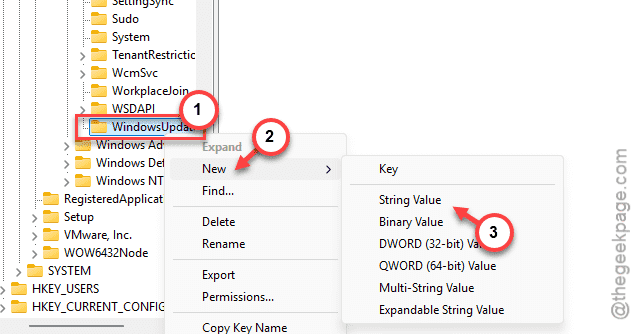
Step 6 – Then, right-tap the “WindowsUpdate” key and tap “New>” and “String” to create a new string.
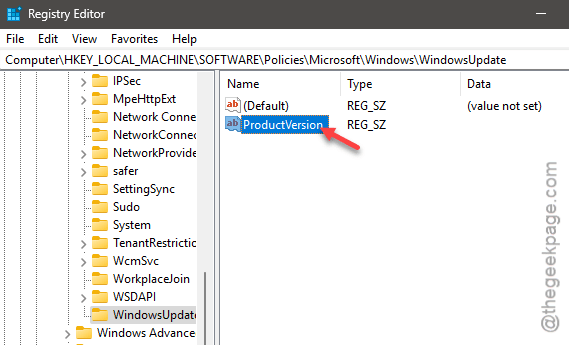
Step 7 – Name this “ProductVersion“. Double-tap the same value to change it.
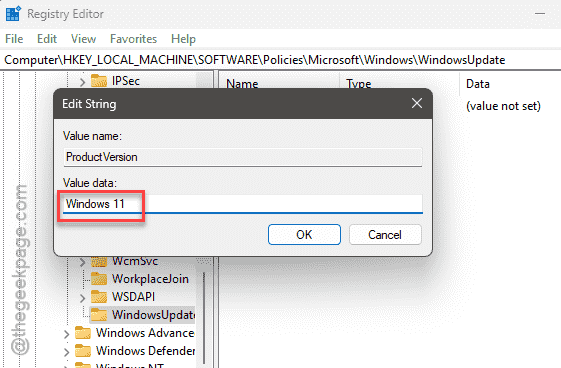
Step 8 – Switch the value to “Windows 11“. Tap “OK“.
Step 9 – Now, you must create a new string value. Simply, right-click the space and tap “New>” and tap “String Value“.
Step 10 – Name this “TargetReleaseVersionInfo“. Double-tap the value.
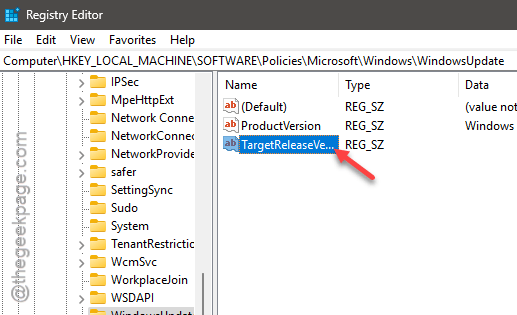
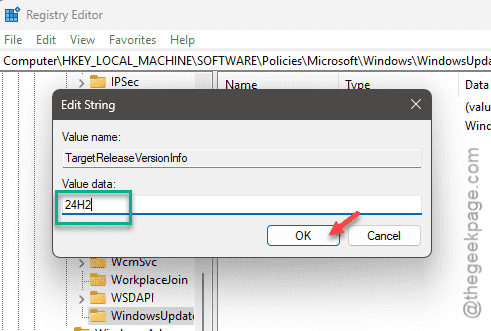
Step 11 – Set the value to “24H2” from there. Tap “OK“.
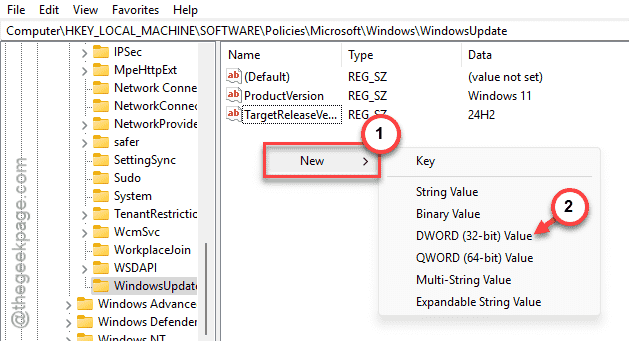
Step 12 – Lastly, you must create a Dword value. Next, right-click the space, and tap “New>” and “DWORD (32-bit)Value“.
Step 13 – Name the value as “TargetReleaseVersion“. Double-tap the value.
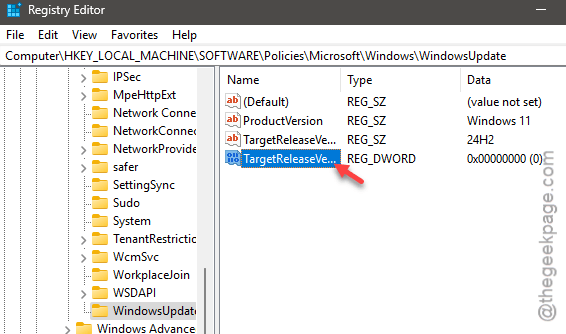
Step 14 – Change the value to “1“. Click “OK“.
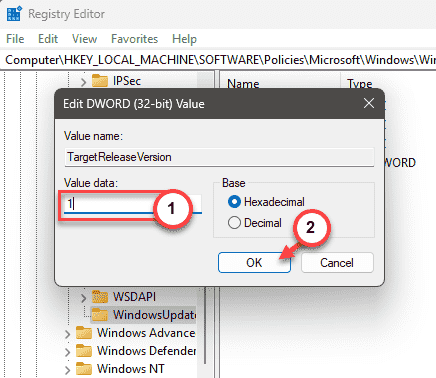
Finally, close the Registry Editor page. Then, restart your computer to let this change take effect.
Once the device restarts, you can finally see the 24H2 update pending on your Windows devices. Keep an eye on the Windows Update section.
Fix 3 – Modify the group policy
[Only applicable to Windows 11 Pro users]
If you don’t want to change your system registry that much, you can change the group policy, forcing the update on desired devices.
Step 1 – At first, search for “group policy“.
Step 2 – Next, tap the “Edit group policy” to open up the Group Policy page.
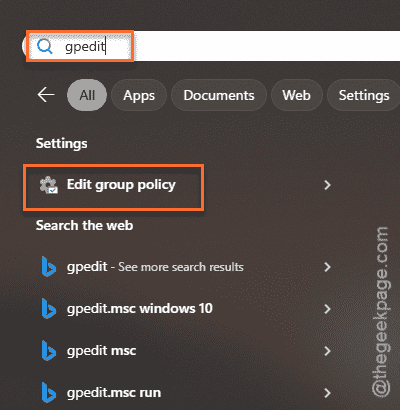
Step 3 – Proceed to this point on the policy page –
Computer Configuration > Administrative Templates > Windows Components > Windows Update > Manage updates offered from Windows Update
Step 4 – Find the “Select the target Feature Update version” policy. Open it up.
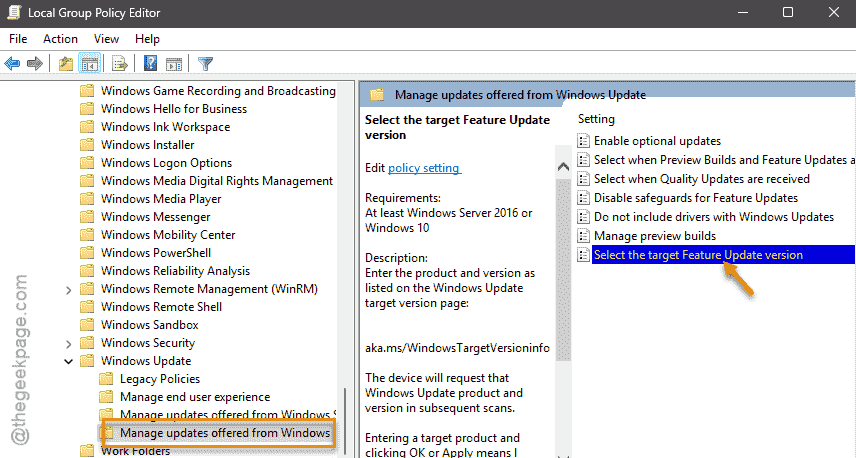
Step 5 – At first, switch it to the “Enabled” mode.
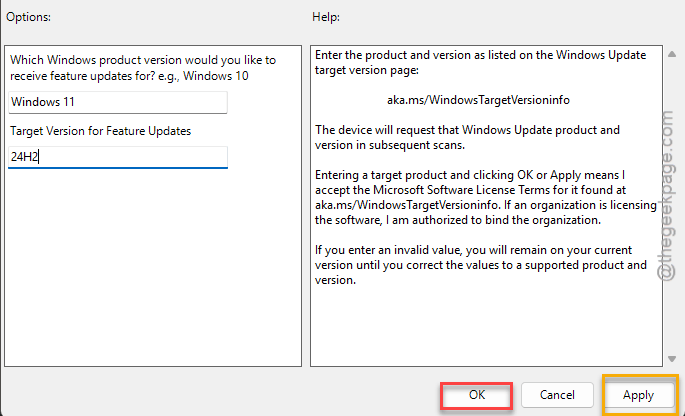
Step 6 – Switch the “Which Windows produce version would you like to receive feature updates for” option to “Windows 11” in the side section.
Step 7 – Toggle the “Target Version for Feature Updates” to “24H2“.
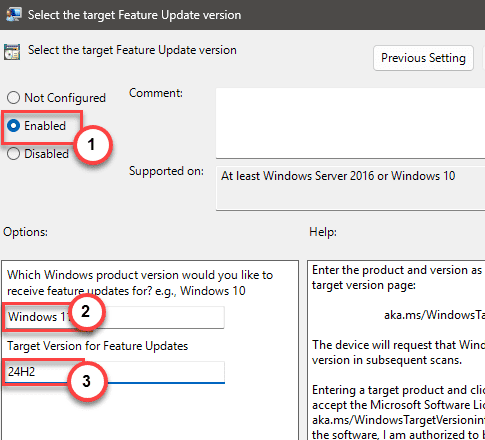
Step 8 – Save the changes in there.
Terminate the Local Group Policy Editor console. This change won’t take effect unless you restart the device.
After applying the policy change, return to the Windows Update console, update it to 24H2.
Fix 4 – Reinstall your Windows 11
You can opt to reinstall your Windows as a troubleshooting step to update computer to 24H2 version.
Step 1 – Open up the Settings panel.
Step 2 – Next, go to the “System” settings and then, load up the “Recovery” settings.
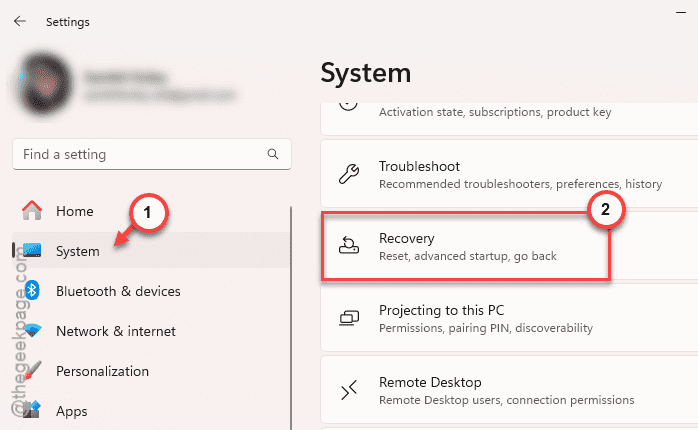
Step 3 – In the Recovery settings, find the ‘Fix problems using Windows Update’ panel. Therefor, tap the “Reinstall now” option.
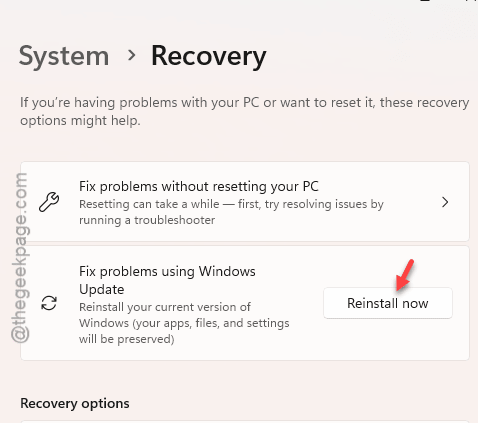
Windows will now reinstall the existing version on the device automatically. After the process is complete, you may get to download and install the 24H2 version of Windows 11.
Fix 5 – Use the Windows 11 Assistant
You can use the Windows 11 Assistant tool to install the updates.
Step 1 – Visit the Windows 11 Update Assistant tool page.
Step 2 – Find the Windows 11 Installation Assistant tab.
Step 3 – Tap the “Download Now” button.
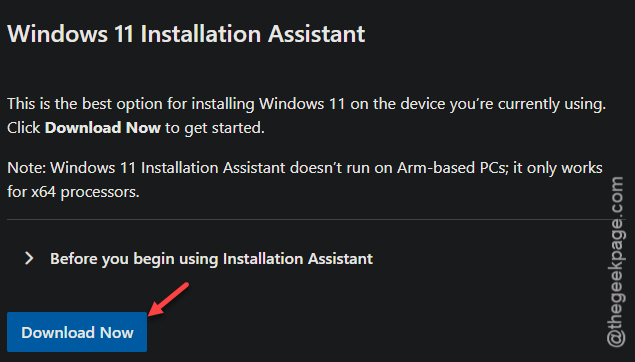
Step 4 – Now, run the “Windows11InstallationAssistant” tool.
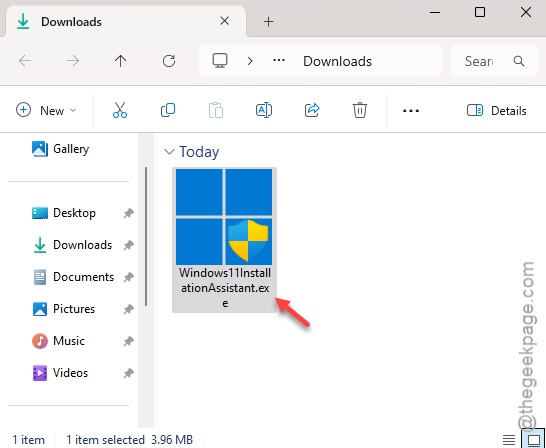
The primary purpose of this tool is to upgrade Windows 10 devices to Windows 11. But, the same tool can be used to install feature updates like 24H2 on supported devices.
Step 5 – Wait until the Windows Installation Assistant tool downloads the feature update package. This may take some time.
Then, it will install the update package on your machine.
Restart the machine when it prompts you to do so. This way, you can update your computer to 24H2 version without any more problems.