The latest version of Windows 11 update 24H2 has been the main talking point in multiple Windows forums. Users have folked to forums to post their frustration about not being to update their Windows devices to the latest version of 24H2. These solutions will help you solve the problem and complete the updatation to the Windows 11 24H2 version.
Fix 1 – Get the latest Windows 11 ISO image
If you are having some problem installing the update through the normal Windows Update channel, you can use the Windows 11 ISO file to set up the update.
Step 1 – Go to the Windows 11 Downloads page.
Step 2 – Reach the Download Windows 11 Disk Image (ISO) for x64 devices section.
Step 3 – Then, select the “Windows 11 (multi-edition ISO for x64 devices)” from the drop-down list.
Step 4 – Tap “Download Now“.
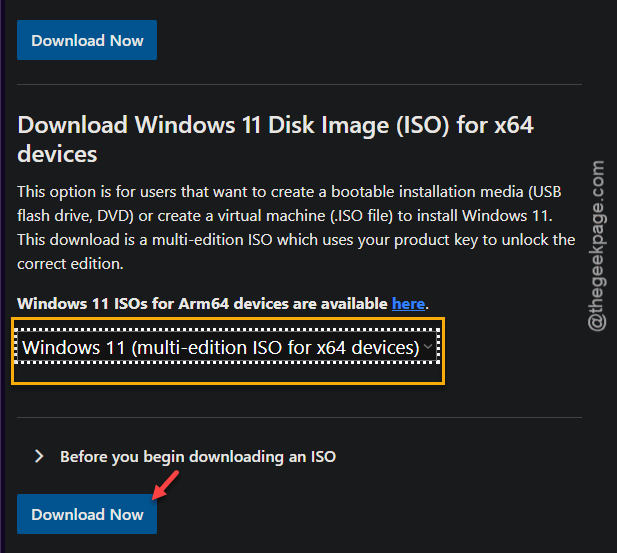
Follow the rest of the steps, like, selecting language, asserting to the terms and agreements.
Step 5 – Then, tap the “64-bit Download” option to download Windows 11 ISO image on your computer.
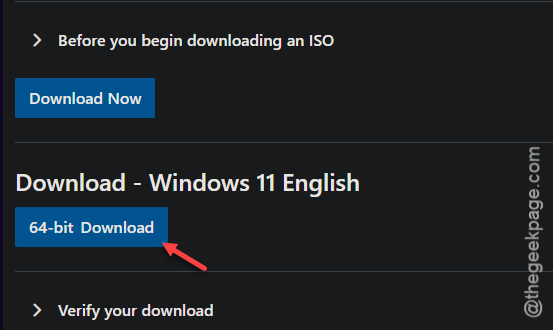
Wait until the Windows 11 image is downloaded completely on your drive.
Step 6 – Now, right-click the Windows 11 image and tap “Mount” to mount the ISO.
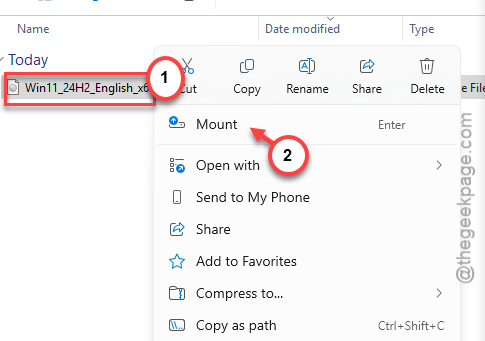
Step 7 – Load up the ISO from the left-pane.
Step 8 – Tap to run the “Setup” executable there.
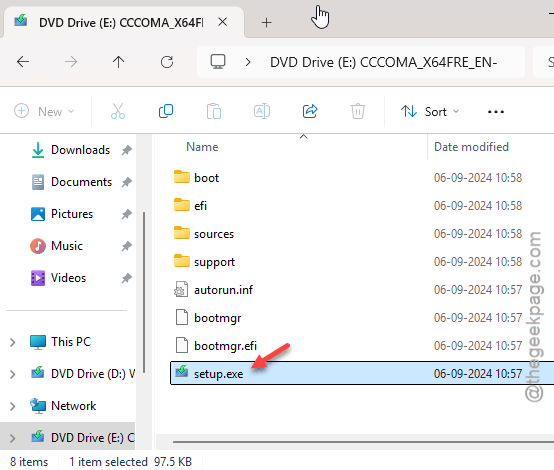
Step 9 – Windows 11 Setup will automatically recognize the version of installed Windows on the device.
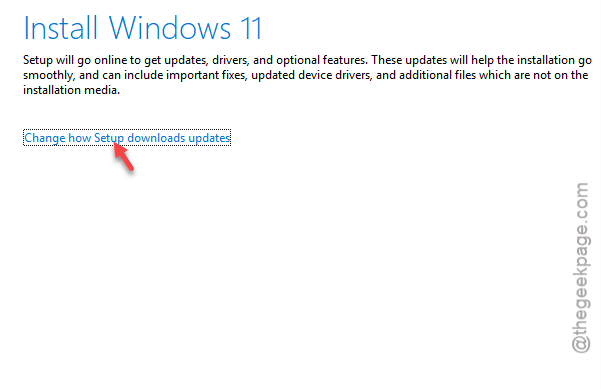
Step 10 – Then, tap the “Change how Setup downloads updates” option.
Step 11 – Choose the “Download updates, drivers and optional features (recommended)” option.
Step 12 – Tap “Next” option to proceed.
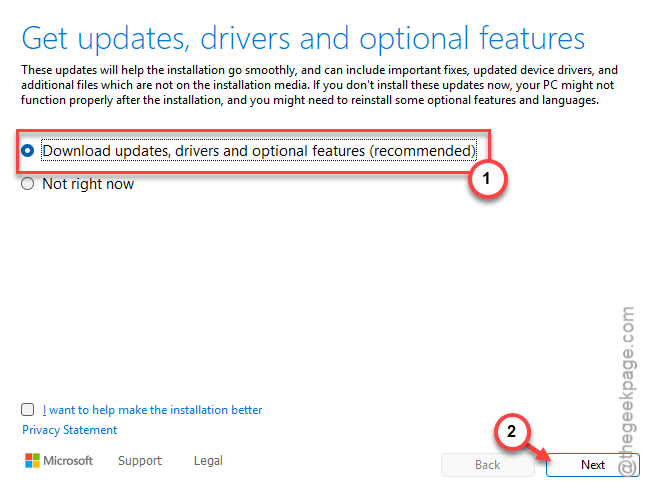
Step 13 – Now, the Setup will download the latest update for you.
Step 14 – Then, complete the update process by following on-screen instructions.
Your computer will restart several times during this process. Don’t worry. It is a completely normal thing.
This way, you can update the Windows 11 to 24H2 version. Later, you can delete the Windows 11 ISO image that you have downloaded before.
Fix 2 – Run the standard Windows update repair
You can use the Windows Update repair program to find and troubleshoot the problem that is restricting the upgrade to 24H2 version.
Step 1 – Open up your Windows Settings console.
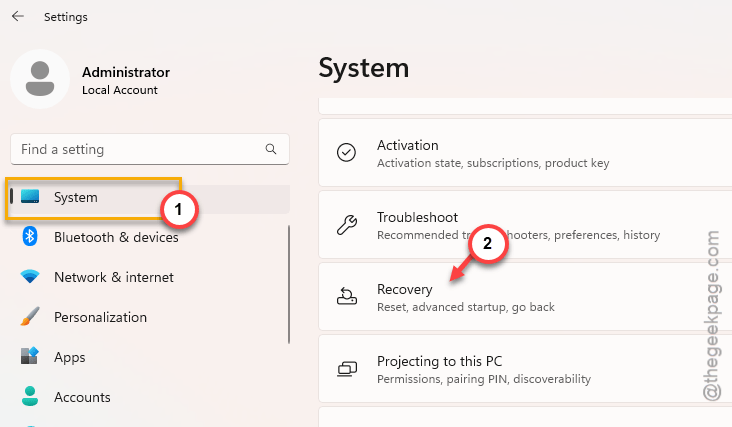
Step 2 – Next, load up the “System” panel.
Step 3 – Then, open up the “Recovery” to load the recovery settings.
Step 4 – Then, tap the “Fix problems without resetting your PC” option.
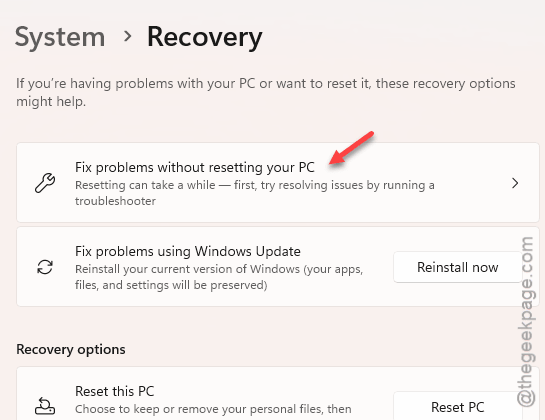
Step 5 – Open up the “Other troubleshooters” option.
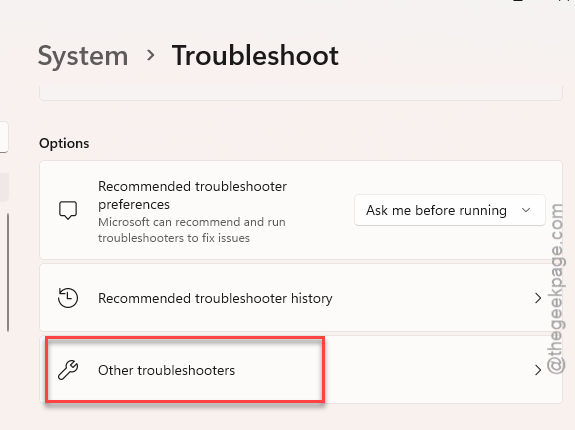
Step 6 – Run the “Windows Update” troubleshooter from there directly.
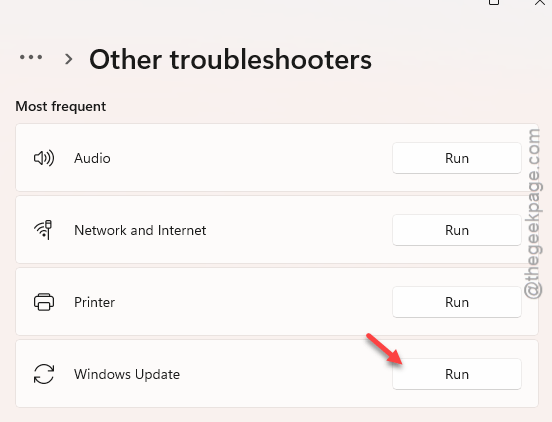
Follow the steps on the troubleshooter to fix the problem with the Windows Update.
Do as the troubleshooter recommends and the Windows Update issue will be taken care of. You can install the 24H2 version on your device.
Fix 4 – Reinstall Windows 11
Windows 11 offers a perfect resolution that you can take to reinstall the Windows 11 along with the latest updates. Eve
Step 1 – Open up the Settings page on your Windows again.
Step 2 – Then, go to the “System” tab. Later, visit the “Recovery” panel on the right-hand side.
Step 3 – There, you will see the “Fix problems using Windows Update” option there.
Step 4 – Tap “Reinstall now” option to reinstall the Windows 11 on the device.
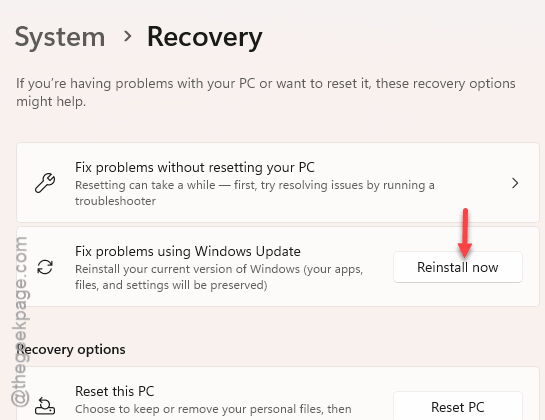
This process won’t affect your Windows files, apps or any other stuff that you have on the machine. If any older update was causing this problem, that would be gone, and you can get the Cumulative update installed right way on your device.
You can install the updates generally.
Fix 5 – Get some free space on the C drive
Windows Update process briefly stores the update package in the C: drive. Sometimes, the lack of space in the C drive may restrict the Windows Update.
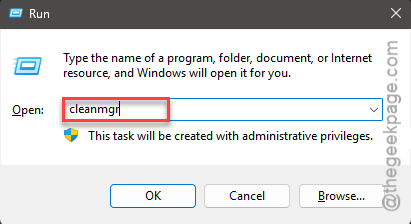
Step 1 – At first, load up the Run dialog box using Win+R key together.
Step 2 – Then, put this in the dialog box, and hit Enter.
cleanmgr
Step 3 – You may have to select the C drive manually.
Step 4 – However, once you have proceeded to the next step, check all the boxes there –
Windows Update Cleanup
Microsoft Defender Antivirus
Downloaded Program Files
Temporary Internet Files
Step 5 – Tap “OK“.
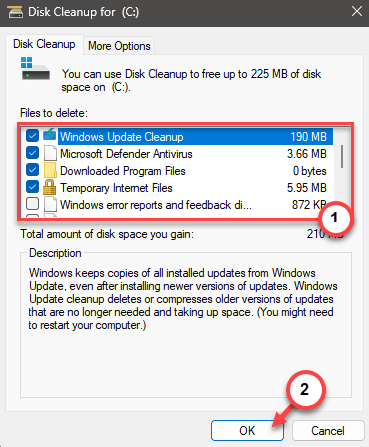
Now, Windows will commence the operation to clean up the local disk C. Later, there won’t be any more issues for Windows to download and install 24H2 version update.