Windows Defender, or Windows Security, is supposed to safeguard your computer from outside threats. But, according to some reports, Windows Defender seems to slow down the device. Windows Security does work all the time at the background, with occasional uptick in the usage of CPU, it should not affect your all device performance. But, if your computer is feeling laggy, slow due to Windows Defender’s resource consumption, this guide will help you.
Why Windows Defender is slowing down my computer?
Windows Defender is an antivirus program that runs on your machine all the time. The Antimalware Service Executable program or MsMpEng.exe is a core component of the Windows Defender system. For the majority of the cases, this particular component has been reported to consume a huge percentage of CPU, Disk resources.
While you can not terminate this process directly, you can take some measures to avoid this problem on your machine. Follow these steps to take this.
Fix 1 – Repair the Windows Defender Security
There is a possible corruption in the Windows Defender Security components. You can just run a command to fix the problem.
Step 1 – Search for “powershell” in the search box.
Step 2 – Next, right-click the “Windows PowerShell” and run that with administrative rights.
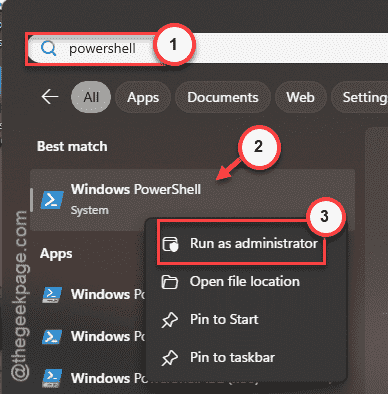
Step 3 – Then, paste this entire line in the PowerShell terminal and execute the code on the machine.
Get-AppxPackage *Microsoft.Windows.SecHealthUI* | Reset-AppxPackage
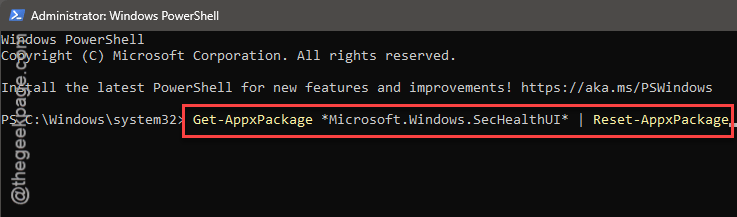
This will reset the Windows Defender Security to the default settings. Check back with the resource’s consumption by the Windows Defender Security.
Fix 2 – Disable the Real-time protection
NOTE – If you download a lot of files from unofficial, suspicious websites, you should not disable the ‘Real-time protection‘ at all.
Step 1 – Open up the Windows Security on your computer.
Step 2 – Then, open up the “Virus & threat protection” settings in there.
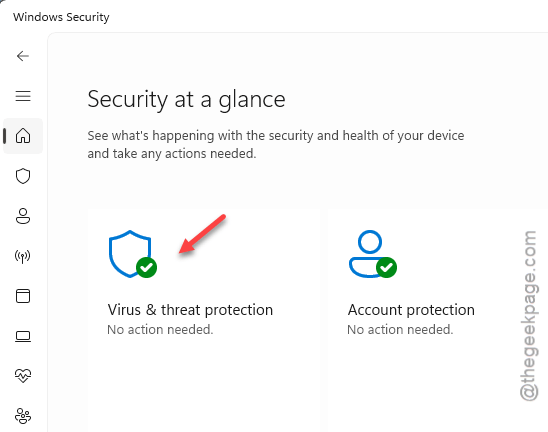
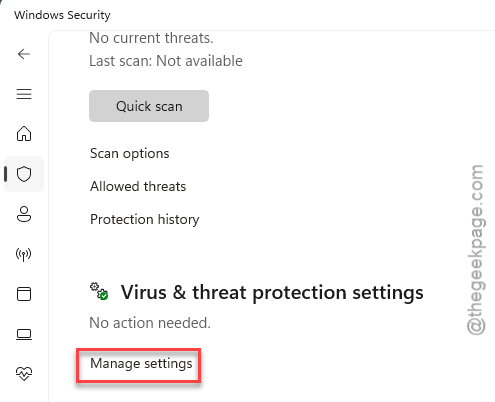
Step 3 – Tap the “Manage settings” under the ‘Virus & threat protection’ panel.
Step 4 – Now, disable the “Real-time protection” settings in there.
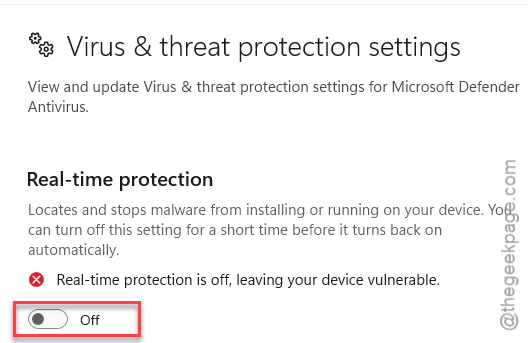
After disabling the Real-time protection settings, Windows Defender won’t cause any problem at all.
Fix 3 – Disable Windows Defender using gpedit
If Windows Defender is adversely affecting your system productivity, you can just turn off the Windows Defender.
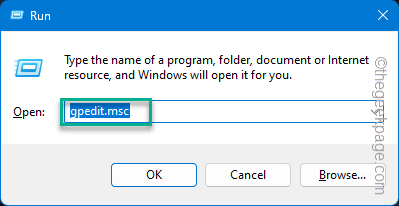
Step 1 – Press the Windows key and the R keys together.
Step 2 – Next, paste this in the Run box and hit Enter.
gpedit.msc
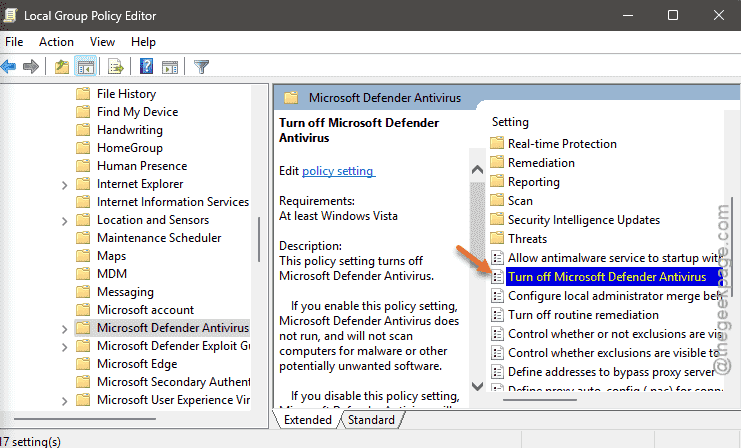
Step 3 – When this gets you to the Local Group Policy Editor page, go this way to locate the Defender policy –
Computer Configuration > Administrative Templates > Windows Components > Microsoft Defender Antivirus
Step 4 – Then, double-tap the “Turn Off Microsoft Defender Antivirus” policy.
Step 5 – Set this policy to “Enabled” mode.
Step 6 – Enact this policy using the ‘Apply‘ and ‘OK‘ functions.
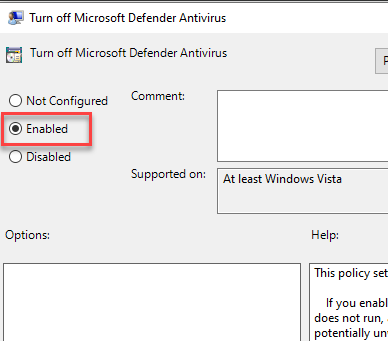
After this, close the Local Group Policy page. Then you must restart your system once.
Fix 4 – Remove any suspected file/folder
Windows Defender keeps on scanning the files in the background that are potentially harmful for the optimal system performance. If you know the existence of any such files or folders on your loca disk drives, you must delete them from there.
Fix 5 – Install the Windows Updates
The Windows Defender gets regular updates via the update channels on your computer. If you have any such pending updates, install them.
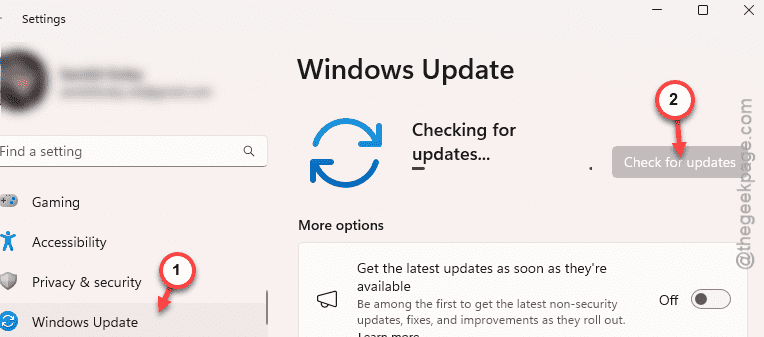
Step 1 – Open up the Windows Settings.
Step 2 – Go to the “Windows Update” page and check whether any Defender-related updates are pending or not.
Step 3 – If any such updates are pending, download and install them.
Windows Defender won’t slow down your system anymore. Hope this works.