Facing some problem installing the latest update KB5064081 on your Windows 11 24H2, 25H2 system? There are some users who have experienced the same problem while installing updates at their end. Windows Updates are essential for your device, as patch, bug fixes follows huge version updates such as 24H2, 25H2. Set some services like Windows Update, App Readiness to automatic mode or disable the Hyper-V, Windows Sandbox to fix the issue and install the KB5064081 update on your machine.
Quick Tip –
If this KB5064081 update is a Preview update, you can skip that update. The Preview version of updates are usually available for the Windows Insider Preview users. One of the main objective of this preview updates is to study the stability and other factors before the final, stable version of rollout. Microsoft provides the option to download and install the preview version of the update on request of the user. So, if the update has failed to install on the machine for once or twice, you should just cancel the update. It is not essential for your device.
Fix 1 – Set the App Readiness Service, BITS, WU services to Automatic
Check whether necessary Windows Update services like Background Intelligence, App Readiness and Windows Update services are running on your system.
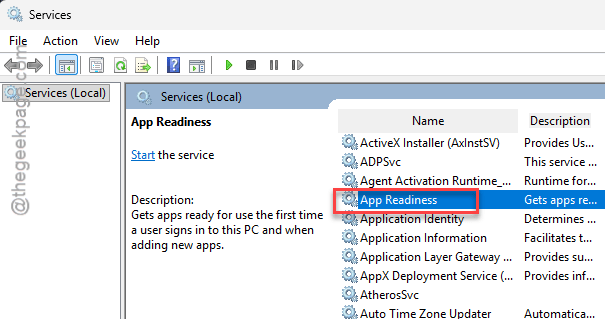
Step 1 – Type services in the search box and open up the Services utility.
Step 2 – Find the App Readiness service. Double-tap it.
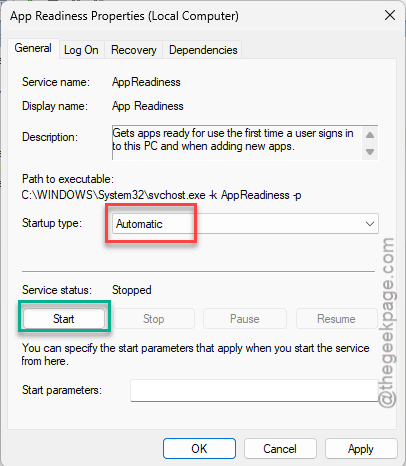
Step 3 – Next, just the ‘Startup type:’ to Automatic mode.
Step 4 – If the service has not started yet, tap Start to start the service.
Step 5 – Save the changes.
Step 6 – Find the Background Intelligence Service there and double-tap it.
Step 7 – At first, set the ‘Startup type:’ to Automatic mode. Tap Apply and OK to save the modification.
Step 8 – Tap the Start button to start the service, if the service has not started yet.

Step 9 – Do the same thing for the Windows Update service as well.
While these services are running, head on to the Windows Update page and retry installing the update on your system.
Fix 2 – Disable Windows Sandbox and Hyper-V
You must turn off the Windows Sandbox and Hypervisor before you install the Windows Update.
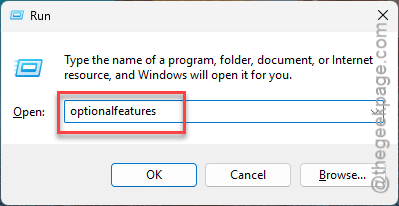
Step 1 – To do this, briefly press the Win+R buttons together.
Step 2 – Next, type this there, and click OK.
optionalfeatures
Step 3 – In the Windows Features page, find and uncheck the Windows Sandbox and click OK.
Wait for a few moments as Windows turns off the Windows Sandbox feature.
Step 4 – Now, go ahead and turn off the Hyper-Vfeature. Click OK.
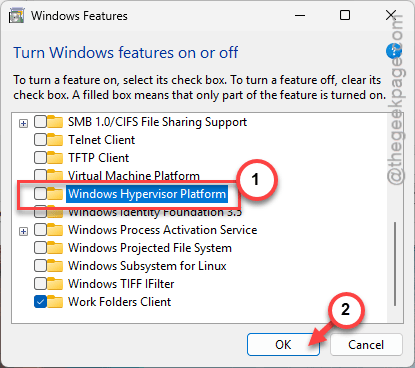
Windows will undo the Hypervisor feature changes and uninstall the feature from your system.
You must restart your computer for these changes to take effect. There won’t be any issues installing the KB5064081 update.
Fix 3 – Download the Update from Windows Update Catalogue and install
You should download the KB5064081 update package directly on your system and install it manually.
Step 1 – Go to the Microsoft Update Catalog. Search for the KB5064081 update in there.
Step 2 – You will get a list of updates there. These updates vary according to the architecture type, like x64 or arm systems. So, tap the Download button to download the update on your system.
It is nearly 4Gb of update, so, wait for the downloading process to finish.
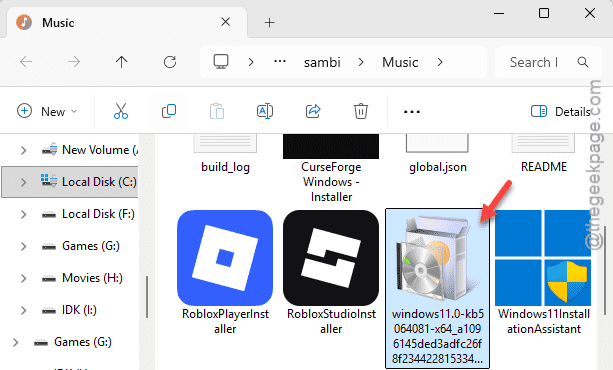
Step 3 – Now, just run the downloaded .msu package and complete the installation on your own.
It should work just normally. Check if this solves the Windows Update issue.
Fix 4 – Reset all your Windows Update components
Windows Update needs several components to function properly on your system. You can create a batch file to update or refresh the Windows Update components.
Step 1 – You have to create a new Windows Update batch file. So, open a new Notepad page, and paste this in the Notepad.
SC config trustedinstaller start=auto
net stop bits
net stop wuauserv
net stop msiserver
net stop cryptsvc
net stop appidsvc
Ren %Systemroot%\SoftwareDistribution SoftwareDistribution.old
Ren %Systemroot%\System32\catroot2 catroot2.old
regsvr32.exe /s atl.dll
regsvr32.exe /s urlmon.dll
regsvr32.exe /s mshtml.dll
netsh winsock reset
netsh winsock reset proxy
rundll32.exe pnpclean.dll,RunDLL_PnpClean /DRIVERS /MAXCLEAN
dism /Online /Cleanup-image /ScanHealth
dism /Online /Cleanup-image /CheckHealth
dism /Online /Cleanup-image /RestoreHealth
dism /Online /Cleanup-image /StartComponentCleanup
Sfc /ScanNow
net start bits
net start wuauserv
net start msiserver
net start cryptsvc
net start appidsvc
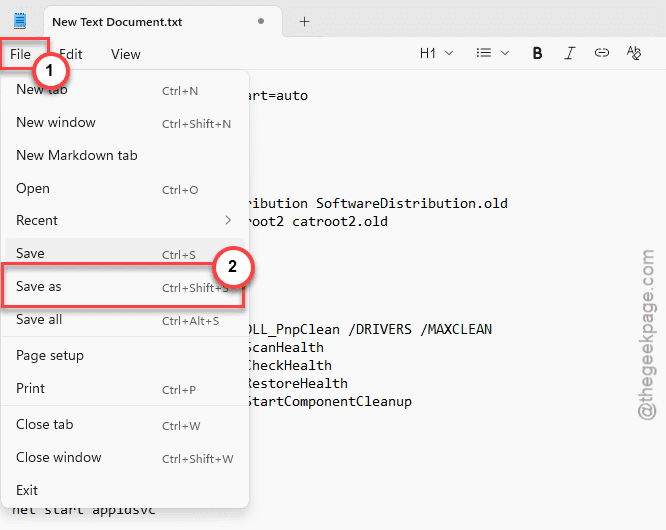
Step 2 – Later, tap the File button at the top, and then, tap the Save As option.
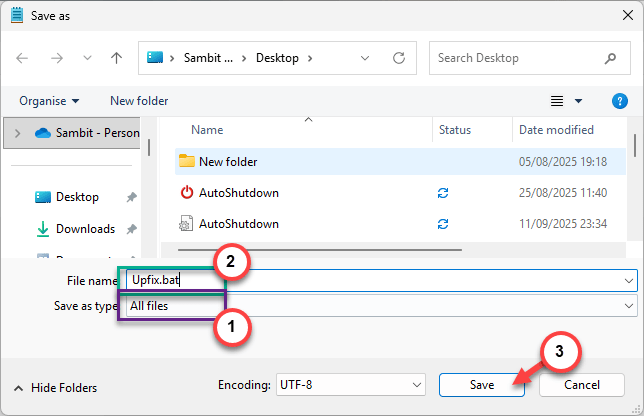
Step 3 – Set the File type ‘All files‘ category. Name the Wufix.bat file.
Step 4 – Choose a location to save the file, and tap Save to save it there.
Close the Notepad page now.
Step 5 – Next, right-click the Wufix.bat file, and tap the Run as administrator to run the batch file.
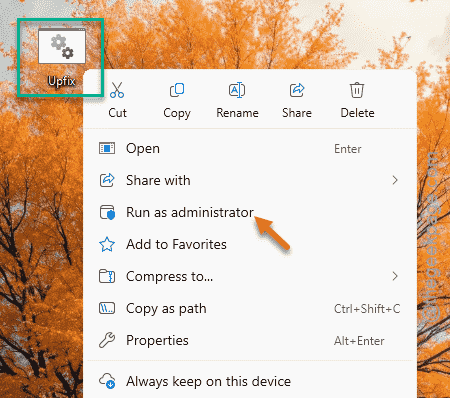
The commands in the batch file will restart several Windows Update service, while clearing the Windows Update local folders in the meantime.
Once you have run the batch file, restart your computer once. Next, you will have the KB5064081 update installed on your system in no time.