Microsoft pulled Copilot out of the Windows sidebar and turned it into a regular app. But, somewhere in that move, the Win + C shortcut lost its job. You press it now and nothing happens. The key still works. The thing it used to point at is just gone. So, here are some fixes to counter that problem, where you can just point it manually.
Where This Comes From
Here’s the deal. Copilot used to live inside Windows itself, wired into the taskbar and the Win + C key. Then Microsoft rebuilt it as a standalone app from the Store. Fine. But the shortcut didn’t come along cleanly.
On a lot of PCs the key is now set to “Custom” or “Search” in Settings, which means it points at nothing. On others, an old registry tweak that hid the sidebar Copilot (plenty of people did that) is still sitting there, and it blocks the new app’s shortcut listener too. And if you bought a laptop with a physical Copilot key? That key sends a weird code (Win + Shift + F23, no joke), and some builds just won’t listen for it anymore.
Why ship a shortcut that doesn’t shortcut? Ask Redmond. Here’s how to put it back.
Fix 1 – Point the Copilot Key at Copilot Again
1 – Press Windows + I to open Settings.
2 – Click Personalization in the left sidebar.
3 – Click Text input.
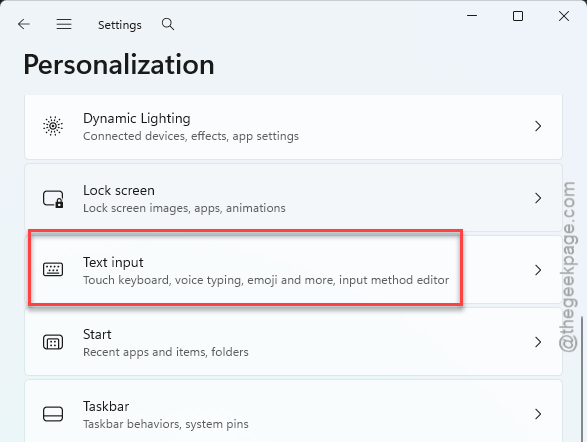
4 – Find Customize Copilot key on keyboard. It’s near the bottom of the page.
5 – Change it from Custom or Search to Copilot.
6 – Press Win + C.
If the dropdown doesn’t list Copilot at all, the app isn’t installed. So do Fix 2 first, then come back here.
Fix 2 – Reinstall the Copilot App
The new Copilot is just a Store app. And Store apps get removed by debloat tools, failed updates, and the occasional cleanup you forgot you ran. No app, no shortcut.
1 – Click Start and type Copilot. If it shows up, skip to Fix 3.
2 – Open the Microsoft Store.
3 – Search for Copilot (the one published by Microsoft).
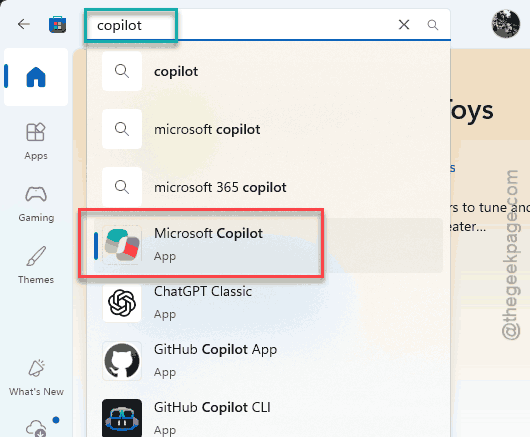
4 – Click Get or Install and wait for it to finish. Takes under a minute.
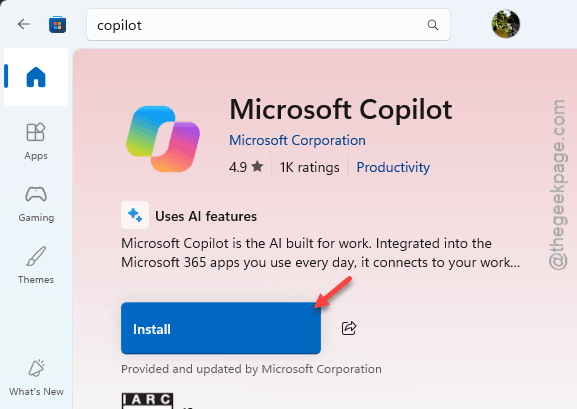
5 – Go back to Fix 1 and set the key to Copilot.
Then press Win + C. The app should open in its own window now, not the old sidebar.
Fix 3 – Clear the Old Sidebar Block From the Registry
Remember disabling the sidebar Copilot back when it was annoying? That tweak is still there. And it mutes the new shortcut too.
1 – At first, hit the Windows + R buttons together.
2 – Next, type regedit, and press Enter.
3 – Paste this directly into the address bar at the top and press Enter.
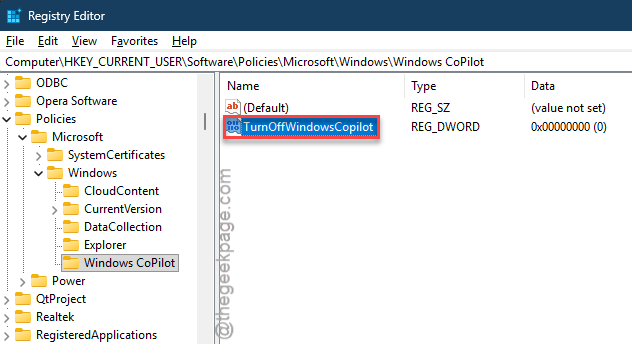
HKEY_CURRENT_USER\Software\Policies\Microsoft\Windows\WindowsCopilot
4 – In the right pane, look for TurnOffWindowsCopilot.
5 – If it’s there with a value of 1, double-click it and set it to 0. Otherwise, you can just delete the value.
6 – Now go to this address:
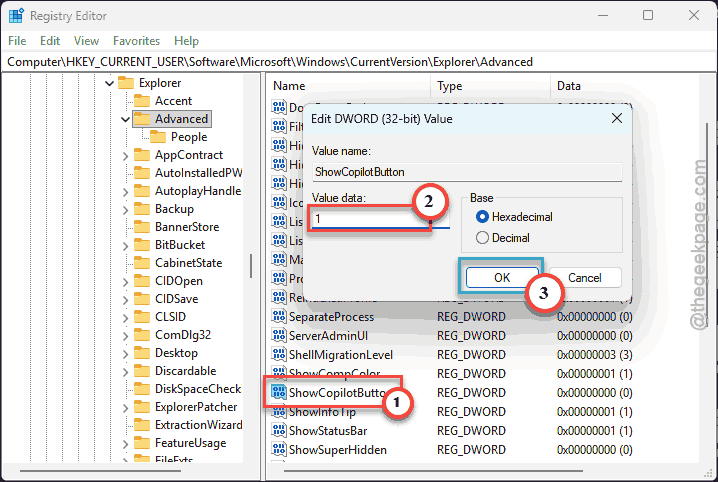
HKEY_CURRENT_USER\Software\Microsoft\Windows\CurrentVersion\Explorer\Advanced
7 – Then, if you can find ShowCopilotButton is there, make sure it is set to 1.
8 – Press Ctrl + Shift + Esc together.
9 – Find Windows Explorer in the list. Then, right-click that, and choose Restart.
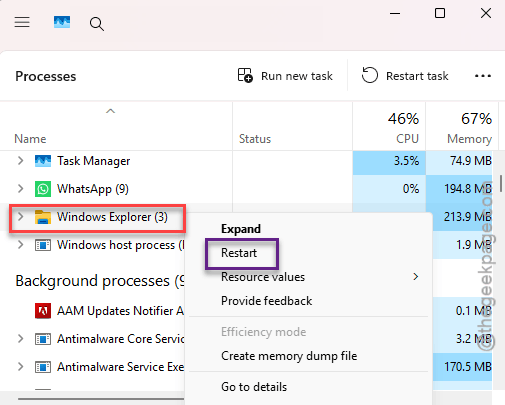
The taskbar vanishes for a second and comes back. That’s normal. Try the shortcut.
Pro or Enterprise? The same switch can live in Group Policy. So check there if the registry was clean.
Fix 4 – Remap Win + C With PowerToys
You can use Powertoys to remap the Win+C combination to CoPilot easily.
1 – Install Microsoft PowerToys from the Store if you don’t have it, and open it.
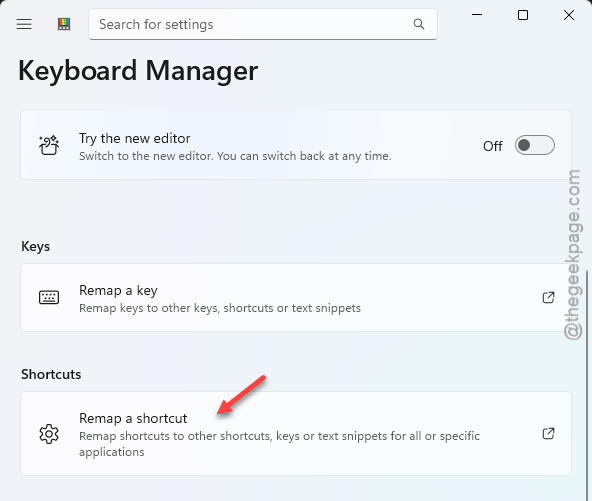
2 – Click Keyboard Manager in the left menu and switch it On.
3 – Click Remap a shortcut. If you can’t find it there, tap the Switch back to the classic editor option.
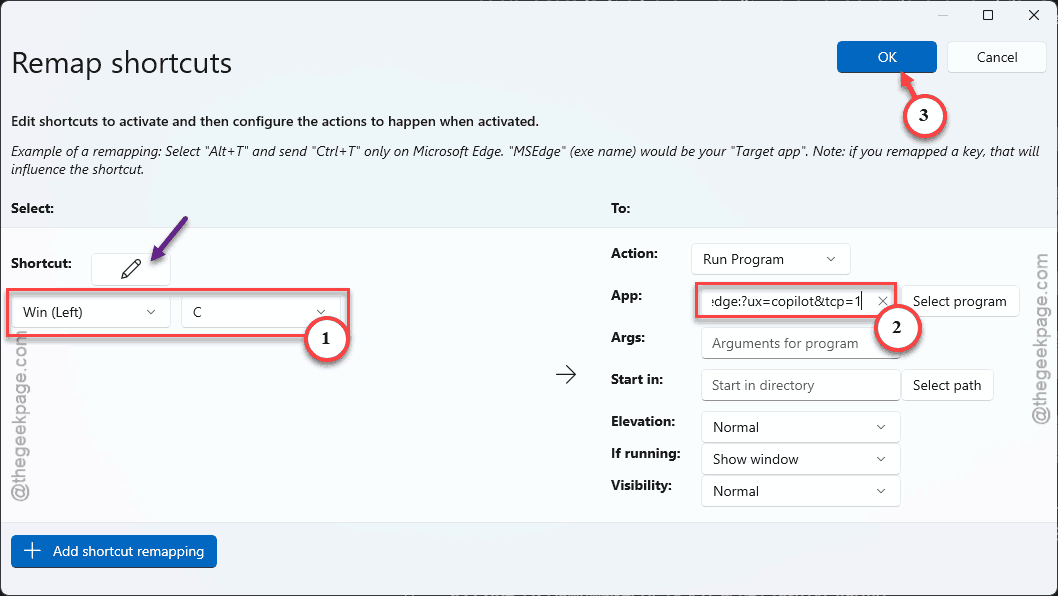
4 – Under Physical Shortcut, click Shortcut ✏️ button and press Win + C.
5 – Under Mapped To, choose App and pick Copilot. If it isn’t listed, choose to run a program instead and paste this into the App: box –
microsoft-edge:?ux=copilot&tcp=1
6 – Leave the rest of the argumnets alone. Click OK.
Works the moment you click OK (no restart). And the same trick works for a physical Copilot key: type that key in the Physical Shortcut box instead of Win + C.
Fix 5 – Pin It to the Taskbar
Not a shortcut fix. But a decent backup. The old taskbar Copilot button is gone, and it will not come back on its own.
1 – At first, tap the Start, type Copilot in there.
2 – Then, right-click the result, and choose the Pin to taskbar option.
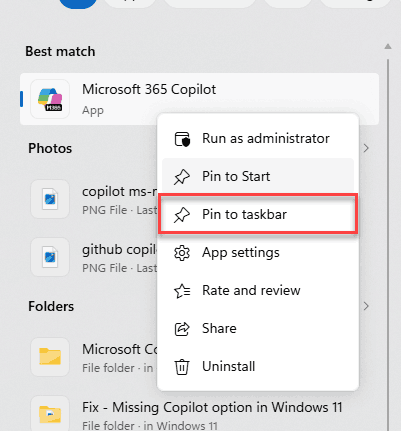
One click opens it from now on, shortcut or no shortcut.
Keeping the Shortcut Alive
- Don’t run debloat scripts on a machine where you actually want Copilot. They nuke the app and plant the registry block in one go.
- Pin the app to the taskbar anyway. Belt and braces.