Windows Media Player has some severe limitations when the question is asked about variety of codecs. So, getting a ‘We can’t open video’ error message is a common thing for all the Windows Media Player users. The lack of essential codecs restricts the WMP from playing many types of videos. We have attached the perfect solutions to troubleshoot this problem.
Fix 1 – Use VLC Media Player
One of the key limitations of the Windows Media Player is that of the lack of codecs. It simply means that you can only play a limited type of movie files. VLC, on the other hand, provides support for an extensive list of codecs.
Step 1 – Download the VLC media player.
Step 2 – Tap “Download” to download the installer.

Step 3 – Next, run the VLC Installer to install the VLC package on your computer.
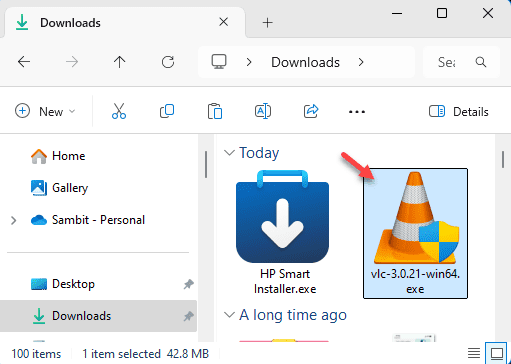
Step 4 – Follow the rest of the steps to install the VLC package on the Windows machine.
Once you have set it up, you can play the disputed movie file using the VLC player instead of the Windows Media Player.
NOTE – VLC media player is an example. There are many video players for you to choose from. You may install and use them at your will.
Fix 2 – Create a playlist and play it
If you can’t play the file, try creating a playlist and play it. Some of the users have claimed to solve the problem following these steps.
Step 1 – Open up the Windows Media Player.
Step 2 – Now, tap the “Create Playlist” option.
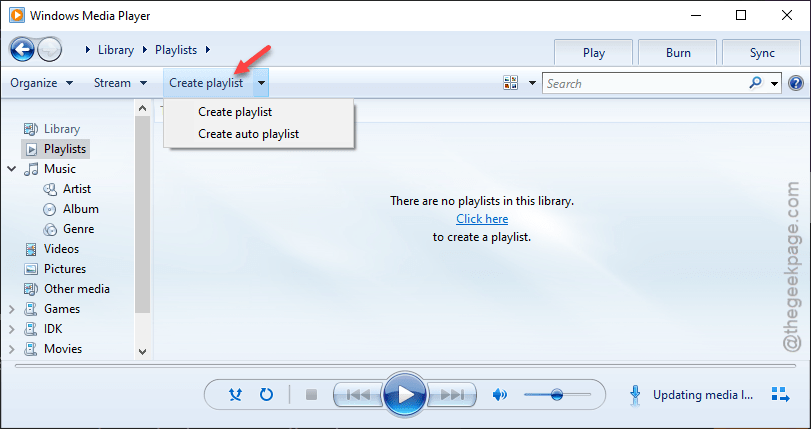
Step 3 – Name this playlist anything of your choice.
Step 4 – Then, you can add the file to this new playlist and play it from there.
Check WMP can actually play it or not.
Fix 3 – Convert the video using VLC
You can convert the problematic video file into a general format MP4 version to play on the Windows Media Player.
Step 1 – Open the VLC media player on your computer.
Step 2 – Next, tap the “File” in the menu bar and click “Convert/Save” option.
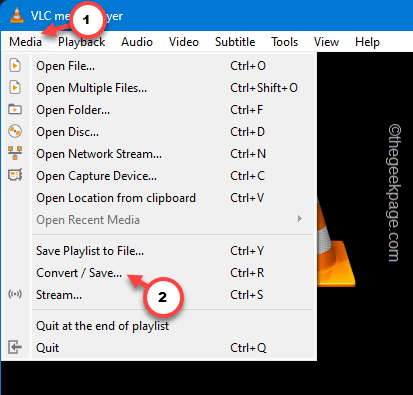
Step 3 – Tap the “Add” option.
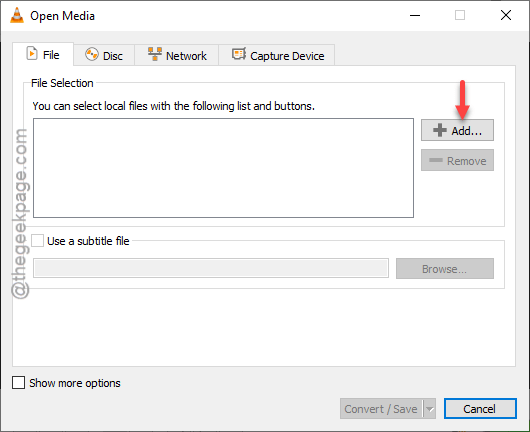
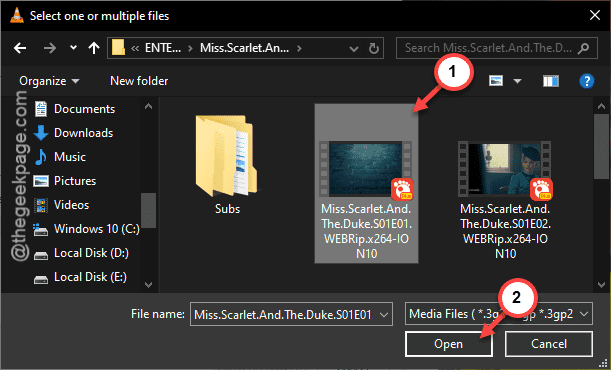
Step 4 – Reach the location of the media file on your computer. Select it and tap “Open“.
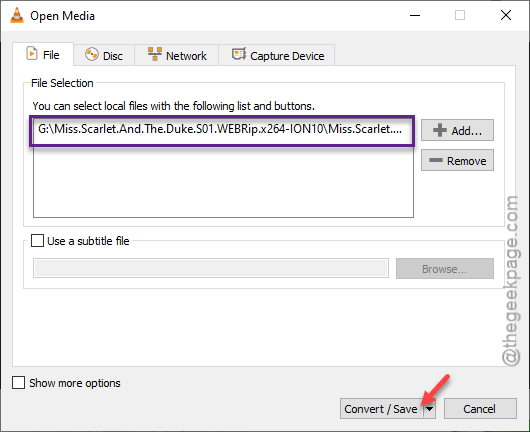
Step 5 – Return to the Open Media page and tap “Convert/Save” option.
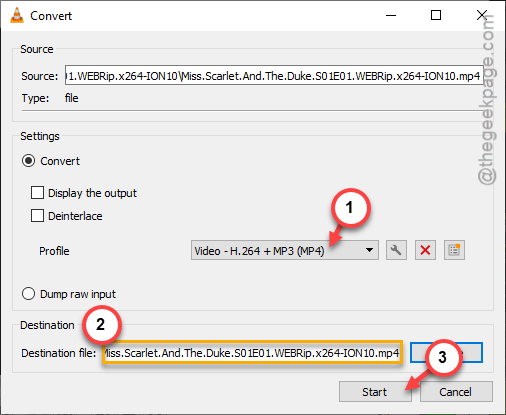
Step 6 – Now, tap the ‘Profile:‘ option to set it to the required file type (WMP can play MP4. So, select the “Video -H.264+Mp3(MP4)” option there.
Step 7 – Choose a ‘Destination file:’ to save the converted file.
Step 8 – Finally, tap the “Start” option to start the conversion process.
Wait till the file is converted. Once the conversion process is complete, you can play the video file directly on the Windows Media Player. Check if this works out for you!