Why would a backup fail on a drive that’s sitting right there, plugged in and blinking? Because Windows lost track of it. Or lost track of you. Error 0x80040304 covers both, which is why so many guides send you in circles. It can be an infuriating experience. But once you know which half you’ve got, it’s a short job.
What’s Actually Going On
Two different tools throw this exact code. Of course they do.
The first is the Windows Backup app, the newer one that pushes your settings and folders to OneDrive. When it fails with 0x80040304, the problem is almost always a stale sign-in token. Your PC thinks it’s linked to your Microsoft account. The cloud side disagrees. And the app just errors out instead of asking you to sign in again.
The second is File History, the older tool that copies files to an external drive. Here the code means Windows can’t find the destination. Maybe the USB drive came back with a different letter. Maybe it got yanked mid-backup and the config database went bad. Either way, File History keeps hunting for a drive that isn’t where it left it. Stubborn thing.
So figure out which tool you’re using first. Backing up to OneDrive? Start at Fix 1. External drive? Jump to Fix 5.
Fix 1 – Unlink and Relink OneDrive
The Backup app leans on OneDrive’s sign-in. And when that token goes stale, nothing downstream works. Unlinking forces a fresh one.
1 – Click the OneDrive cloud icon in the system tray, bottom right corner. It might be hiding behind the little up arrow.
2 – Click the Settings gear, then Settings.
3 – Click the Account tab.
4 – Click Unlink this PC.
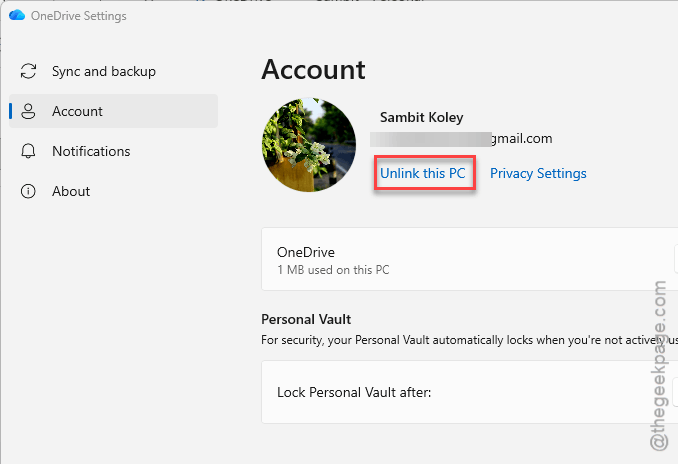
5 – Click Unlink account to confirm.
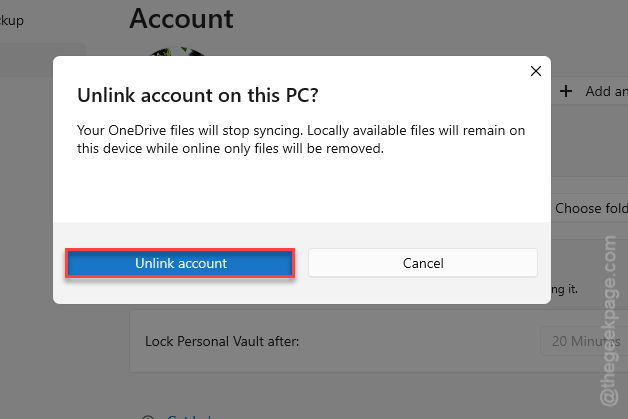
6 – Open OneDrive again from the Start menu and sign back in with your Microsoft account.
Your files stay put. Unlinking only breaks the connection, it does not delete anything (OneDrive re-scans the folder and picks up where it left off, which takes a few minutes on a big library). So open Windows Backup and try again.
Fix 2 – Clear Out the Backup Cache Folder
Fix 1 didn’t do it? Then the app’s own staging folder is probably holding onto the failed attempt. So wipe it, and the app recounts everything from scratch.
1 – Press Windows + R.
2 – Type %localappdata%\Microsoft\Windows\Backup and press Enter. A folder opens.
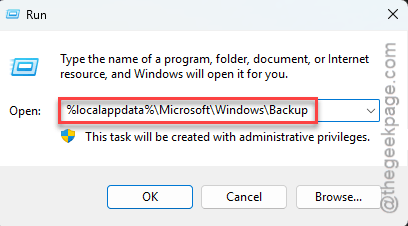
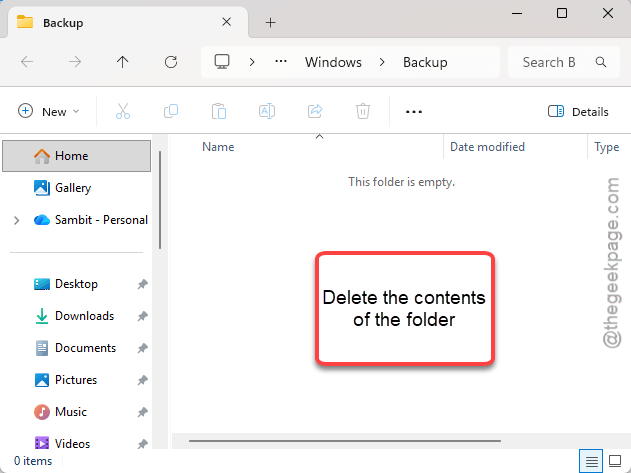
3 – Press Ctrl + A to select everything inside.
4 – Press Delete.
5 – Open Windows Backup and run the backup again.
Nothing in that folder is your actual data. It’s scratch space. Delete freely.
Fix 3 – Remove Old Microsoft Account Credentials
Windows keeps a stash of saved logins in Credential Manager (an old Control Panel tool that’s somehow still doing the heavy lifting in 2026). But stale entries in there make the Backup app reuse a dead token forever.
1 – Click the search icon on the taskbar and type Credential Manager.
2 – Open Credential Manager from the results.
3 – Click Windows Credentials on the right side.
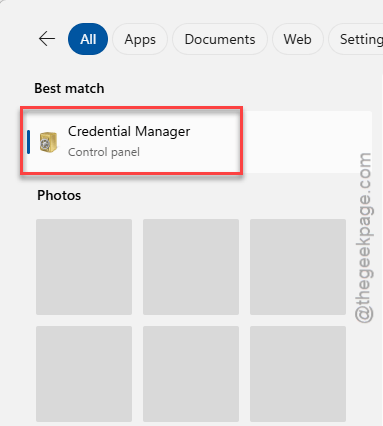
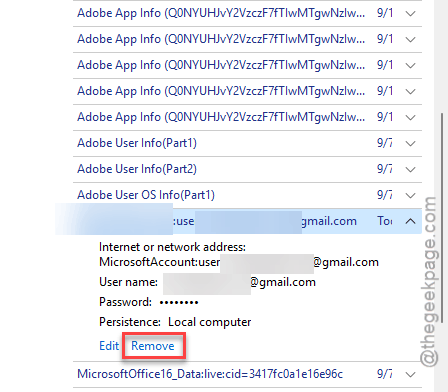
4 – Scroll through the list. Look for entries that start with OneDrive or MicrosoftAccount.
5 – Click each one, then click Remove.
6 – Confirm with Yes.
7 – Restart the PC.
Windows asks you to sign in again the next time OneDrive or the Backup app starts. Annoying for thirty seconds. And then it works, because the new token is clean.
Fix 4 – Run WSReset
Weird one. The Backup app checks your cloud storage allowance through the Microsoft Store’s plumbing (the Store, of all things). And a gummed-up Store cache can make it think you have no space left. Sounds unrelated? It is not.
1 – At first, press Windows + R together.
2 – Then, type this code there, and press Enter.
wsreset.exe
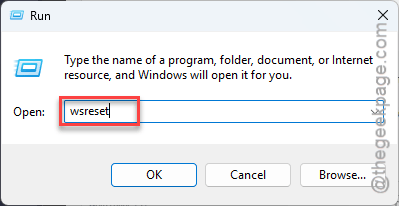
A blank black window pops up and sits there. It disappears on its own after ten seconds or so, and the Store opens.
Fix 5 – Give the Backup Drive Its Old Letter Back
Now the File History side. Windows hands USB drives a letter when you plug them in. And it doesn’t always hand out the same one. File History wants the letter it was set up with. Nothing else will do.
1 – Right-click the Start button and click Disk Management.
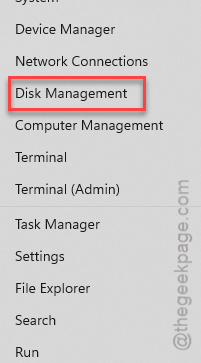
2 – Find your external drive in the bottom half of the window (the part with the colored bars).
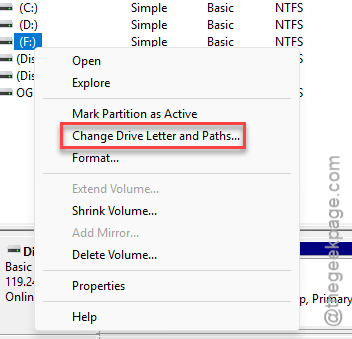
3 – Check its letter. If it’s not the one you originally used, right-click that drive’s bar.
4 – Click Change Drive Letter and Paths.
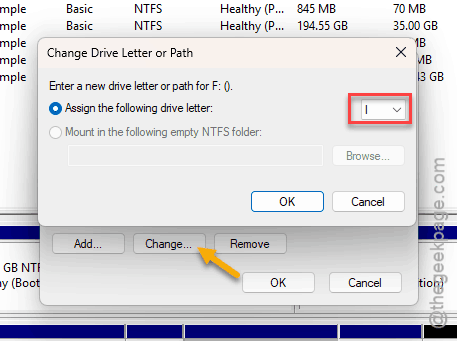
5 – Click Change.
6 – Pick the original letter from the dropdown and click OK.
7 – Open File History and run a backup.
So check the letter every time you plug the drive into a different PC or port. Takes five seconds. And it saves you this whole mess.
Fix 6 – Stop Using the Drive, Then Add It Again
File History can get stuck chasing a ghost connection.
1 – Press Windows + I to open Settings.
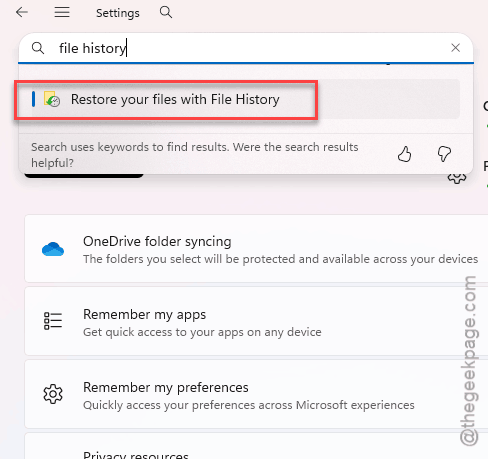
2 – Type File History in the search box at the top and open Backup settings (some builds call it File History).
3 – Click More options under Back up using File History.
4 – Scroll to the very bottom and tap Stop using drive or, Turn Off.
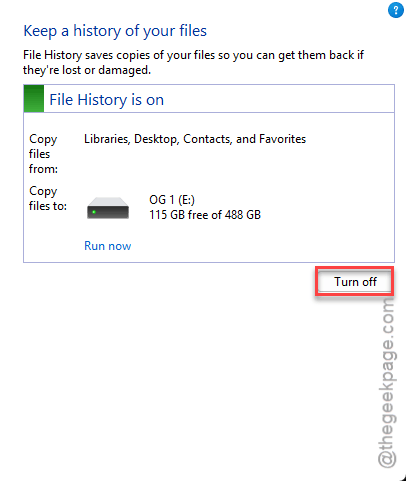
5 – Go back one screen and click Add a drive. Or, if you want to add the same drive, tap Turn on.
6 – Pick your external drive from the list.
7 – Click Back up now, or, Run now option.
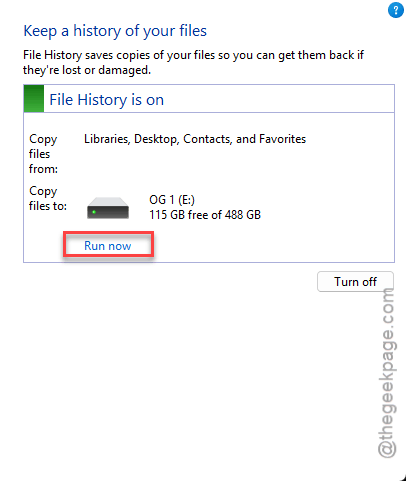
Watch the progress line. If it starts counting files, the path took.
Fix 7 – Delete the Corrupted File History Config
Drive got yanked mid-backup? Then the config database is likely toast. And File History will throw 0x80040304 forever after, even with the drive sitting there perfectly connected.
1 – Press Windows + R.
2 – Type this simple code, and press Enter.
%localappdata%\Microsoft\Windows\FileHistory
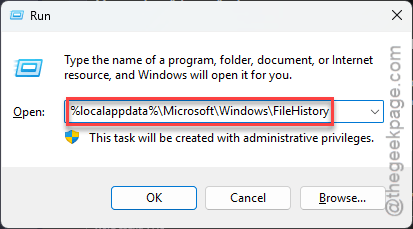
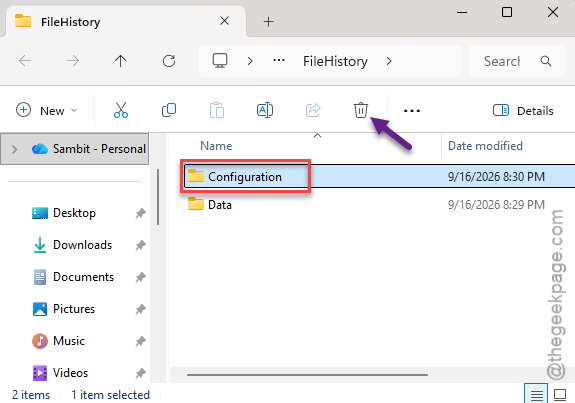
3 – Find the Configuration folder inside.
4 – Delete the whole Configuration folder.
5 – Restart your computer.
6 – Set up File History from scratch using Fix 6, steps 5 through 7.
Your backed-up files on the drive are untouched.
People Also Ask
What should I do if my Windows 11 backup says the last backup did not complete successfully?
Figure out which tool said it. For the Windows Backup app, unlink OneDrive from its Settings > Account tab, relink it, and clear the cache folder at %localappdata%\Microsoft\Windows\Backup. For File History, open Disk Management and check the drive letter, then stop using the drive and add it again.
Why does Windows Backup give error 0x80040304?
It means Windows can’t reach the backup destination. With the cloud Backup app, that’s a stale Microsoft account token, so a OneDrive unlink or clearing Credential Manager fixes it. With File History, the external drive changed letters or the config database got corrupted after a bad disconnect.
Will deleting the File History Configuration folder erase my backups?
No. The Configuration folder only holds File History’s settings and its index of what it planned to copy. Your actual backed-up files live on the external drive and stay there. After you delete the folder and restart, set File History up again and it rebuilds the config on its own.