You might get annoyed when your PIN vanishes every time the PC restarts, Windows asks you to set one up again, you do, and after the next reboot it’s gone. Again. So you’re stuck in a loop. It may have started right after a recent Windows 11 update, which is not a coincidence. The good news? One of the fixes below almost always breaks the loop, and most of them take under five minutes.
What’s Actually Going On
Here’s the thing about a Windows Hello PIN. It isn’t really a password. It’s a key that lives on your PC, tied to a small security chip on the motherboard called the TPM (short for Trusted Platform Module). Windows stores the PIN data in a hidden folder named Ngc.
A recent update messed with that setup. On some PCs the Ngc folder got corrupted, so Windows can’t read the PIN anymore. And when Windows can’t read it? It throws the PIN away and asks for a new one. Every single boot.
On other PCs it’s Fast Startup. That feature saves a snapshot of the system core to disk so booting feels quicker. But after this update, the snapshot can overwrite the PIN session on the way back up, and Windows decides the PIN was removed. It wasn’t. Windows just thinks so.
There’s more, sadly. The Credential Manager service (the background process that reads your saved security tokens) sometimes reads them as blank. Work laptops have an extra twist, because company device policies can clash with the update’s new PIN rules. And the passwordless toggle in Settings can glitch into rejecting a perfectly good PIN.
Which one is yours? Hard to say from the outside. So start with the quick ones and work down.
Fix 1 – Sign In With Your Password for Now
First, let’s get you into your PC without setting up a PIN for the fifth time today.
1 – At the login screen, click Sign-in options just under the PIN box.
2 – A row of small icons appears.
3 – Click the key icon (that’s the password option) and type your Microsoft account password.
Not a fix. But it stops the loop while you work through the real fixes below.
Fix 2 – Turn Off Fast Startup
This is the one I’d try first. It’s the most common cause, and the fix is a single checkbox. It’s buried in the old Control Panel, though, so follow along.
1 – Press Windows + R, type control, and press Enter.
2 – Click Hardware and Sound.
3 – Click Power Options.
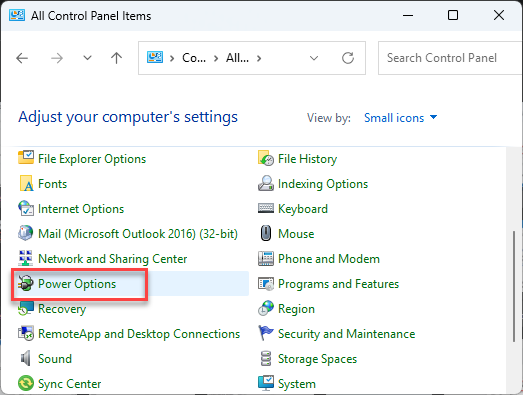
4 – Click Choose what the power buttons do in the left panel.
5 – Click Change settings that are currently unavailable near the top.
6 – Uncheck Turn on fast startup (recommended). It’s the first box under Shutdown settings.
7 – Click Save changes at the bottom.
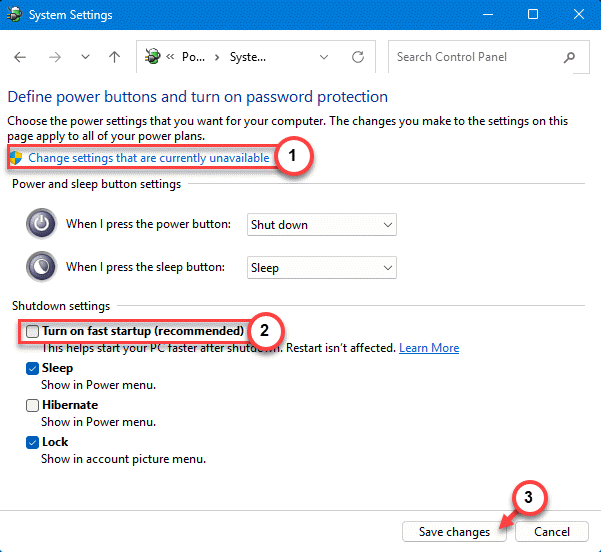
8 – Restart your PC, set a new PIN, then restart once more to check that it stuck.
Wondering if your PC will boot slower now? A little. Maybe five extra seconds on a normal SSD. You won’t notice after a day.
Fix 3 – Restart the Credential Manager Service
Still losing the PIN? Next up is the service that reads your security tokens. Bouncing it forces Windows to read them fresh instead of assuming they’re empty.
1 – Press Windows + R.
2 – Type services.msc and press Enter.
3 – Scroll down to Credential Manager.
4 – Right-click it and click Restart. If Restart is greyed out, click Start instead.
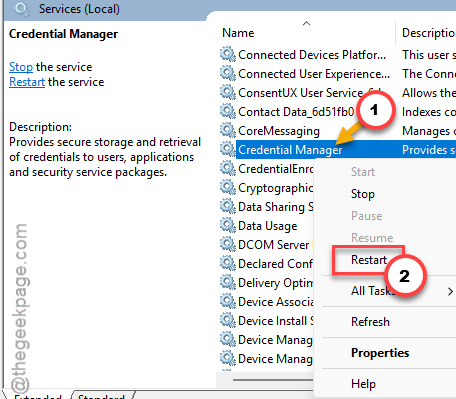
5 – Right-click it again and click Properties.
6 – Change the Startup type dropdown to Automatic.
7 – Click Apply, then OK.
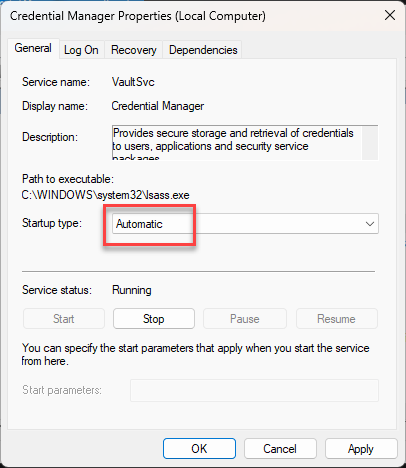
Now go set a new PIN (Settings, then Accounts, then Sign-in options) and restart to test.
Fix 4 – Flip the Windows Hello-Only Toggle Off and Back On
You should refresh the Windows Hello security suite on your system.
1 – Press Windows + I to open Settings.
2 – Click Accounts in the left sidebar.
3 – Click Sign-in options.
4 – Scroll down to the Additional settings section.
5 – Turn off the switch labeled For improved security, only allow Windows Hello sign-in for Microsoft accounts on this device. Long name, tiny switch.
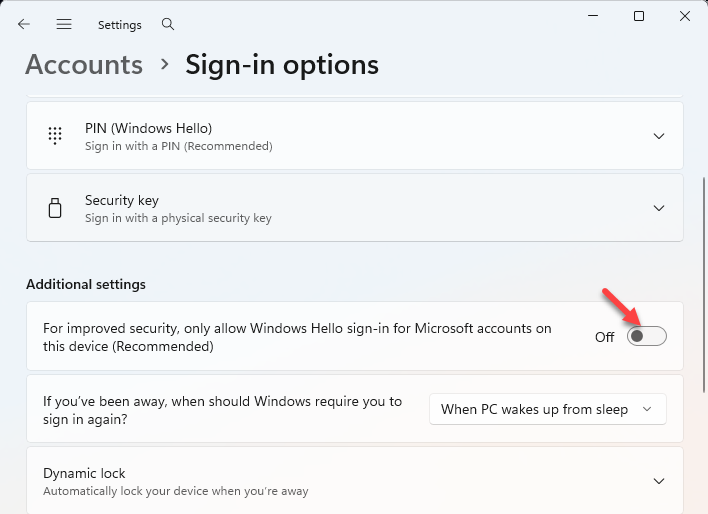
6 – Close Settings and restart your PC.
7 – Sign in with your password.
8 – Go back to Sign-in options and set up a new PIN.
9 – Restart one more time. If the PIN survives, go back and turn the switch on again.
And if it doesn’t survive? Leave the switch off for now and keep going.
Fix 5 – Disconnect and Reconnect Your Work or School Account
If this is a company or school laptop, this is probably your fix. The organization’s device management policies (the rules IT pushes to your PC remotely) can fight with the update’s PIN requirements. Reconnecting the account pulls a fresh copy of those rules.
One caution before you start.
1 – Press Windows + I to open Settings.
2 – Click Accounts, then Access work or school.
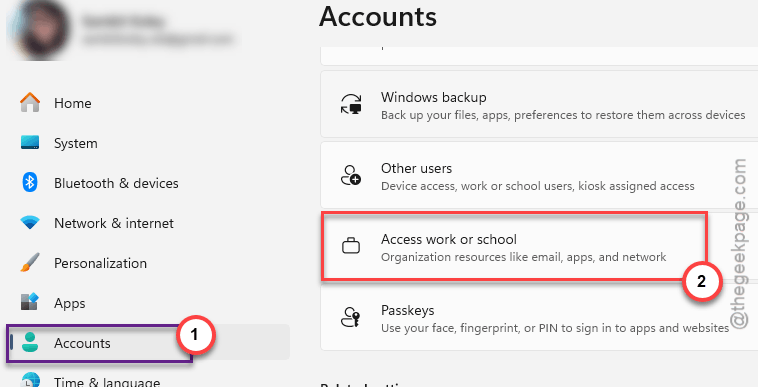
3 – Click your connected account. It expands to show a Disconnect button.
4 – Click Disconnect and confirm.
5 – Restart your PC.
6 – Come back to the same screen, click Connect, and sign in with your work credentials.
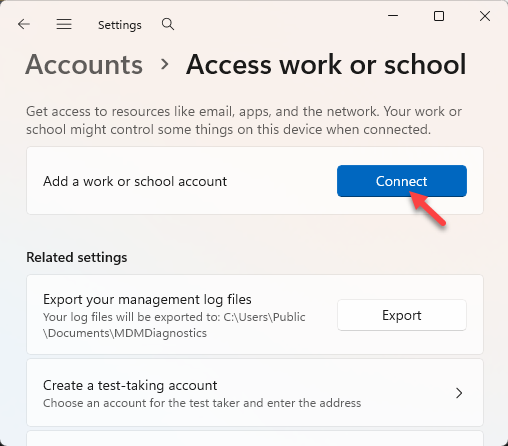
Set up your PIN again after that. It should hold this time, because the policies were rebuilt from scratch.
Fix 6 – Rebuild the Ngc Folder
Now the bigger one. If the Ngc folder itself is corrupted, nothing above will help, because Windows can’t read the PIN data no matter how many times you set it. So we make Windows build a brand-new folder. You’ll need to take ownership of it first (Windows protects it, for good reason).
This will not touch your files, apps, or account. Only the PIN and Hello data get rebuilt.
1 – Press Windows + E to open File Explorer.
2 – Then, go to the View at the top, hover over Show, and choose Hidden items.
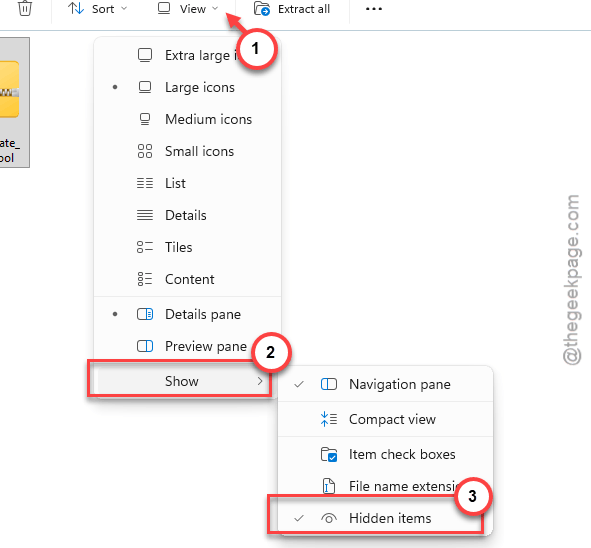
3 – On the address bar, paste this, and press Enter.:
C:\Windows\ServiceProfiles\LocalService\AppData\Local\Microsoft
4 – Then, right-click the Ngc folder, and click Properties.
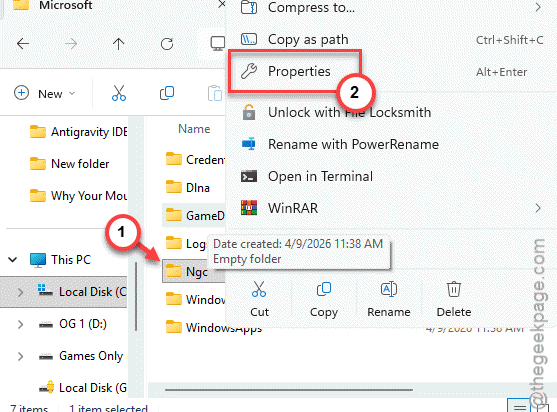
5 – Click the Security tab, then click Advanced at the bottom.
6 – At the top of the window, next to Owner, click Change.
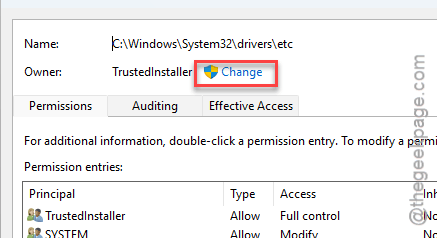
7 – Type your Windows username, click Check Names, then click OK.
8 – Check the box Replace owner on subcontainers and objects, then click Apply and OK on every window that’s open.
9 – Double-click the Ngc folder to open it.
10 – Later, press Ctrl + A to select everything inside, then press Delete.
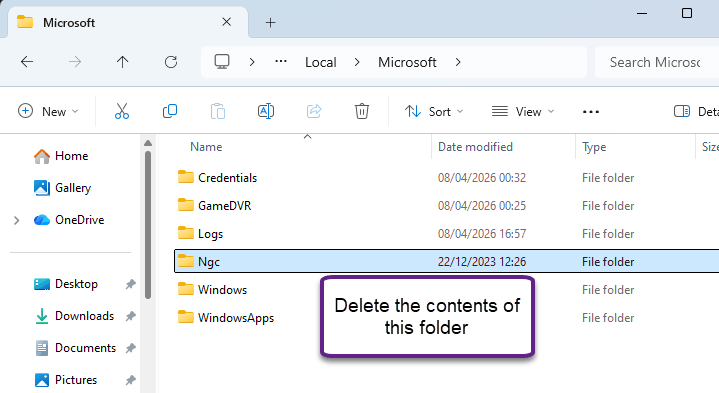
11 – Restart your PC and set up a new PIN.
Check if this helps.
Fix 7 – Clear the TPM
Try clearing the TPM cache from your system.
If you use BitLocker drive encryption, make sure you have your recovery key saved somewhere (it’s stored in your Microsoft account online) before you do this. Windows may ask for it on the next boot.
1 – Click Start, type Windows Security, and press Enter.
2 – Click Device security in the left sidebar.
3 – Click Security processor details.
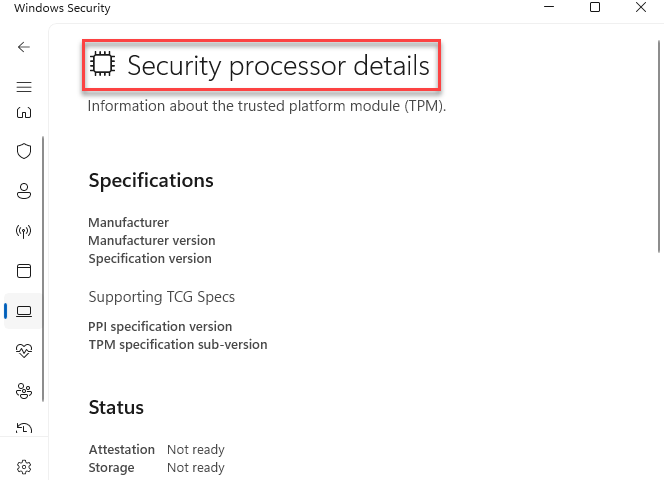
4 – Click Security processor troubleshooting.
5 – Click Clear TPM and confirm.
6 – Your PC restarts on its own. Sign in with your Microsoft account password when it comes back.
7 – Set up your PIN one more time.
So It Doesn’t Happen Again
- Leave Fast Startup off. Your boot is a few seconds slower. Worth it.
- Keep your Microsoft account password somewhere you can reach without the PC. Your phone, a password manager, whatever works. The PIN is the part that breaks. The password is the way back in.
- Pause Windows updates for a week or two after a big one lands (Settings, Windows Update, Pause updates). Let the bugs show up on someone else’s machine first.
- Company laptop? Tell IT the moment the PIN drops. Their policies are often the cause, and they can fix it from their end without you touching a thing.
Quick Answers
Why does my Windows Hello PIN keep disappearing after restart?
A Windows 11 update broke how the PIN is stored and checked. On most PCs it’s Fast Startup overwriting the PIN session during boot, so Windows thinks the PIN was removed. On others the hidden Ngc folder that stores the PIN data got corrupted. Turn off Fast Startup first, then rebuild Ngc if needed.
Will deleting the Ngc folder delete my files?
No. The Ngc folder only holds Windows Hello data, meaning your PIN and face or fingerprint sign-in. Your documents, photos, apps, and account stay exactly as they were. After you empty it and restart, Windows builds a fresh folder and asks you to set a new PIN. That’s the whole effect.
Does clearing the TPM erase my data?
Not your files. It wipes the security keys on the TPM chip, which resets Windows Hello for every user on the PC. Two things to know first.