Since upgrading to the iOS 26, many iOS users have complained of struggling, laggy widget animations on the device since they have upgraded. There are reports of the widgets appearing as blank boxes, slow animations, or even completely no animations at all. The Liquid Glass UI elements may conflict with the higher Pro Motion refresh rate, causing such issues.
Fix 1 – Refresh the iPhone’s Display Zoom
Users have fixed this problem simply by toggling the display scaling manually, which makes the iPhone to re-organize all the widgets from scratch.
Step 1 – Load up the iPhone Settings. Next, tap the Display & Brightness tab.
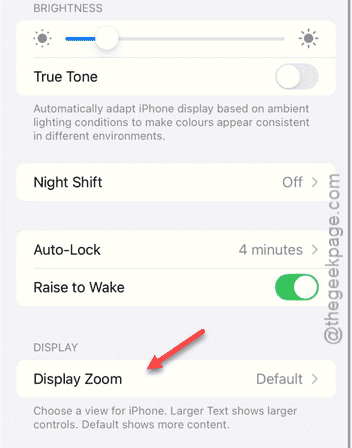
Step 2 – Then, proceed to the Display Zoom settings.
Step 3 – Switch to the Larger Text mode and tap Set to enact it briefly.
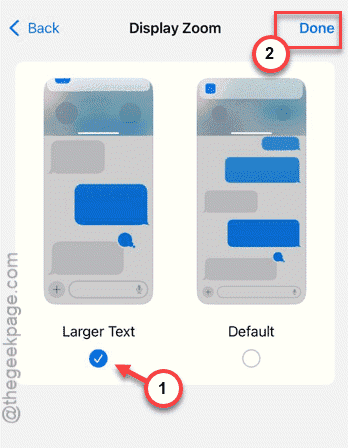
The iPhone will quickly restart the entire UI.
Step 4 – Once iPhone become functional again, choose the Default version and tap Set to set it.
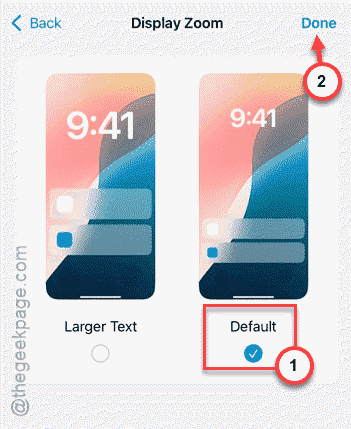
Check the widget animations now.
Fix 2 – Limit the Frame Rate
iPhone 17, Pro and Pro Max users have found the widget animation glitching out at 120 Hz setting. It seems that higher refresh rate of the device is causing this effect.
Step 1 – In the home page of iPhone Settings, proceed to the Accessibility tab.
Step 2 – Tap the Motion tab.
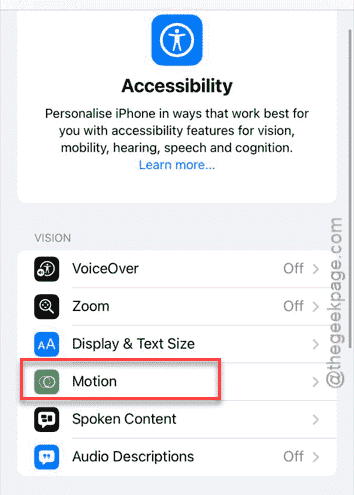
Step 3 – Toggle the Limit Frame Rate mode to On.
Check the widgets one more time.
Fix 3 – Refresh the Background App Permissions
iOS 26 can aggressively block background permissions for third-party applications or app-widgets.
Step 1 – Go to the General tab on the iPhone Settings.
Step 2 – Then, proceed to the Background App Refresh.
Step 3 – Turn on the Background App refresh, if it is disabled.
Step 4 – Set it to Wi-Fi & Mobile Data mode.
Step 5 – Now, get back to the main list of apps and find the widget-related app in there. Turn those Off, and then back to On mode.
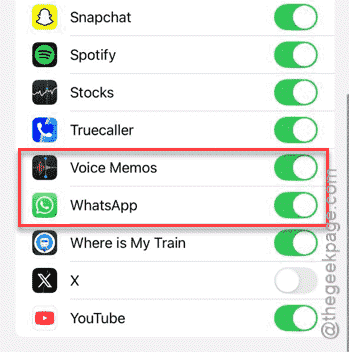
This simple refresh should revitalize the widgets properly. Proceed to check whether the widget animations are visible clearly or not.
Fix 4 – Reset the Home Screen Layout
Reset the iPhone’s Home Screen Layout to the default mode, and place the widgets afresh. It will take care of any bug-related issues.
Step 1 – In the iPhone’s Settings console, go this way –
General ⇾ Transfer or Reset iPhone
Step 2 – Tap the Reset button.
Step 3 – Choose to use the Reset Home Screen Layout option there to reset the home screen layout. It may ask the Apple passcode to verify your access.
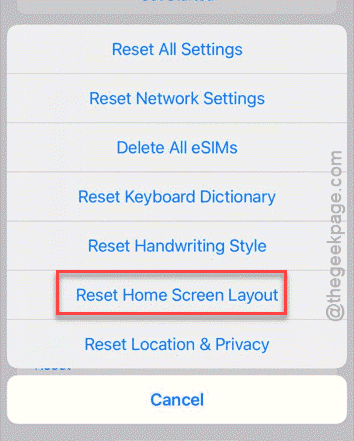
Once the entire layout of the iPhone resets back to the factory default setting, you can re-arrange the app widgets manually, where you won’t face this issue again.
Fix 5 – Disable Low Power Mode
The low power mode of the iOS 26 is more enhanced, which can restrict such widget animations on the device.
Step 1 – Load up the iPhone Settings.
Step 2 – Proceed to the Battery tab, next. Turn off the Low Power mode.
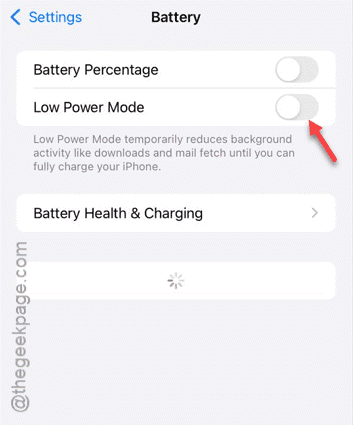
When the iPhone returns to the normal mode, there won’t be any such issues again.