Do the widgets overlap or misalign on the lock screen on your iPhone running on iOS 26? Although iOS 26 provides the user liberty to freely customize the widgets and resize clocks on the lockscreen, sometimes it can result in unconventional overlap or misalignment problems for the widgets. If you are also affected by such an issue, here are some tips you can follow to fix the problem yourself.
Fix 1 – Switch to Solid Clock Style
The widgets on the iOS 26 lock screen can misalign due to the new Liquid Glass UI elements, which require the iPhone to redraw the entire layout grid.
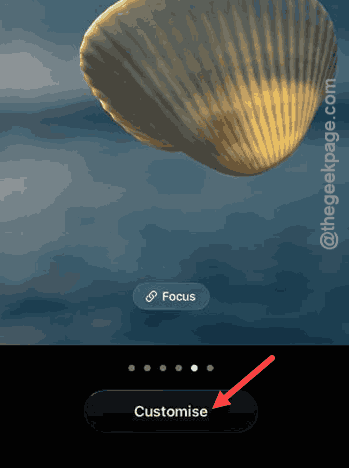
Step 1 – Press and hold the lock screen on the iPhone. Then, tap the Customize button there to start customizing the lock screen.
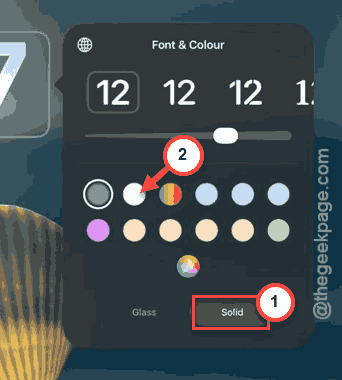
Step 2 – Then, tap the Clock button there.
Step 3 – Tweak the Style from Glass to Solid mode.
Step 4 – Then, tap Done to save the customizations in the iPhone Settings.
This should restore the normal widget alignment.
Fix 2 – Manual Frame Resizing
The latest version of iOS 26 offers a drag handle for the clock on the lock screen customization menu. It can misalign the widgets there.
Step 1 – Now, long press on the lock screen, and choose the Customize option.
Step 2 – Tap the Time to view the selection frame on the iPhone screen.
Step 3 – Find the drag handle (dot) in the bottom corner of the time frame. Drag it upwards to bring down the clock size to allow ample space for the widgets.
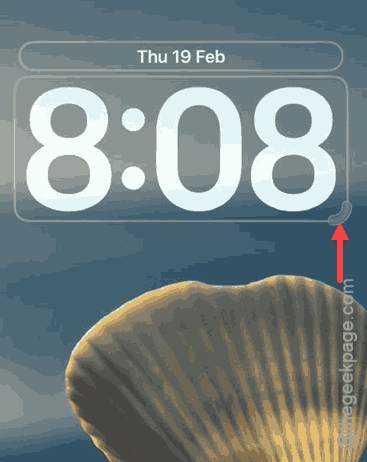
Having enough free space on the lock screen, the widgets won’t overlap anymore.
Fix 3 – Reset the Bottom-Dock Widget Position
The ability to place the widget in the bottom dock of the iOS 26 lock screen can cause this issue.
Step 1 – Go to the lock screen customization mode. Then, tap the widget area.
Step 2 – Try dragging the entire widget frame to the bottom part of the screen. Just don’t try to place them lower than the Flashlight, Camera lock screen shortcuts.
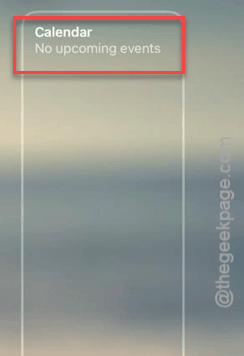
Step 3 – If they were already there, position them in the top row on the lock screen.
This should place the clock and widgets on the same plane.
Fix 4 – Disable the Depth Effect and Spatial Scenes
The 3D spatial scene, or the Depth Effect (where part of the clock hides behind the main subject), can disturb the normal lock screen layout.
Step 1 – Hold the lock screen for a brief few seconds, and tap Customize.
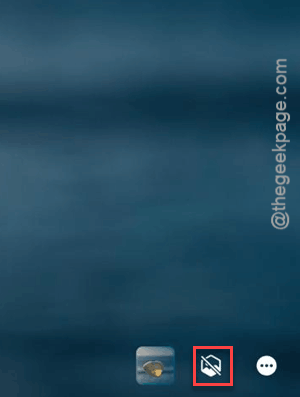
Step 2 – Tap the three-dots button in the bottom-right corner.
Step 3 – Toggle Depth Effects to OFF.
Step 4 – Tweak the Spatial Capture icon to disable the 3D effect.
Check if this works for you!
Fix 5 – Force Restart the Springboard
If the widgets are not moving at all and won’t even move in the Edit mode, force restart the device to fix the issue.
Step 1 – Quickly press-release the Volume Up button.
Step 2 – Then, hit and release the Volume Down button.
Step 3 – Hold the Side Button on the iPhone until the iPhone restarts and the Apple logo shows up there.
After the iPhone force-restarts, it will fix the lock screen automatically. Hope these fixes have helped you solve this issue.