After the iOS 26 update had rolled out to the broad spectrum of iPhone users, reports of touch responsiveness issues stemmed from various community forums. According to the user reports, the new Liquid Glass UI elements have created dead zones near the edges of the iPhone screen or even caused the entire touchscreen to become inoperative. Here is the list of recommended solutions that you can apply to fix this issue.
Fix 1 – Triple Force-Restart the iPhone
Repeating the force-restart process three times consecutively has fixed this problem for many users.
Step 1 – At first, press and release the Volume Up button.
Step 2 – Then, quickly press and release the Volume Down button of the device.
Step 3 – Now, press and hold the Side (Power) Button until the Apple logo shows up on the screen.
Wait till the lock screen shows up on the iPhone.
Step 4 – Then, repeat the same force-restart process three times in a row.
After the iPhone force-restarts, do check the iPhone’s screen is responding properly or getting
Fix 2 – Recalibrate Touch Accommodations
You have to modify the touch settings manually in the iPhone Settings.
Step 1 – Open the Accessibility panel of the iPhone Settings.
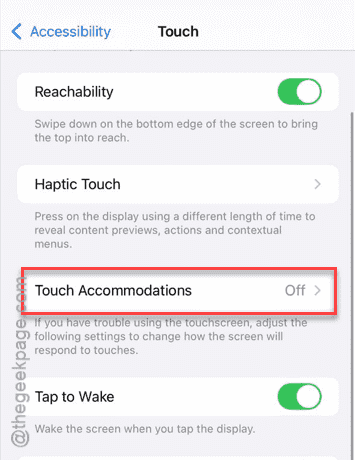
Step 2 – Once again go to the Touch settings.
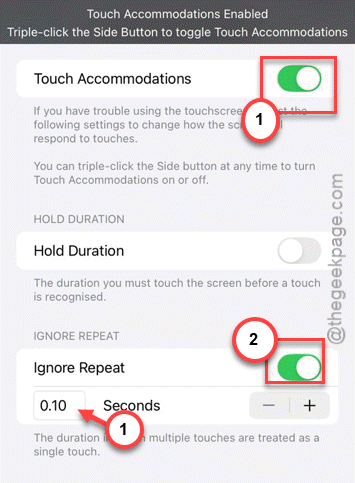
Step 3 – Tap the Touch Accommodations feature and turn it On.
Find the Ignore Repeat feature and enable it.
Step 4 – Now, set the duration to the lowest possible value (normally 0.10 seconds).
Now, test the touch responsiveness issue of the iPhone.
Fix 3 – Disable the Reachability Feature
Deactivating the reachability sensors can sometimes block the touch input from the users that may cause this issue.
Step 1 – Open the iPhone Settings and proceed this way –
Accessibility > Touch
Step 2 – In the Touch settings panel, locate the Reachability feature and turn it Off.
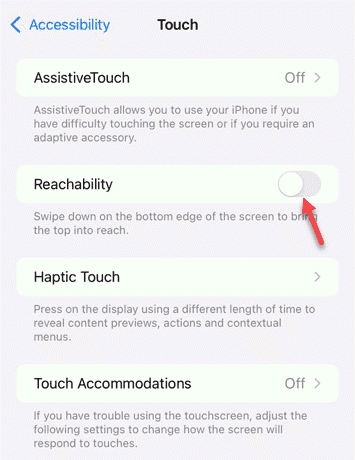
Restart the iPhone once. Use the iPhone normally and check whether the entire display is responding to your touch inputs.
Fix 4 – Toggle the Haptic Touch Duration
A faster haptic touch duration bypassess the UI animations lag, which can improve the touch responsiveness.
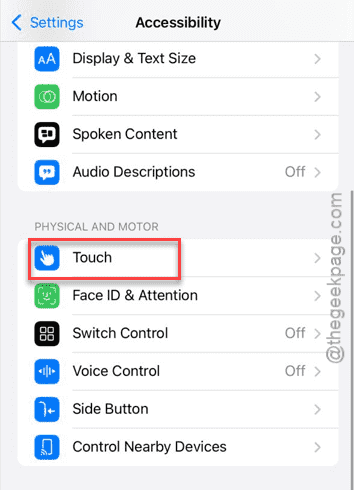
Step 1 – Go to the iPhone Settings. Load up the Accessibility tab.
Step 2 – Proceed to open the Touch settings.
Step 3 – Then, open the Haptic Touch panel.
Step 4 – Find the Touch Duration and set it to Fast mode.
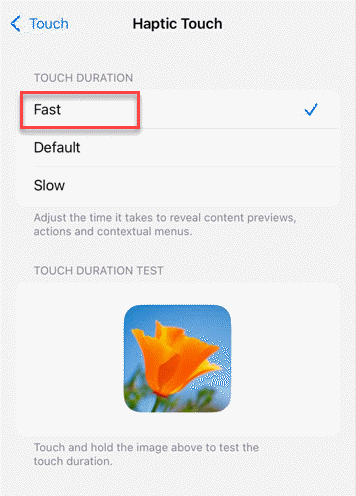
Test the touch response for the iPhone’s display.
Fix 5 – Reset all the iPhone Settings
If the touchscreen is still not responding properly, you must reset all the iPhone settings at once.
Step 1 – At first, go to the iPhone Settings. Then, proceed to the General tab.
Step 2 – Then, follow this path –
Transfer or reset iPhone > Reset
Step 3 – Next, click the Reset All Settings option.
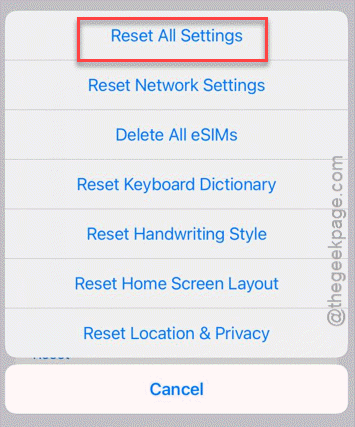
It will prompt for your Apple passcode. Confirm it using that.
NOTE— When you reset all the settings on your iPhone, it will reset all the settings to the default value. It will remove the network credentials or any other settings modifications that you have made in the device. But it won’t touch any of your personal files.