Following the iOS 26 update, a small group of iPhone users have complained of facing a problem where the wired headphones are not connecting properly on the iPhone. This problem can leave out the user stuck in a speaker only mode, denying them access to their headphones. Although the majority of the complaints are from wired headphone users, wireless Bluetooth headphone users have similar complaints as well.
Fix 1 – Adjust AirPlay & Continuity Settings
There is a new feature in iOS 26 that blocks new connections from overrunning the current output settings. This is the primary reason why the headphones are not getting recognized by the iPhone.
Step 1 – Go to the iPhone Settings. Next, load up the General settings.
Step 2 – Proceed to the AirPlay & Continuity tab.
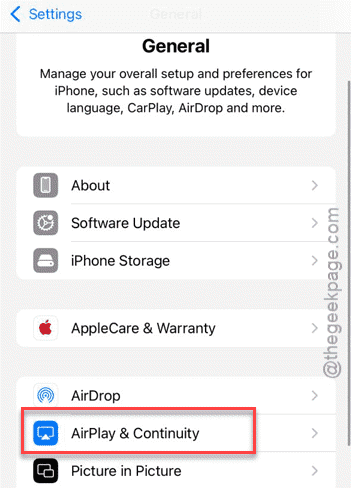
Step 3 – Find the Keep Audio in Headphones feature.
Step 4 – Toggle it Off, and then, turn it back On.
This will refresh the link, and fix the headphones issue.
Fix 2 – Force-restart the iPhone in plugged-in state
Some users have fixed this problem by force-restarting the iPhone while the headphones are plugged in.
Step 1 – Simply press and release the Volume Up button of your iPhone.
Step 2 – Then, press and release the Volume Down button.
Step 3 – Finally, hold the Power button of the iPhone until the Apple logo appears on the screen. As soon as the Apple logo appear, unplug the headphones from your iPhone.
Step 4 – Once it reaches the lock screen, plug-in the headphones.
This way, the iPhone will recognize the headphones, and you can use them as usual.
Fix 3 – Close microphone using apps and retry
On iOS, only a single app can have access to the microphone at any given point of time. So, if you have too many apps that can access a microphone, it won’t work in a specific app.
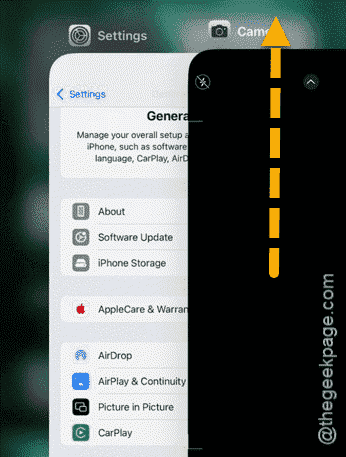
Step 1 – Swipe up from the bottom of the screen to load up the App Switcher.
Step 2 – Next, find any app that may have access to the microphone (like, Voice Memos, Zoom, Camera, etc) and swipe up to force-close it.
Step 3 – Wait for 5 seconds or so. Then, load up the application where you want to use the microphone.
Check whether the microphone is working properly or not.
Fix 4 – Forget the Device and Reconnect
If you are experiencing this problem with a Bluetooth headphone, deleting the device from the paired devices and re-pairing should fix the issue.
Step 1 – Load up the Settings page on your iPhone.
Step 2 – Go to the Face ID & Passcode tab, next.
Step 3 – Turn it Off. If you have applied the Security Delay on your iPhone, you have to wait for 1 hour if you are not in your familiar location.
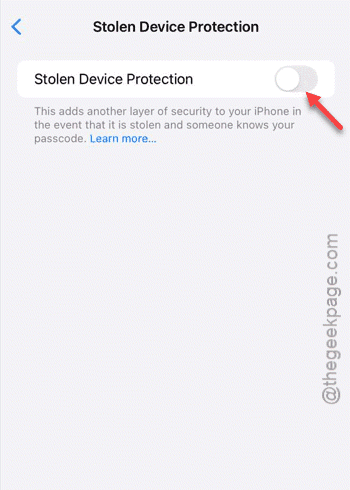
Step 4 – Next, load up the Bluetooth settings on the iPhone.
Step 5 – Tap the ℹ button next to the device you are having this problem with.
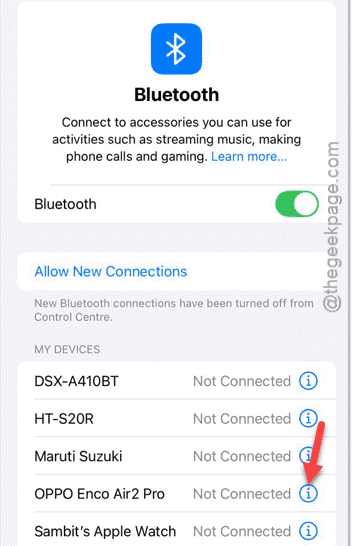
Step 6 – Tap Forget this Device to remove the current set of pairing.
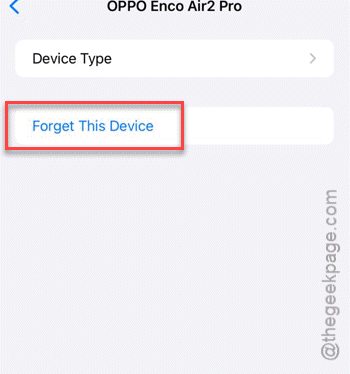
Step 6 – Pair the headphones with the iPhone again.
This should fix the issue.
Fix 5 – Remove the Link to Windows App
Some user reports have indicated that the Link to Windows app as the possible root cause for this problem. If you have the Link to Windows app on the iPhone, and facing such issues, just delete the app and the issue with the headphones will be resolved.