If the Microsoft Teams search fails, it’s most likely due to corrupted MS Teams cache or search filters. If the search button is not working or returning queried items in the search results, here are some workarounds you can apply to fix the issue. Enact these steps to troubleshoot the problem.
Quick Fix Table ~
| Issue | Recommended Fix |
| ‘No results found’ for everything | Fix #1: Delete the LocalCache |
| Results look weird or filtered | Fix #2: Use Clear all filters |
| Search works on the phone but not the PC | Fix #4: Disconnect/Reconnect Account |
Fix 1 – Clean the Teams UI Cache
Microsoft Teams indexes all your messages and chats on your computer locally. Corruption in the Teams app cache: the search bar won’t work.
Step 1 – Completely shut down the Microsoft Teams client. Tap the arrow button in the taskbar. Find the Microsoft Teams app there, and click Quit Teams.
Step 2 – Hit the Win+R buttons together. Paste this there, and click OK.
%localappdata%\Packages\MSTeams_8wekyb3d8bbwe\LocalCache\Microsoft\MSTeams
Step 3 – Delete everything inside this folder.
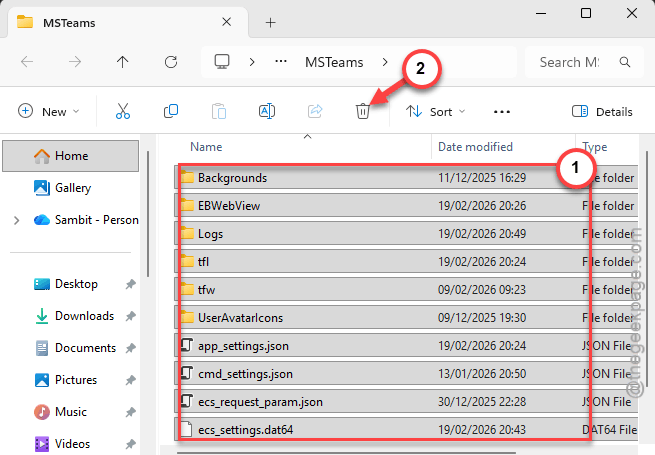
After deleting all the contents in the Teams folder, this should have fixed the issue.
Fix 2 – Use the Filter Reset Toggle
In most of the cases, you may have applied a search filter that you have forgotten to remove. Hence, you are getting the ‘No Result‘ error message.
Step 1 – Type your search term in the top bar and hit Enter.
Step 2 – In the Search results page, tap the Clear button at the top right.
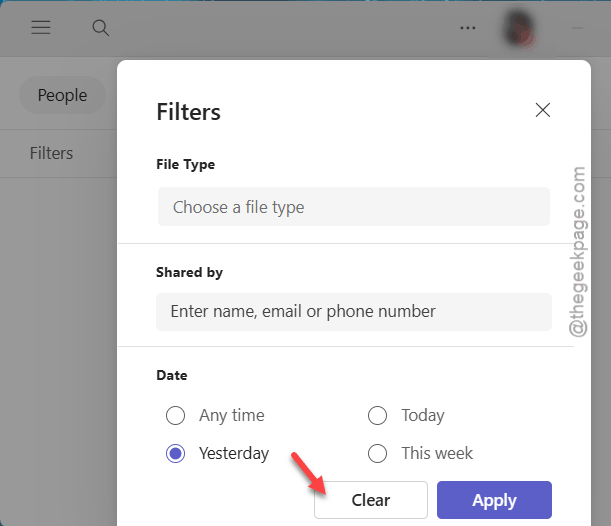
Step 3 – Even if it looks like no filters are active, tap it anyway.
Now, try to search again in the Microsoft Teams app.
Fix 3 – Try to access Teams on Web (Incognito Tab)
This is a way to detect whether the root of the cause lies in the Teams server or on your local computer.
Step 1 – Open a new incognito or private browser tab in the browser.
Step 2 – Log in to the Microsoft Teams.

Step 3 – Try to search there.
- If it works on Web client: The desktop app’s local database is corrupt (Follow the Fix 1).
- If it fails on the web client: The message may have been deleted.
Check if this works.
Fix 4 – Sign Out & Forget the Teams Credentials
Mismatched session tokens can lead to such issues, which can be solved easily by signing out and forgetting the Teams credentials.
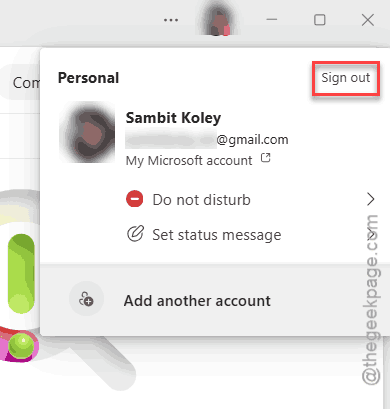
Step 1 – Tap the profile picture in the Microsoft Teams client. Then, tap Sign out.
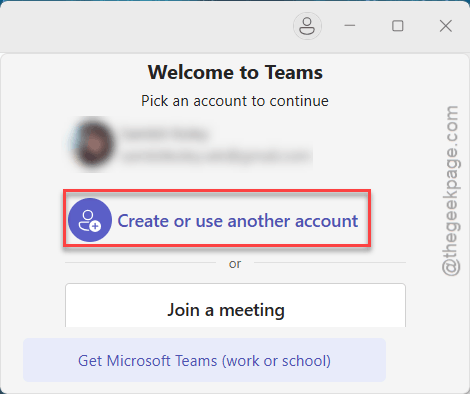
Step 2 – When the login screen opens up, use Use another account or sign up button.
Step 3 – Close the window. Go this way –
Accounts > Access or work school
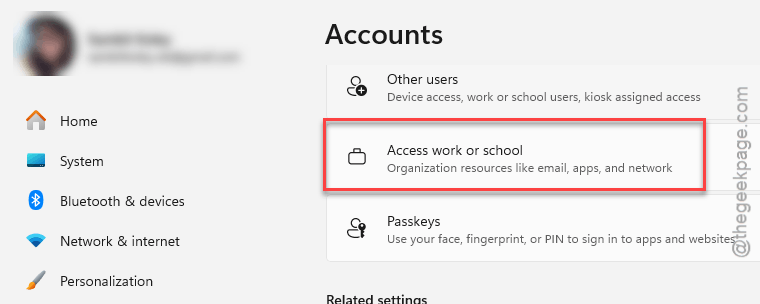
Step 4 – Tap the account and use the Disconnect option.
Step 5 – Restart the Teams client and sign back in.
This way, all the chat messages should be synced in.
Fix 5 – Use the Command Bar Shortcuts
Instead of performing the search using the search query, you should use the specific shortcuts to perform the search.
Step 1 – Click in the search bar at the top of the Teams app.
Step 2 – Type / to view a list of commands.
Step 3 – Use the specific shortcuts to search, like –
/unread– to find messages you missed/mentions– to find where you were taggedfrom:[Name][Keyword]– to bypass the filter UI entirely
Searching via commands should resolve the issue.