There are several reports of connectivity issues between the Apple Watch and iPhone after the mandatory iOS 26 update for the eligible devices. Users have reported frequent disconnection, pairing failures after upgrading to the iOS 26. While these issues often originates from Apple Watch’s local cache, there are other possible reasons as well. Here are the top 5 fixes sourced from the communities which have actually helped users resolve this problem.
Fix 1 – Reinstall the Watch App
Big updates such as iOS 26 can sometimes corrupt the companion Watch app on the iPhone. Reinstalling the same should help.
Step 1 – Find the Watch app on your iPhone. Hold it once and tap Remove App > Delete App.
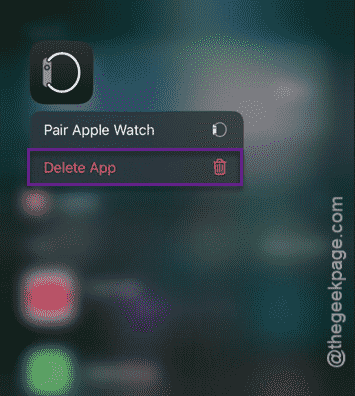
Step 2 – Once you have uninstalled the app, restart the iPhone.
Step 3 – Go to the App Store. Search for Apple Watch and reinstall the app.
There is nothing to worry about your data, like the Health data, which is synced to iCloud. Check the connectivity issues again.
Fix 2 – Bypass the Stolen Device Protection protocol
The Stolen Device Protection can sometimes unintentionally hinder the pairing process.
Step 1 – Load up the Settings page on your iPhone.
Step 2 – Proceed to the Face ID & Passcode tab.
Step 3 – Turn it Off. If you have applied the Security Delay on your iPhone, you have to wait for 1 hour before it let you do so.
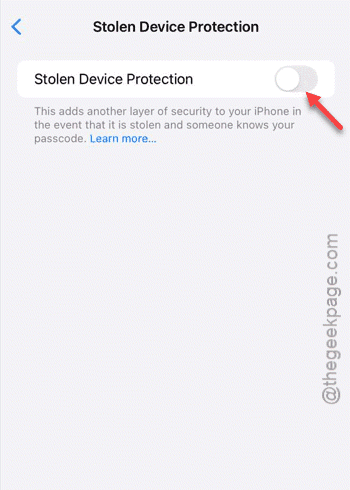
Try to pair the Apple Watch and the iPhone. See if this works.
Fix 3 – Force Restart Both the Watch and iPhone
A force-restart of the iPhone and Apple Watch does refresh should fix this.
Step 1 – At first, hold the Side Button+Digital Crown of the Apple Watch for 10 seconds or so, until the Apple logo shows up on the screen.
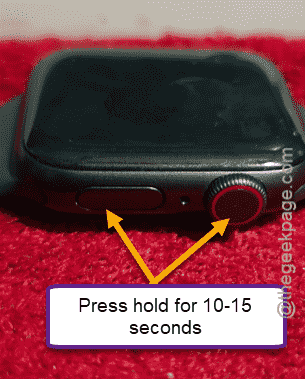
Step 2 – After the Apple Watch reboots, press and release the Volume Up button of your iPhone.
Step 3 – Then, press and release the Volume Down button.
Step 4 – Finally, hold the Power button of the iPhone for 10 seconds, until the Apple logo loads up on the screen.
This is the way you can force-restart the iPhone and Apple Watch.
Fix 4 – Turn on Background Syncing
Many users have found that the iOS 26 can be very restrictive towards the background processing of the Watch app.
Step 1 – Go to the General tab on the iPhone Settings.
Step 2 – Then, proceed to the Background App Refresh.
Step 3 – Make sure the Background App refresh is turned On. Find the Watch and Health app in the list of apps, and make sure those are enabled.
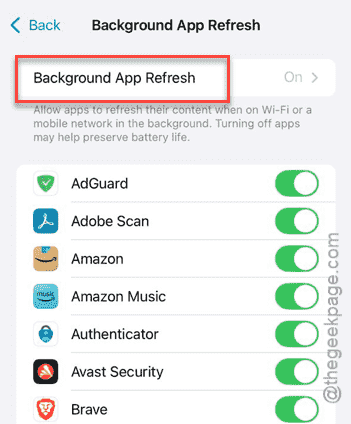
After enabling this, try to pair the Apple Watch and iPhone.
Fix 5 – Reset the Network Settings
If everything else fails, you should just reset the network settings on your iPhone.
Step 1 – Proceed to the General tab.
Step 2 – Then, go to the Transfer or reset iPhone section.
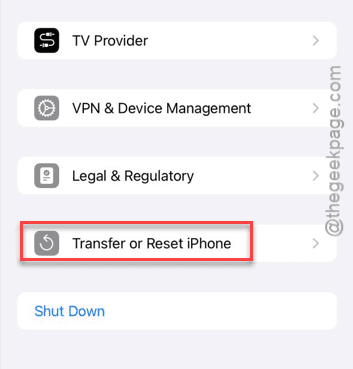
Step 3 – Next, tap the Reset button. Tap the Reset Network Settings button there to reset the network settings.
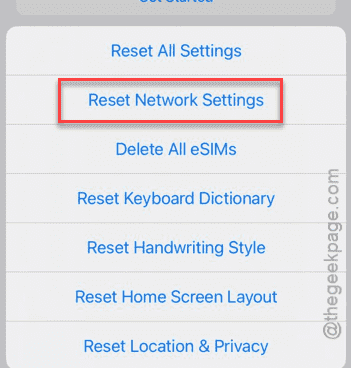
Verify this action using your Apple passcode. Start from afresh and try to connect the Apple Watch and iPhone.
This way, you can resolve this problem.