The latest version of iOS 26 has fixed many bugs and glitches on the iPhone, but there are some display issues still remains at large among the users. One of such issues is with the automatic brightness control, where users have reported erratic brightness levels to even completely unresponsive sensors. We have identified several workarounds that has resolved the issue for many effected users. Here is a complete run-down on all the main fixes that you can enact on your iPhone to fix the auto brightness issue.
Fix 1 – Turn Off Reduce White Point feature
The Reduce White Point feature puts a restriction on the maximum high brightness of the display, which may cause the iPhone’s screen to look dimmer even at 100%.
Step 1 – Open the iPhone Settings. Go to the Accessibility tab.
Step 2 – Later, open the Display & Text Size feature.
Step 3 – Go down to the Reduce White Point section. Turn it off. If it is already off, turn it On for a few seconds, and, then turn it off.
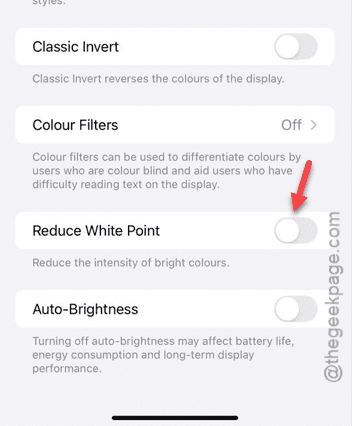
This will refresh the limiter on the high brightness restriction. Check whether the auto-brightness is working properly or not.
Fix 2 – Recalibrate the Auto-Brightness Sensor
Sometimes, the auto-brightness sensor needs a little bit of recalibration to work properly.
Step 1 – On the iPhone Settings page, go to the Accessibility tab.
Step 2 – Proceed to the Display & Text Size.
Step 3 – Turn off the Auto-Brightness feature.
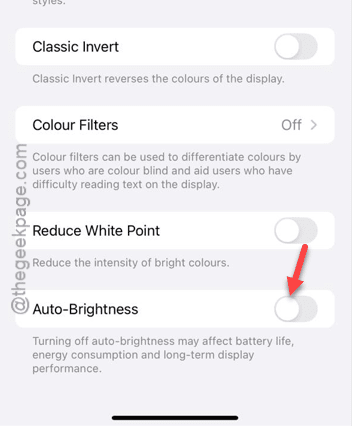
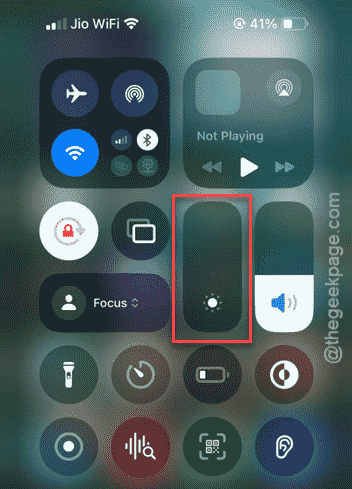
Step 4 – Go to a dark corner of the room. Open the Control Center on the iPhone, set the brightness slider to minimum level.
Step 5 – Finally, turn on the Auto-Brightness to On mode.
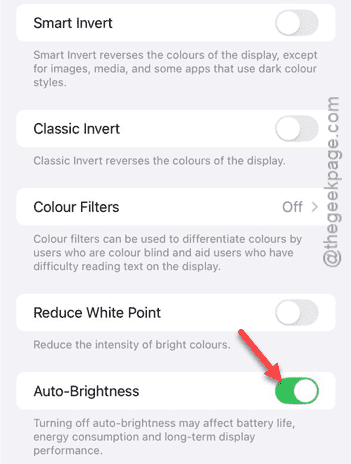
This will recalibrate the ambient light sensors on the iPhone. It will automatically control the display brightness on the device.
Fix 3 – Turn off Attention-Aware Dimming
Face ID sensors can glitch out in iOS 26, while the attention aware features are turned on.
Step 1 – Proceed to the Face ID & Passcode settings on your iPhone.
Step 2 – Enter your Apple Passcode to verify your access.
Step 3 – Find the Attention-Aware Features there and turn it Off.
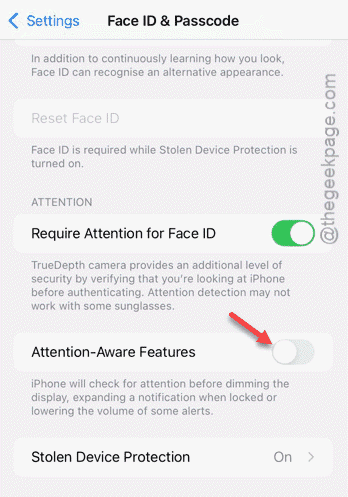
This will fix the auto brightness issue on the iPhone.
Fix 4 – Reset the True Tone and Night Shift
Several users have found the display effects like True Tone and Night Shift to be responsible for this brightness glitch.
Step 1 – Proceed to the Display & Brightness settings on the iPhone.
Step 2 – Next, turn off the True Tone from there.
Step 3 – Set the Night Shift to Off mode. Make sure to switch the Scheduled and Manually enabled Until Tomorrow option to Off mode.
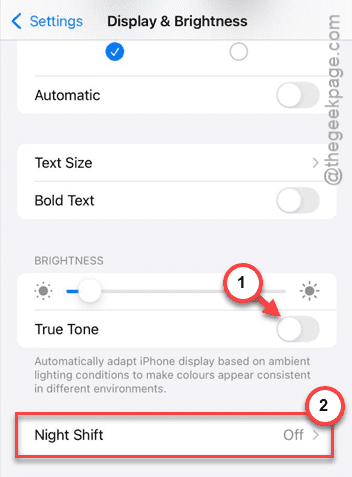
Restart the iPhone once.
Fix 5 – Use a proper case to avoid interference
If you are using any protective casing, or even a thick screen protector on the iPhone’s display, the light-leakage may lead to this issue.
Step 1 – Remove any case or screen protector that is covering or interfering with the Dynamic Island or Notch area of the iPhone.
Step 2 – Use a clean, dry cloth to clear the sensors’ region on the iPhone.
Step 3 – Detach any faulty screen protector from the iPhone’s display. It was likely refracting the light into the ambient sensor of the iPhone, that is leading to such issues.
Hope these fixes have helped you solve the issue.