FaceTime sometimes faces audio/video struggles while switching networks. The reports in this regard have just increased manifold after the iOS 26 update rolled out to the eligible devices. A brief lag during the network switch is completely normal, but if the lag persists, you should look at these solutions to fix the problem at your end.
Fix 1 – Disable Wi-Fi Assist
Wi-Fi Assist may switch networks too aggressively, which may induce the lag or even call drop issues in FaceTime.
Step 1 – Load up the Cellular Services on the iPhone Settings.
Step 2 – Next, slide down through all the available options there and locate the Wi-Fi Assist feature.
Step 3 – Turn the Wi-Fi Assist to Off mode.
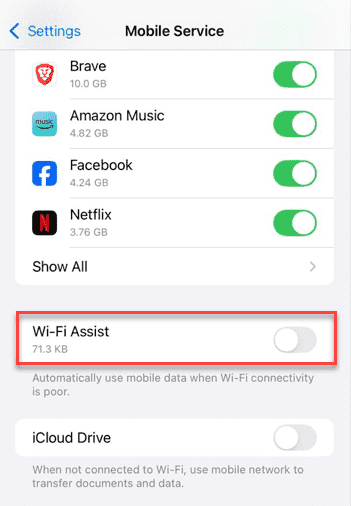
Now, try to check whether the Facetime calls are still lagging or dropping during a network switch.
Fix 2 – Refresh the Networking System Services
Wi-Fi Networking, a location-based system service, can cause such issues during a network switching action.
Step 1 – Go to the Privacy & Security tab in the iPhone Settings.
Step 2 – Then, open the Location Services. Tap the System Services tab.
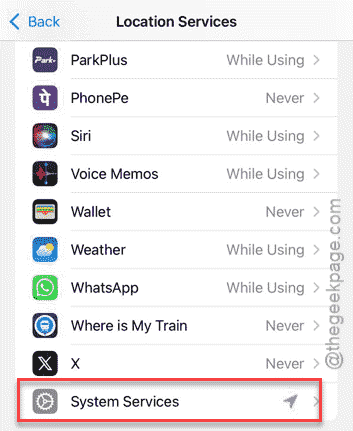
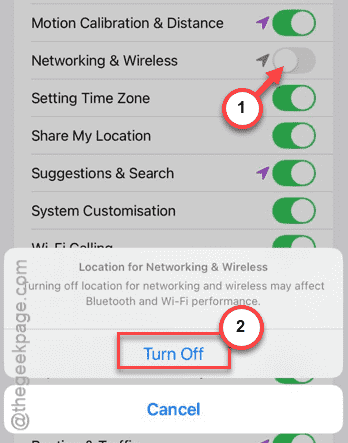
Step 3 – Find the Networking & Wireless (or, Wi-Fi Networking) feature and turn it Off.
Step 4 – Tap Turn Off to turn it off from there.
Step 5 – Wait for a few seconds, and then, turn it back On.
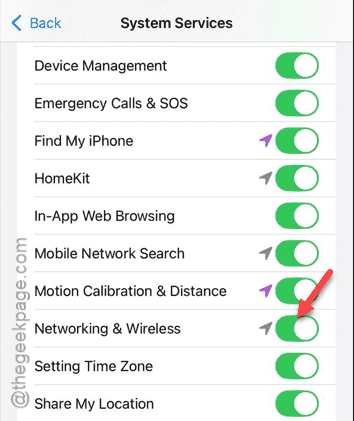
This simple refresh should fix the FaceTime audio/video lags.
Fix 3 – Change the Voice & Data Mode
Weak cellular network coverage can cause the FaceTime call to drop. To avoid this situation, you have to change the default cellular network type.
Step 1 – Load up the Cellular Services tab in the iPhone Settings.
Step 2 – Then, proceed to the Cellular Data Options.
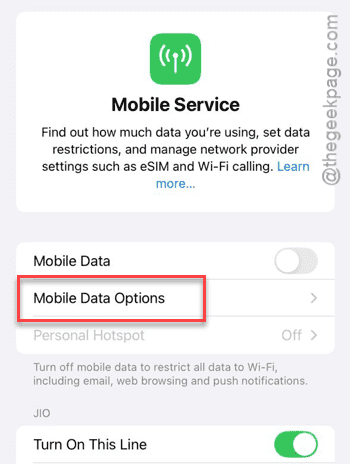
Step 3 – Tap the Voice & Data mode.
Step 4 – Choose 5G On or LTE if the 5G signal is weak in your current region.
Choosing the correct cellular network should take care of the sudden drop in the FaceTime issue.
Fix 4 – Turn On the Background Refresh for FaceTime
iOS 26 may kill the FaceTime data process as soon as the call shifts to mobile data from Wi-Fi by throttling the background app refresh.
Step 1 – Proceed to the General tab.
Step 2 – Then, go to the Background App Refresh tab.
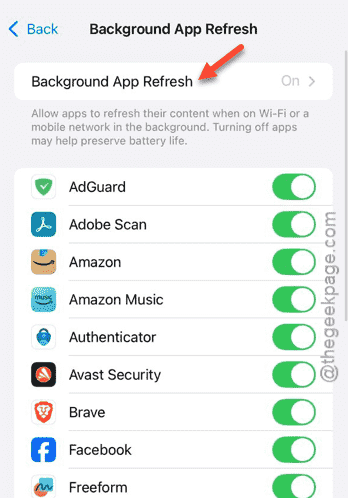
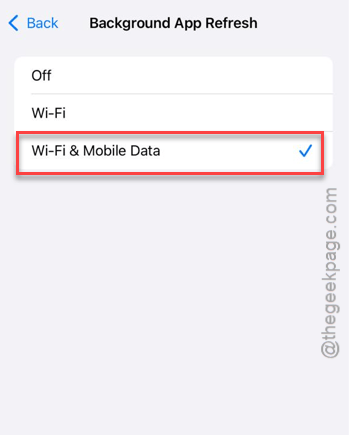
Step 3 – Tap it once and set it to Wi-Fi & Cellular Data mode.
Step 4 – Scroll through the list of apps and make sure FaceTime is turned On in there.
After this, try a demo call and check.
Fix 5 – Reset the Network Settings
The old network configuration from iOS 18 can conflict with the iOS 26. Resetting the mobile network settings should fix this problem.
Step 1 – At first, go to the iPhone Settings. Then, go to the General tab.
Step 2 – Then, proceed this way –
Transfer or reset iPhone > Reset
Step 3 – Tap the Reset Network Settings option there.
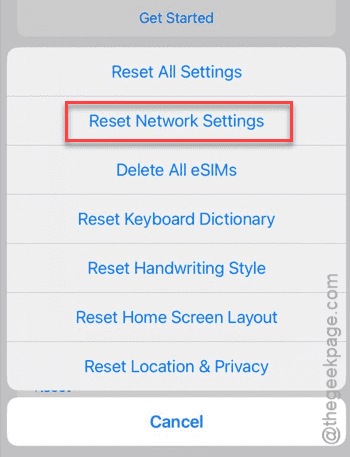
It will prompt for your Apple passcode. Confirm it using that.
NOTE— Resetting the network settings of an iPhone means deleting the stored network credentials, such as Wi-Fi SSID, passwords, carrier configuration, etc. But, it won’t touch any of your personal files.