You open the Recycle Bin. Instead of your file names, you see gibberish — stuff like $RD3F9K.docx. Looks like everything got corrupted.
Relax. It didn’t. Your files are fine. Windows is just showing you its own internal names by mistake. Here’s why, and how to get the normal view back.
Why This Happens
Normally the shell stitches those two halves together and shows you the real name. But when File Explorer’s display cache glitches, it skips that step. So you see the raw $R name instead of MyReport.docx.
It’s a rendering hiccup. Not corruption. Annoying to look at, sure. But your data is sitting right there, completely safe.
Fix 1 – Confirm Your Files Still Restore
Before you touch anything, prove to yourself nothing is lost. The $R names are only cosmetic — restoring still works perfectly.
1 – Open the Recycle Bin from your desktop.
2 – Right-click the file with the weird $R name.
3 – Click Restore.
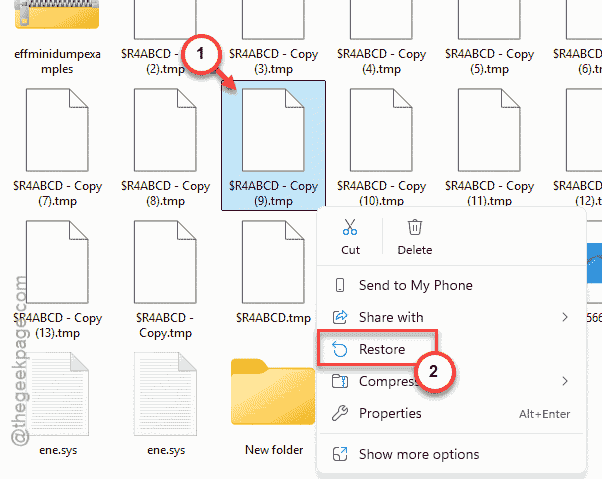
It goes right back where it came from, real name and all. See? The data was always fine. Now you can fix the display with a clear head.
Fix 2 – Restart File Explorer
Quickest fix there is.
1 – At first, press Ctrl + Shift + Esc to open Task Manager.
2 – Find Windows Explorer in the list.
3 – Right-click it and choose Restart.
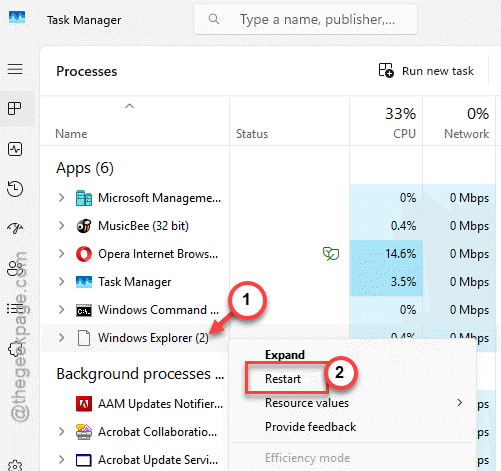
Your taskbar will blink for a second — that’s normal. Open the Recycle Bin again and check the names.
Fix 3 – Clear the Folder View Cache
Still seeing $R? Then Explorer’s layout cache is the culprit.
1 – Press Windows + R, type regedit, and press Enter.
2 – Go to this path:
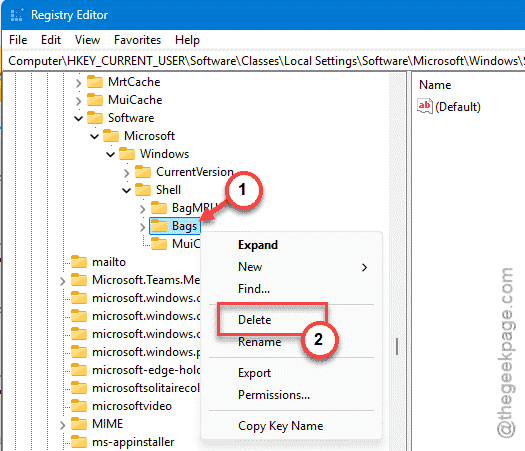
HKEY_CURRENT_USER\Software\Classes\Local Settings\Software\Microsoft\Windows\Shell
3 – In the left pane, right-click the Bags key and choose Delete.
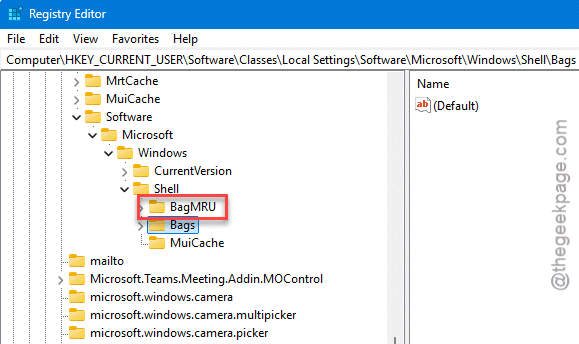
4 – Do the same for the BagMRU key right next to it.
5 – Open Task Manager (Ctrl + Shift + Esc) and restart Windows Explorer, just like in Fix 2.
Windows rebuilds both keys on its own. Fresh cache, correct names.
Fix 4 – Reset the Recycle Bin
Heads up: this one empties the bin. So restore anything you still want (Fix 1) before you run it.
1 – Right-click the Start button and open Command Prompt (Admin) or Terminal (Admin).
2 – Type this and press Enter:
rd /s /q C:\$Recycle.Bin
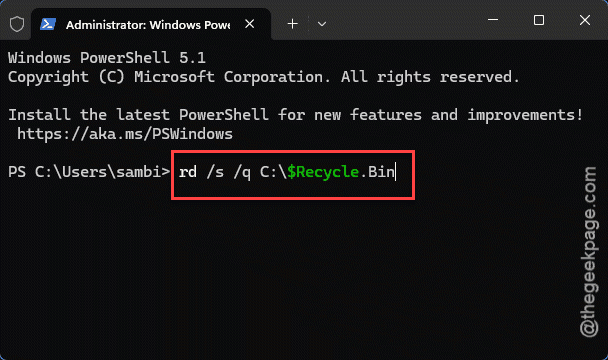
3 – Restart your PC.
Windows builds a brand-new Recycle Bin on the next boot, and the $R glitch goes out with the old one. Just remember — anything left in the bin is gone for good after this.
Fix 5 – Repair the Shell System Files
If the bin keeps showing raw names even after a reset, a core shell file might be damaged. Two built-in tools can repair it.
1 – Open Command Prompt (Admin).
2 – Run this one first and wait for it to finish.
DISM /Online /Cleanup-Image /RestoreHealth
3 – Then run:
sfc /scannow
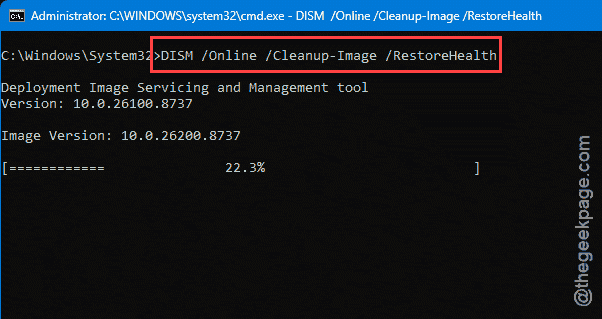
4 – Restart your computer.
DISM repairs the underlying Windows image, then SFC fixes the local shell files that draw the Recycle Bin. Between them, the display layer gets rebuilt.
How to Prevent This
– Don’t browse into C:\$Recycle.Bin directly in File Explorer. Poking around in there is part of what confuses the cache.
– Empty the Recycle Bin now and then. A bin stuffed with thousands of deleted files is far more likely to glitch.
– Run sfc /scannow every few months. It catches shell damage before it ever shows up like this.
– After a big Windows update, a quick Explorer restart clears most display oddities. Takes two seconds.
People Also Ask
Why does the Recycle Bin show $R file names?
Windows stores deleted files in two parts: a $R file with the data and a $I file with the original name. The shell normally merges them so you see the real name. When Explorer’s display cache glitches, it shows the raw $R name instead. Your files aren’t damaged — it’s just a rendering bug.
Can I still restore a file showing a $R name?
Yes. Start by right-clicking it in the Recycle Bin and choose Restore. So restoring works exactly like it always does.