Your mouse feels crisp. Then a game loads, or a render kicks off, and suddenly the cursor goes sluggish. Choppy. Like it’s wading through mud.
Check a polling-rate tester and there it is. You set it to 1000Hz, but under load it’s crawling at 125Hz. Polling rate, by the way, is just how often your mouse tells the PC where it is. 1000Hz means a thousand times a second. 125Hz? Eight times slower. And yeah, you feel every bit of that.
Why This Happens
Short version: when your CPU is slammed, Windows starts cutting corners. And one of the first things it skimps on is your mouse.
The input thread — the little background task that reads your mouse — gets shoved to the back of the line. So updates that should arrive a thousand times a second start trickling in. That’s the 125Hz floor you’re seeing.
But it’s not just the CPU. USB power saving plays a part too. Windows likes to nap your USB ports the second they look idle, and a wireless dongle gets caught in that.
And here’s a weird one. See the problem? Heavy load means more noise, and your mouse packets get drowned out.
Fix 1 – Stop Windows From Powering Down Your USB Ports
This is the one that fixes it for most people. Windows is allowed to switch off USB devices to save a sliver of power, and your mouse receiver gets hit. Turn that off.
1 – Press Windows + X and click Device Manager.
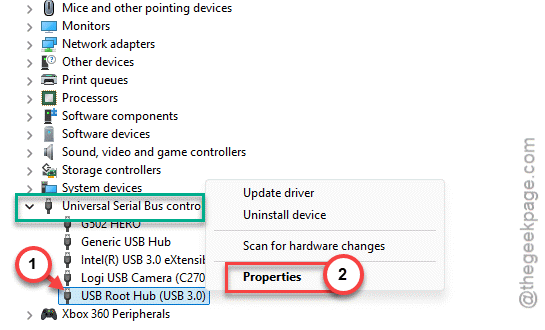
2 – Scroll to the bottom and click the arrow next to Universal Serial Bus controllers to expand it.
3 – Find an entry called USB Root Hub. There may be a few. Right-click the first one and choose Properties.
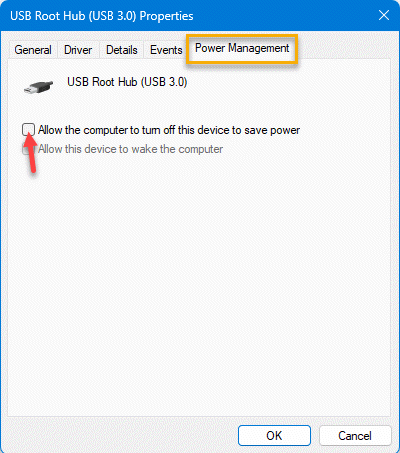
4 – Click the Power Management tab at the top.
5 – Uncheck the box that says Allow the computer to turn off this device to save power.
6 – Click OK. Then do the same for every other USB Root Hub and generic hub in the list.
Tedious, going through each one. But miss the hub your dongle is plugged into and the problem sticks around.
Fix 2 – Disable USB Selective Suspend
Try changing the power module settings of the USB device. So switch this off too.
1 – Press Windows + R, type powercfg.cpl, and press Enter.
2 – Next to your selected power plan, click Change plan settings.
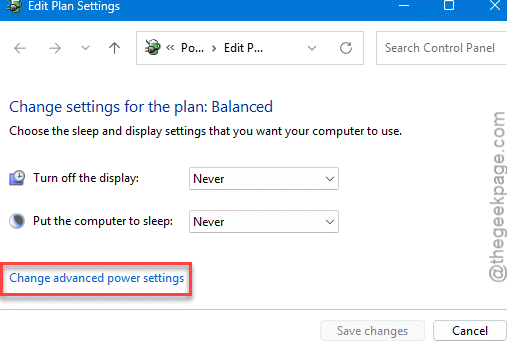
3 – Click Change advanced power settings. A small window pops open.
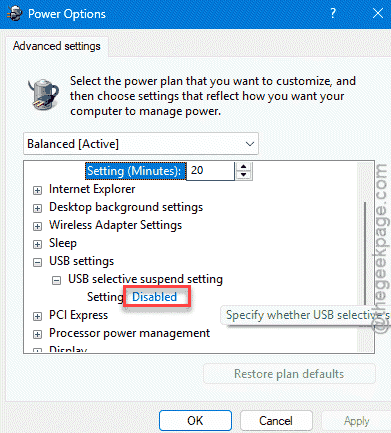
4 – Scroll down and click the + next to USB settings to expand it.
5 – Expand USB selective suspend setting.
6 – Set it to Disabled. On a laptop you’ll see two options — set both On battery and Plugged in to Disabled.
7 – Click Apply, then OK.
Check if this works.
Fix 3 – Move the Dongle to a USB 2.0 Port
Remember that 2.4GHz interference from USB 3.0 ports? This is how you dodge it. USB 2.0 ports don’t throw off the same noise.
1 – Unplug your wireless receiver from its current port.
2 – Plug it into a black USB 2.0 port instead. Front-panel ports work fine here.
3 – If your mouse came with a little extension cradle or dock, use it. Plug the cradle into the USB 2.0 port and set it on your desk near the mouse.
Getting the receiver up off the back of the case and closer to the mouse makes a real difference. Less distance, fewer dropped packets.
Fix 4 – Give Your Mouse Software Higher Priority
Set the mouse softwares to higher prirority in Task Manager.
1 – Press Ctrl + Shift + Esc to open Task Manager.
2 – Click the Details tab. If you don’t see tabs, click More details at the bottom first.
3 – Find your mouse software in the list. It’ll be something like lghub.exe or RazerSynapse.exe.
4 – Right-click it, hover over Set priority, and choose High.
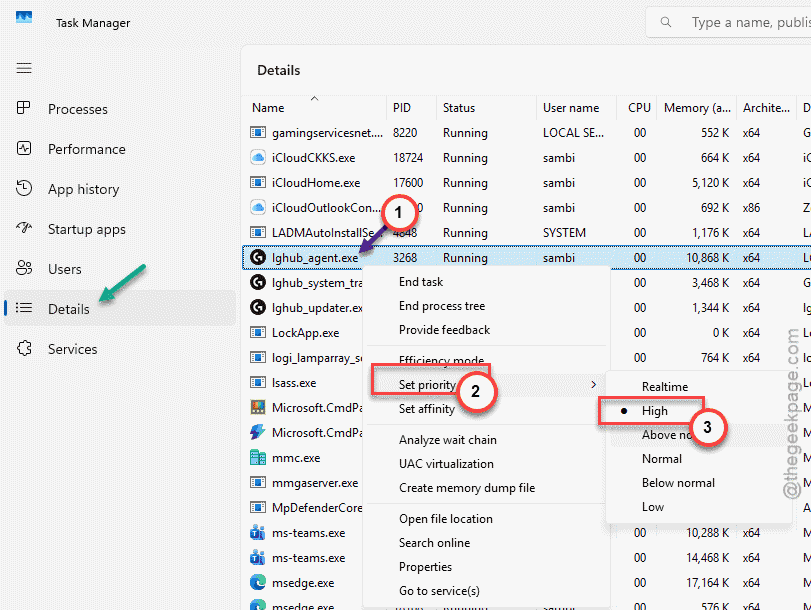
Heads up — this resets every time you reboot. So it’s more of a quick test than a permanent fix. If it helps, you’ve confirmed CPU starvation is the cause, and Fixes 1 through 3 are your long-term answer.
How to Prevent This
– Keep USB power saving off after every Windows update. Big updates love to flip these settings back on. Annoying, but check.
– Park your wireless receiver on a USB 2.0 port for good. Treat the blue 3.0 ports as off-limits for it.
– Use the extension cradle full-time, not just when things act up.
– If a game pegs your CPU at 100%, close background junk before you play. Less competition for that input thread.
People Also Ask
Is a 125Hz polling rate bad?
For everyday browsing and typing? You honestly won’t notice it. For fast-paced gaming, yeah, it feels laggy compared to 1000Hz — the cursor updates only eight times as often as it should.
Is 1000Hz polling rate bad?
Not at all. 1000Hz is the sweet spot for most gaming mice and what the majority of players use. It’s smooth and responsive.
Does 8000Hz polling rate affect FPS?
It can, a little. At 8000Hz the mouse hammers your CPU eight times harder than at 1000Hz, and on weaker processors that can shave off a few frames. On a strong CPU the hit is minimal. For most people 1000Hz gives the best balance of feel and performance.