Does your Apple Watch is not measuring Heart Rate (bpm)? With the sensors present on the Apple Watch, it can quantify information about your real-time health. It is more of a health device than it is a timepiece. So, the importance of the Heart Rate sensor (bpm) cannot be overlooked. If you have a doubt in your mind that the Apple Watch is not tracking heart rate or giving out speculative metrics, you should not waste any more time.
Why the Apple Watch can’t read the heart rate?
Your Apple Watch is equipped with many sensors. Apart from the typical sensors, it carries some sensors that measure or tracks your biological information. The Heart Rate sensor, being the most important sensors present on the device, tracks your heart rate right from your wrist.
In certain situations, like while the watch is in the low power mode or if you are using a watch with a very thick protective cover, it may lead to this problem. These steps should be helpful in solving the problem.
Fix 1 – Don’t wear the Apple Watch too tightly
Sometimes, when you wear your Apple Watch too tightly, it may not be able to measure the heart rate correctly. Just loose the fit of the Apple Watch on your wrist. Then, try to measure the heart rate on the watch.
See if this is helpful in your case.
Fix 2 – Enable the Heart Rate system
You must enable the Hear Rate system on your iPhone.
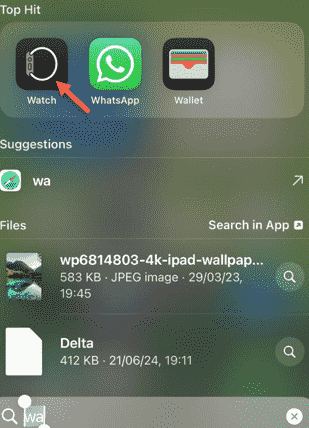
Step 1 – At first, you have to load up the Watch app on the device.
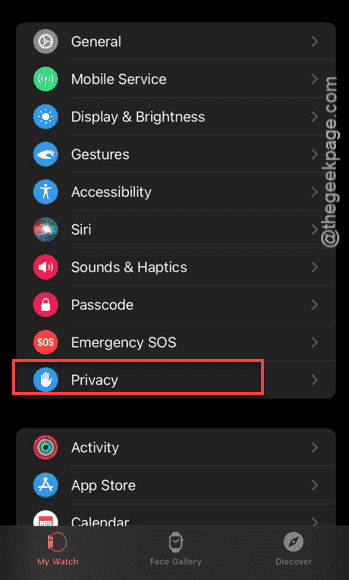
Step 2 – Later, go to the “Privacy” panel.
Step 3 – Finally, enable the “Heart Rate” option there.
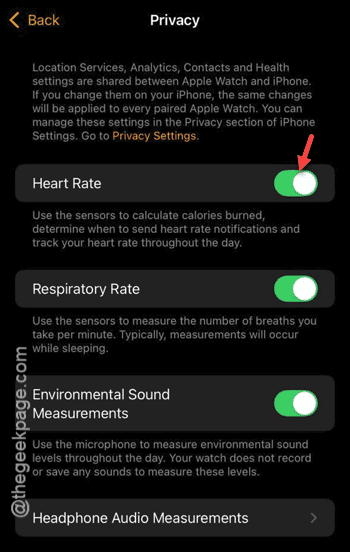
While this is enabled, the watch should track your heart rate correctly.
Fix 3 – Turn on the Wrist Detection
The heart rate sensor won’t work unless the Wrist Detection is enabled on the watch.
Step 1 – Open the Watch app on your iPhone.
Step 2 – In the Watch settings page, open up the “Passcode” settings.
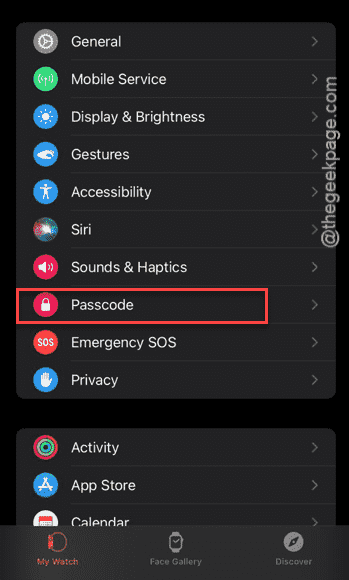
Step 3 – Later, enable the “Wrist Detection” mode.
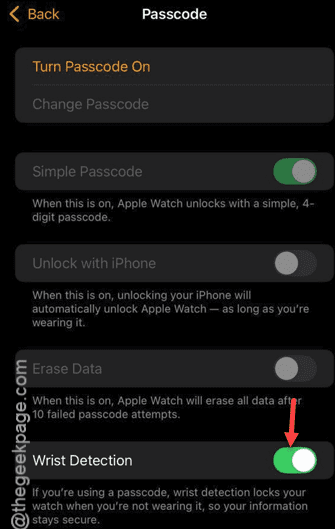
Check if this works or not.
Fix 4 – Turn off the Low Power Mode
Disable the Low Power mode, which is responsible for this issue.
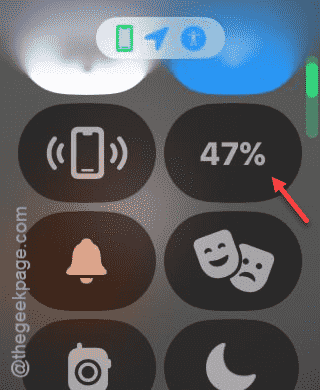
Step 1 – Gently press the side button on your watch. This should bring up the
Step 2 – Next, look for the battery sign in there. Tap the battery percentage in there.
Step 3 – If the Low Power Mode is on, just tap on the “Low Power Mode” once to revoke it.
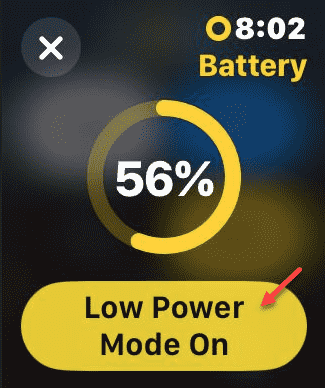
After disabling it, you can
Fix 5 – Remove the case from the Apple Watch
Sometimes, if you use a very hard protective case on the Apple Watch, it may not be able to read your heart rate correctly. After removing the case, you start to measure the heart rate once again.
Give it a few seconds and check the results once again.