Boot up your PC. Or run a Dell SupportAssist scan. Boom — “A driver cannot load on this device. iqvw64e.sys.” Network might still work. But the warning keeps popping. Annoying.
Why This Happens
Basically? iqvw64e.sys is the Intel Network Diagnostic Driver. Old versions don’t meet Microsoft’s newer driver-signing or memory integrity rules. So Windows refuses to load them.
And what triggers it? Usually one of two things. Either Windows turned on Memory Integrity (a security feature that blocks unsigned older drivers). Or you have an outdated Dell SupportAssist or Intel diagnostic tool with a stale driver bundled in.
Mostly hits Dell laptops. But any Intel Ethernet machine can see it. Microsoft tightened the rules in late 2024 and the older drivers stopped passing.
Fix 1 – Replace the Old Intel Driver With a Fresh One
This is the proper fix. Yank the old driver, install the latest one from Intel. Done.
1 – Open your browser. Go to Intel’s official driver page: intel.com/content/www/us/en/download-center/home.html.
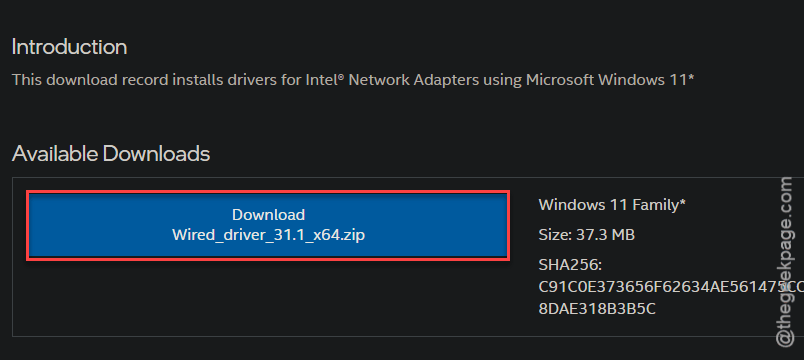
2 – Search for “Intel Network Adapter Driver for Windows 11” (or Windows 10 if you’re on that).
3 – Download the installer. Don’t run it yet.
4 – Press Windows + I to open Settings.
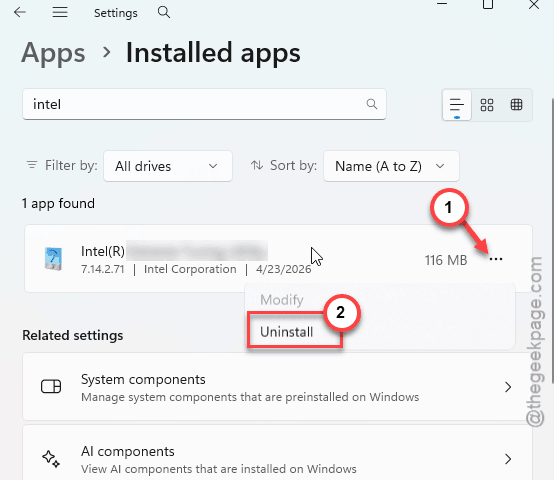
5 – Go to Apps > Installed apps.
6 – Search “Intel”. Uninstall the Intel Network Connections and any related Intel network packages.
7 – Restart your PC.
8 – After reboot, run the Intel installer you downloaded. Let it finish.
9 – Restart again.
And that’s usually it. The new driver replaces iqvw64e.sys with a signed, current version.
Fix 2 – Reinstall From the Existing INF File
Quick fix that actually works. The driver file is on your machine — just buried inside Dell SupportAssist. Re-register it.
1 – Open File Explorer.
2 – Go tommd. There’ll be a version folder inside (e.g. 6.0.7240.285).
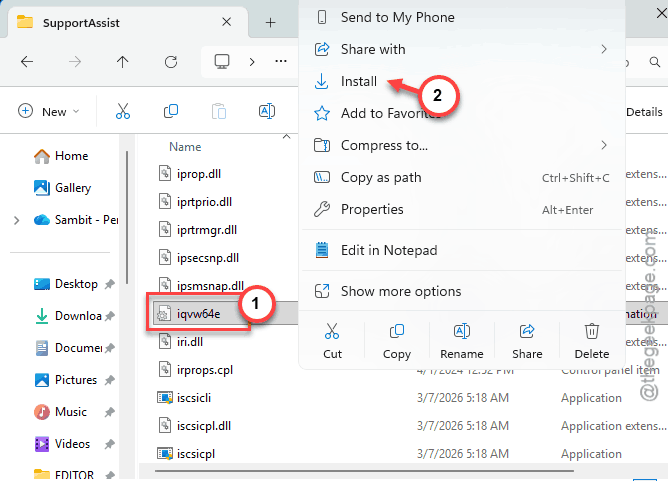
3 – Open that version folder. Look for iqvw64e.INF.
4 – Right-click iqvw64e.INF. Pick Install.
5 – Wait. No big confirmation — just a quiet install.
6 – Restart your PC.
Worked for a lot of Dell users. Re-registers the driver with the system. The error stops appearing.
If your driver path is different — search the error message text for the exact location.
Fix 3 – Turn Off Memory Integrity
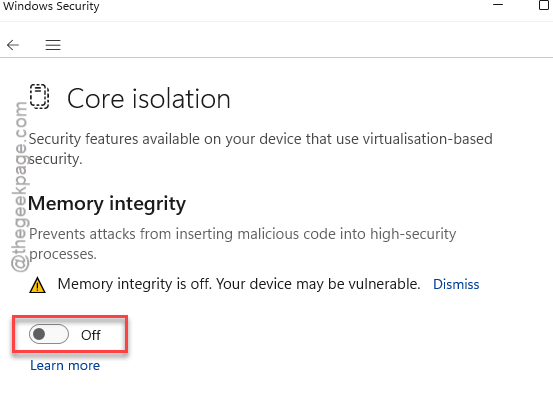
Windows Security has a feature called Memory Integrity that blocks any driver it doesn’t trust. Including older signed ones. If you don’t mind a slight security trade-off, turn it off.
1 – Press Windows + I. Open Settings.
2 – Go to Privacy & security > Windows Security.
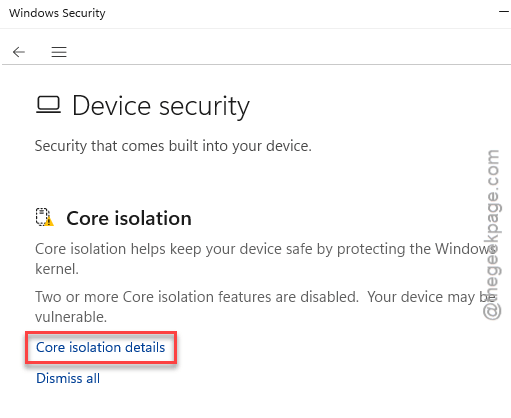
3 – Click Device security.
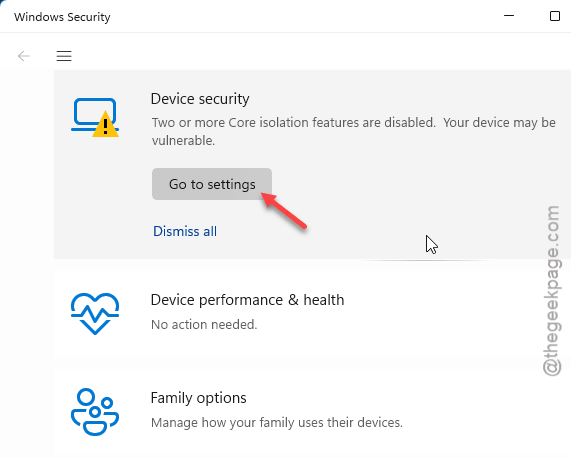
4 – Click Core isolation details under Core isolation.
5 – Toggle off Memory integrity.
6 – Restart your PC.
Heads up — this lowers your driver-related defenses a notch. Most home users will be fine. But on a corporate machine, ask IT before flipping this.
Fix 4 – Update Dell SupportAssist
If the issue is coming from Dell’s diagnostic agent, get the newest version. Older releases ship the broken iqvw64e.sys.
1 – Open Dell SupportAssist from your Start menu.
2 – Click the Settings (gear) icon in the top right.
3 – Click About.
4 – Hit Check for updates.
5 – Install whatever it offers.
If SupportAssist won’t update? Uninstall it. Then grab the latest installer from dell.com/support and reinstall.
Fix 5 – Use Intel’s Network Diagnostic Driver Utility
Intel made a separate utility that just installs the right diagnostic driver for your hardware. Cleaner than digging through driver pages.
1 – Go to Intel’s download center: Intel Download Center.
2 – Search for Intel Network Diagnostic Driver Utility.
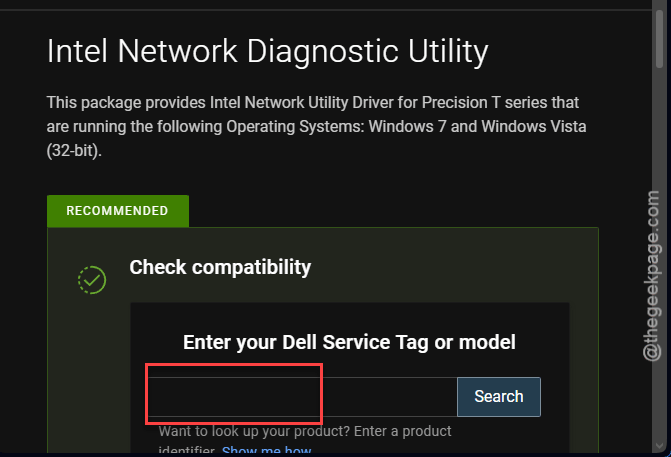
3 – If prompted, enter your Dell Service Tag or PC model.
4 – Download the latest version that matches your system.
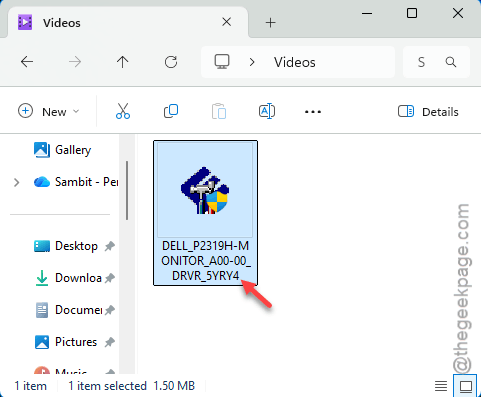
5 – Run the installer.
6 – Restart.
And that should clear it up. Cleaner install path than yanking everything manually.
How to Prevent This
- Keep Intel network drivers updated directly from Intel. Not just Windows Update.
- On Dell laptops, update SupportAssist regularly. Don’t let it sit at a 2-year-old version.
- Don’t disable Memory Integrity unless you really need to. It’s there for a reason.
- Avoid third-party “driver updater” tools. They install old versions that trigger this exact error.
People Also Ask
What is the iqvw64e.sys error?
iqvw64e.sys is Intel’s 64-bit Network Diagnostic Driver. The error means Windows refused to load it — usually because the driver is outdated and Memory Integrity is blocking it. Common on Dell laptops with old SupportAssist installs. Update the Intel network driver and the warning goes away.
How to get rid of AutoIt error?
Different error, but related. AutoIt scripts can be bundled inside SupportAssist or third-party installers. If you see one alongside the iqvw64e.sys warning, both usually fix together when you uninstall and reinstall the parent app — like Dell SupportAssist or any Intel diagnostic tool.
How to fix “A driver cannot load on this device” error?
Two paths. Update the driver to a current, signed version — that’s the right way. Or turn off Memory Integrity in Windows Security under Device security > Core isolation. The second one is quicker but weakens your driver defenses. Update the driver if you can. Easy enough on Intel’s site.