You open a folder. Search spins, stalls, and then it just dies. Maybe File Explorer flickers and restarts. Maybe search results stop showing up at all.
And it’s always the same folders that do it. One has your downloaded videos. Another has a pile of old PDFs. Frustrating, because the rest of your PC works fine.
Why This Happens
Basically? One bad file is poisoning the whole thing.
Windows runs a background service called the search indexer. It quietly reads every file and builds a catalog, so when you search, results pop up instantly. To do that, it cracks open each file and reads the metadata — the hidden details tucked inside, like a video’s length or a PDF’s author.
But what if a file has broken metadata? A video with a damaged header, a PDF that got cut off mid-download. The indexer tries to read it, chokes, and crashes. SearchIndexer.exe goes down, and it takes search with it.
Sometimes it’s not even the file itself. It’s a third-party app’s plugin — a little add-on that handles reading certain file types — and that add-on is the thing falling over. Either way, the indexer keeps retrying the same folder and keeps crashing.
Fix 1 – Restart the Windows Search Service
Quick one first. Sometimes the service just gets stuck and a restart clears it.
Press Windows + R, type services.msc, and press Enter. Scroll down to Windows Search in the list. Right-click it and choose Restart.
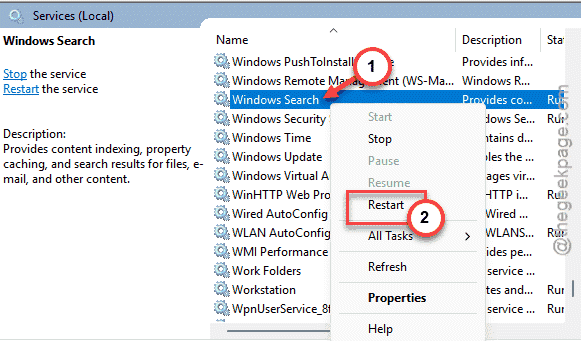
Give it a few seconds, then try the folder again.
Didn’t help? Then a specific file really is the problem. Keep going.
Fix 2 – Track Down the File That’s Breaking It
Before you can fix the bad file, you have to find it. Windows actually logs the exact culprit — you just have to know where to look.
1 – Press Windows + X and click Event Viewer.
2 – In the left panel, expand Windows Logs, then click Application.
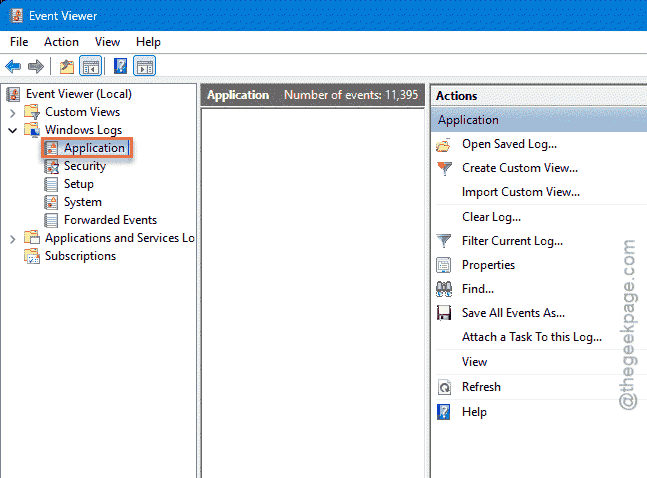
3 – Look down the middle list for red Error events. You want ones tied to SearchIndexer.exe or SearchProtocolHost.exe.
4 – Click one to read the details in the panel below. It often names the exact file path that triggered the crash — like a specific .mp4, .mkv, or .pdf.
Once you’ve got the file, the simplest move is to drag it out of the folder onto your Desktop and see if the crashing stops. If it does, you found your troublemaker.
Fix 3 – Tell Windows to Skip the Contents of That File Type
Don’t want to hunt down every bad file one by one? You can tell the indexer to stop reading the insides of a whole file type. It’ll still find the files by name — it just won’t crack them open and choke.
Say the crashes point to .mkv videos or .pdf documents. Here’s how to defang that type.
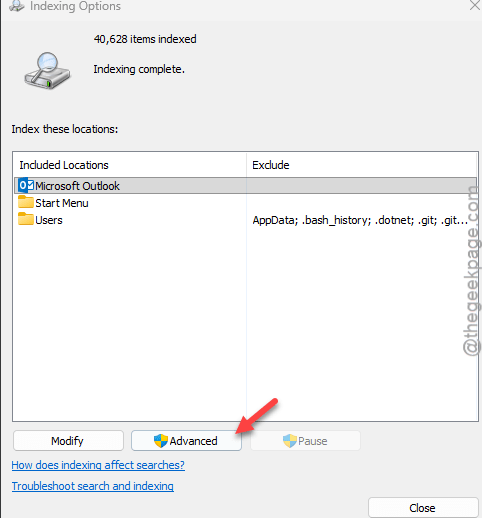
1 – Click Start, type Indexing Options, and open it.
2 – Click Advanced near the bottom. You’ll need admin rights for this.
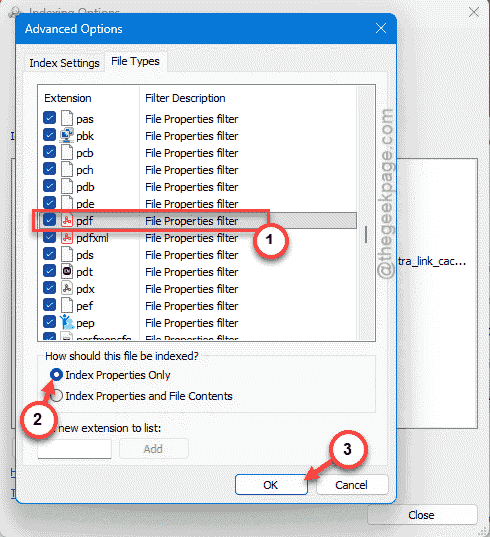
3 – Switch to the File Types tab at the top.
4 – Scroll down to the extension giving you grief — for example, mkv or pdf.
5 – Click it once to highlight it. Then look at the bottom of the window.
6 – Switch the setting from Index Properties and File Contents to Index Properties Only.
7 – Click OK.
After this, rebuild the index so the change takes hold. That’s the next fix.
Fix 4 – Rebuild the Search Index From Scratch
The index is basically a database, and databases get corrupted. Rebuilding wipes the broken catalog and builds a clean one. It also locks in the change from Fix 3.
1 – Open Indexing Options again (Start menu, type the name).
2 – Click Advanced.
3 – On the Index Settings tab, click the Rebuild button.
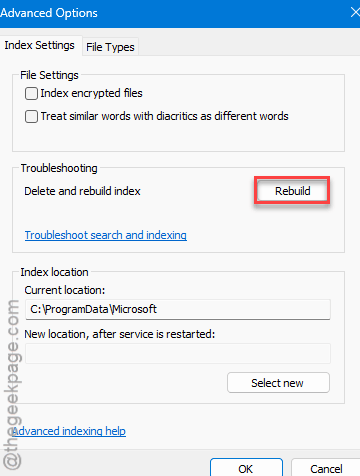
4 – Confirm when it warns you it might take a while.
Now the patience part. A full rebuild can take anywhere from a few minutes to over an hour, depending on how many files you have. Search will feel incomplete while it works. That’s normal — let it finish.
Fix 5 – Disable Shaky Third-Party Property Handlers
Still crashing after a rebuild? Then it’s probably not the files — it’s a third-party plugin that reads them. These are called property handlers, and a buggy one will crash the indexer every time.
A free tool from NirSoft called ShellExView lets you see and switch these off.
1 – Download ShellExView from NirSoft’s site and run it. No install needed.
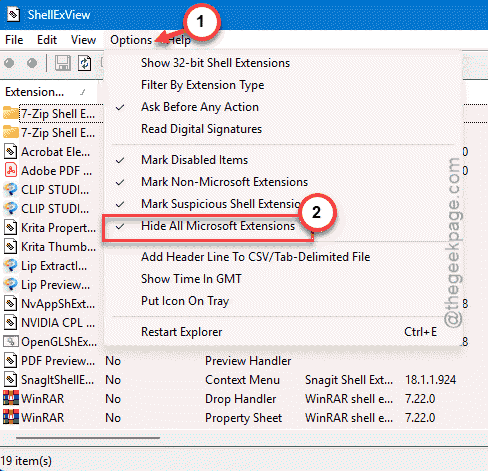
2 – Click the Options menu at the top.
3 – Check Hide All Microsoft Extensions. This leaves only the third-party stuff — the likely suspects.
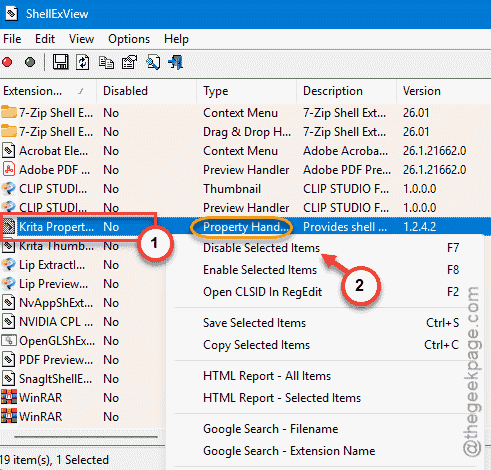
4 – Look in the Type column for entries labeled Property Handler.
5 – Select them, right-click, and choose Disable Selected Items.
6 – Restart your computer.
If the crashing stops, one of those handlers was the cause. You can turn them back on one at a time to find the exact bad one — or just leave them off if you don’t need them.
How to Prevent This
– Don’t keep half-downloaded video and PDF files lying around. A cut-off download is the classic broken-metadata crash. Delete the dead ones.
– For file types you never search inside — big media folders, mostly — set them to Index Properties Only. Faster, and crash-proof.
– Be picky about apps that add shell plugins. Codec packs and PDF tools love to install property handlers. The flaky ones cause this exact mess.
– Rebuild the index once in a while if search starts acting weird. A fresh catalog beats a corrupted one.
People Also Ask
How to fix File Explorer crashing?
Start by restarting the Windows Search service from services.msc. If it keeps crashing on certain folders, check Event Viewer under Windows Logs > Application for SearchIndexer errors — they often name the bad file. Pull that file out, then rebuild your search index from Indexing Options > Advanced.
How to rebuild indexing for File Explorer?
Open the Start menu, type Indexing Options, and open it. Click Advanced — you’ll need admin rights. On the Index Settings tab, click Rebuild and confirm. It wipes the old catalog and builds a clean one. Give it time; a big library can take an hour to finish.
How to fix indexing issues in Windows 11?
A rebuild fixes most of them. For crashes on specific file types, go to Indexing Options > Advanced > File Types and switch the troublesome extension to Index Properties Only. Still broken? A third-party property handler may be the cause — ShellExView lets you disable them and test.