Your phone can’t find the Chromecast. The printer’s invisible. AirPlay shows nothing. But only since you split the network into separate subnets.
On the same subnet? Everything pops up fine. Cross over to another one and the devices vanish. So it’s not the gear. It’s how discovery traffic moves between your subnets — and by default, it doesn’t.
Why This Happens
Here’s the deal. Chromecasts, printers, smart speakers — they announce themselves using a protocol called mDNS. It’s the thing that makes “just works” discovery work.
But mDNS was built for one flat network. Every announcement it sends has a TTL of 1. TTL is basically a hop counter — and a value of 1 means “don’t cross a single router.” So the moment a packet hits the boundary between subnets? Dropped. Gone.
That’s by design, not a bug. Split your network into subnets or VLANs for security, and you also wall off discovery. Annoying when your phone’s on one subnet and the TV’s on another. The fixes below punch controlled holes through that wall so the right devices can still find each other.
Fix 1 – Turn On an mDNS Reflector
This is the main fix. A reflector (some gear calls it an mDNS gateway or Avahi) catches those discovery packets and re-broadcasts them into your other subnets. It rewrites the hop limit so they actually cross over.
1 – Log into your main router or firewall — the device that routes between your subnets.
2 – Dig into the advanced routing or services section. Look for mDNS Reflector, mDNS Gateway, or Avahi.
3 – Turn it on.
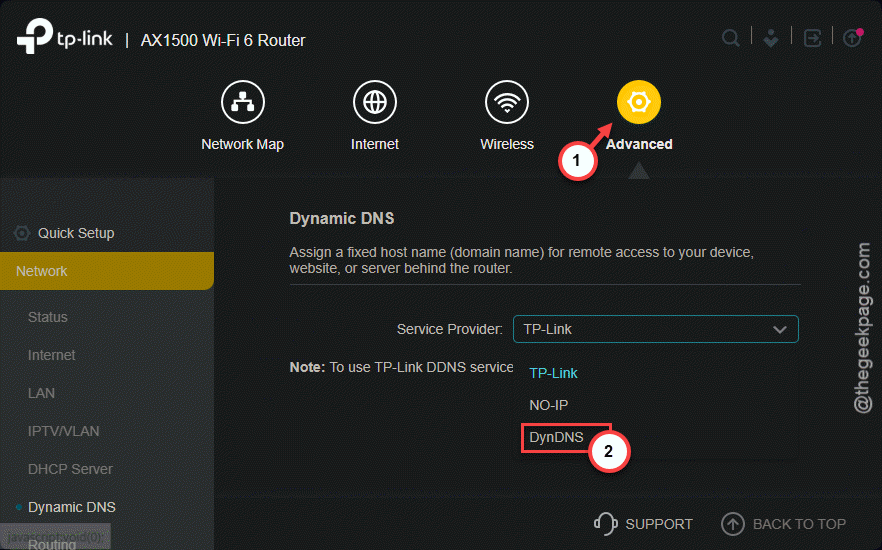
4 – Pick which subnets should share discovery. For example, map your IoT subnet to your main trusted one so phones can reach the smart devices.
Then test — open your cast or print menu from the other subnet. A lot of setups are fixed right here. If yours isn’t, something downstream is still blocking the packets.
Fix 2 – Open UDP Port 5353 Between Subnets
Got an internal firewall splitting your subnets? Even with a reflector running, the firewall can block the replies coming back. mDNS lives on one specific port — UDP 5353 — so you allow just that.
1 – Open your firewall’s rule settings.
2 – Create a new Allow rule for traffic moving between the two subnets you care about.
3 – Set the protocol to UDP.
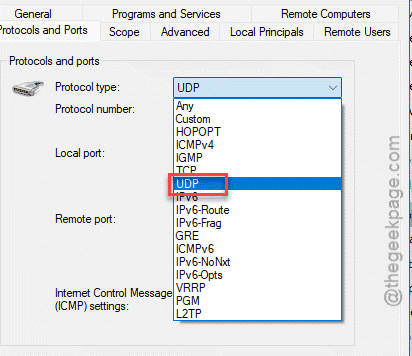
4 – Set the Source Port to Any and the Destination Port to 5353.
5 – Save and apply the rule.
Opening only 5353 keeps things tight — you’re letting discovery through, not flinging the whole firewall open.
Fix 3 – Switch On IGMP Snooping
This one’s for managed switches. mDNS is multicast traffic — one packet meant for many listeners. Without IGMP snooping, your switch either floods every port with it or drops it crossing VLANs. Neither helps.
1 – Log into your switch’s management page.
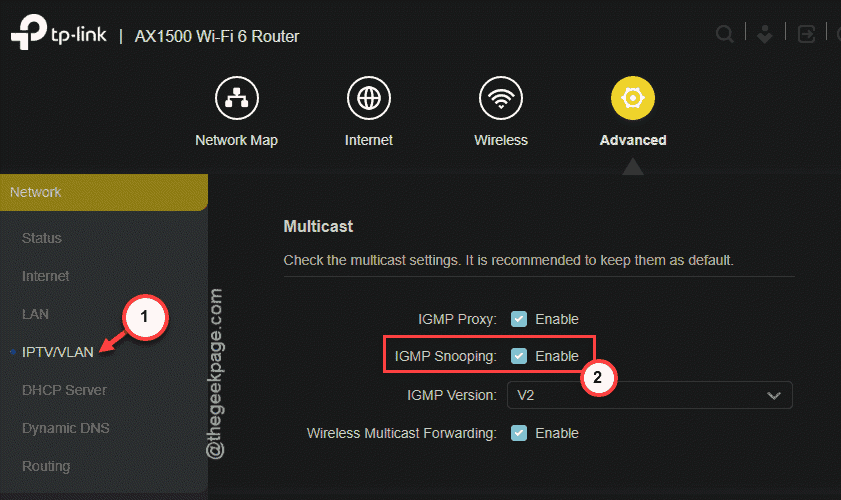
2 – Find and enable IGMP Snooping globally. You can do this from – Wi-Fi Advanced > IPTV/LAN settings.
3 – Make sure an IGMP Querier is active on the network. That’s usually a job for your core router — it’s what keeps the multicast map up to date.
With snooping on, the switch learns which ports actually want the discovery streams and sends them only there. Cleaner traffic, working discovery.
Fix 4 – Fix Multicast on Your Wi-Fi
Discovery breaking only for wireless devices? Access points often drop multicast frames to save airtime. There’s a setting that fixes exactly that.
1 – Open your wireless controller — UniFi, Aruba, Cisco, whatever runs your access points.
2 – Find Multicast Enhancement. Some brands call it IGMP V3 Enhancement or Convert Multicast to Unicast.
3 – Turn it on.
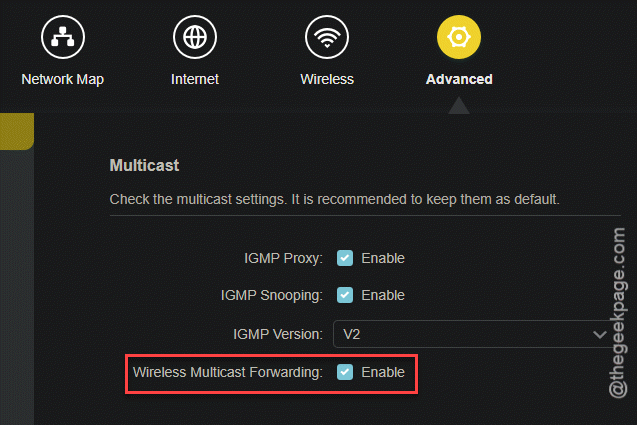
What it does is clever: it converts those flaky multicast announcements into direct unicast messages to each device. More reliable over Wi-Fi, and your phone starts seeing the cast targets again.
How to Prevent This
– Plan discovery when you plan your VLANs. Decide upfront which subnets need to see each other, and set the reflector then.
– Keep IoT devices and their controllers on subnets you’ve already bridged. Saves you chasing this later.
– After a firmware update on your router or switch, re-check the reflector and IGMP settings. Updates sometimes reset them.
– Limit the reflector to the subnets that genuinely need it. Bridging everything to everything undoes the point of splitting the network.
People Also Ask
Does mDNS work across subnets?
Not on its own. Every mDNS packet has a TTL of 1, so routers drop it before it can leave its subnet. To make discovery cross over, you run an mDNS reflector (or gateway) on your router that re-broadcasts the packets into the other subnets. You’ll usually need to open UDP 5353 on any internal firewall too.
Can you have multiple subnets on the same LAN?
Yes, and it’s common — usually done with VLANs to separate things like IoT gear, guests, and your main devices. The trade-off is that broadcast and multicast traffic, including device discovery, stops crossing between them. That’s why a printer on one subnet goes invisible to a laptop on another until you bridge discovery.
What is mDNS on a local network?
mDNS, or multicast DNS, is how devices announce and find each other without a central server. It’s behind Chromecast, AirPlay, AirPrint, and a lot of smart-home discovery. A device shouts its name and services to the local network, and everything listening hears it — as long as they’re on the same subnet.