A set of Apple Watch users have found their watch not capturing the heart rate for the first five minutes during their workout. This can be problematic for serious users who love to track every moment of their fitness progress. Wrong or loose placement of the watch on the wrist usually cause this issue, but there are other potential reasons as well.
Here is the Quick Fix table, if you just need the overall instructions to fix it –
| Issue Cause | Quick Fix | Time Needed |
|---|---|---|
| Wrong Placement of the Watch | Adjust the Apple Watch on your wrist | 30 sec |
| Low Power Mode enabled | Watch app on iPhone > My Watch > Workout > Turn off Low Power Mode | 2 min |
Fix 1 – Adjust the Apple Watch Position Correctly on the Wrist
Your Apple Watch uses the sensors on the back of the watch to measure your heart rate. So, the placement of the Apple Watch on your wrist may play a role in measuring the correct heart rate data from your body.
Step 1 – Make sure the Apple Watch is placed correctly on your wrist.
Step 2 – Place the Apple Watch not directly on the wrist bone, but a bit lower so that it comes into the contact of muscle.
Step 3 – Tighten the Apple Watch strap correctly so that it has at least some contact with your wrist.
Try a mock workout and check whether the Watch is measuring your heart rate correctly or not.
Fix 2 – Do a Warm-up Before Actual Fitness Exercises
Sometimes, the automatic heart rate measuring doesn’t kick in because the Apple Watch has failed to recognize that you have started the workout. So, do a light pre-workout before you start your main workout routine.
This way, the Apple Watch should start to track your heart rate data. You will have the heart rate measurements right from the beginning of the workout. No more delays of five minute or so.
Fix 3 – Turn off Low Power mode in Fitness Settings
The Workout function automatically turns off the heart rate measurement feature while the Low Power mode is activated. Turning it off should fix the issue.
Step 1 – Open the Watch app on your iPhone.
Step 2 – Next, go to the My Watch section.
Step 3 – Later, open up the Workout app settings.
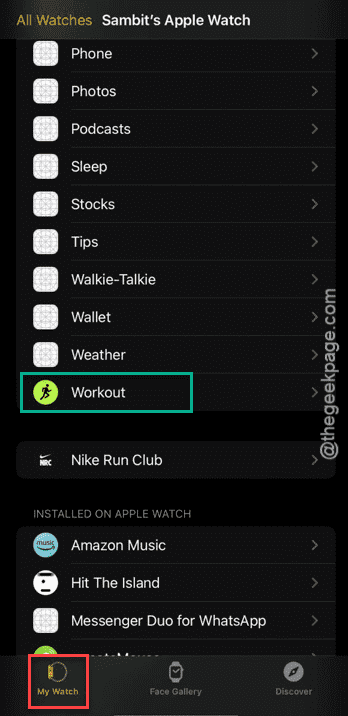
Step 4 – Turn off the Low Power Mode option from there.
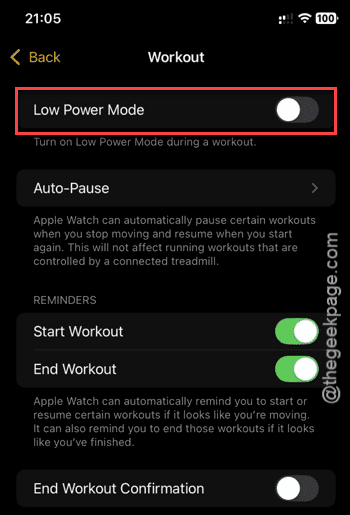
After disabling the low power mode from the Apple Watch settings, you can get proper heart rate readings from your wearable.
FAQs –
1. Does Apple Watch Captures Heart Rate During Workouts?
Yes. Apple Watch automatically measures the heart rate during your workouts, using the Workout app. You can directly access the recorded data from Apple Watch widget, Workout app on both the Apple Watch and iPhone.
2. Why my Apple Watch is Not Capturing Heart Rate for the first Five Minutes of Workouts?
The Workout utility of your Apple Watch must detect that you have started to work out for it to start to capture the heart rate data. This anomaly could have caused by either from wearing the Apple Watch too loose or an Apple Watch settings error.