Does Delta Force stutters every time you aim? You aim down sights (ADS) in Delta Force, the picture freezes for a beat, and you’re dead before the scope settles. Lovely. It’s not your PC being slow. The game’s DirectX 12 mode builds shaders (tiny graphics programs) in the middle of fights, and that causes hitching. The engine also chokes on fast gaming mice, the kind that report their position 1000 times a second. But some of what feels like stutter is not a frame drop at all. It’s a sensitivity setting that drags the camera while you zoom. Three different causes wearing one costume. Of course.
Fix 1 – Force DirectX 11
Start with the renderer. DirectX 12 is the default, and it’s the shaky one. DirectX 11 is older and a lot steadier in this game.
1 – Open Steam and go to your Library.
2 – Right-click Delta Force and select Properties.
3 – Stay on the General tab.
4 – Find the Launch Options box near the bottom.
5 – Type -dx11 in the box.
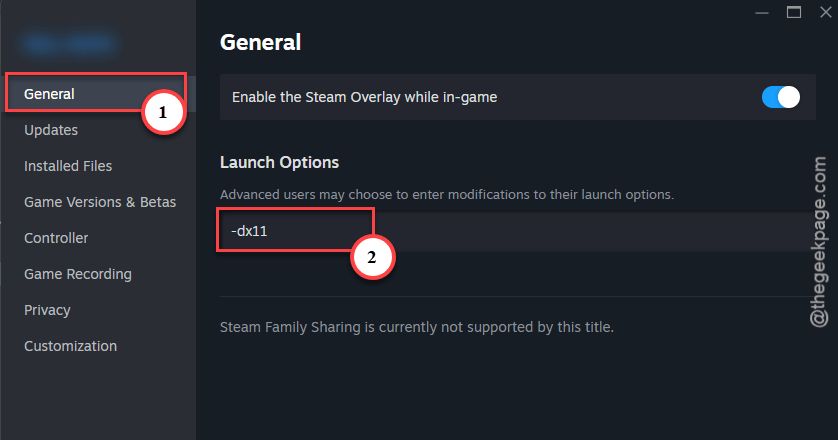
6 – Close the window and launch the game.
Jump into a match and aim a few times. Combat hitching gone? Good. If it’s only better, keep the launch option anyway and move on to the next fix.
Fix 2 – Set ADS Sensitivity Transition to Instant
This one fools everyone. The camera slows down partway through the zoom, and your eyes read that as a stutter. Your frame rate never dropped.
1 – Open the in-game Settings.
2 – Go to Mouse & Keyboard.
3 – Scroll down to the ADS Sensitivity section.
4 – Find ADS Sensitivity Transition.
5 – Change it from Gradual or After Zoom to Instant.
6 – Save your settings.
So scope in on something. The camera should lock on right away, with no drag.
Fix 3 – Lower Your Mouse Polling Rate to 500Hz
Polling rate is how often your mouse reports its position to the PC. Gaming mice love to brag about 1000Hz and up. And this engine can’t keep up with that. Whip the camera around and the frame rate tanks.
1 – Open your mouse software. For most people that is Logitech G HUB, Razer Synapse, or Corsair iCUE.
2 – Go to your mouse settings.
3 – Find Polling Rate. Some apps call it Report Rate.
4 – Lower it from 1000Hz to 500Hz.
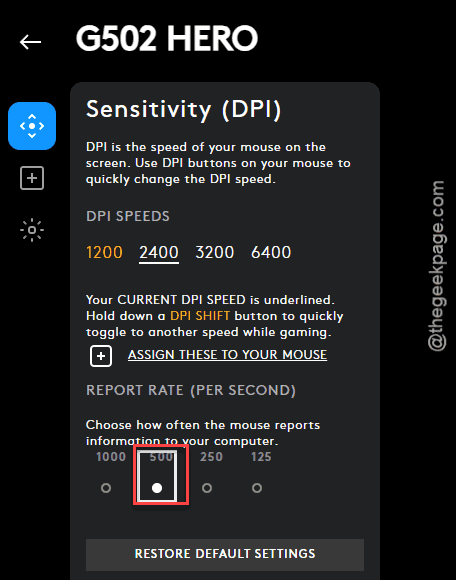
Will your aim feel different? Almost certainly not. (You will notice the missing frame drops.)
Fix 4 – Turn Off Overlays
The game’s anti-cheat fights with overlays. Why can’t these things get along in 2026? No idea. But the result is your screen locking up in the middle of a gunfight.
1 – In Discord, open User Settings, click Game Overlay, and turn the toggle Off.
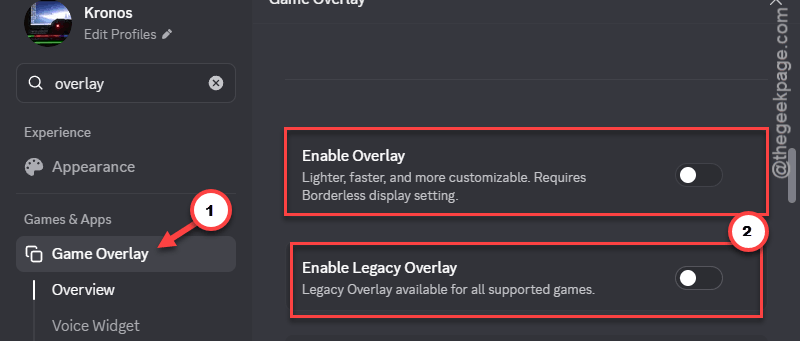
2 – Then open the NVIDIA App (or GeForce Experience on older setups),
3 – Go to Settings, and switch In-Game Overlay off.
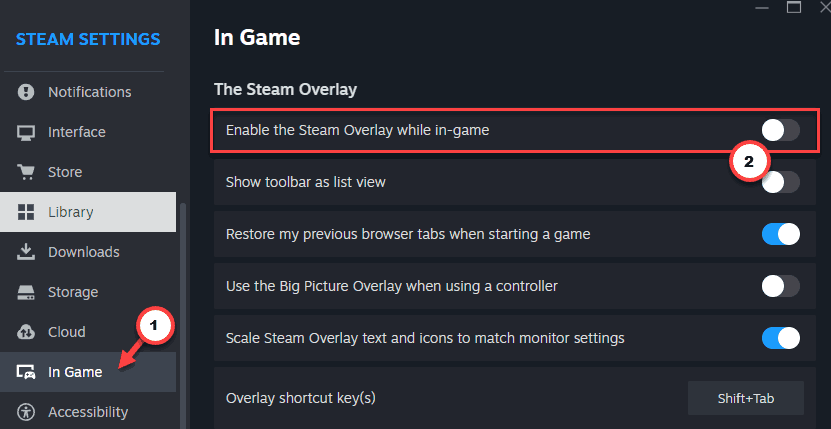
Then, restart the game after both.
Fix 5 – Close the Second Delta Force Process
Here’s a weird one from the community. Delta Force sometimes keeps a second copy of itself running, labeled 32 bit, and closing it smooths things out.
1 – Launch the game.
2 – Press Ctrl + Shift + Esc to open Task Manager.
3 – Look for a second entry named Delta Force (32 bit).
4 – Right-click it and select End task.
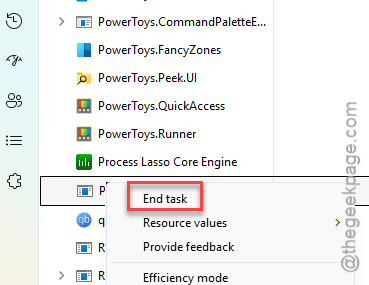
Do not touch the main game process. Only the 32 bit one.
And yes, you have to do this on every launch, which gets old fast. Fix 7 is what ended that chore for the player who found this.
Fix 6 – Set the Game to High Priority
While Task Manager is open, tell Windows the game comes first. Otherwise background tasks get to steal CPU time during a firefight.
1 – Open the Details tab in Task Manager (on Windows 11 it’s in the left sidebar).
2 – Find the game’s executable in the list.
3 – Right-click it and hover over Set priority.
4 – Select High.
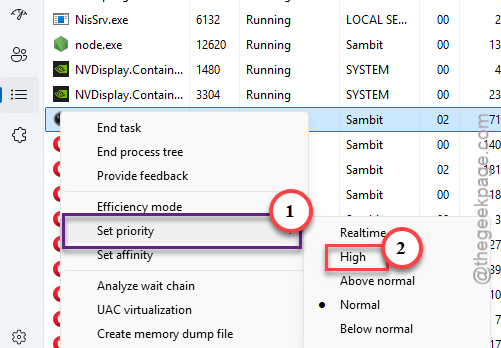
Windows will not remember this after the game closes, so it’s a once-per-session thing. And skip Realtime. It can freeze the whole PC. High is plenty.
Fix 7 – Disable USB Selective Suspend
Windows likes to put USB ports to sleep to save power. Fine for a laptop on battery. Terrible for a mouse in a firefight. One player reported that after changing this, the second process from Fix 5 no longer needed closing.
1 – Press the Windows key, type Control Panel, and open it.
2 – Click Power Options.
3 – Click Change plan settings next to the plan you use.
4 – Click Change advanced power settings.
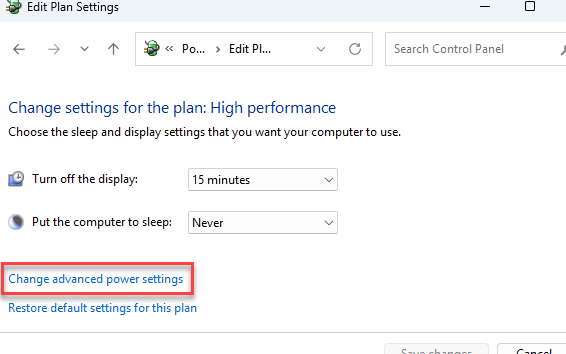
5 – Expand USB settings.
6 – Expand USB selective suspend setting.
7 – Change it to Disabled.
8 – Click OK.
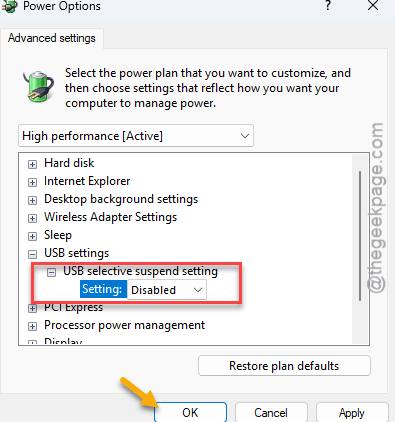
Check if this works.
Keep It From Coming Back
- Leave -DX11 in the launch options. It survives game updates, so you set it once.
- Make a separate 500Hz mouse profile for this game if your software allows it. That way other games keep their 1000Hz.
- Overlays off. Every one you add is one more thing poking at the anti-cheat.
- After a big patch, check that ADS Sensitivity Transition still says Instant. Takes ten seconds.
People Also Ask
Why is my game stuttering so much on PC?
Most stutter comes from the game pausing to do work mid-match. Shader building is a big one, which is why switching Delta Force to DirectX 11 helps. Background apps and overlays steal time. And a mouse set to 1000Hz or higher can drag the frame rate down in some engines.
Does VSync fix stuttering?
Not this kind. VSync stops screen tearing by matching the game’s frames to your monitor. It does nothing for hitches that come from shader building or a high polling rate. It can add input delay. So fix the cause first, and turn VSync on afterwards only if you see tearing.