You have got yourself a graphics card like 5080, 5090 that costs more than most whole PCs, and OBS can’t get a single recording out of it. You click Start Recording on your new RTX 5090 or 5080 and get NV_ENC_ERR_INVALID_DEVICE instead. Lovely. Nothing records and nothing streams. And the error doesn’t even hint at what you should change. This is a settings fight, and you can win it in a few minutes.
The Short Version
Basically? OBS asks your card’s encoder to start, and the card says no.
NVENC is the part of an Nvidia card that turns your gameplay into video (it has its own dedicated hardware, separate from the part that draws your game). That error is the encoder turning the job down. But why would a top-end card refuse?
Because the 50-series encoders are new, and some settings that ran fine on older cards push them too hard. Enhanced Broadcasting is a big one. The Max Quality preset is another. So the more you ask of the card, the faster it gives up, which is a bit backwards for the fastest card you can buy.
And Windows doesn’t help. A couple of its own gaming features grab at the same encoder, and mismatched monitor refresh rates can lock it up. Annoying all the same, even if none of it is your fault.
Fix 1 – Make Sure an Encoder Is Still Selected
Start with the dull one. After an update or a graphics card swap, OBS sometimes loses track of which encoder it was using. The box just ends up empty.
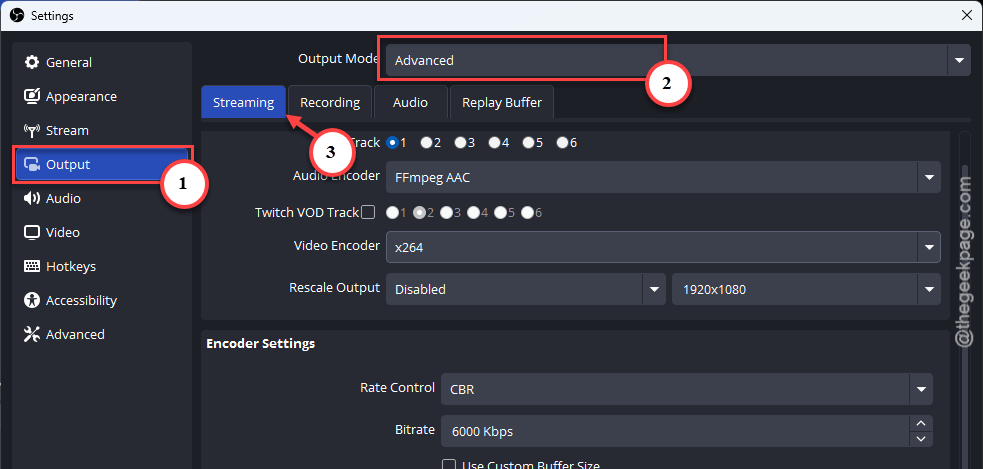
1 – Open OBS and click Settings in the bottom right corner.
2 – Click Output in the left sidebar.
3 – Set Output Mode at the top to Advanced. That shows all the encoder options.
4 – On the Streaming tab, look at the Video Encoder box. If it is empty, pick an NVIDIA NVENC option.
5 – Check the Audio Encoder box on the same tab.
6 – Click the Recording tab and check both boxes there too.
7 – Click Apply.
If everything was already filled in, fine. On to the real suspects.
Fix 2 – Turn Off Enhanced Broadcasting
1 – Open Settings in OBS.
2 – Click Stream in the left sidebar.
3 – Uncheck Enhanced Broadcasting. On some OBS versions the box is labeled Multitrack Video instead.
4 – Click OK and start a test recording.
This feature makes your card encode several versions of your stream at once (one for each quality level your viewers can pick). Great idea. But it’s too much for the new encoders right now, so it’s the first thing to switch off.
Don’t see the box at all? It only shows up when your streaming service is set to Twitch. Skip ahead.
Fix 3 – Drop the NVENC Preset to P5
If your preset is on Max Quality, that’s likely your problem. It sounds like the right pick for a card this expensive. It isn’t.
1 – Open Settings and click Output, like in Fix 1.
2 – On the Streaming tab, change Preset from Max Quality to P5.
3 – Set Keyframe Interval to 2 seconds.
4 – Click Apply.
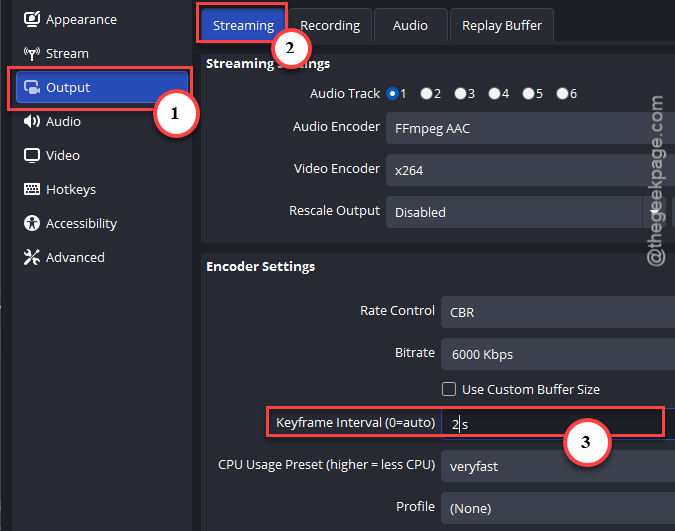
Still getting the error? Lower your bitrate or your output resolution a notch as well. And P5 still looks great, for what it’s worth.
Fix 4 – Turn Off Game DVR and GPU Scheduling in Windows
Windows has two features that get in the encoder’s way. Game DVR is the built-in background recorder. Hardware-accelerated GPU scheduling (HAGS for short) changes how Windows hands work to the graphics card. So off they go.
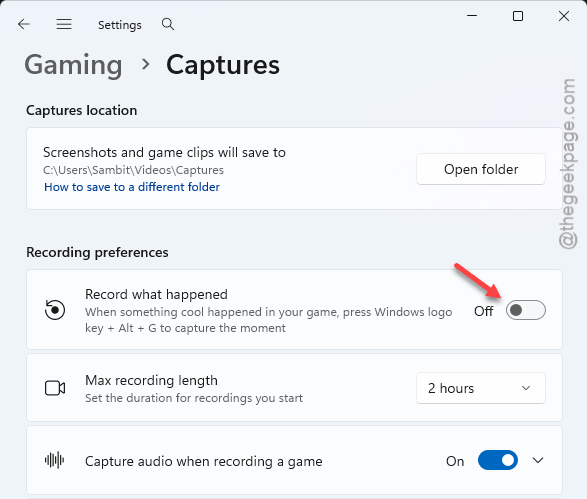
1 – Press Windows + I to open Settings.
2 – Click Gaming in the left sidebar.
3 – Click Captures.
4 – Turn off the Record what happened toggle.
5 – Click System in the left sidebar.
6 – Click Display, then scroll down and click Graphics.
7 – Click Advanced graphics settings. On older builds it is called Change default graphics settings.
8 – Turn off Hardware-accelerated GPU scheduling.
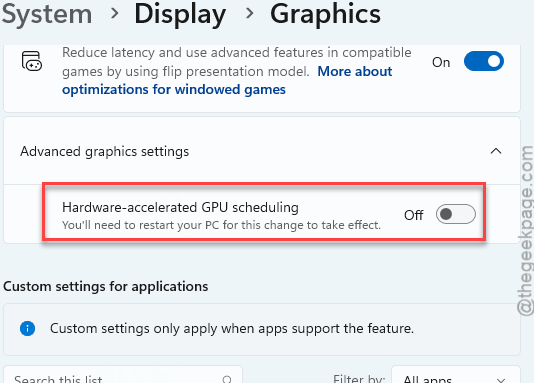
9 – Restart your PC. The change does not kick in until you do.
Fix 5 – Set Every Monitor to 60Hz for Now
Odd one, but it gets the encoder unstuck on some setups. When your monitors run at different refresh rates (say 240Hz on one and 60Hz on the other), the mismatch can lock the encoder up. So match them.
1 – Press Windows + I, click System,
2 – Then proceed to the Display, then Advanced display near the bottom.
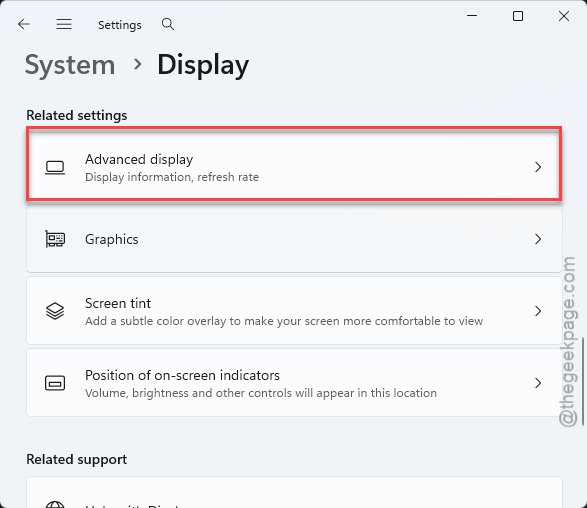
3 – Pick each monitor from the dropdown at the top and set Choose a refresh rate to 60Hz.
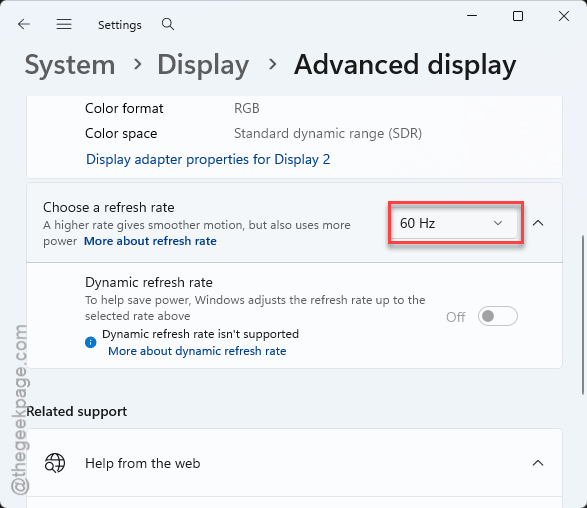
Yes, 60Hz on a 5090 hurts. It’s temporary. Once OBS records again, raise the refresh rate one monitor at a time and watch for the error coming back.
Fix 6 – Test With the x264 Software Encoder
This is more of a test than a cure. x264 makes the video with your processor instead of your graphics card.
1 – Open Settings and click Output again.
2 – Change Video Encoder from NVIDIA NVENC to x264.
3 – Click OK and record for about a minute.
If it records now, OBS itself is healthy and the trouble is on the Nvidia side. Go back through Fixes 2 to 5. And you can keep recording on x264 in the meantime (your processor will run hotter, fair warning).
So It Doesn’t Happen Again
- Leave Enhanced Broadcasting off until OBS and Nvidia sort the 50-series out. Try it again after a few updates.
- Stay on P5. The jump to Max Quality is hard to even see, and the encoder pays for it.
- Keep GPU scheduling off while you stream. Always.
- After every OBS update, glance at your encoder boxes before you go live. Ten seconds. It beats finding out in front of your viewers.
Quick Answers
What does NV_ENC_ERR_INVALID_DEVICE mean in OBS?
It means OBS asked your Nvidia card’s video encoder to start and the card refused. The card itself is rarely broken. Usually a setting is pushing the encoder too hard, or Windows is fighting OBS for it. Drop the preset to P5 and turn off Enhanced Broadcasting first.
Is x264 good OBS?
It’s good, yes. x264 uses your processor instead of your graphics card, and the picture quality is solid. The catch? It eats a lot of CPU, so your game can lose frames while you record. On a PC with an RTX 5090, treat it as a test or a backup.
How can I fix OBS GPU overload issues?
Give the graphics card less to do. Drop the encoder preset a step. Lower your bitrate or output resolution. Cap the game’s frame rate too, so the card isn’t maxed out before OBS gets a turn. And close anything else that uses the GPU, like a browser playing video.
How to enable nvidia NVENC?
Open Settings in OBS and click Output. Set Output Mode to Advanced. Then open the Video Encoder dropdown and choose NVIDIA NVENC H.264 (or HEVC). Do it on both the Streaming and Recording tabs. Don’t see NVENC in the list? Update your Nvidia driver, then restart OBS.