Where did the cursor go from your screen? You move the mouse and things light up as you pass over them. But the arrow itself is nowhere visible on your screen! You’re not imagining it, and your mouse is probably fine. Maddening, though, because how do you click through settings without a pointer? With the keyboard. Every fix below can be done without seeing the cursor.
What’s Actually Going On
Windows 11 hides the cursor on purpose in a few situations, and it is bad at knowing when to bring it back.
Typing is one. There’s a setting that hides the pointer while you type. Touch is another. The second Windows thinks someone touched the screen, it hides the mouse pointer to act like a tablet. And a dirty screen edge or a failing touch layer can send fake touches all day long.
Then there’s 24H2. That update brought a bug in how HDR gets drawn (HDR is the brighter, wider color mode on newer monitors). The text cursor ends up matching a white background. So it’s technically there. You just can’t see it. Thanks, Microsoft.
And the August and September patches corrupted saved cursor themes for some people. So the pointer has a spot on the screen but no picture to show. Why does a cursor need this many ways to go missing? Good question.
But sometimes it’s nothing clever at all. A laptop key switched the touchpad off.
Fix 1 – Press the Touchpad Key on Your Laptop
Check the dumb one first. No offense. Most laptops have a key that turns the touchpad off. And it’s easy to hit by accident.
1 – Look along the top row of your keyboard for a key with a touchpad icon. It is often F5, F6, F7, or F9.
2 – Hold Fn and press that key.
Move your finger on the touchpad. Pointer back? Done. If nothing changed, press the same combination once more to undo it, then move on.
Fix 2 – Change Two Settings in Pointer Options
Two checkboxes in one old dialog. The first one, pointer trails, makes Windows draw the cursor in software instead of handing the job to the graphics card (which is where the 24H2 bug lives). The second stops Windows hiding the pointer while you type.
1 – Press Windows + R to open the Run box.
2 – Type main.cpl and press Enter.
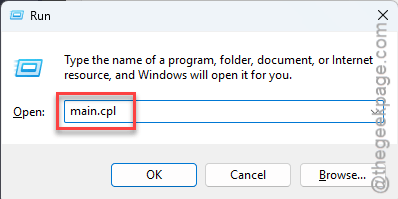
The Mouse Properties window opens.
3 – Press Ctrl + Tab until the Pointer Options tab is selected.
4 – Press Tab until Display pointer trails is highlighted.
5 – Press Spacebar to check the box.
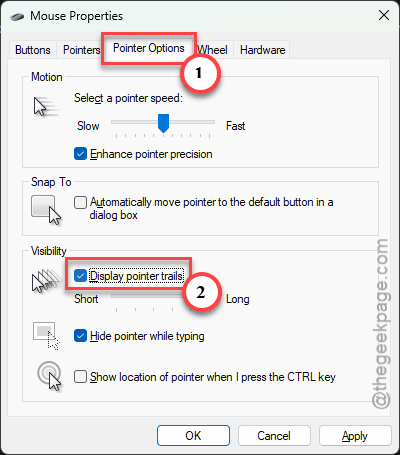
6 – Press Tab once to reach the trail slider, then press the Left Arrow key until it sits at Short.
7 – Press Tab until Hide pointer while typing is highlighted.
8 – Press Spacebar to uncheck the box.
9 – Press Tab until Apply is selected and press Spacebar.
10 – Press Tab to reach OK and press Enter.
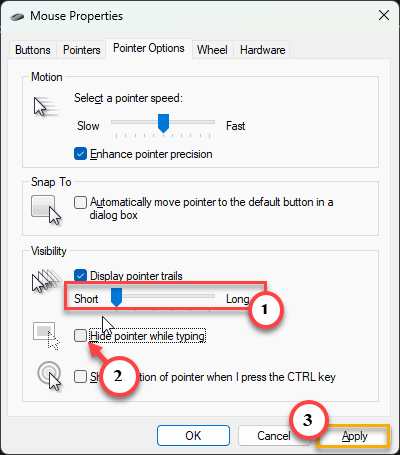
The short trail is barely visible in daily use. And honestly, it’s a small price for a cursor you can see.
Fix 3 – Toggle HDR Off and On
If the cursor only vanishes over white backgrounds or text fields, suspect HDR. So flip it off and on, which makes Windows redraw the cursor layer.
NOTE – You should use Tab to move through the page and Spacebar to flip the toggle. (Shortcut: Windows + Alt + B flips HDR without opening Settings at all.)
1 – Press Windows + I to open Settings.
2 – Go to System, then Display.
3 – Select your monitor at the top, if you have more than one.
4 – Turn Auto HDR off.
5 – Check whether the cursor is back.
6 – Then, turn Auto HDR on again if you prefer it that way.
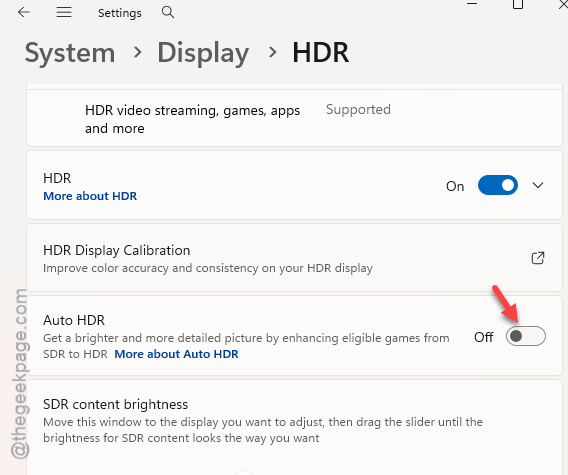
Test if this works at your end.
Fix 4 – Reapply the Pointer Style
Re-configure the pointer style settings in the mouse configuration.
1 – Open Settings with Windows + I.
2 – Go to Accessibility.
3 – Open Mouse pointer and touch.
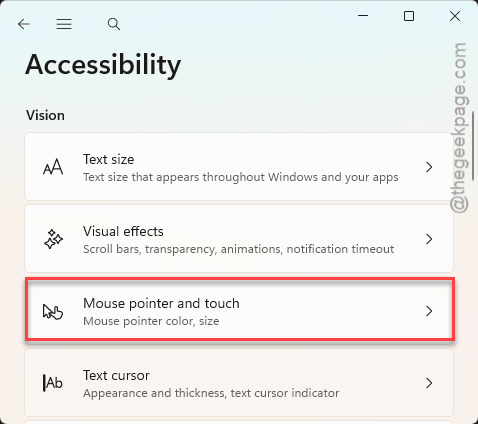
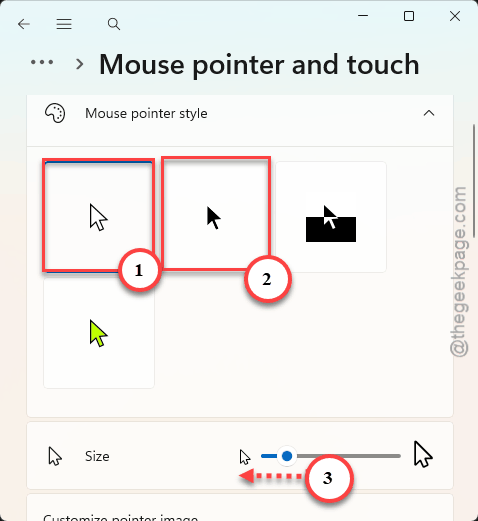
4 – Change the pointer style to Black.
5 – Change it back to White.
6 – Move the Size slider up one notch.
7 – Move it back down.
Yes, really. That’s the whole fix.
Fix 5 – Reload the Cursor Scheme After Sleep
Cursor gone right after waking the PC? Windows sometimes fails to load the pointer image back into memory. The mouse still clicks. It just has no picture. So make Windows fetch the files again.
1 – Press Windows + R, type main.cpl, and press Enter.
2 – Press Ctrl + Tab until the Pointers tab is selected.
3 – Under Scheme, pick a different one. For example, switch from Windows Default to Windows Black.
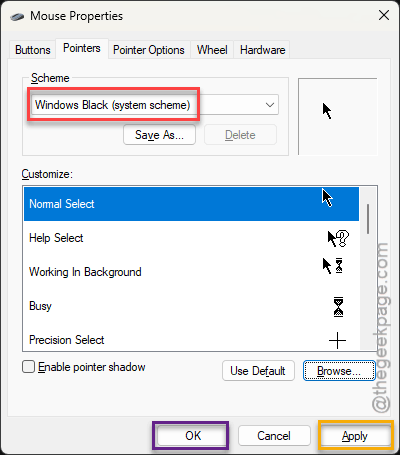
4 – Uncheck Allow themes to change mouse pointers at the bottom.
5 – Select Apply.
6 – Change the scheme back to the one you like.
7 – Select Apply again.
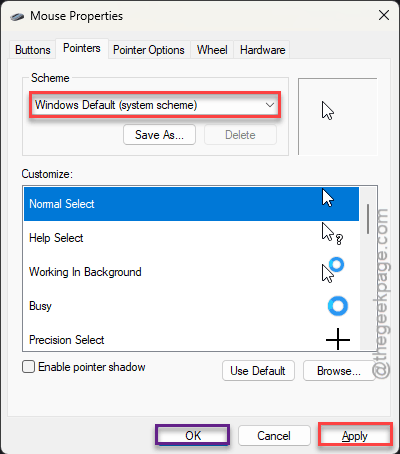
Use Tab, Spacebar, and the arrow keys to get around, like in Fix 2.
Fix 6 – Enable or Update the Mouse Driver
A disabled or broken driver makes the pointer vanish completely. And all of this works from the keyboard.
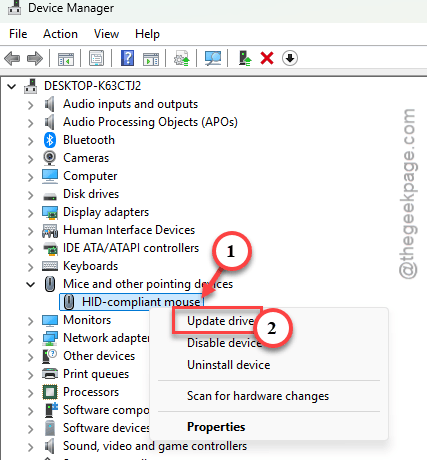
1 – Press Windows + X, then press M to open Device Manager.
2 – Press Tab to jump into the device list.
3 – Press the Down Arrow until you reach Mice and other pointing devices.
4 – Press the Right Arrow to expand it.
5 – Press the Down Arrow to select your mouse or touchpad.
6 – Press Shift + F10 to open the right-click menu.
7 – Choose Enable device if it is offered. Otherwise choose Update driver. Then press Enter.
Didn’t help?
Open that same menu and pick Uninstall device.
Then restart with Windows + X, then U, then R.
Windows puts the driver back during the restart (no download needed).
Fix 7 – Disable Phantom Touch Screens
Sometimes ghost touches can cause such issues with your system.
1 – Start by hitting Windows + X and open Device Manager.
2 – Expand Human Interface Devices.
3 – Look for entries named HID-compliant touch screen. There may be more than one.
4 – Right-click an entry and select Disable device (or press Shift + F10 with it selected).
5 – Confirm the warning.
6 – Repeat for any other touch screen entries.
Check if this actually resolves the issue.
Fix 8 – Block Cursor Hiding in the Registry
Windows hides the pointer whenever it senses touch input, or when a pen or tablet driver asks it to. This registry value takes that permission away. The Registry is Windows’ settings database. So type the names exactly.
1 – Press Windows + R, type regedit, and press Enter.
2 – Go to:
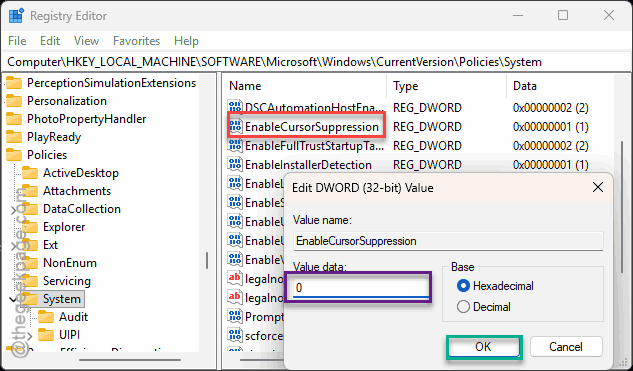
HKEY_LOCAL_MACHINE\SOFTWARE\Microsoft\Windows\CurrentVersion\Policies\System
3 – Just look for a value named EnableCursorSuppression in the right pane.
4 – If it is missing from there, then, right-click an empty area, select New, then DWORD (32-bit) Value, and name it EnableCursorSuppression.
5 – Double-click it and set Value data to 0.
6 – Click OK.
7 – Restart your computer.
How to Avoid it
- You can use the Find My Mouse mode in Microsoft PowerToys utility. Best safety net there is.
- Leave pointer trails on Short if you run 24H2 with HDR. Until Microsoft fixes the bug, anyway.
- Wipe the edges of a touch screen now and then. Sounds silly. It stops ghost touches.
- Memorize Windows + R and main.cpl, so you can reach the mouse settings blind if the pointer vanishes again.