You’re done with the virtual disk. You go to eject it. And Windows snaps back with “The file is open in another program.”
But nothing’s open. You closed everything. The VM is shut down. So what’s holding it? A leftover lock you can’t even see. Frustrating, but there are a few ways to break it.
Why This Happens
Quick background. A VHDX is a virtual disk — one big file that Windows treats like a real drive. To use it, something has to grab a lock on it. To detach it, that lock has to let go.
And sometimes it just doesn’t. A VM crashed or got shut down too fast, and the Hyper-V service is still clutching the file handle. Or a backup job grabbed the disk and never released it.
The Volume Shadow Copy service is another sneaky one. It locks disk blocks mid-backup to protect your data. If that backup got interrupted? The lock hangs around. No warning, no popup — just “the file is open” when you know full well it isn’t.
Fix 1 – Eject It From File Explorer First
Worth two seconds before anything fancy.
1 – Press Windows + E to open File Explorer.
2 – In the left pane, find the mounted virtual drive.
3 – Then, right-click it and pick Eject.
Close any other Explorer windows sitting on that drive too. If it lets go, great. If not, the lock is deeper and you’ll need the next fixes.
Fix 2 – Restart the Hyper-V Management Service
You can fix the issue simply by rebooting the Hyper-V management service on your system.
1 – At first, press Windows + R, type services.msc, and press Enter.
2 – Then, scroll down to find the Hyper-V Virtual Machine Management service.
3 – Right-click it and choose Restart.
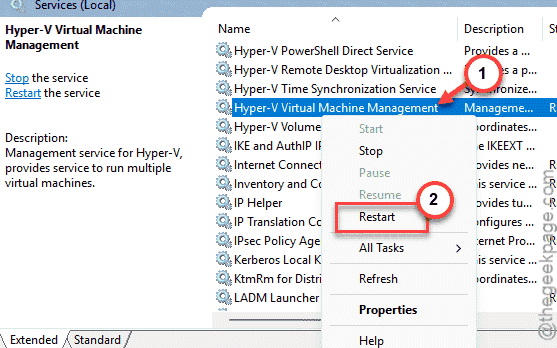
Now try detaching the VHDX again.
Fix 3 – Dismount It With PowerShell
You can easily dismount the virtual disk from the terminal.
1 – At first, just right-click the Start button, and open Terminal (Admin) or PowerShell (Admin).
2 – Paste this in the terminal, swapping in your real file path, and press Enter:
Dismount-VHD -Path "C:\Path\To\Your\Disk.vhdx"
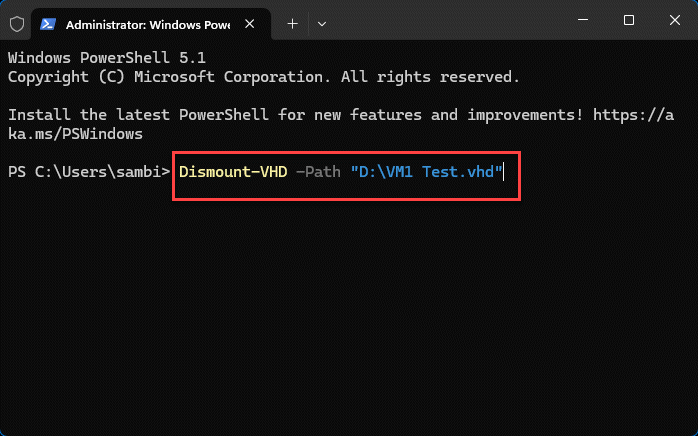
3 – Get a Hyper-V module error? That just means Hyper-V isn’t installed. Force it at the storage level instead with this:
Dismount-DiskImage -ImagePath "C:\Path\To\Your\Disk.vhdx"
The second command works even on Windows Home, where Hyper-V isn’t available. Good to know.
Fix 4 – Force It Off With Diskpart
You can force shut it off using the diskpart method.
1 – Click Start, type cmd, right-click Command Prompt, and pick Run as administrator.
2 – Type diskpart and press Enter. The prompt changes.
3 – Now run these one at a time, pressing Enter after each. Put your own file path in the first one:
select vdisk file="C:\Path\To\Your\Disk.vhdx"

offline vdisk

detach vdisk

exit
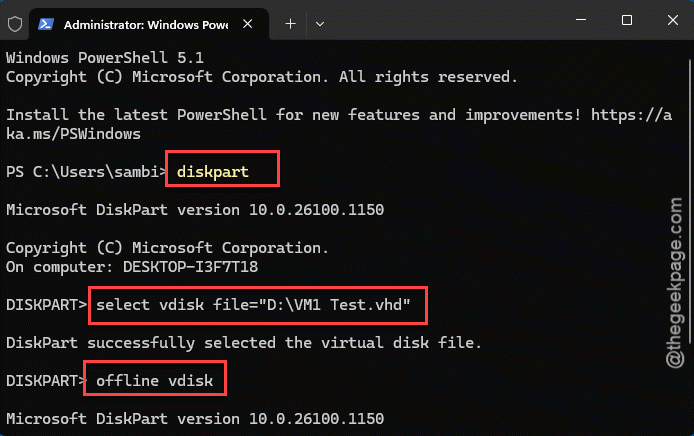
Each command should report success before you type the next. If “detach vdisk” goes through, the disk is free.
Fix 5 – Hunt Down the Process Holding It
Still locked? Then some specific program is gripping the file, and you can find exactly which one. Resource Monitor shows you every open handle on a file.
1 – Click Start, type Resource Monitor, and open it.
2 – Click the CPU tab at the top.
3 – Find the Associated Handles section and click to expand it.
4 – In its Search Handles box, type the name of your .vhdx file.
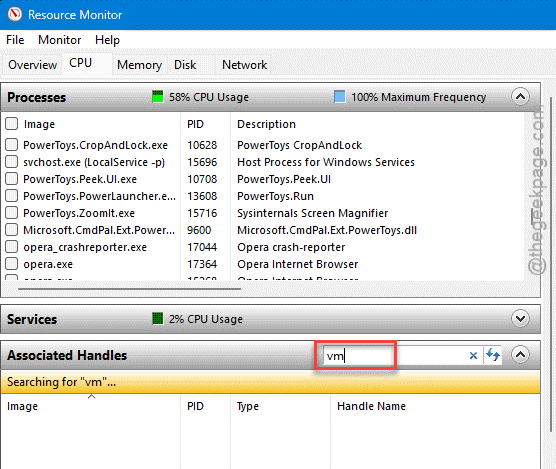
5 – The list shows what’s holding it — could be System, a driver, or a backup app. Right-click the culprit and choose End Process.
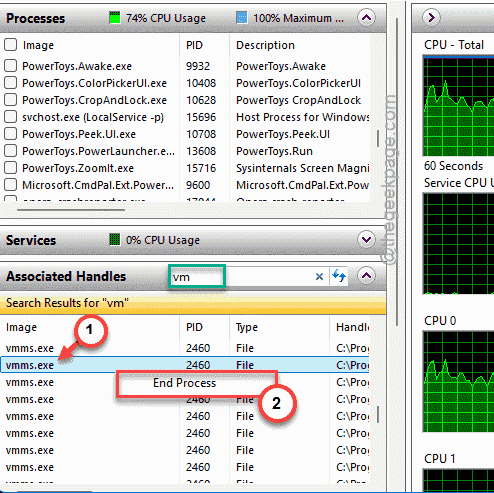
Careful here. Ending System or a core process can force a restart. If the holder is a backup tool, close that app the normal way first instead of killing it.
Fix 6 – Clear Stuck Shadow Copies
An interrupted backup can leave the Volume Shadow Copy service locking your disk. Clearing those stuck copies releases it.
1 – Open Command Prompt as administrator again.
2 – First, check what’s active. Type this and press Enter:
vssadmin list writers
3 – Look for any writer stuck at a status like [5] Waiting for completion. That’s your stuck backup.
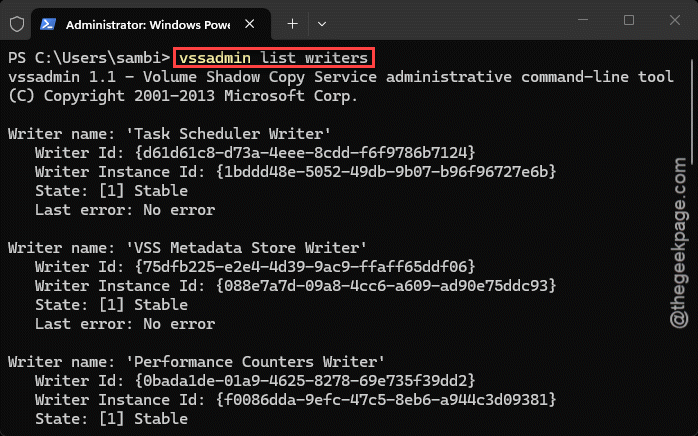
4 – Clear the queue with this command:
vssadmin delete shadows /all /quiet
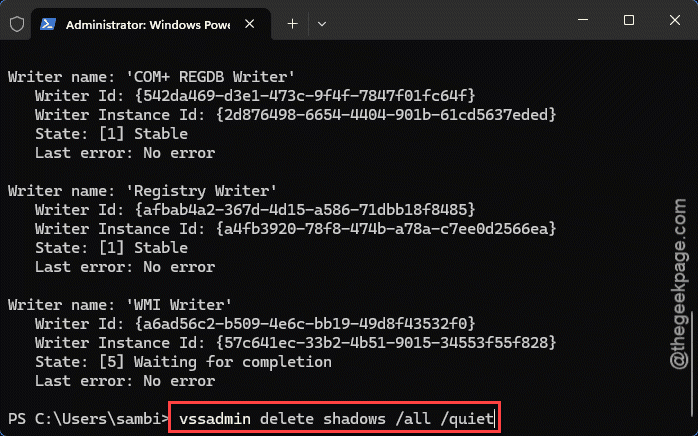
This wipes existing shadow copies (restore points and old backup snapshots), so only run it if you don’t need those. Once it’s done, the VHDX should detach normally.
How to Prevent This
– Always shut your VMs down cleanly. A hard kill is exactly what leaves the file handle dangling.
– Don’t run a backup over a VHDX you’re about to detach. Let the backup finish, or pause it first.
– Close Explorer windows pointed at the mounted drive before ejecting. Tiny habit, saves the headache.
– Make Dismount-DiskImage your go-to eject. It’s cleaner than the right-click menu and rarely leaves a lock behind.
People Also Ask
How do I fix the file is open in another program?
Find what’s holding it. Open Resource Monitor. Then, go to the CPU tab, expand Associated Handles. Look up the file name there. It shows the exact process locking the file. End that process — or close the app it belongs to — and the file frees up. For a VHDX, restarting the Hyper-V service often does it too.
Why does Windows say a virtual disk is open when it isn’t?
A lock got left behind. Usually a VM that crashed, a backup that didn’t finish, or the Shadow Copy service holding the disk blocks. The file looks closed to you, but the system still has a handle on it. Restarting the relevant service or clearing stuck shadow copies releases it.