You boot up the Black Flag remaster and it stutters. Every time you sail into a busy port, the frame rate hitches. And it’s locked at 30 FPS, somehow. So much for a smooth remaster. But it’s fixable — mostly in the settings, no fancy hardware needed.
Why This Happens
A few things gang up on this game, and they hit newer PCs the hardest.
The big one is your CPU. Intel’s 13th and 14th Gen chips split their cores into two types (fast performance cores and smaller efficiency cores). The game’s engine doesn’t know which is which. So it hands work to the wrong cores and stutters whenever you ride into a crowded city like Havana. New chips, old engine.
Nvidia’s frame generation is the other troublemaker. It’s meant to smooth things out by inventing extra frames. But right now it’s bugged for a lot of RTX cards and does the opposite — it adds stutter instead of hiding it.
And the 30 FPS cap? Usually a V-Sync setting that flipped off during install, throwing your frames out of step with your monitor. Annoying, but an easy one to undo.
Fix 1 – Lock the Game to Certain Cores
Start with this one. It helps the most people, and you don’t have to touch your BIOS. You’re just telling the game to ignore the CPU cores that confuse it.
1 – Launch Assassin’s Creed Black Flag Resynced and let it reach the main menu.
2 – Press Ctrl + Shift + Esc to open Task Manager.
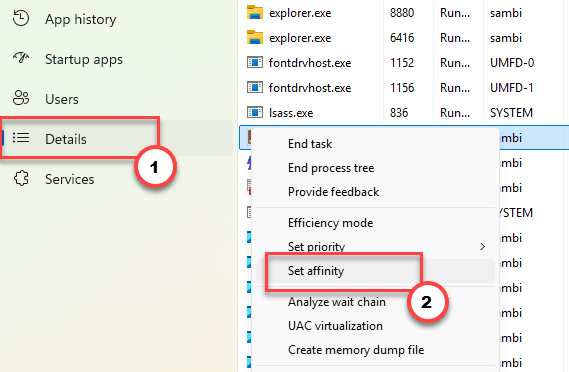
3 – Click the Details tab at the top.
4 – Right-click the game’s .exe file in the list and choose Set affinity.
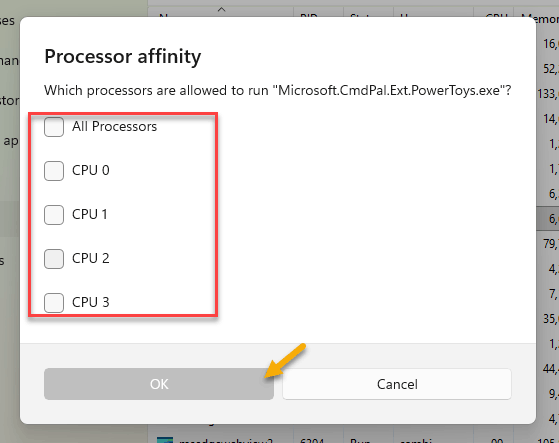
5 – Uncheck CPU 0 through CPU 15, leaving the rest checked.
6 – Click OK and tab back into the game.
Ride through a crowded area and watch. Smoother? Good. One catch: this resets every time you close the game. A free tool called Process Lasso can save the rule so you don’t redo it each launch.
Fix 2 – Swap Frame Generation to AMD
Quick one, and oddly effective.
1 – In the game’s Graphics settings, find Frame Generation settings.
2 – Then, switch it from Nvidia to AMD.
3 – Nvidia’s version is the one that’s broken right now. But AMD’s works fine even on an Nvidia card.
4 – Apply, restart the game.
This should clear up the fake stutters.
Fix 3 – Turn On V-Sync to Kill the 30 FPS Cap
Stuck at a hard 30 FPS? This is almost always it. V-Sync got switched off somewhere, and your frames fell out of sync with your screen.
1 – Open the game’s main menu and go to Options.
2 – Click Display or Graphics.
3 – Find V-Sync and set it to On.
4 – Apply the change and head back into the game.
Your frame rate should jump off 30 right away. If it doesn’t, check that your monitor’s refresh rate isn’t set low in Windows too.
Fix 4 – Stop Windows Starving Your SSD
Getting sudden frame drops while the game loads new areas? Windows might be cutting power to your drive to save energy, and the game chokes waiting for assets.
1 – Press Windows + R, type control, and press Enter to open Control Panel.
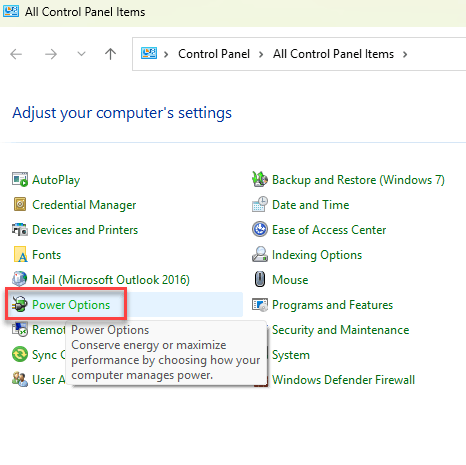
2 – Click Power Options. (If you don’t see it, switch the view to Large icons in the top-right corner.)
3 – Click Change plan settings next to your active plan.
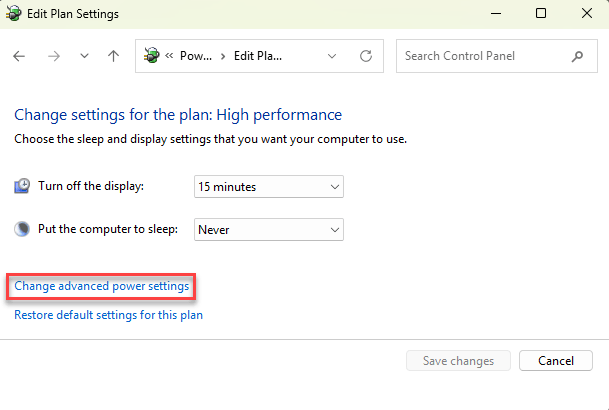
4 – Click Change advanced power settings.
5 – Expand PCI Express, then Link State Power Management.
6 – Set it to Off, then click Apply and OK.
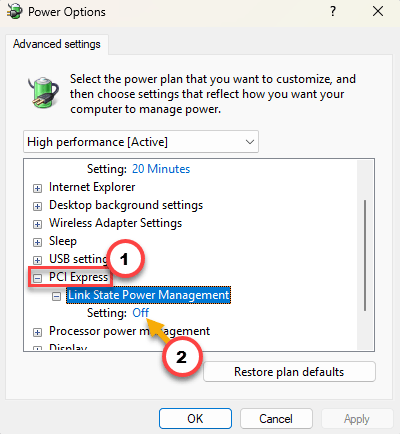
This keeps your SSD running at full speed the whole time. Handy for other games too, honestly.
Fix 5 – Disable Hyper-Threading in the BIOS
Save this for last, because it means going into your BIOS (the low-level menu that loads before Windows). The deepest fix. But on 13th and 14th Gen Intel chips, it can wipe out the stutter for good.
1 – Restart your PC and tap your BIOS key repeatedly as it boots. It’s usually F2, Del, or F12 — your startup screen flashes the right one.
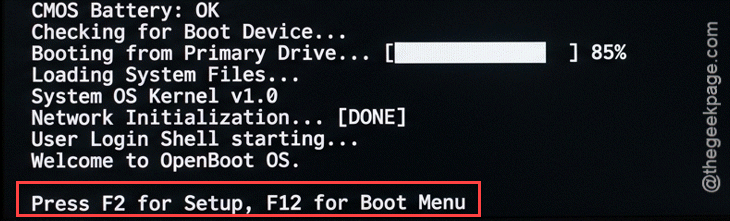
2 – Find the CPU Configuration or Advanced menu.
3 – Look for Hyper-Threading or Intel HT Technology and set it to Disabled.
4 – Save and exit. Your PC reboots into Windows on its own.
Heads up: this affects your whole system, not just the game. If you do heavy multitasking or video work, you might switch it back on when you’re done playing. For gaming alone, off tends to run smoother here.
How to Prevent This
– Update your GPU drivers before big sessions, but skim the forums first. A fresh driver sometimes breaks more than it fixes.
– Keep V-Sync on for this game. It’s the difference between a locked 30 and a smooth frame rate.
– Grab Process Lasso if you play a lot. Setting core affinity once and forgetting it beats redoing it every launch.
– Leave PCIe power management off on a gaming PC. Your drives stay fast and nothing stalls mid-load.
– Watch the patch notes. New remasters get fixed often, and the frame-gen bug may just get patched out.
People Also Ask
Is AC Black Flag Resynced 60 FPS?
It can run well above 60 on capable hardware — but a lot of players get stuck at 30 out of the box. That’s usually a V-Sync setting that turned itself off, not a hard limit. Switch V-Sync back on and your frame rate should climb past 30 right away.
Why does AC Black Flag keep stuttering?
Mostly two reasons. On newer Intel CPUs, the game misuses the performance and efficiency cores and stutters in busy areas. And Nvidia’s frame generation is currently bugged, adding stutter instead of removing it. Setting core affinity and switching frame gen to AMD clears up most of it.
Will AC Black Flag Resynced be good?
The remaster looks sharp and plays well once it’s set up right. Out of the box, though, expect some stutter and a possible 30 FPS cap on newer rigs. None of it is permanent — a few settings tweaks, all covered above, get it running smoothly on most PCs.