The screen goes black for a second. Then it’s back, with a little message saying the display driver stopped responding and has recovered.
Or you don’t get the message at all. You get a blue screen. Diablo 4 does this, and so does anything else built on Vulkan.
Why This Happens
Windows watches your graphics card. If the card doesn’t answer within about two seconds, Windows assumes it has hung and resets the driver. That’s the black flash. That’s the timeout.
So what stopped the card answering?
Two things, mostly. The first is that Windows Update likes to install its own generic display driver over the top of yours. It thinks it’s helping. What it actually does is leave a half-Microsoft, half-AMD mess behind, and Vulkan — the graphics system Diablo 4 and a lot of newer games use — breaks on the seam.
The second is boost clocks. AMD cards constantly adjust their own speed and voltage, chasing the highest number they can hold. On a lot of cards that top boost frequency is optimistic. It works fine right up until a Vulkan game asks for something specific, the card can’t deliver at that voltage, and it stops responding.
And Vulkan is much less forgiving than DirectX here. A borderline unstable card will run DirectX 12 games all evening and crash in Vulkan within ten minutes. That’s why people wrongly blame one game.
Fix 1 – Reinstall the Driver With Factory Reset
Do this before anything else. It wipes out the mixed-up driver files and the stale shader data that Vulkan chokes on.
Your screen will flicker and go black several times during the install. That’s normal.
1 – Go to AMD and download the Adrenalin installer for your exact graphics card model.
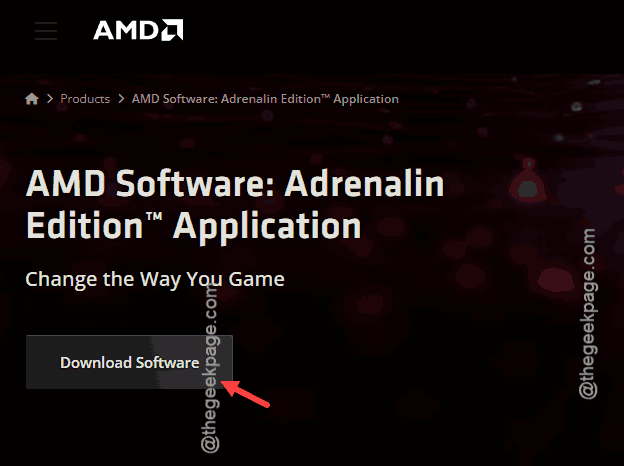
2 – Close every game and browser window.
3 – Run the installer.
4 – On the first screen, click Additional Options at the bottom.
5 – Change Software Type from Full Install to Driver Only.
6 – Tick the Factory Reset box. This is the part that clears the corrupt Vulkan layers.
7 – Click Install and wait. It takes about ten minutes.
8 – Restart your PC when prompted.
Driver Only skips the Adrenalin control panel. You lose the overlay and the recording features, but you also lose the background services that cause half the crash reports on AMD’s own forums. You can install the full package later if you want it.
Fix 2 – Give the GPU Slightly Less Speed and More Power
Counterintuitive. It works. You lower the card’s maximum clock speed a little, then raise its power limit so it holds that lower speed comfortably instead of scraping by.
You need the full Adrenalin software for this, so install the complete package if you chose Driver Only above.
First, find your card’s stock maximum boost clock. It’s listed on your card’s page at amd.com. The numbers below are from someone with a card that boosts to 2500 MHz — yours will differ, so adjust them.
1 – Open AMD Software: Adrenalin Edition.
2 – Click the Performance tab at the top.
3 – Click Tuning.
4 – Click Custom to unlock manual control.
5 – Turn on GPU Tuning, then switch it to Advanced Control.
6 – Set Max Frequency to about 200 MHz below your card’s stock boost clock.
7 – Set Min Frequency to about 200 MHz below that.
8 – Turn on Power Tuning in the same tab and drag it to +10%.
9 – Click Apply Changes.
The power limit step is the one people skip, and it’s the one that matters. Without it you’ve just made your card slower without making it stable.
Now go play the game that was crashing. If it holds up for an hour, you’ve found it. Still crashing? Drop the max frequency another 100 MHz and try again.
Fix 3 – Give the Driver Longer to Respond
If you’re getting the timeout message but no crash, and only under heavy load, Windows may simply be impatient. You can extend its two-second deadline.
Back up the registry first — in Registry Editor, click File, then Export.
1 – Press Windows + R, type regedit, press Enter.
2 – Paste this into the address bar and press Enter:
HKEY_LOCAL_MACHINE\SYSTEM\CurrentControlSet\Control\GraphicsDrivers
3 – Right-click the empty right-hand pane, choose New, then QWORD (64-bit) Value on a 64-bit PC.
4 – Name it TdrDelay.
5 – Double-click it, set Base to Decimal, and enter 8.
6 – Restart your PC.
This hides the symptom rather than curing it. Your card still hangs — Windows just waits eight seconds instead of two before resetting. Useful for diagnosis. Not a permanent home.
Fix 4 – Uninstall the Update That Started It
1 – Press Windows + I to open Settings.
2 – Click Windows Update at the bottom of the left sidebar.
3 – Click Update history.
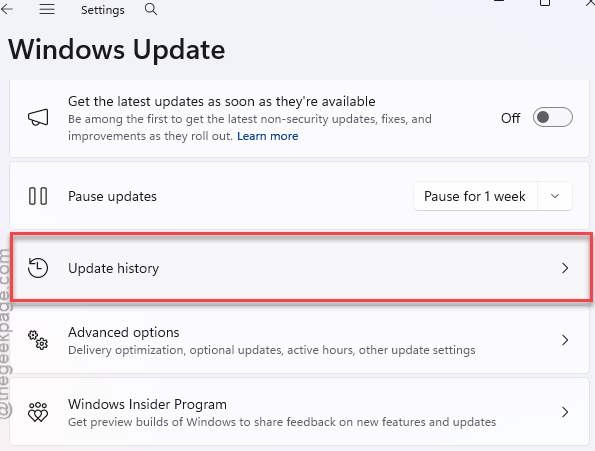
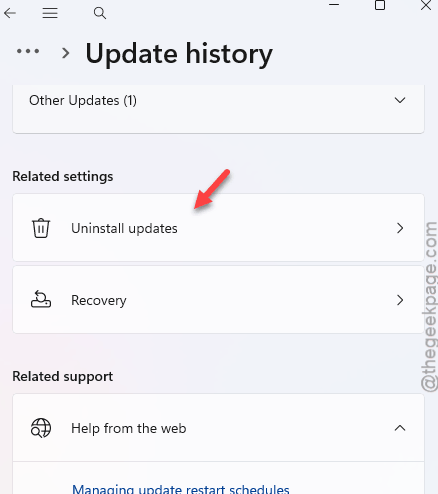
4 – Scroll to the bottom and click Uninstall updates.
5 – Find KB5074109 in the list and click Uninstall next to it.
6 – Restart.
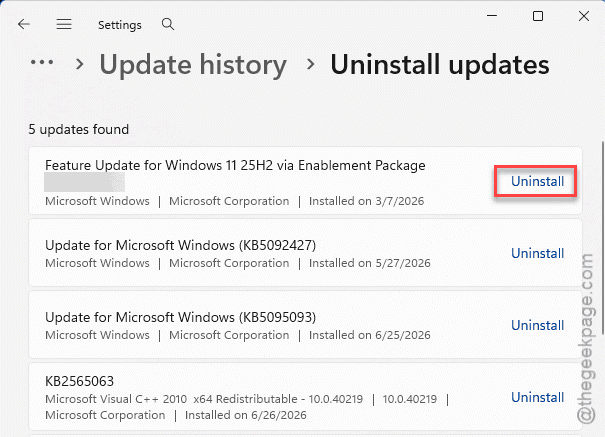
If that KB isn’t listed, look for whichever update installed on the day the crashes started. The list shows dates. And do Fix 4 straight afterwards, or Windows will put it back within a day.
Fix 5 – Stop Windows Replacing Your Driver
There’s no point doing a clean driver install if Windows overwrites it on Tuesday night. Turn the overwriting off.
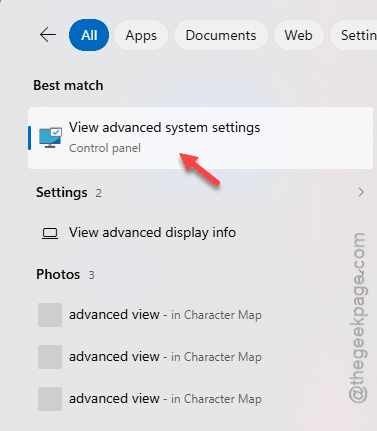
1 – Press the Windows key, type View advanced system settings, and press Enter.
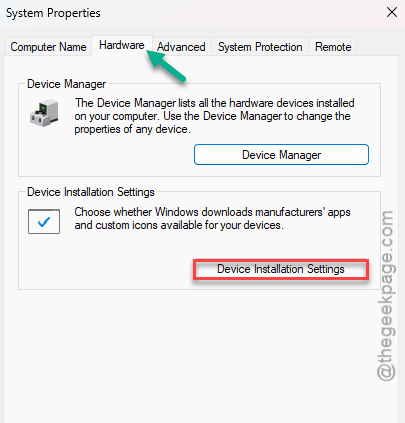
2 – Click the Hardware tab.
3 – Click Device Installation Settings.
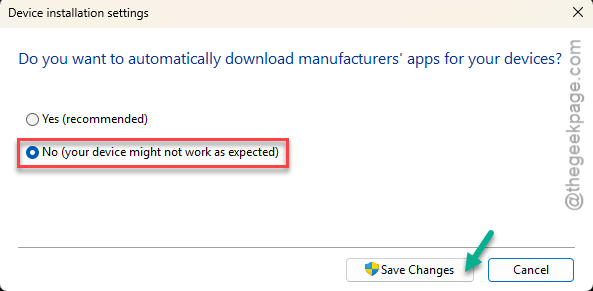
4 – Choose No.
5 – Click Save Changes.
From now on you get your graphics drivers from AMD, when you decide to. Which is how it should have worked all along.
Fix 6 – Make the Game Use DirectX 12 Instead
A workaround, not a cure, but it gets you playing tonight.
1 – In Steam, right-click the game, choose Properties.
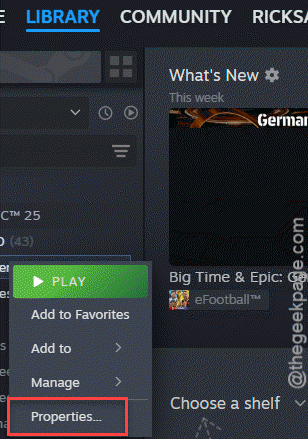
2 – In the Launch Options box type -d3d12.
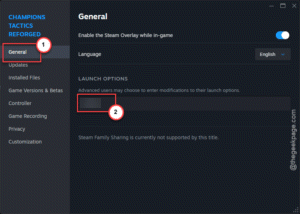
Battle.net users click the gear icon next to Play, choose Game Settings, tick Additional command line arguments, and put the same thing there.
The game now avoids Vulkan entirely. Frame rate may drop a few percent. The crashes usually stop dead.
Fix 7 – Clear the Shader Cache
Old shader files compiled against the previous driver can crash the new one. Factory Reset in Fix 1 clears AMD’s cache, but not the game’s.
1 – Open AMD Software, click the gear icon, then Graphics.
2 – Scroll to Advanced and click Reset next to Shader Cache.
3 – For Diablo 4, also open %localappdata% in File Explorer, find the game’s folder, and delete anything named ShaderCache.
4 – Launch the game. The first few minutes will stutter while it rebuilds. That passes.
Fix 8 – Go Back to Windows 11 24H2
Nothing above worked and the crashes started the day a feature update landed? Download the 24H2 ISO from Microsoft, mount it, and run setup.exe from inside it. Choose Keep personal files and apps when asked.
Back up first. It takes about an hour. And you’ll want to pause updates afterwards, or Windows will march you straight back where you came from.
How to Prevent This
– Set Device Installation Settings to No, permanently. Windows Update has no business touching your GPU driver.
– Always tick Factory Reset when you install an AMD driver. It adds five minutes and prevents most of this.
– Wait a fortnight before installing a new Adrenalin release. Let someone else find the Vulkan bug.
– If your card is factory overclocked, treat that boost number as a suggestion. A 200 MHz haircut costs about 3% performance and buys you an evening without black screens.
– Pause Windows feature updates for a month after release. The driver makers need that long to catch up anyway.
People Also Ask
How to fix AMD driver timeout in Windows 11?
Reinstall the driver from amd.com with the Factory Reset box ticked — that clears the corrupt files Windows Update left behind. Then stop Windows reinstalling its own version through Device Installation Settings. If the timeout continues under load, lower your GPU’s max frequency by 200 MHz and raise the power limit 10%.
How to fix AMD driver crashing?
Do a clean Driver Only install with Factory Reset first. Then clear the shader cache, both AMD’s and the game’s. Crashes only in Vulkan games like Diablo 4? Force the game into DirectX 12 with the -d3d12 launch option and see whether they stop. That tells you the card is marginally unstable.
What is the AMD driver issue with Windows 11?
Windows Update installs a generic Microsoft display driver on top of AMD’s, which leaves a broken mix behind. Vulkan games hit that seam and time out or blue-screen. Certain 2025 cumulative updates, KB5074109 among them, made it noticeably worse. A clean AMD reinstall plus blocking automatic driver updates fixes it.