Getting sudden frame-rate drops after updating to the iOS 26 on your iPhone? Some users have recently pointed out this problem where they have faced fps drops, stutters on their iPhones after updating to the iOS 26. Here are some tips that will help you address the fps drop, gameplay stutters.
Fix 1 – Set the Graphics Quality to Medium or Low
The frame rates in a game can improve significantly if you choose to run the game in Low or Medium graphics settings. It will fix the sudden stutters in-game as well.
Step 1 – Launch the game that you want to play.
Step 2 – Go to the Settings page and later get to the Graphics settings.
Step 3 – Set it to Medium or Low settings.
Step 4 – Some of the games may contain detailed graphics settings. Make sure to set the Texture settings and Details are also set to minimal.
This will patch the fps drop issue and ultimately fix the fps drop issue.
Fix 2 – Turn off the Background App Refresh
Disable the Background app refresh and close all the background app to free up more resources for the game.
Step 1 – Go to the iPhone Settings page.
Step 2 – Next, go to the General settings.
Step 3 – Open up the Background App Refresh module.
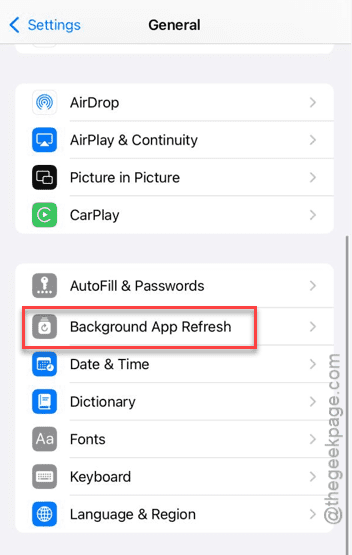
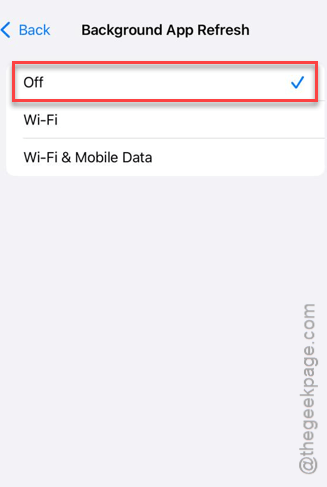
Step 4 – Turn it off from there.
Step 5 – After disabling the background app refresh, slide your finger from the bottom-left side to show up all the current running app instances.
Now, launch the game and check the performance.
NOTE – Disabling the Background App Refresh pauses background activity of certain important apps as well. Like, WhatsApp, Messages, etc. So, you should turn it back on, once you have tested it.
Fix 3 – Force restart the iPhone After Update
After updating the iPhone to iOS 26 or any iteration of it, you should perform the force-restart procedure at least once.
Step 1 – At first, press the Volume Up button and release it once.
Step 2 – Then, tap the Volume Down button and release it as well.
Step 3 – Now, it is time for you to press-hold the Power button on the iPhone until the Apple logo lights up the screen.
This is the way to force-restart your iPhone. After force-restarting the iPhone, try to play the game and test it out.
Fix 4 – Install the Latest Version of iOS
With every iteration of iOS 26, such bugs that influence this performance drops will be eliminated. So, keep an eye out for the latest iOS patches and update the iPhone.
Step 1 – Reach the main Settings page on your iPhone.
Step 2 – Next, load up the General settings.
Step 3 – Now, go to the Software Update section. Update the device from there.
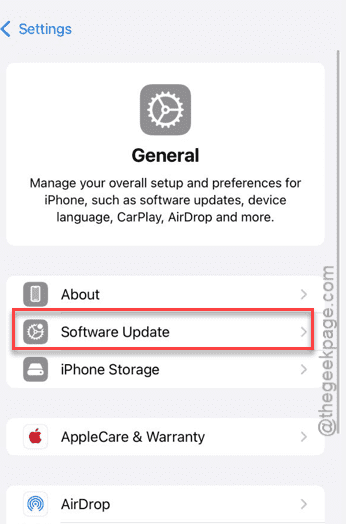
It will now download and install the latest version of the iOS on the device. Test the gaming performance post the update and check whether you are getting any improvements or not.